Free tools Windows power users keep installed
One-click scans. No signup required.
If your Sennheiser MOMENTUM 4 will not connect, disappears from a Bluetooth scan, or repeatedly announces “Lost connection,” work through the fixes in this order: charge it and check the source, re-enter pairing mode, remove stale Bluetooth entries, test close to the source, perform the approximately 20-second hardware reset, update firmware in Sennheiser Smart Control, then delete the pairing list or perform a factory reset. The sequence separates headset settings from phone/computer problems and avoids erasing pairings before simpler fixes have been tried.
First identify which kind of Bluetooth problem you have
“Not connecting” can describe several different failures. A MOMENTUM 4 that never appears in a scan has a different likely cause from one that connects but drops audio when you walk into another room. Identify the symptom before changing settings:
As an Amazon Associate I earn from qualifying purchases.
| Symptom | Most likely area | Best first checks |
|---|---|---|
| Headphones do not appear in the Bluetooth list | Headset pairing mode, battery state, or a stale/overfull pairing list | Charge the headset, switch it off, hold the multi-function button for 5 seconds, and search again |
| The source sees MOMENTUM 4 but pairing fails | Old Bluetooth entry, another device connecting first, or a source-side Bluetooth fault | Forget old MOMENTUM 4 entries, disable Bluetooth on nearby devices, and pair with the headset within about 20 cm |
| It connects and then disconnects | Distance, walls, radio interference, competing connections, or disturbed headset state | Test in clear line of sight at close range, then perform the hardware reset if the behavior continues |
| Only one phone, laptop, TV, or tablet fails | That source’s Bluetooth settings, driver, or saved profile | Remove the profile on that source and test the headset with another source |
| No source can connect after resets | Firmware or possible hardware/battery fault | Update firmware in Smart Control, factory-reset, and contact a Sonova Consumer Hearing partner if the fault remains |
Do not assume a dropout means the headphones are defective. Range, a source that is already connected, and the MOMENTUM 4’s finite profile memory can all produce the same symptom.
Quick wins for a faster PC:
Clear out junk files and repair common Windows errorsFree Scan →Fix the driver behind crashes, sound loss and screen glitchesFind Drivers →1. Check power and Bluetooth on the source
Give a fully discharged headset time to wake
Connect the MOMENTUM 4 to power and leave it charging. After a complete discharge, the instruction manual says the LED can take several minutes to illuminate. If the LED is still dark, charge for at least 30 minutes before deciding that the headset cannot power on. A headset with insufficient charge may not enter pairing mode reliably.
#1 Best Overall

- Seamless Firmware & App Updates: Enjoy a smoother, more reliable experience with the latest firmware and Smart Control Plus app features for your over the ear Bluetooth headphones, including ANC toggle and touchpad off switch for premium music quality
- Audiophile-Inspired Sound : Sennheiser wireless over-ear headphones over with signature sound, 42mm transducers and aptX Adaptive deliver crystal-clear audio and deep, immersive music. Ideal for music lovers and travelers
- Personalized Listening Experience: Tailor your sound on these wireless over ear headphones via the Smart Control Plus app with integrated equalizer, presets, and sound modes for a unique custom audio profile, whether used for music, podcasts, or gaming
- Adaptive Noise Cancellation & Transparency Mode: Block distractions or stay aware of your surroundings with these Bluetooth headphones for uninterrupted music enjoyment anywhere, ideal for commuters, students, and professionals
- Exceptional Comfort & Long Battery Life: These Sennheiser wireless noise cancelling headphones are lightweight, foldable and designed with a cushioned headband and ear pads; enjoy up to 60 hours of long-lasting comfort playback with fast charging capability
Confirm the source is actually available
- Turn Bluetooth on in the phone, tablet, computer, or television you intend to use.
- Keep the source awake on its Bluetooth settings page while pairing so you can see new devices appear.
- Temporarily disable Bluetooth on nearby phones, tablets, and computers that have previously used the headset. Those devices may connect first because the MOMENTUM 4 attempts its most recent connections at startup.
- If the source has a physical Bluetooth switch or airplane-mode control, toggle it off and on before searching again.
These checks address the source-device side of the connection. Do not delete the headset’s pairing list yet; first establish whether it has enough power and whether the source is scanning.
2. Put MOMENTUM 4 into pairing mode correctly
Pairing mode is not the same as simply turning the headphones on. Use the following procedure:
- Switch the headphones off.
- Place them within about 20 cm of the phone, tablet, computer, or TV.
- Press and hold the multi-function button for 5 seconds.
- Wait for the pairing indication, then open the source’s Bluetooth device list.
- Select MOMENTUM 4.
- Enter 0000 only if the source asks for a PIN. Most modern sources complete pairing without requesting one.
Pairing mode ends after two minutes if no connection is made. If the name disappears, switch the headphones off and repeat the five-second hold rather than waiting indefinitely on the source’s scan screen.
Keep the headset close during this first connection. Once pairing succeeds, you can test normal listening distance. Pairing from across a room makes it harder to distinguish a procedure problem from a range problem.
3. Remove stale entries and understand the six-profile limit
Forget old MOMENTUM 4 entries on the source
A phone or computer can retain a damaged Bluetooth record even though the headset is working. In the source’s Bluetooth settings, choose the saved MOMENTUM 4 entry and select Forget, Remove device, or the equivalent label. Turn Bluetooth off and on, then run the pairing procedure again. If more than one MOMENTUM 4 entry is listed, remove each old entry before searching.
Why a previously used device may stop appearing
The headphones store up to six Bluetooth connection profiles. At startup they try the last two connected devices. When a seventh device is paired, the least-used stored profile is overwritten. An older phone or laptop can therefore stop reconnecting because its profile was displaced, not because its Bluetooth hardware failed. Pair that source again using the five-second procedure.
For a clean test, turn Bluetooth off on every nearby device except the one you are pairing. This prevents a remembered device from taking the connection while you are watching another source’s scan list.
The Tool Desk
Outbyte Driver Updater FREEFix the driver behind crashes, sound loss and screen glitchesFind Drivers →Outbyte PC Repair FREERepair Windows errors before they cause bigger problemsFix Now →4. Test range, walls, and interference before resetting anything
Sennheiser documents up to 10 m of Bluetooth range for most phones and Bluetooth devices when there is a clear line of sight. That is a favorable maximum, not a guarantee through several walls, a crowded office, or a bag containing the source. Move the source next to the headset and play audio for several minutes. If the connection is stable close up but fails at your normal location, the physical environment is the primary clue.
What the “Lost connection” message means
The MOMENTUM 4 instruction manual describes the sound quality deteriorating as you leave the phone’s Bluetooth transmission range, followed by the voice prompt “Lost connection” and a complete break. Returning within range can allow the link to re-establish automatically. If it does not reconnect, wake the source, open its Bluetooth list, and select MOMENTUM 4 again.
Reduce variables during the test
- Keep the phone or computer on the same side of your body as the headphones for the first test.
- Remove walls, metal cabinets, and closed bags between source and headset.
- Pause other nearby Bluetooth accessories temporarily.
- Compare a stationary test at close range with a walking test. A failure only during movement points toward range or body-blocking rather than a lost pairing record.
5. Perform the hardware reset without deleting pairings
If the headset’s behavior is disturbed—buttons respond oddly, it will not reconnect after returning to range, or pairing mode appears inconsistent—perform the hardware reset before erasing settings. Hold the multi-function button for approximately 20 seconds, until you hear the short confirmation sound.
Rank #2
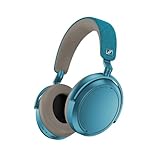
- Firmware and software updated: Enjoy a smoother, and more reliable user experience, incl. an ANC off switch in the Smart Control Plus app, and a persistent off-switch for the touchpad.
- Maximum audio resolution with Sennheiser Signature Sound: Enjoy premium music quality all-day long thanks to the headphone's audiophile-inspired 42mm transducer system and aptX Adaptive.
- Personalized sound via the Sennheiser Smart Control App: Adjust the sound to your individual listening preferences via the integrated equalizer, presets and sound modes - for a unique sound experience.
- Stay immersed in your music: Thanks to the headphone's Adaptive Noise Cancellation, you stay distraction-free - and with the Adjustable Transparency Mode you stay in touch with the world around you.
- Exceptional comfort and long battery life: Lightweight, foldable design with padded headband and deeply cushioned ear pads for long-lasting comfort - up to 60 hours of playback time with fast charging.
This reset preserves individual settings such as pairing settings. You should not need to pair every source again afterward, although you may need to select MOMENTUM 4 manually once it restarts.
The troubleshooting checklist in the manual also mentions a 15-second reset step, while the detailed reset section specifies approximately 20 seconds. Treat the detailed 20-second instruction as the operational timing; do not interpret 15 seconds as a separate, guaranteed reset mode. Keep holding until the confirmation sound rather than releasing at an exact stopwatch reading.
6. Update firmware through Sennheiser Smart Control
Firmware can affect Bluetooth reliability, so update only after the headset can make a stable connection to a smartphone. Install or open Sennheiser Smart Control, connect the MOMENTUM 4 in the app, and install any offered firmware update.
- Pair the headphones with the smartphone using the normal Bluetooth procedure.
- Open Smart Control and select the connected MOMENTUM 4.
- Follow the in-app firmware notification and keep the headphones near the phone.
- Leave the app open until installation and any restart are complete.
- Test a call and music playback after the update before changing more settings.
Sennheiser says the update is installed wirelessly over the Bluetooth connection and that Smart Control notifies and guides you through the process. Do not interrupt power or walk out of range during installation. If the app cannot maintain a connection long enough to update, return to the hardware reset and close-range pairing steps, then try again.
7. Delete the pairing list when you need a clean re-pair
A hardware reset leaves pairing information intact. Use Smart Control’s connection settings to delete the Bluetooth pairing information when old profiles or unexpected automatic connections are the problem. This is more disruptive than forgetting one source because every device will need to be paired again.
- Connect MOMENTUM 4 to Smart Control.
- Open the app’s connection or Bluetooth settings.
- Choose the command to delete Bluetooth pairing information.
- On each phone, computer, tablet, or TV, remove the old MOMENTUM 4 entry.
- Pair each source again, starting with the one you use most.
Delete the pairing list when the headset repeatedly chooses the wrong source, a source that was displaced from the six-profile limit will not pair cleanly, or several devices show duplicate MOMENTUM 4 records. Do not use it as the first response to a one-time dropout; it creates avoidable setup work.
8. Factory-reset only after the preceding steps fail
If the headset still will not connect after a hardware reset and firmware update, connect it in Smart Control and choose Factory default settings. A factory reset removes pairing settings, so every source must be paired again afterward. It is appropriate when configuration data remains corrupted or when you are preparing the headphones for another owner.
Before selecting Factory default settings
- Make sure the battery has enough charge to complete the reset.
- Record which sources you intend to reconnect; the reset will not preserve them.
- Remove old MOMENTUM 4 entries from those sources so the first post-reset pairing is clean.
- Keep the phone close and leave Smart Control open until the reset finishes.
After the reset, switch the headset off, hold the multi-function button for 5 seconds, and pair one source within about 20 cm. Add other sources one at a time so you can identify a source-specific fault immediately.
9. Separate headset faults from source-device faults
A quick cross-test prevents unnecessary resets. Try the MOMENTUM 4 with a second phone or computer. Then try a different Bluetooth accessory with the original source.
Crashes, No Sound, or Screen Glitches?
Random freezes, missing sound and display glitches usually trace back to one bad driver. Find and replace yours safely.Free scan · under a minutePC Slower Than It Used to Be?
A free scan shows the junk files, broken settings and background clutter dragging Windows down - then fixes them in one click.Free scan · Windows 10 & 11| Cross-test result | What it indicates | Next action |
|---|---|---|
| MOMENTUM 4 works with another source | The original phone, computer, TV, or its saved profile is the likely problem | Forget the MOMENTUM 4 entry, restart Bluetooth, and check source-specific drivers or updates |
| No Bluetooth accessory works with the original source | Source-side Bluetooth hardware, settings, or driver issue | Restart the source, install its system updates, and follow its Bluetooth troubleshooting procedure |
| No source can discover MOMENTUM 4 after reset and factory reset | Possible firmware or hardware fault | Contact a Sonova Consumer Hearing partner |
| Only long-distance use fails | Range, walls, body blocking, or interference | Keep the source within the documented up-to-10-m favorable range and reduce obstacles |
On Windows computers, a Bluetooth driver or adapter can be the limiting component even when the headset works normally with a phone. Treat driver troubleshooting as a source-side repair, not as a MOMENTUM 4 reset.
Rank #3

- NOISE CANCELLING HEADPHONES: Effortlessly combines noise cancellation technology with passive features so you can shut off the outside world, quiet distractions, and take music beyond the beat
- COMFORTABLE HEADPHONES: Plush over-ear cushions softly hug your ears, while a secure and comfortable padded band gently keeps your studio headphones in place for those extra-long listening sessions
- 2 LISTENING MODES: These wireless Bluetooth headphones feature Quiet and Aware Modes that let you toggle between full noise cancelling or full awareness of your surroundings for seamless sound control
- HIGH-FIDELITY AUDIO/EQ CONTROL: Supercharge your favorite tracks with high-fidelity audio and Adjustable EQ that puts you in control of the bass, mid-range, and treble for unmatched bold sound
- ALL DAY BATTERY LIFE: Bose QuietComfort wireless headphones provide up to 24 hours of battery on a single charge, plus a 15-minute charge via USB-C gives you up to 2.5 hours of additional play time
10. TV, computer, and transmitter considerations
Computers
Computers often retain multiple audio profiles for the same headset and can switch between them when an application opens a microphone. Remove duplicate MOMENTUM 4 entries, pair again, and select the headset explicitly as the active output. If the computer’s Bluetooth adapter is unreliable while a phone remains stable, investigate the computer’s adapter and driver rather than repeating factory resets.
Televisions and sources without dependable Bluetooth
A television or desktop source may have weak, incompatible, or poorly positioned Bluetooth hardware. Sennheiser lists the BTD 600 Bluetooth transmitter as a MOMENTUM 4 accessory for computers, TVs, and other sources with poor Bluetooth. It addresses the source connection; it does not repair a faulty headset. Check compatibility and the transmitter’s instructions for the specific source before buying one.
What the MOMENTUM 4 specifications imply for troubleshooting
| Specification or behavior | Practical implication |
|---|---|
| Up to 60 hours of playback per full charge | A sudden inability to pair is not explained by ordinary short battery life, but a completely discharged unit still needs charging time before its LED may appear |
| Up to 10 m range with free line of sight for most devices | Use close-range testing first; walls and other conditions can reduce the usable distance substantially |
| Up to six stored Bluetooth profiles | A seventh pairing can overwrite the least-used device, requiring that source to be paired again |
| Startup attempts the last two connected devices | Nearby remembered devices can connect before the source you are trying to pair |
| Approximately 20-second hardware-reset hold | You can restart disturbed headset behavior without deleting pairing settings |
When to stop troubleshooting and request service
Follow Sennheiser’s escalation order: reset, update firmware, review the relevant FAQ or manual procedure, factory-reset, then contact support. If the MOMENTUM 4 remains undiscoverable or will not connect to any source after those steps, contact a Sonova Consumer Hearing partner. The manual also directs owners to support when a battery is suspected to be defective.
Recommended Free Tools
When contacting support, provide the source models, operating-system versions, whether the headset appears in a Bluetooth scan, the result of the close-range test, and which reset steps were completed. State whether the failure affects every source or only one. This information helps distinguish a headset fault from a source-side Bluetooth problem and avoids repeating steps unnecessarily.
A compact recovery checklist
- Charge the headset; if the LED stays dark after a complete discharge, leave it charging for at least 30 minutes.
- Enable Bluetooth on the intended source and disable it temporarily on nearby previously paired devices.
- Switch MOMENTUM 4 off, hold the multi-function button for 5 seconds, keep it within about 20 cm, and select MOMENTUM 4. Enter 0000 only if requested.
- If it is missing, forget old MOMENTUM 4 entries and pair again. Remember that only six profiles are stored.
- Test with clear line of sight at close range, then assess walls and distance. Sennheiser’s favorable maximum is up to 10 m.
- Hold the multi-function button for approximately 20 seconds until the confirmation sound. This preserves pairing settings.
- Use Smart Control to install any available firmware update.
- If stale profiles remain, delete pairing information in Smart Control and pair every source again.
- If the problem persists, select Factory default settings in Smart Control, then perform a fresh pairing.
- If no source can connect afterward, contact a Sonova Consumer Hearing partner.
Manufacturer guidance in plain language
“If the function of the headphones is disturbed, perform a reset.”
That instruction is why the hardware reset belongs before deleting the pairing list or factory-resetting. It gives the electronics a restart while preserving the profiles you may still need.
“The firmware update will be installed wirelessly via the Bluetooth connection.”
Special offer. See more information about Outbyte and uninstall instructions. Please review EULA and Privacy policy.
Keep the phone close and the connection stable while Smart Control installs firmware; an interrupted wireless update can prevent the process from completing.
“If you, and therefore the headphones, leave the Bluetooth transmission range of the smartphone, the sound quality deteriorates increasingly until you hear the voice prompt ‘Lost connection’ and the connection breaks down completely.”
This behavior is consistent with a range limit. Confirm it with a close, unobstructed test before treating every dropout as a hardware failure.
Quick Recap
Product prices and availability are accurate as of the date/time indicated and are subject to change. Any price and availability information displayed on Amazon at the time of purchase will apply.

