Install games you play often—or that require fast storage—on an SSD. A 2.5-inch SATA SSD is usually a large improvement over a mechanical hard drive for startup, save reloads, fast travel, and level transitions. It is not universally as fast as a PCIe SSD, and an SSD does not raise your game’s FPS. A hard drive remains useful as inexpensive bulk storage for compatible games you rarely play, older titles, and an archive.
The right choice depends on four checks: each game’s storage requirement and streaming behavior, how often you wait for loads, the capacity your library needs, and the current local price per usable terabyte. Confirm that your PC or console supports the drive’s interface, form factor, power, and installation method before buying.
As an Amazon Associate I earn from qualifying purchases.
What the two drive types change in a gaming system
SATA SSD
A SATA SSD stores data in flash memory and has no moving heads or spinning platters. The common 2.5-inch model connects through SATA 6 Gbps. Its low access latency lets a game request many small files quickly, so it generally cuts waiting time compared with a hard drive. A SATA link is slower than the PCIe interface used by newer NVMe drives, but that does not make SATA unsuitable for games. In many titles, SATA load times are close to those of other SSDs.
Quick wins for a faster PC:
Clear out junk files and repair common Windows errorsFree Scan →Fix the driver behind crashes, sound loss and screen glitchesFind Drivers →Repair Windows errors before they cause bigger problemsFix Now →Mechanical hard drive
An HDD reads data from rotating platters with a moving actuator arm. It normally costs less per gigabyte and is available in large capacities, but random reads take longer. A game that repeatedly fetches textures, geometry, or small files can therefore pause, stream assets late, or take much longer to reach playable state. Two HDDs can also behave differently: spindle speed, cache, interface, fragmentation, free space, and the test system all matter.
#1 Best Overall

- High-Efficiency Performance: The SSD 1TB SATA adopts 3D NAND flash memory, which achieves a read speed of up to 560MB/s and a write speed of up to 510MB/s. Get a faster data transfer experience and improve your work efficiency.
- Upgrate Your Computer: The SATA 1TB SSD achieved faster app load and response times, and faster boot-up and shut-down, compared to HDDs. The internal SSD adopts advanced SLC Cache Technology, which improves overall computer performance.
- Reliability and Stability: The 2.5 SSD 1TB supports garbage collection, advanced wear-leveling technology, RAID, ECC, TRIM, and S.M.A.R.T, which makes the SATA SSD more reliable and stable. With the characteristics of shockproof, the SSD hard drive can keep your data safe, without worry even if your computer drops.
- Wide Compatibility: The 2.5'' SSD built-in SATA III 6Gb/S interfaces, witch backwards compatible with SATA II and SATA interfaces. The Internal SATA SSD is compatible with Windows, Linux, and Mac OS, and compatible with laptops, desktops, and all-in-one computers.
- 3-Year Service: Our SSDs come with a 3 years after-sales service and lifetime technical support. If you have any questions, please contact us and we will sincerely and professionally solve the problem for you.
How much faster are game loads on an SSD?
There is no reliable universal multiplier. Initial launches, save reloads, fast travel, level transitions, and real-time streaming exercise storage differently, and the result changes with the game patch, CPU, memory, graphics settings, and drive model. Independent 2025 tests show the range clearly.
| Game and test | SSD result | HDD result | What it shows |
|---|---|---|---|
| Marvel Rivals, PCWorld 2025 | 8 seconds on a WD Black SN770 SSD | 67 seconds on a Seagate BarraCuda HDD | A very large gap in this system and measurement method |
| Cyberpunk 2077, PCWorld 2025 | 6 seconds on the tested SSD | 63 seconds on the tested HDD | Save or game-load behavior can be dramatically different |
| Warhammer: Vermintide 2, PCWorld 2025 | 14 seconds | 22 seconds | A much smaller, but still measurable, difference |
Those figures are measurements from one computer, one SSD and HDD configuration, and PCWorld’s particular test procedure. They are not promises for every system. They do establish why a single “SSD is ten times faster” claim is misleading: the gap can be enormous in one title and modest in another.
TechSpot’s August 12, 2025 comparison tested two 2.5-inch SATA 6 Gbps SSDs (T-Force Vulcan Z TLC and Vulcan Z QLC), PCIe SSDs, a USB SSD, an 18 TB 7,200 RPM HDD, and a 3 TB 5,400 RPM HDD. Its results included these title-specific behaviors:
The Tool Desk
Outbyte Driver Updater FREEFix the driver behind crashes, sound loss and screen glitchesFind Drivers →Outbyte PC Repair FREEClear out junk files and repair common Windows errorsFree Scan →- Assassin’s Creed Shadows: the game displayed an HDD warning, and SATA took more than twice as long as an entry-level PCIe drive.
- Black Myth: Wukong: one SATA SSD produced a load 36% longer than a PCIe 3.0 SSD; the slower HDD caused instability and obvious stutter.
- Cyberpunk 2077: an HDD save reload was up to 3.8 times slower, while differences among the tested SSDs were negligible.
- F1 25: the PCIe SSDs loaded in the same time, SATA was about 8% slower, and both HDDs were viable for that title.
- The Last of Us Part II and Ratchet & Clank: Rift Apart: SATA could be markedly slower than PCIe. In the Ratchet & Clank test, SATA struggled during a real-time portal sequence.
- Indiana Jones and the Great Circle: PCIe fast-travel loads were under five seconds, while HDD play involved prolonged loading and visible pop-in.
- Starfield: PCIe 5.0 and PCIe 3.0 differed by less than a second, but SATA could be more than 50% slower on the first load.
The practical conclusion is not that every game needs the fastest PCIe drive. It is that storage behavior is title-specific. Check the requirements and current reports for games you actually play, especially newer open-world games that stream assets while you move.
Rank #2

- THE SSD ALL-STAR: The latest 870 EVO has indisputable performance, reliability and compatibility built upon Samsung's pioneering technology. S.M.A.R.T. Support: Yes
- EXCELLENCE IN PERFORMANCE: Enjoy professional level SSD performance which maximizes the SATA interface limit to 560 530 MB/s sequential speeds,* accelerates write speeds and maintains long term high performance with a larger variable buffer, Designed for gamers and professionals to handle heavy workloads of high-end PCs, workstations and NAS
- INDUSTRY-DEFINING RELIABILITY: Meet the demands of every task — from everyday computing to 8K video processing, with up to 600 TBW** under a 5-year limited warranty***
- MORE COMPATIBLE THAN EVER: The 870 EVO has been compatibility tested**** for major host systems and applications, including chipsets, motherboards, NAS, and video recording devices
- UPGRADE WITH EASE: Using the 870 EVO SSD is as simple as plugging it into the standard 2.5 inch SATA form factor on your desktop PC or laptop; The renewed migration software takes care of the rest
Is a SATA SSD good enough for modern games?
Often, yes. A SATA SSD removes the mechanical seek latency that makes an HDD feel slow, and many games show only small differences between SATA and PCIe once they are reading mostly sequential data or doing limited streaming. If a SATA SSD is already installed and compatible, moving a game from an HDD to it is usually a sensible upgrade.
However, a SATA SSD is not automatically equivalent to a PCIe SSD. TechSpot observed substantially slower SATA behavior in some newer titles and during rapid portal or world-streaming sequences. A game can also display an SSD requirement or warning that makes an HDD unsuitable and may make a slower SATA drive a compromise. Treat the game’s own requirement as the deciding rule, not the interface label alone.
When an HDD is still a reasonable game drive
An HDD can work for games that load acceptably from it and do not require an SSD. It is especially useful when your priority is keeping a large library installed rather than minimizing every wait. Older, smaller, turn-based, menu-driven, or infrequently played games may show little practical benefit from moving to flash storage.
Free tools Windows power users keep installed
One-click scans. No signup required.
Do not use an HDD blindly for a modern streaming-heavy title. Symptoms of an unsuitable drive include:
Rank #3

- SPEED UP COMPUTER: The fanxiang 1TB SSD 2.5 Inch SATA SSD achieves blazing read and write speeds of 520MB/s, facilitating rapid file and data transfers
- UPGRADE YOUR COMPUTER: Compared to HDDs, the 1TB SATA SSD boots up at least 50% faster, enabling instant productivity or gaming sessions
- LONG-LASTING DURABILITY: The 2.5 SATA SSD 1TB incorporates 3D NAND TLC chips, offering a longer lifespan in writes compared to QLC, ensuring a more reliable data storage solution
- EXTENSIVE COMPATIBILITY: The S101 1TB SATA III SSD is compatible with desktops, laptops, all-in-one PCs, supporting various operating systems like Windows, Linux, and Mac OS, meeting the needs of diverse devices
- 3-Year Service: Fanxiang S101 1TB SSD solid state drive provides 3 years after-sales service and lifetime technical support. If you have any questions, please contact us and we will sincerely and professionally solve the problem for you
- Very long initial or fast-travel loads.
- Stutter as new areas or textures arrive.
- Missing or late assets, texture pop-in, or geometry appearing after you enter an area.
- Warnings that the game requires or recommends an SSD.
- Instability or pauses during a set-piece that loads data continuously.
If you see those symptoms, verify the game’s current requirements, update it, check the drive’s health and free space, and test it from an SSD before assuming the graphics card is at fault. An HDD may remain perfectly suitable for another game on the same computer.
Capacity planning for a growing library
Modern installs can consume a large fraction of a drive. Intel uses Call of Duty: Modern Warfare at more than 200 GB as an example. That figure illustrates scale; it is not a universal size or a current capacity recommendation. Updates, optional texture packs, language files, and platform-specific requirements change over time.
Calculate from the games you will keep installed
- List the titles you expect to keep on the machine instead of counting your entire account library.
- Record each platform’s current install requirement, including optional high-resolution assets you intend to use.
- Add space for patches, shader caches, save files, and temporary installation work. A nearly full drive can lose performance and make updates fail.
- Separate frequently played or SSD-required games from titles you can archive or reinstall.
For example, a small SSD can hold the operating system and a rotating set of current games, while an HDD holds a larger backlog. You can move a game between libraries when you start or stop playing it, provided the platform supports changing its install location without a full reinstall.
Cost per terabyte: why the answer changes by region and date
HDDs generally deliver more capacity for less money per gigabyte. That advantage is why a large HDD can make sense as a secondary library or archive. SSD prices have fallen enough that a SATA model may be close to a PCIe model at some capacities, so compare the exact drives and capacities available where you live rather than assuming the interface determines value.
Rank #4

- Boot up faster. Load files quicker. Improve overall system responsiveness
- 300% faster than a typical hard drive
- Improves battery life because it’s 45x more energy efficient than a typical hard drive
- Micron 3D NAND – advancing the world's memory and storage technology for 40 years
- Crucial 3-year limited warranty
TechSpot listed a 2 TB SATA SSD at $92 and a 2 TB PCIe SSD at $107 in its 2025 article. Those were dated examples tied to that publication and market; they are not current quotations and do not establish a present SATA-versus-HDD price comparison. Before buying, divide the local purchase price by usable terabytes and account for warranty, return policy, and whether you need a mounting bracket or cable.
| Question | Why it affects value |
|---|---|
| How many games stay installed? | A larger HDD may cost less for a library, while a smaller SSD can be enough for an active rotation. |
| How often do you load or fast-travel? | Frequent waits make an SSD’s higher price easier to justify. |
| Does a game require an SSD? | Capacity savings are irrelevant if the game performs poorly or refuses to meet its requirement on an HDD. |
| What is the local price per usable TB today? | Promotions and regional pricing change; dated examples cannot answer this for your purchase. |
Storage does not increase FPS
An SSD can shorten waits and may reduce some asset-streaming hitches, but it does not directly increase frame rate. FPS is primarily limited by the CPU, GPU, game engine, settings, and display resolution. Intel describes the distinction this way: “Upgrading to an SSD won’t increase your FPS, but it can result in an improvement in some open-world titles with game engines that load in new areas and textures as you play.” Intel also states, “Games launch and levels load faster when installed on an SSD.”
That means an SSD upgrade is the right fix for loading delays, texture streaming, or storage-related stutter—not a substitute for a faster graphics card. If frame rate is low while the game is already fully loaded, changing drives is unlikely to solve it.
Compatibility checks before you buy
Confirm the physical and electrical fit for the exact computer or console. A 2.5-inch SATA SSD needs a SATA data connection and appropriate power on a desktop, or a compatible 2.5-inch bay and cable in a laptop. Some systems have an M.2 slot but no 2.5-inch bay; others have a bay but limited cable or mounting hardware. A desktop HDD may need a 3.5-inch bay and a SATA power connector. Console expansion rules differ by generation and model, so follow the platform maker’s supported-drive specification.
Best Value
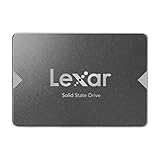
- Upgrade your laptop or desktop computer for faster startups, data transfers, and application loads
- Sequential read speeds of up to 550MB/s
- Faster performance and more reliable than traditional hard drives
- Shock and vibration resistant with no moving parts
- [1TB] 480TBW
- Check the available bay or slot and the drive’s physical dimensions.
- Verify the interface: 2.5-inch SATA is not the same connector or protocol as an M.2 PCIe/NVMe drive.
- Confirm the operating system or console can format and use the capacity you plan to install.
- Back up saves and important files before moving or replacing a drive.
- Leave enough free space for updates and temporary files.
A practical mixed-storage layout
For a capacity-constrained PC, a sensible general arrangement is an SSD for the operating system, frequently played games, and titles that require or strongly benefit from fast storage. Use an HDD for compatible games you play less often, installers, recordings, and other files. This is a strategy, not a rule: if your library is small and your budget allows, putting everything on an SSD is simpler; if your library is large, moving only the active titles preserves most of the benefit.
Choose an SSD-first layout when
- You regularly play open-world games with streaming or long fast-travel waits.
- A title lists an SSD requirement or shows stutter, pop-in, or warnings from an HDD.
- You value quick save reloads and transitions more than maximum installed capacity.
- Your local price difference between a SATA SSD and a larger HDD is acceptable.
Keep an HDD in the plan when
- You need many terabytes for a backlog or archive.
- The games stored there are known to run acceptably from mechanical storage.
- You play those titles infrequently and can tolerate longer launches.
- You already own a healthy HDD and can reserve SSD space for the demanding games.
How to move games without wasting the upgrade
- Check the game’s current storage requirement and any SSD language in its system requirements.
- Install or connect the new drive, initialize and format it using your platform’s supported file system, and confirm it appears at the expected capacity.
- Create a library folder through the launcher or console storage settings rather than manually dragging files unless the platform documents that method.
- Move the games with the longest waits or the clearest streaming problems first.
- Launch each moved title once, test an initial load and a representative fast-travel or save reload, and check for errors or missing content.
- Keep compatible, infrequently played games on the HDD and move them only when their behavior justifies the space.
Do not infer performance from copying speed alone. A drive can copy a large file quickly yet still differ in the random reads a game uses during a load or streaming event.
Troubleshooting storage-related game problems
The game still stutters after moving to an SSD
Check whether the stutter is shader compilation, a CPU or GPU limit, a game bug, or network activity rather than storage. Install current game and system updates, confirm the drive has free space, and compare the same scene from another SSD if available. Storage is only one part of the frame-time path.
The game reports an SSD requirement on an HDD
Move it to a compatible SSD and retest. If no SSD has enough free space, remove optional content, use a larger SSD, or reserve the HDD for another title. Do not treat an in-game warning as a guarantee that every SATA or PCIe model will perform identically; it identifies a storage class the developer expects.
Loads are slower than published examples
Published numbers use specific hardware, patches, and test procedures. Check drive health, SATA mode, cable connections, background downloads, free space, and whether the game is loading from a different drive than expected. Compare repeated runs on your own system before deciding that the drive is defective.
The new drive is not detected
Recheck power and data connections, firmware or BIOS storage settings, and the operating system’s disk-management utility. On a laptop or console, verify that the model supports the physical size and interface; an M.2-only system cannot accept a 2.5-inch SATA drive without a supported external solution.
Bottom-line decision
Choose a SATA SSD when you want a broadly useful, low-latency game drive and your system supports a 2.5-inch SATA device. Choose PCIe storage when a demanding title shows a meaningful SATA disadvantage and your system and budget support it. Keep an HDD for inexpensive capacity, backups, and games that remain smooth and compliant from mechanical storage. Let the individual game’s requirements and your actual waiting time decide which titles go where.
What’s actually slowing this PC down?
Pick the symptom - the matching free tool is one click away.
Quick Recap
Product prices and availability are accurate as of the date/time indicated and are subject to change. Any price and availability information displayed on Amazon at the time of purchase will apply.

