On the Galaxy A57, start at Settings > Device care > Battery to see battery use and choose the controls that fit your needs. For privacy, review recent permission activity and manage app access under Settings > Security and privacy. These changes can limit background activity or unnecessary access, but Samsung’s guide does not quantify how much battery life any individual setting saves.
How to make your Galaxy A57 battery last longer
Use the battery overview before changing settings: it helps you identify what is using power and gives you access to the A57’s battery controls. The paths below are from Samsung’s Galaxy A57 Android 16 user guide. Menu names and available options can vary by software version, country, region, carrier, or service provider; if a path does not match your phone, search Settings for the setting name.
As an Amazon Associate I earn from qualifying purchases.
Review battery use first
Open Settings > Device care > Battery. The Battery information view shows battery status, level, and capacity. It is useful for checking the phone’s condition and usage, but viewing it does not itself improve runtime.
Use Power saving when reduced background activity is acceptable
On the Battery screen, turn on Power saving. Samsung says it limits background network usage, syncing, and location checking. This can make sense when you want to reduce background activity, such as when you are away from a charger, but updates or location-dependent behavior may be delayed or limited while the restrictions apply.
#1 Best Overall

- Military-grade drop protection via Air Cushion Technology
- Resilient shock absoprtion and carbon fiber design
- Raised edges for screen and camera protection
- Compatible with wireless charging [NOT compatible with MagSafe]
- Spigen Rugged Armor Case Compatible with Samsung Galaxy A57 5G Case
There is no published figure in the cited materials for how much runtime Power saving adds. Samsung also notes that actual battery life varies with factors including network conditions, apps and features used, calls and messages, and charging frequency.
Restrict only apps that do not need timely background activity
On the Battery screen, open Background usage limits. The guide says this identifies apps used infrequently and limits their battery use. Review the list rather than applying restrictions indiscriminately: an app that needs to deliver timely messages, sync files, or perform another background task may be less convenient when limited. The guide does not quantify the battery savings from this control.
Choose Battery protection for your charging preferences
Open Settings > Device care > Battery > Battery protection to choose a method intended to extend battery lifespan. This is a charging and longevity choice, not a setting for a guaranteed increase in daily runtime. The cited guide passage does not establish one universally best threshold or quantify lifespan gains, so choose from the options actually shown on your phone.
Crashes, No Sound, or Screen Glitches?
Random freezes, missing sound and display glitches usually trace back to one bad driver. Find and replace yours safely.Free scan · under a minuteWindows Errors? Fix Them Before They Spread
Repair common Windows errors and clear accumulated junk for a smoother, more stable PC - no reinstall needed.Free scan · no reinstallCheck charging settings and automatic dimming
Charging settings on the Battery screen let you customize charging behavior; available choices may vary by software or service provider. The A57 guide also says Auto dim screen dims the display when battery charge is below 5%. That is a low-charge behavior, rather than a general-purpose screen setting for every battery level.
Use Optimize now as a diagnostic, not a routine memory-clearing ritual
Open Settings > Device care > Optimize now. According to Samsung’s guide, this can identify apps using excessive battery power, clear unneeded items, delete unnecessary files, close background apps, and scan for malware. Review what the phone reports; the guide does not establish that routinely clearing memory will improve battery life.
Rank #2
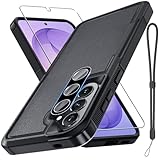
- Compatible Model: Special design for Samsung Galaxy A57,Released in 2026.Package: 1 x phone case,1 x separate HD tempered glass screen protector,1 x camera lens protector,1 x nylon wrist wtrap lanyard
- Military Grade Protection: Hard PC back cover,soft TPU bumper combined to provide dual layer protection. The shock-absorbing TPU bumper keep your phone safe from the occasional drop,while its PC back will protect your phone from daily wear and tear
- Comfortable Grip: The new super cool dual layer design adds non-slip stripes to the side of the case,and the surface of the hard PC back cover is specially frosted. It makes the phone slim and easy to hold for a natural and comfortable feel
- Precise Cutting: Precise clipping ensures easy access to all buttons and ports. Besides,0.08 inch raised screen bezel and 0.12 inch raised camera bezel to provide extra protection for your GalaxyA57
- Full Body Protection: This two-in-one combination of military grade tough protective case,Four-corner grooved airbags,unique shock absorption design. Raised lips keeps camera lifted to prevent your lens from shock,collision and scratch
What privacy settings should you change on the Galaxy A57?
There is no single privacy configuration that suits every app or use case. A practical approach is to check which permissions were recently used, then remove access that an app does not need while preserving permissions required for features you rely on.
Check recent permission use
Go to Settings > Security and privacy > Permissions used in last 24 hours. Samsung’s guide describes reviewing permissions or apps and inspecting recent use, including activity over up to seven days in the feature description. Use this screen to decide whether an app’s access makes sense for how you use it; a recent-use list is an audit aid, not proof that an app is harmful.
Control camera, microphone, and clipboard access
Open Settings > Security and privacy > Controls and alerts. The guide describes camera access and microphone access toggles for apps that have those permissions, as well as clipboard-access alerts. Turning off camera or microphone access can prevent apps from using those sensors, but it can also stop features that depend on them. Clipboard alerts can help you notice access; decide separately whether an app should retain clipboard permission or functionality.
Set location access app by app
Go to Settings > Location > App permissions. The available choices differ by app, and Samsung notes that some apps require location services. Match each app’s access to its purpose instead of turning location off universally—for example, a feature that depends on location may stop working or become less useful without it.
Review Samsung and Google privacy services
Open Settings > Security and privacy > More privacy settings to review Samsung and Google privacy services. Data-sharing and personalization choices depend on your preferences and on which services you use. Review the effect of each option rather than disabling everything by default, since some services or personalized features may change.
Rank #3
![Spigen for Galaxy A57 5G Case, Tough Armor [Military-Grade Protection] - Black](https://m.media-amazon.com/images/I/41S5bGOEfzL._SL160_.jpg)
- Hybrid PC and TPU structure with Air Cushion Technology to achieve a slim but durable design
- Raised edges for screen and camera protection Military-grade via Extreme Protection Tech
- All-new revamped design with built-in kickstand for hands-free viewing
- Compatible with wireless charging [NOT compatible with MagSafe]
- Spigen Tough Armor Case Compatible with Samsung Galaxy A37 5G Case
Other Galaxy A57 security controls worth checking
Auto blocker
Open Settings > Security and privacy > Auto blocker. Samsung describes it as a way to block threats and suspicious activity. The guide does not establish that every advanced option is available in every region or software build, so use the controls displayed on your device.
The Tool Desk
Outbyte PC Repair FREEClear out junk files and repair common Windows errorsFree Scan →Outbyte Driver Updater FREEScan for outdated or missing drivers - takes under a minuteDriver Scan →Secure Folder
Find it under Settings > Security and privacy > More security settings > Secure Folder. Samsung says a Samsung account is required to set it up and use it.
Find My Mobile and lost-device protection
Open Settings > Security and privacy > Lost device protection. Samsung says a Samsung account is required and Google location service must be on. Options include allowing the phone to be found and sending its last location when the battery charge falls below a threshold. These settings can help with recovery, so weigh their location requirements against your privacy preferences.
Security updates and Google Play Protect
The A57 guide describes checking for security updates and configuring Google Play Protect to regularly check apps and the device for security risks. Keep these protections in mind as part of security maintenance, separate from battery tuning or app-permission choices.
What Samsung’s battery-life estimate does—and does not—tell you
Samsung’s product page says its published battery-life estimate is based on an average usage profile compiled by UX Connect Research and an independent assessment in the UK from January 8 to January 18, 2026. The assessment used pre-release SM-A576 units with default settings on LTE and 5G Sub-6; it did not test 5G mmWave. That is a specific test context, not a test of the settings in this article or a prediction of every owner’s runtime. Samsung says real-world battery life varies with network environment, features and apps, calls and messages, number of charges, and other factors.
Quick wins for a faster PC:
Repair Windows errors before they cause bigger problemsFix Now →Scan for outdated or missing drivers - takes under a minuteDriver Scan →Clear out junk files and repair common Windows errorsFree Scan →The instructions here are based on the Samsung Galaxy A57 5G product page and its Android 16 user guide. Samsung also lists regional support materials on its Galaxy A57 model support page. Labels can change as software and regional builds change; try Settings search for “Battery protection,” “Power saving,” “Permissions,” or “Auto blocker” if needed.
Quick Recap
Product prices and availability are accurate as of the date/time indicated and are subject to change. Any price and availability information displayed on Amazon at the time of purchase will apply.

