Free tools Windows power users keep installed
One-click scans. No signup required.
Samsung Art Store is the catalog and subscription service; Art Mode is the television state that displays artwork; Ambient Mode is a separate or integrated ambient-display experience whose behavior depends on the TV model and year. On Samsung’s 2025 QLED models, Samsung says Ambient Mode has been integrated into Art Mode, so the labels are not universally interchangeable. Your exact model, model year and country determine which menus, artwork and settings you receive.
The three terms in one minute
Samsung uses three related names for different parts of its decorative-screen system. The Art Store is the content source: a catalog where you browse and select licensed artwork, save collections and manage membership. Art Mode is the presentation state: the compatible television shows a painting, photograph or other artwork instead of appearing as a conventional blank screen when you are not watching television. Ambient Mode is an ambient display feature that can show visual information or decorative content, but its relationship with Art Mode changes by model and generation.
As an Amazon Associate I earn from qualifying purchases.
Samsung’s own wording captures the intended Art Mode experience as “TV when it’s on. Art when it’s off.” Samsung UK uses that tagline for its Art Store offering. It describes what Art Mode does, not what the Art Store is: the store supplies choices, while Art Mode displays them.
Quick wins for a faster PC:
Fix the driver behind crashes, sound loss and screen glitchesFind Drivers →Repair Windows errors before they cause bigger problemsFix Now →Scan for outdated or missing drivers - takes under a minuteDriver Scan →The practical consequence is simple. You can have Art Mode without paying for the complete Art Store catalog if your television supports personal photos or free artwork. You cannot treat “Ambient Mode” as a universal synonym for either the store or Art Mode, because Samsung has changed the implementation across product lines.
#1 Best Overall

- DESIGNED TO LOOK LIKE A PICTURE FRAME: Looks like real art with a slim design that mounts flush to the wall, customizable bezels* to match your style, and an external hub that connects the TV to power and your devices with a single wire.
- YOUR PERSONAL ART GALLERY ON YOUR TV: When you're not watching TV, the Frame transforms into art**. Access a curated collection from the Art Store*** or upload your own photos****. Finish the look with various mat styles and colors.
- LIFELIKE PICTURE WHEN IT’S ON, MUSEUM-WORTHY WHEN IT’S OFF: Enjoy stunning colors when you're watching TV and admire lifelike artwork when you're not. Discover subtle details and bold colors and appreciate art as if you were in a gallery.
- THE NEXT BIG THING IN TELEVISION: TV, tailored to you with AI-enhanced***** picture & sound plus revolutionary personalized experiences that let you engage more deeply with your content.
- MAKES ART LOOK LIKE REAL ART WITH A PRINT-LIKE FINISH: See your favorite works like you're seeing them hanging in a gallery or museum. The virtually glare-free screen has subtle, matte texture, making art look like a real print.
Art Store, Art Mode and Ambient Mode compared
| Feature | What it is | What you do with it | Typical availability |
|---|---|---|---|
| Art Store | A catalog and account service containing artwork for compatible Samsung TVs. | Browse, select, save and manage artwork; join or manage membership for the broader catalog. | Supported Art TV models; catalog and membership terms vary by country. |
| Art Mode | A display state that presents art while the TV is not being used for ordinary viewing. | Choose artwork, adjust presentation settings and let the TV show a decorative screen between viewing sessions. | Supported models, most notably Samsung’s The Frame line; exact eligibility varies by model and region. |
| Ambient Mode | An ambient-screen experience whose functions and relationship to Art Mode depend on the model. | Display ambient visuals or information when the TV is idle, using the options offered by that television. | Model- and year-dependent; Samsung says it is integrated into Art Mode on 2025 QLED models. |
That distinction prevents a common buying and setup mistake: looking for a “mode” when you actually need a catalog, or subscribing to the catalog when your goal is only to display photographs you already own.
What the Samsung Art Store provides
A large, changing catalog
Samsung’s US Art TV page describes access to more than 5,000 works of art. That is a current catalog claim from Samsung’s US page retrieved in 2026, not a permanent guarantee that the same number will be available in every country or at every later date. Catalog size, licensing and regional availability can change.
The store is intended for browsing and curation rather than for downloading a general-purpose image library. You select pieces through the television’s Art Store interface, organize favorites or collections where the model supports those controls, and choose what Art Mode presents. The catalog can include paintings, photography and other licensed visual work; the exact categories shown to you depend on the account region and TV model.
Do these 3 things before closing this tab:
1Fix the driver behind crashes, sound loss and screen glitches2Repair Windows errors before they cause bigger problems3Scan for outdated or missing drivers - takes under a minuteMembership and free options
Samsung says the complete premium catalog may require an Art Store membership, but membership is not the only way to put an image on a compatible Samsung TV. Samsung also documents personal-photo support and selected free artwork.
Samsung’s US page lists membership at $4.99 per month or $49.99 per year. Those are US prices shown by Samsung’s page retrieved in 2026. They are not a worldwide price list, and Samsung can change prices, offers, taxes and billing terms. Confirm the amount shown at checkout for your country before subscribing.
Samsung UK describes two additional free-content figures: more than 370 free pieces annually and 30 handpicked artworks each month through Art Store Streams. The UK page says free counts can change without notice, monthly timing may vary by region, and availability depends on country and model. Treat those numbers as the UK page’s current description, not as a fixed entitlement for every owner.
A subscription therefore changes the breadth and convenience of the catalog; it is not a technical requirement for every Art Mode use. If you only need family photos or a small selection of free pieces, start without membership and see what your model exposes.
What Art Mode actually does
The display state
Art Mode takes over when the television is not being used for ordinary TV viewing. Instead of showing a black screen, standby indicator or a conventional screensaver, the panel presents selected artwork. This is why Art Mode is a feature of the television’s operating experience, not a separate content store.
Rank #2
- DESIGNED TO LOOK LIKE A PICTURE FRAME: Looks like real art with a slim design that mounts flush to the wall, customizable bezels* to match your style, and an external hub that connects the TV to power and your devices with a single wire.
- YOUR PERSONAL ART GALLERY ON YOUR TV: When you're not watching TV, the Frame transforms into art**. Access a curated collection from the Art Store*** or upload your own photos****. Finish the look with various mat styles and colors.
- LIFELIKE PICTURE WHEN IT’S ON, MUSEUM-WORTHY WHEN IT’S OFF: Enjoy stunning colors when you're watching TV and admire lifelike artwork when you're not. Discover subtle details and bold colors and appreciate art as if you were in a gallery.
- THE NEXT BIG THING IN TELEVISION: TV, tailored to you with AI-enhanced***** picture & sound plus revolutionary personalized experiences that let you engage more deeply with your content.
- MAKES ART LOOK LIKE REAL ART WITH A PRINT-LIKE FINISH: See your favorite works like you're seeing them hanging in a gallery or museum. The virtually glare-free screen has subtle, matte texture, making art look like a real print.
Samsung describes compatible Art TVs as adjusting brightness and color tone to the room’s lighting. The goal is to make the image look more like a framed work under changing ambient light rather than a bright electronic panel. The exact controls and degree of automation differ by model.
Motion sensing and automatic behavior
Samsung also describes a motion sensor that can turn an Art TV on or off. In a room with no one present, the display can remain dark; when movement is detected, it can resume the artwork. Sensor behavior, timeout settings and energy-saving controls vary, so do not assume that every compatible model uses the same trigger or delay.
Art Mode does not make a television physically indistinguishable from a framed print. Panel reflections, viewing angle, backlight behavior and power consumption still depend on the hardware. It does, however, provide the software state and controls that turn a supported display into a room-facing art screen.
The Tool Desk
Outbyte Driver Updater FREEFix the driver behind crashes, sound loss and screen glitchesFind Drivers →Outbyte PC Repair FREEClear out junk files and repair common Windows errorsFree Scan →How Ambient Mode fits in
Why the name causes confusion
Ambient Mode sounds like a generic name for any idle-screen artwork, but Samsung has used it for a model-specific feature set. One television may present Ambient Mode as a distinct menu containing decorative backgrounds, clocks or information. Another may fold those functions into Art Mode. The label alone does not tell you which controls will appear.
2025 QLED integration
Samsung’s guide for its 2025 QLED models says Ambient Mode has been integrated into Art Mode. On those models, seeing “Art Mode” where an older guide says “Ambient Mode” is expected; it is a change in organization rather than proof that a feature is missing.
Samsung Canada documents Ambient Mode separately and warns that availability and settings can vary. That regional documentation is important because menu names, supported functions and even whether a setting is exposed can depend on the country, firmware and model year. Always use the support documentation for the exact model code sold in your market.
Compatibility: check the model, year and country
Do not infer support from the word “Samsung” or from a retailer’s generic television description. Art Store access, Art Mode, Ambient Mode, sensor behavior and personal-photo tools are all subject to product eligibility.
Samsung identifies The Frame as a product supporting Art Mode, and its support guide explains how owners can add artwork through SmartThings or a USB device. Samsung’s current US Art TV page also includes newer Art TV models, while a Samsung FAQ names The Frame and OLED S95H. That apparent mismatch reflects changing model-line coverage and documentation, not a universal list of every supported television.
Rank #3
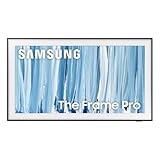
- SPECTACULAR MINI LED-POWERED GLARE-FREE PICTURE: Experience bold contrast in both dark and bright scenes with precise mini LED lighting that reveals hidden details. When you're not watching shows, our best Art TV picture delivers spectacular 4K visuals that reveal masterpieces to rival those in museums and galleries. The matte display both enhances the texture of your favorite artworks and virtually eliminates distracting reflections — so you can fully enjoy your favorite True Crime series, Cubist masterpiece from MoMA, or both
- A PICTURE FRAME AESTHETIC WITH WIRELESS CONNECTION HUB¹: Cutting-edge tech meets contemporary design to elevate your viewing experience. This masterpiece features customizable bezels² to complement your personal aesthetic, transforming your television into a sophisticated work of art that blends into your decor. Say goodbye to tangled wires¹ and hello to endless possibilities for mounting options. Let this TV become the focal point of your home, with TV when it's on and art when it's off
- TURN YOUR TV INTO A MASTERPIECE: Enjoy a personal art gallery at home with Art Mode.³ Transform your TV into one of over 5,000 Art Store⁴ pieces from renowned artists like Salvador Dali and museums such as The Met and MoMA. Adaptive brightness, motion sensors and a matte finish recreate the look of real canvas, while customizable layouts let you refresh your space for any occasion
- EXPERT-VALIDATED COLOR FOR LIFELIKE VIEWING: Immerse yourself in stunningly accurate colors and breathtaking skin tones, expertly validated by the renowned Pantone professionals. As the leading authorities on color fidelity, Pantone guarantees that every hue and tone you see on screen is a true-to-life representation. This enhances your viewing experience, whether you're captivated by your favorite True Crime series or admiring a magnificent masterpiece from MoMA. Indulge in a world of vibrant visuals that elevate every moment
- HANGS LIKE A PICTURE: Mount The Frame flush against the wall, just like a picture, to create the illusion of an actual piece of art. With a minimal gap between the TV and the wall, it blends seamlessly with your art collection and paintings. Plus, it keeps the design uncluttered since there’s just one sleek cable connected to it
Before you buy artwork or a membership, verify all of the following:
- The complete model code, including letters that identify size, tuner region or generation.
- The model year and firmware version.
- Your country or Samsung account region.
- Whether the product page explicitly lists Art Mode, Art Store access or Ambient Mode.
- Whether personal photos can be imported by SmartThings, USB, or both.
- Whether the artwork, streams and membership shown in the store are available in your market.
Samsung’s regional support pages are the authority for the exact menu and compatibility combination. A tutorial written for a previous generation can be directionally useful but still show labels that no longer exist on your set.
How to put artwork on a compatible Samsung TV
Open the built-in store or Art Mode
- Turn on the TV and open its Home or Smart Hub screen.
- Select the tile labeled Art Mode, Art Store or an equivalent art-related option. The label depends on the model and software generation.
- Browse the available categories, featured pieces or free selections.
- Open an artwork’s details to see whether it is included with your account, free on that model, or reserved for members.
- Select the command to display, save or add the piece to your collection. The wording varies by interface.
- Exit ordinary TV viewing and switch to Art Mode to confirm that the selected piece appears.
If you cannot find an Art Store tile, do not assume that a subscription will unlock it. First verify the model’s support page, country setting and software version. A television without the required Art Mode implementation cannot be converted by an account purchase alone.
Add personal photos with SmartThings
Samsung’s US support guidance for The Frame says owners can add personal photos through the SmartThings app. The exact screens change with app and TV revisions, but the workflow is generally:
- Install or update SmartThings on the phone or tablet you use with the TV.
- Sign in to the Samsung account associated with the television and add the TV to the app if it is not already listed.
- Open the TV’s art-related controls in SmartThings and choose the option for personal photos or mobile-gallery content.
- Select the image or images, then send or apply them to the TV.
- On the television, choose the imported photo in Art Mode and adjust any available mat, crop, brightness or color controls.
SmartThings may request permission to access your device’s photos. If the TV and phone are using different Samsung accounts, pairing or content transfer can fail even when both devices are on the same home network.
Add personal photos from USB
Samsung also documents USB import for The Frame. Use a USB device containing the photos in a format accepted by your model, then:
- Copy the photos to the USB device and eject it safely from the computer.
- Insert the USB device into the TV’s USB port.
- Open Art Mode or the TV’s media/art browser and select the USB source.
- Choose the photo and follow the on-screen command to copy, import or display it in Art Mode.
- After the TV confirms the import, remove the USB device using the TV’s safe-removal option if one is shown.
Menu names and supported file formats are model-specific. If a photo appears in the USB browser but cannot be imported into Art Mode, check the exact support guide rather than repeatedly reformatting the drive.
Recommended Free Tools
Manage membership
Membership is managed from the Art Store or the Samsung account flow offered on your television. Review the billing period, renewal terms, country and account before confirming. A monthly plan and an annual plan may not be interchangeable after purchase, and a membership bought in one region may not transfer when the account or TV region changes.
Rank #4

- GLARE FREE WITH NEO QLED: With mini LEDs for precision lighting, our best Art TV picture delivers spectacular and immersive viewing. Enjoy your favorite shows without distracting reflections, allowing you to immerse yourself in the content—whether the sun is streaming through your windows or that one lamp is on while watching the latest thriller.
- MODERN FRAME DESIGN WITH WIRELESS ONE CONNECT: Elevate any room with this stunning fusion of technology and artistry. Customizable bezels* let you choose your style, while the revolutionary wireless connection hub**, allows for flexibility in mounting options, free from unsightly cords and clutter.
- ART MODE / ART STORE: Enjoy a personal art gallery at home with access to over 5,000 artworks* from iconic museums and artists worldwide, available through the Art Store** and the innovative technology of Art Mode, which features adaptive brightness, a matte finish, and motion sensors that transform your space into a true-to-life gallery experience.
- PANTONE VALIDATED ARTFULCOLOR: Enjoy stunning colors whether you're watching TV or admiring lifelike works of art. Pantone Validated ArtfulColor brings your favorite artwork to life for a realistic, museum-like viewing experience.
- SLIM FIT WALL MOUNT INCLUDED: The Frame looks like art for many reasons. When mounted flush against the wall, the gap between the TV and the wall is minimal, creating the illusion of a genuine piece of art.
Which option fits your goal?
| Your goal | Best starting point | What to verify |
|---|---|---|
| Display family photographs or your own photography. | Art Mode with SmartThings or USB import. | Personal-photo support, accepted formats and storage limits on your model. |
| Rotate a broad selection of museum-style or licensed artwork. | Art Store membership on a supported Art TV. | Catalog availability, local price and whether desired pieces are included. |
| Show a clock, information or decorative ambient screen. | Ambient Mode, or the Ambient section integrated into Art Mode. | Exact model-year behavior; Samsung’s 2025 QLED guide places Ambient Mode inside Art Mode. |
| Keep the room screen dark when nobody is present. | Art Mode with motion-sensor and timeout settings. | Whether the model has a sensor and which energy-saving controls are offered. |
| Buy a TV specifically for framed-art presentation. | A product explicitly marketed with Art Mode, such as The Frame. | Current model support in your country, not just an older review or US listing. |
This framework separates the content decision from the hardware decision. The store answers “what can I choose?” Art Mode answers “when and how is it shown?” Ambient Mode answers “what idle-screen tools does this model provide?”
Costs, ownership and practical limits
The most visible recurring cost is the Art Store membership. Samsung’s US page lists $4.99 monthly or $49.99 annually, while Samsung UK’s page emphasizes free pieces and streams whose count and availability can change. Because these figures are regional and time-sensitive, use the amount displayed by your own TV or Samsung account as the price that governs your purchase.
Personal photos avoid the catalog subscription but do not remove every limitation. You still need a compatible television, suitable image files, enough internal storage or an attached source during import, and time to arrange the crop and mat so the image looks correct on the panel. A USB drive can be used for transfer even if it is not left connected permanently, depending on the model’s import behavior.
What’s actually slowing this PC down?
Pick the symptom - the matching free tool is one click away.
Artwork licensing also explains why a piece can disappear, become unavailable in one country or move between free and paid areas. The catalog is a service, not a permanent promise that every listed work remains accessible indefinitely.
Troubleshooting common problems
There is no Art Mode or Art Store option
- Confirm the full model code and compare it with Samsung’s support page for your country.
- Check whether the TV is using the intended Samsung account and region.
- Install available firmware updates, then restart the TV.
- Look for a renamed or integrated menu, especially on 2025 QLED models where Ambient Mode is integrated into Art Mode.
- Do not assume a membership purchase can add a hardware feature that the model does not support.
Ambient Mode instructions do not match the screen
That usually indicates a model-year or regional difference. Use the guide for the exact model rather than an article written for another QLED, The Frame generation or country. On some sets the relevant controls are under Art Mode; on others they remain under an Ambient Mode heading.
A personal photo will not transfer
- For SmartThings, verify that the phone and TV are paired to the same Samsung account and that photo permission is enabled.
- For USB, try a different supported drive or file format listed in the model’s guide.
- Check the image dimensions and file size if the TV displays the file but rejects the import.
- Update SmartThings and the TV before attempting the transfer again.
The artwork is too bright, dim or cropped
Open the artwork’s presentation controls in Art Mode and adjust the available brightness, color tone, mat or crop options. Remember that Samsung’s automatic room-light adjustment can change the result during the day. Reflections and the room’s own lighting can also make a correctly configured image look different from the same file on a phone or computer.
The screen does not turn on when someone enters
Check whether the model includes a motion sensor, whether sensor detection is enabled, and whether a timeout or energy-saving setting is turning the panel off. Sensor range and wake behavior are hardware-dependent; a television without the sensor cannot gain that behavior through the Art Store.
How to read Samsung’s changing terminology
When Samsung documentation uses “Art Store,” read it as a source of content and account features. When it uses “Art Mode,” read it as the display state. When it uses “Ambient Mode,” check the specific model guide before deciding whether it is a separate mode or a section folded into Art Mode.
This interpretation also explains why two owners can report different menus while both are accurately describing their televisions. Samsung’s US, UK and Canadian pages cover different markets and model generations, and Samsung explicitly notes that availability, settings and content vary.
Bottom line
The Art Store is where artwork comes from; Art Mode is how a compatible Samsung TV shows it when you are not watching television; Ambient Mode is a model-dependent ambient display feature that Samsung has integrated into Art Mode on 2025 QLED models. Choose the store only if you want its catalog, and verify your exact model before relying on any menu name, artwork count, free-content offer or membership price.
Quick Recap
Product prices and availability are accurate as of the date/time indicated and are subject to change. Any price and availability information displayed on Amazon at the time of purchase will apply.

