Start with Settings > System > Power & battery > Energy recommendations, then enable Energy saver, dim the display, choose a lower refresh rate when practical, shorten screen and sleep timers, and assign non-demanding apps to Power saving graphics. Finally, use Battery usage to find apps that keep working in the background. These changes can materially extend unplugged time, but no single runtime applies to every RTX Spark laptop.
RTX Spark is a platform for slim Windows laptops aimed at AI development, creative work and gaming. Microsoft lists designs including Surface Laptop Ultra, ASUS ProArt P14, ASUS ProArt P16, Dell XPS 16, HP Omnibook Ultra 16 and Lenovo Yoga 9n 2-in-1 16. Their batteries, screens, cooling systems, firmware and workload profiles differ. Microsoft explicitly says battery life “varies significantly by device and with usage, settings and other factors,” while NVIDIA’s all-day positioning is not a guaranteed number of hours.
As an Amazon Associate I earn from qualifying purchases.
What to change first
Windows exposes the most useful battery controls in one place, but the exact labels can vary by Windows version and manufacturer configuration. Work through these in order while the laptop is unplugged so you can see which changes matter for your routine.
Do these 3 things before closing this tab:
1Fix the driver behind crashes, sound loss and screen glitches2Clear out junk files and repair common Windows errors3Scan for outdated or missing drivers - takes under a minute| Setting | Path | Battery effect | Main trade-off |
|---|---|---|---|
| Energy recommendations | Start > Settings > System > Power & battery > Energy recommendations | Applies several Microsoft recommendations, including display and idle-time changes | Shorter active and idle periods can interrupt long unattended tasks |
| Energy saver/Battery saver | Settings > System > Power & battery | Reduces background activity and syncing | Delayed notifications, updates or synchronization |
| Screen and sleep | Power & battery > Screen and sleep | Prevents an idle display and system from consuming power unnecessarily | More frequent wake-ups and sign-ins |
| Brightness | Settings > System > Display | Lower display power draw | Less visible image, especially outdoors |
| Refresh rate | Settings > System > Display, where offered | Lower refresh can reduce display work | Scrolling and animation look less fluid |
| Per-app graphics | Settings > System > Display > Graphics > app > Options | Lets ordinary apps use the power-saving GPU path | Lower graphics performance in that app |
| Battery usage | Settings > System > Power & battery > Battery usage | Identifies apps consuming power or running in the background | Restricting background work can delay alerts and sync |
| Power mode | Taskbar battery control, then move the slider toward Best battery life | Reduces performance-oriented power behavior | Lower responsiveness or slower demanding work |
Microsoft has not published a controlled percentage improvement for any one setting, and the official material reviewed does not give a numeric RTX Spark battery-runtime figure. Treat the table as a set of controls, not a promise of a particular number of hours.
#1 Best Overall

- ULTRA-THIN GAMING POWER — Take flagship performance anywhere with a 14.9 mm CNC aluminum design, delivering high-end gaming and creative power in a portable 16-inch laptop built for travel, work, and play
- NEXT-GEN INTEL PERFORMANCE — Run demanding AAA games and multitask effortlessly with Intel Core Ultra 9 386H (16 cores, up to 4.9 GHz) plus AI acceleration for gaming, streaming, and content creation
- NVIDIA RTX 5080 GRAPHICS — Experience smooth high FPS and realistic visuals with NVIDIA GeForce RTX 5080 (16GB GDDR7, up to 165W TGP), ideal for modern AAA titles, esports, and creative workloads
- 240HZ QHD+ OLED DISPLAY — 16" 2560×1600 OLED panel with 240Hz refresh rate, 0.2 ms response time, 16:10 aspect ratio, VESA DisplayHDR TrueBlack 1000 (up to 1100 nits), and 100% DCI-P3 Calman Verified color for gaming and content creation
- ADVANCED VAPOR COOLING — Push performance longer with vapor chamber cooling designed for improved thermal efficiency and sustained power during extended gaming or creative sessions
1. Apply Energy recommendations
Open Start > Settings > System > Power & battery > Energy recommendations. Windows presents individual recommendations and an option to apply all of them. Review the list rather than accepting changes blindly if you use the laptop for presentations, long downloads or unattended renders.
The recommendations specifically cover screen brightness, the screen saver and shorter periods before the display turns off or the device goes to sleep. Select an item to apply it, or use the control to apply all recommendations at once. If a recommendation is missing, the laptop’s display, firmware or Windows build may not expose that control; continue with the equivalent settings described below.
2. Turn on Energy saver or Battery saver
In Settings > System > Power & battery, find Energy saver. Windows 11 uses that wording on many systems; other editions or older interfaces may show Battery saver. You can turn it on immediately until the next charge or configure an automatic battery-percentage threshold.
Battery saver temporarily reduces activities such as syncing and background apps. That makes it useful when you are travelling or have a small remaining charge. The cost is convenience: mail, messaging, cloud files and other notifications may arrive later, and background work may pause. Set the threshold high enough to protect the reserve you actually need, but not so high that the mode activates during ordinary desk work.
3. Set shorter screen and sleep timers
Go to Settings > System > Power & battery > Screen and sleep. For battery operation, reduce both Turn off my screen after and Put my device to sleep after. A short screen timer captures the common case where you walk away for a few minutes; a short sleep timer prevents a longer idle session from draining the battery.
Choose values that fit your workflow. Someone reading a long document may need a longer display timeout, while a laptop used in meetings benefits from turning the panel off quickly. Sleep can interrupt downloads, virtual machines, remote sessions or long calculations, so leave a longer interval when those tasks must continue.
Rank #2

- Desktop-Level Performance, Anywhere: Get legendary gaming performance with the Intel Core Ultra 9 275HX processor, delivering ultra-smooth gameplay and future-ready AI (Up to 13 NPU TOPS). Offload tasks like background removal and audio optimization to the NPU for seamless streaming and gaming, while Intel Application Optimization enhances performance on classic titles.
- Game-Changing Realism: Powered by NVIDIA Blackwell architecture, GeForce RTX 5070 Ti Laptop GPU unlocks the game changing realism of full ray tracing. Equipped with a massive level of 992 AI TOPS horsepower, the RTX 50 Series enables new experiences and next-level graphics fidelity. Experience cinematic quality visuals at unprecedented speed with fourth-gen RT Cores and breakthrough neural rendering technologies accelerated with fifth-gen Tensor Cores.
- Supreme Speed. Superior Visuals. Powered by AI: DLSS is a revolutionary suite of neural rendering technologies that uses AI to boost FPS, reduce latency, and improve image quality. DLSS 4 brings a new Multi Frame Generation and enhanced Ray Reconstruction and Super Resolution, powered by GeForce RTX 50 Series GPUs and fifth-generation Tensor Cores.
- The Ultimate in Ray Tracing and AI: NVIDIA RTX is the most advanced platform for full ray tracing and neural rendering technologies that are revolutionizing the ways we play and create. Over 700 games and applications use RTX to deliver realistic graphics and incredibly fast performance with cutting-edge AI features like DLSS Multi Frame Generation.
- Immersive Depth and Detail: At 18 inches with a 16:10 aspect ratio, the pristine WQXGA screen offering vibrant colors with up to 100% DCI-P3 operates at a fast 240Hz refresh and 3ms overdrive response time. Alongside the suite of features from NVIDIA G-SYNC and NVIDIA Advanced Optimus, you're guaranteed that whatever's on-screen is a distinct viewing delight.
4. Lower brightness and, when useful, refresh rate
Brightness
Open Settings > System > Display and move the brightness control down to the lowest level that remains comfortable. The display is continuously active while you work, so brightness is one of the simplest changes to make during travel, reading or office work. Use the taskbar’s quick controls for temporary adjustments when ambient light changes.
Refresh rate
If your RTX Spark model offers multiple rates, select a lower one in the display settings for reading, documents and travel. A lower refresh rate can reduce display work, but scrolling, pointer movement and animation will look less smooth. Restore the higher rate for games, motion-sensitive creative work or any task where smooth interaction matters more than maximum runtime. Some panels expose only one rate, so do not assume every model has this option.
5. Assign ordinary apps to Power saving graphics
Open Settings > System > Display > Graphics. Select an installed app, choose Options, select Power saving, and save the choice. Use this for applications that do not need maximum GPU performance, such as a text editor, a basic browser session or a note-taking tool. The exact list and available choices depend on the app and the laptop’s graphics configuration.
Do not force demanding games, 3D software, video effects or AI development workloads into the power-saving assignment when they require the high-performance GPU. The setting trades responsiveness and throughput for lower consumption. If an app becomes slow, shows rendering errors or loses a hardware-accelerated feature, return to Let Windows decide or the high-performance option and accept the extra draw while that app is in use.
6. Find the apps draining power
Go to Settings > System > Power & battery > Battery usage. Review the apps with substantial usage and inspect their activity over the available time range. Look for software that consumes power while you are not actively using it, especially launchers, communication clients, browsers with many active tabs, cloud-storage utilities and creative tools.
Windows Errors? Fix Them Before They Spread
Repair common Windows errors and clear accumulated junk for a smoother, more stable PC - no reinstall needed.Free scan · no reinstallCrashes, No Sound, or Screen Glitches?
Random freezes, missing sound and display glitches usually trace back to one bad driver. Find and replace yours safely.Free scan · under a minuteFor an app that supports the control, restrict its background activity. This can reduce polling, indexing and synchronization while the app is closed. The result may be fewer immediate notifications or a delay before files and messages appear on another device. If an application is essential for real-time alerts, leave its background permission enabled and save battery elsewhere.
Rank #3
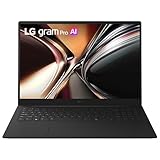
- Refined Portability for Everyday Work - True portability goes beyond weight. LG gram Pro pairs a lightweight, durable, ultra-slim design with long-lasting power—so it takes up less space in your bag and keeps you productive throughout the day. This is productivity, without limits.
- Incredibly Light. Surprisingly Thin. - LG gram Pro is designed to go wherever you do. Weighing just 3 lbs. with a slim 0.6 inch profile, it slips easily into your bag and feels light in hand—making it effortless to carry, commute, and work from anywhere.
- Remarkably Light. Reliably Strong. - LG Pro has passed seven military-grade durability tests, striking an impressive balance between a highly portable, lightweight metal build and the confidence to handle everyday movement and travel.
- Power that Lasts with Smart Efficiency - LG gram Pro combines a high-capacity 77Wh battery with AI-driven power management to optimize efficiency based on your usage. The result is long-lasting performance that keeps up with your day—at home, at work, or wherever you go.
- Intel Core Ultra: Pro Power Meets AI Performance - The latest Intel Core Ultra 7 processor delivers fast, responsive performance and an AI-ready NPU capable of up to 49 TOPS. Efficient power management, support for up to 32GB LPDDR5x memory, up to 2TB NVMe SSD, provide the speed and flexibility needed for multitasking, creative work, and AI-driven tasks.
7. Use a dark theme or background when it suits the panel
Microsoft lists a dark background or dark theme as a possible battery-saving change, particularly on OLED displays. OLED pixels can use less power when displaying dark content, although the official guidance does not quantify the gain and the result depends on the panel, brightness, applications and how much of the interface is actually dark.
Enable a dark theme only if it remains comfortable and readable. It is a low-risk experiment: if you see no useful change or prefer a light interface, revert it without affecting performance or notifications.
8. Select Best battery life power mode
Open the taskbar battery control and, where the device exposes a power-mode slider, move it toward Best battery life. This favors lower consumption over maximum responsiveness. Hardware and manufacturer settings can affect whether the slider appears and which choices are available.
Use a more performance-oriented mode when compiling, exporting, gaming or running an AI workload that needs sustained CPU or GPU speed. For web, documents, video playback and travel, Best battery life is usually the more appropriate starting point. The right choice can change from hour to hour, so treat it as a workload control rather than a permanent rule.
Independent reader supportYour contribution helps us test, update, and keep practical guides available for everyone.Why RTX Spark battery life differs so much
An RTX Spark laptop can be a compact 14-inch creator system, a larger 16-inch workstation-style design or a convertible. Screen size and panel technology change the display load; battery capacity and cooling design determine how long the system can sustain a workload. Firmware, drivers and manufacturer power profiles also influence when the discrete graphics processor or other high-performance components wake up.
Workload is equally important. AI development, model inference, 3D rendering, video export and gaming can keep the CPU, GPU, memory and cooling fans active. A browser, documents and light communication use a different power profile. The same laptop can therefore show very different unplugged times on different days. “All-day battery life” is a positioning statement, not a guaranteed runtime under every workload.
Rank #4

- Brilliant display: Go deeper into games with a 16” WQXGA 120Hz display with 300 nits brightness.
- Game changing graphics: Step into the future of gaming and creation with NVIDIA GeForce RTX 50 Series Laptop GPUs, powered by NVIDIA Blackwell and AI.
- Up to 45W: CPU Thermal Design Power means full power devoted towards processing tasks in real-time.
- Innovative cooling: A newly designed Cryo-Chamber structure focuses airflow to the core components, where it matters most.
- Comfort focused design: Alienware 16 Aurora’s streamlined design offers advanced thermal support without the need for a rear thermal shelf.
Choose a practical battery profile
| Scenario | Recommended settings | Keep available |
|---|---|---|
| Travel, reading and documents | Energy saver on, moderate brightness, lower refresh rate, short screen timeout, Best battery life, nonessential apps restricted in the background | Longer sleep timeout if you need to resume quickly between stops |
| Meetings and presentations | Moderate brightness, Energy saver at a conservative threshold, ordinary apps on Power saving graphics | Notifications and sync for the meeting account; avoid a sleep timer that interrupts the presentation |
| Cloud files and messaging | Lower brightness and refresh rate, Best battery life, short display timeout | Background permissions for the services that must deliver alerts or sync immediately |
| Creative export or AI development | Use performance-oriented power mode and the required high-performance graphics path while plugged in or near a charger | Brightness and screen timeout changes that do not interrupt the job |
| Gaming | Use the performance profile and high-performance graphics when playing; restore battery settings afterward | Higher refresh rate if smooth motion is important |
Understand the trade-offs before changing everything
- Brightness versus visibility: Lowering brightness saves display power but can cause eye strain or make text unreadable in bright surroundings. A comfortable level is better than one so dim that you increase it again.
- Refresh rate versus smoothness: Lower rates suit static content and reading; higher rates make scrolling, animation and games feel smoother.
- Power mode and graphics versus speed: Best battery life and Power saving graphics reduce consumption by accepting slower response or lower rendering performance.
- Background limits versus convenience: Restricting background activity can postpone notifications, synchronization and indexing.
- Short timers versus continuity: Aggressive display-off and sleep values save idle power but can interrupt a presentation, download or long-running computation.
When battery drain remains high
Check for a demanding foreground task
Open Battery usage and compare the period of heavy drain with what you were doing. A game, export, AI workload, many browser tabs or a video call can explain rapid consumption even when Windows settings are optimized. Close the task when finished or connect the charger for sustained high-performance work.
The Tool Desk
Outbyte PC Repair FREERepair Windows errors before they cause bigger problemsFix Now →Outbyte Driver Updater FREEScan for outdated or missing drivers - takes under a minuteDriver Scan →Check background activity
If an app appears high in Battery usage while you were not using it, restrict its background permission if available. Recheck after a normal work session. Keep essential messaging, security and synchronization services enabled when delayed activity would create a bigger problem than the saved power.
Confirm that settings actually applied
Some controls are absent or renamed on particular Windows builds. Verify the screen timer, refresh rate, graphics preference and power mode after a restart or a major system update. Manufacturer utilities may also change power behavior, so a Windows selection may not be the only active profile.
Look for a workload or hardware limit
If the laptop loses charge quickly during sustained GPU or CPU work, that may reflect the workload rather than a faulty setting. Compare light office use with the demanding task, keep ventilation clear and use the intended charger for high-performance operation. If drain is abnormal even while idle and after background apps are limited, consult the laptop manufacturer’s support process for battery health and firmware checks.
A repeatable routine for longer unplugged sessions
- Before leaving power, open Power & battery > Energy recommendations and apply suitable recommendations.
- Turn on Energy saver or Battery saver and confirm its automatic threshold.
- Set a comfortable lower brightness and, if available, a lower refresh rate.
- Move the power-mode control toward Best battery life.
- Review Battery usage and restrict background activity for nonessential apps.
- Set ordinary applications to Power saving graphics and leave demanding creative, AI or gaming software on the performance path.
- Restore higher brightness, refresh rate, background permissions or performance mode when the task requires them, then return to the battery profile afterward.
This routine protects runtime without pretending that one configuration fits every RTX Spark design. Measure success by whether the laptop lasts through your actual travel or work period while remaining usable, not by an all-day label or an unverified hour count.
Quick wins for a faster PC:
Repair Windows errors before they cause bigger problemsFix Now →Fix the driver behind crashes, sound loss and screen glitchesFind Drivers →Clear out junk files and repair common Windows errorsFree Scan →Quick Recap
Product prices and availability are accurate as of the date/time indicated and are subject to change. Any price and availability information displayed on Amazon at the time of purchase will apply.

