A Ring doorbell can appear to “miss motion” for three different reasons: it did not detect or log the movement, it detected and recorded it but did not notify your phone, or it generated an alert but no playable recording is available. Open the Ring app and check Event History for the exact time first. An event without a notification points to alert delivery; an alert without video points to recording eligibility; no event at all points to motion settings, zones, connectivity, or the camera’s view.
Start by identifying what is actually missing
Do not change every setting at once. In the Ring app, open the doorbell and inspect Event History around the time a person or vehicle should have appeared. Ring separates three controls that are often confused:
As an Amazon Associate I earn from qualifying purchases.
| What you see | Likely fault area | First checks |
|---|---|---|
| An event is in Event History, but your phone stayed silent | Notification delivery | Motion Alerts, phone permissions, Alerts Snooze, Motion Schedules, Do Not Disturb/Focus |
| Your phone alerted, but the event has no playable video | Recording eligibility or subscription | Subscription status, event date, compatible plan and Smart Alerts settings |
| There is no event and no notification | Detection, view, connectivity, or power | Motion Detection, Motion Zones, sensitivity, online status, Wi-Fi and mounting scene |
| The doorbell button rings your phone, but passing people are missed | Motion controls, not Ring Alerts | Motion Detection, Motion Alerts and the relevant zone |
Ring’s alert guidance explains that Motion Detection governs motion events and alerts, Motion Alerts govern phone notifications, and Ring Alerts cover doorbell-button presses. A button ring therefore does not prove that motion detection is working.
Use the timestamp in Event History as your dividing line. If an event appears a few minutes after the person passed, compare the recorded time with the phone’s notification time rather than assuming the camera missed the person. If there is no entry at all, a phone-permission change cannot create one; start with the doorbell and its scene. This simple split prevents you from adjusting the camera angle when the real problem is a muted phone, or paying for a subscription when no motion event was ever created.
#1 Best Overall
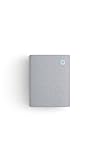
- Hear when someone's there — Receive notifications when motion is detected by your cameras or someone rings your doorbell.
- Real-time alerts, clear as a bell — With an upgraded speaker, get notified throughout your home with louder, clearer alerts.
- Set up in a snap — Simply plug Chime (3rd Gen) into a standard wall outlet for easy setup.
- Sleek, elegant design — Curved edges and slim profile create a modern look that fits your space.
- Customizable sound profiles — Personalize tones, volume, and snooze settings.
Turn on motion detection and check the detection area
Confirm the two motion switches
- Open the Ring app and select the affected doorbell.
- Open Device Settings, then Motion Settings (the exact label can vary by model or app version).
- Make sure Motion Detection is on. This allows the device to identify movement and create motion events.
- Make sure Motion Alerts is on if you also want a phone notification. This switch does not create a detection event by itself.
If the switches are already enabled, change one setting, save it, and test by walking through the expected approach path. Testing one change at a time makes it clear which control solved the problem.
Review Motion Zones
A person can be in the camera image yet outside the active detection area. In Motion Settings, open Motion Zones and examine every polygon. Ring permits up to three zones per device. Include the walkway, gate or driveway where movement begins, rather than only the center of the image. Remove an accidental exclusion that cuts across the approach path.
Battery-powered devices may require Advanced Motion Detection before Motion Zones are available. If that feature is absent, update the app if an update is offered and check the model’s available settings. Ring’s instructions for zones are in Using Motion Zones for Cameras and Doorbells.
Crashes, No Sound, or Screen Glitches?
Random freezes, missing sound and display glitches usually trace back to one bad driver. Find and replace yours safely.Free scan · under a minutePC Slower Than It Used to Be?
A free scan shows the junk files, broken settings and background clutter dragging Windows down - then fixes them in one click.Free scan · Windows 10 & 11Adjust sensitivity, frequency and schedules
- Motion Sensitivity: move the slider upward when people are being missed; lower it if small changes such as foliage create too many events. Ring describes the slider as controlling the amount of motion detected, not as a guaranteed distance setting.
- Motion Frequency: a frequency or cooldown option can limit how soon another event is generated after a previous one. Use a less restrictive setting when consecutive visitors are being skipped, while expecting more battery use on battery-powered models.
- Motion Schedules: disable or edit a schedule that suppresses alerts during the time you are testing. A schedule can make a working detector appear broken.
- Alerts Snooze: snooze silences motion notifications for a chosen period; it does not stop a subscribed camera or doorbell from recording events. Doorbell rings and Priority Alerts remain on while motion alerts are snoozed.
These options affect different stages of the process. A schedule or snooze can hide a notification even when detection and recording continue; a zone or sensitivity setting can prevent the event from being created in the first place.
Check the approach direction, not just the subject’s final position
Motion detection depends on movement entering the active area. A visitor who walks straight toward the lens may produce less change across the image than someone crossing from one side to the other. Extend a zone to the point where the person first becomes visible, while keeping unwanted areas outside it. Test both directions if people usually arrive from different sides of the property.
Understand the 30-foot range without treating it as a guarantee
Ring describes 30 feet as the standard maximum detection range for its devices. That is an operational maximum, not a promise that every person will be detected throughout that distance. Ring notes that larger objects farther away, such as vehicles, can still trigger an alert. A person approaching head-on, moving slowly, or partly hidden may produce less detectable change than a vehicle crossing the scene.
For a fair test, walk across the active zone at several distances and directions. If the doorbell logs nearby crossings but not the distant edge of the driveway, the result may be within the stated detection behavior rather than evidence of failed hardware. Mark the approximate point where events stop, then compare it with the 30-foot guidance. Do not enlarge a zone into a street or neighboring property merely to chase a detection at the edge of the stated range.
The Tool Desk
Outbyte Driver Updater FREEScan for outdated or missing drivers - takes under a minuteDriver Scan →Outbyte PC Repair FREERepair Windows errors before they cause bigger problemsFix Now →When Event History shows a video but your phone did not alert
This is a notification-delivery problem, not a motion-detection problem. Work through the following in order:
- In the device’s settings, confirm Motion Alerts is enabled.
- Check Alerts Snooze and Motion Schedules; end an active snooze and remove a schedule that covers the missed time.
- On the phone or tablet, allow notifications for the Ring app. Check both the app’s notification permission and any per-device notification category for motion.
- Temporarily turn off the phone’s Do Not Disturb, Focus, bedtime or driving mode. Ring specifically recommends disabling Do Not Disturb while troubleshooting missing alerts.
- Open the Ring app and confirm the doorbell is online. A phone may have internet access while the doorbell itself is offline.
- Trigger a controlled motion event and watch both Event History and the phone notification. If the event appears consistently but notifications do not, the remaining fault is on the phone, its operating system, or the app session.
Ring’s alert instructions, including the distinction between motion alerts and doorbell-button alerts, are available at Managing alerts for Ring doorbells and cameras.
Check more than one phone if your household uses shared access. A second device that receives the alert confirms that the doorbell generated it and narrows the issue to the first phone’s permissions, Focus mode or app state. Conversely, if no authorized phone receives an alert while Event History fills normally, concentrate on the Ring app’s notification settings rather than changing the Motion Zone.
When an alert exists but no recording will play
Ring states that reviewing recorded video on its cameras and doorbells requires a Ring subscription. Check whether the subscription covered the device and was active when the event occurred. Only events that happen after the subscription begins are recorded; turning on a plan later does not create a video for an earlier missed event.
Recommended Free Tools
Rank #2
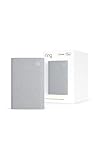
- Sound the alarm on all your devices — Sync Chime Plus with Ring sensors built on Amazon Sidewalk, cameras, and doorbells for comprehensive security you can hear from anywhere. (Coverage may vary by location and is subject to change or interruption.) (Chime Plus is designed to integrate with Ring Sensors connected to Amazon Sidewalk. Please verify your Ring device compatibility before purchase.)
- Set custom schedules for Chime audio alerts and lighting — Control when you hear alerts and when the night-light activates to match your daily routine.
- Personalized tones. Precision audio alerts. — Set a custom tone for each of your Ring devices so you know exactly which one was triggered the moment your Chime Plus sounds.
- Enhanced audio for true sound — Hear every alert no matter where you are with improved audio for crisp clarity and loudness.
- A guiding light that’s easy on the eyes — Illuminate hallways, rooms, and more with the built-in night-light.
Ring’s FAQ states that cloud motion-event videos can be stored for up to 180 days. Treat that as the maximum stated retention period, not a permanent guarantee for every plan or region; verify the current terms in your account before relying on a particular retention window. Ring’s general information is at General Information About Ring Products and Services.
Check Smart Alerts separately
Person or package classifications are not the same as basic motion recording. Ring says Smart Alerts require a compatible subscription. A missing person classification can therefore reflect plan compatibility or Smart Alerts configuration even when an ordinary motion event was recorded. Review Smart Alerts in the device’s motion settings and confirm that the subscription supports the feature; Ring’s setup instructions are at Setting up Smart Alerts.
Do not expect old, unrecorded video to be recovered
An entry may remain visible in history even when its video cannot be played. If the event was not recorded under an eligible subscription, Ring says it cannot be viewed or recovered later. Save or download important clips as soon as they are available.
A subscription solves playback eligibility; it does not improve the camera’s ability to see motion, extend the detection range, or override a notification schedule. Keep those questions separate when comparing what changed after a plan was activated.
Do these 3 things before closing this tab:
1Repair Windows errors before they cause bigger problems2Fix the driver behind crashes, sound loss and screen glitches3Clear out junk files and repair common Windows errorsCheck the doorbell’s connection before changing detection settings again
Open Device Health and verify that the doorbell is online. Check the Wi-Fi signal strength at the installed location, not merely beside the router. An unstable connection can prevent an event from reaching the app or cloud even when the camera briefly sees movement.
- Restart the home router according to its manufacturer’s procedure, then wait for the network to return.
- Power-cycle the doorbell only if your model’s instructions permit it; battery and wired models have different procedures.
- Recheck Device Health and run a controlled motion test.
- If signal strength is weak, move the Wi-Fi access point closer where practical. Ring also identifies Chime Pro as a possible aid to signal strength. Use it only after confirming a connectivity problem; it cannot turn on Motion Detection, override a phone’s Do Not Disturb setting, or add recording eligibility.
Ring products require an existing home Wi-Fi network. Ring’s FAQ says they do not work with a mobile-phone hotspot, so hotspot testing can give a misleading result. See Ring’s product and service FAQ for the network requirement.
Run the test after the doorbell reports online, not immediately while the router is still reconnecting. If the device repeatedly changes between online and offline, note those times in relation to missing events. A connectivity pattern points to network coverage; a consistently online device with no events points back to zones, sensitivity or the physical view.
Inspect placement, obstructions and changing light
Make sure the desired path is visible
Stand where a visitor would approach and look through the live view. A wall edge, porch column, overhang, decoration or parked vehicle can hide the first part of the path. Motion detection cannot classify movement that never enters the camera’s usable view. Recheck the active Motion Zone after any physical adjustment.
Use Ring’s recommended mounting height
Ring recommends mounting a doorbell 48 inches (1.22 meters) from the ground for optimal motion detection. Measure from the ground to the doorbell’s position, not to the top of the mounting bracket. A substantially higher or lower installation can change the angle at which a person enters the scene and reduce the useful portion of the zone. Ring’s positioning guidance is at Positioning doorbells and security cameras.
Account for sunlight, reflections and moving backgrounds
Moving trees, direct sunlight, reflections and shadows can create unwanted alerts or make a person harder to distinguish from the background. Reflective surfaces in the camera view may affect detection. Observe the scene at the time of day when the failure occurs: a night-time porch light, low winter sun or a vehicle’s reflective panel can produce a different result from a midday test.
Trim or block a repeatedly moving object if it dominates a zone, and reposition the zone to exclude a reflective surface while retaining the walkway. Respect local privacy and recording laws when changing the camera’s field of view; Ring states that users are responsible for configuring recording devices in compliance with applicable law.
Rank #3

- 1. Wide Compatibility - Works seamlessly with most eufy video doorbells, offering reliable ringing and notifications throughout your home. For a detailed compatibility list, please refer to the FAQ.
- 2. Multiple Chime Options - Comes with 10 pre-installed tones that suit various preferences and occasions, so you can find the right one for you.
- 3. Stable Dual-Band Connection - Enjoy faster speeds, reduced network congestion, and smooth performance at all times with advanced 2.4 GHz and 5 GHz dual-band Wi-Fi connectivity.
- 4. Quick and Easy Setup - Supports auto-discovery and effortless network integration with Bluetooth auto-pairing, allowing fast installation within minutes.
- 5. Loud and Reliable Alerts - Volume can be adjusted to up to 80 dB for powerful and dependable alerts, letting you hear visitor notifications clearly even from the second floor or across larger spaces.
Compare live view with the recorded scene from a successful event. This reveals whether a porch edge or reflection occupies the same part of the frame where the missed visitor should have appeared. Make one physical change at a time, then repeat the same walk-through so you can tell whether the change improved detection or merely changed the lighting.
What’s actually slowing this PC down?
Pick the symptom - the matching free tool is one click away.
Use a controlled test to isolate the fault
After each change, perform the same test so that results are comparable:
- Choose a quiet time and note the doorbell’s online status.
- Walk across the center of the intended Motion Zone, then repeat near its edge and at a farther distance.
- Check Event History for each pass.
- Check whether the phone produced a notification for each event.
- Open the newest event and verify that a playable recording exists.
Interpret the pattern rather than relying on one pass. Events with no notifications require phone and alert checks. Notifications with no playable clips require subscription and recording checks. No events at any test distance, while the doorbell is online and the scene is visible, justify model-specific support rather than an immediate replacement purchase.
Write down the result of each pass: distance, direction, time, whether an event appeared, whether an alert arrived and whether video played. That small log separates an occasional missed edge-of-zone event from a complete failure and gives support the exact Product Name and symptoms needed for model-specific help.
Identify the exact model before seeking hardware help
Menu names and feature access vary by Ring model and app version. In Device Health, locate Product Name and record it before contacting support or following model-specific instructions. Also note whether the unit is battery-powered or wired, its firmware/app version if shown, and whether other devices on the same Wi-Fi network are online.
Quick wins for a faster PC:
Fix the driver behind crashes, sound loss and screen glitchesFind Drivers →Repair Windows errors before they cause bigger problemsFix Now →A replacement is not the first troubleshooting step. Consider hardware service only after confirming that Motion Detection and Motion Alerts are enabled, zones and schedules are correct, the device is online, the view is unobstructed, and a controlled test still produces no Event History entry. This sequence prevents buying a different model to solve a disabled setting, weak signal or ineligible recording plan.
Do not assume that two Ring doorbells expose identical controls. The presence of Advanced Motion Detection, Motion Zones or Smart Alerts can depend on the model and subscription. Recording your Product Name before asking for help avoids following instructions for a different device.
Independent reader supportYour contribution helps us test, update, and keep practical guides available for everyone.Quick decision table
| Observed symptom | Most relevant action | What it will not fix |
|---|---|---|
| No event in Event History | Check Motion Detection, sensitivity, zones, schedules, range, view and Wi-Fi | A phone notification permission or subscription cannot create a missed detection |
| Event exists, no phone alert | Enable Motion Alerts; end snooze; review schedules, app permissions and Do Not Disturb/Focus | Changing camera height will not restore a blocked phone notification |
| Alert exists, video will not play | Verify an eligible subscription covered the device when the event occurred | Starting a subscription now cannot recover an older unrecorded event |
| Device offline or weak signal | Improve Wi-Fi coverage and retest; consider Chime Pro only for confirmed signal weakness | A signal accessory will not correct zones, schedules or phone settings |
| Detection fails only in certain light or angles | Inspect reflections, shadows, moving foliage, obstructions and mounting height | Changing the subscription does not change what the camera can see |
Frequently asked questions
Why does my Ring doorbell ring for the button but not for people?
Ring Alerts for a button press and Motion Detection for movement are separate controls. A working button alert does not confirm that Motion Detection, Motion Alerts, sensitivity or the relevant Motion Zone is enabled. Check Event History first, then review the motion controls.
Can a Motion Schedule make the doorbell look broken?
Yes. A Motion Schedule can suppress alerts during the scheduled period even though the doorbell and camera are functioning. Disable or edit the schedule while testing. Also check Alerts Snooze, which temporarily silences motion notifications while a subscribed device can continue recording events.
Will a Ring Chime Pro fix missed motion?
Only consider Chime Pro after Device Health shows weak Wi-Fi coverage or the doorbell is repeatedly offline. Ring identifies it as a possible aid to signal strength. It will not enable Motion Detection, redraw a Motion Zone, change phone permissions, end Do Not Disturb or provide recording eligibility.
How far away should a person be detected?
Ring describes 30 feet as the standard maximum detection range. It is not a promise that every person will trigger an event at that distance. Larger objects, such as vehicles, may trigger farther away, while a slow, head-on or partly hidden person may be harder to detect. Test several distances and directions inside the active zone.
Rank #4
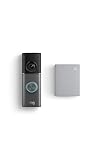
- This bundle contains 1 Wired Doorbell Pro (3rd Gen) and 1 Chime (2nd Gen), White.
- Capture it all with Retinal 4K video —See your home or business in the ultimate clarity with Retinal 4K.
- Zoom in up to 10x — Catch details at a distance and inspect faces or license plates with wide-angle up to 10x Enhanced Zoom.
- True color, even in low light — With Low-Light Sight, just a little ambient light gives you true color video. In total darkness, your camera switches to crisp black-and-white to keep details sharp.
- See in the near-dark — With Low-Light Sight on both your doorbell and camera, get a full-color view in the near-dark. Nearby street lighting is all you need.
Why is there an event but no video?
Reviewing recorded video requires a Ring subscription, and the subscription must have covered the device when the event occurred. Only events after the subscription begins are recorded. Ring states that cloud motion-event videos can be stored for up to 180 days, subject to the current plan and terms. An older unrecorded event cannot be recovered by subscribing later.
Do Smart Alerts record motion automatically?
Smart Alerts add classifications such as person or package detection; they are not the same as basic motion recording. Ring says Smart Alerts require a compatible subscription. A missing classification can therefore result from plan compatibility or Smart Alerts settings even when a normal motion event exists.
Free tools Windows power users keep installed
One-click scans. No signup required.
What mounting height does Ring recommend?
Ring recommends 48 inches (1.22 meters) from the ground for optimal motion detection. Recheck the view and Motion Zone after moving a doorbell, because a different angle can change how people enter the scene.
When should I contact Ring instead of replacing the doorbell?
Record the Product Name shown in Device Health and seek model-specific help after confirming the device is online, Motion Detection and Motion Alerts are enabled, zones and schedules are correct, the approach is visible and a controlled test still creates no Event History entry. Do not buy a replacement solely because a phone alert was muted or a recording plan was not active.
Frequently Asked Questions
What is the fastest way to tell whether detection or notifications failed?
Open Event History for the missed time. An event with no phone alert indicates notification delivery; no event indicates detection, view or connectivity; an alert with no playable clip indicates recording eligibility.
Does Alerts Snooze stop Ring from recording?
No. Ring says Alerts Snooze silences motion notifications for a chosen period while a subscribed camera or doorbell continues recording events. Doorbell rings and Priority Alerts remain on.
Can subscribing now recover a missed recording?
No. Only events after the subscription begins are recorded. Ring says an older event that was not recorded cannot be viewed or recovered later.
What should I check if the doorbell is offline?
Confirm Wi-Fi status in Device Health, improve coverage and retest. Ring products require an existing home Wi-Fi network and do not work with a mobile-phone hotspot. Chime Pro is relevant only as a possible signal aid.
Why does motion fail only at certain times of day?
Moving trees, direct sunlight, reflections and shadows can alter detection. Observe the scene when the failure occurs and adjust obstructions or Motion Zones without blocking the desired approach.
How many Motion Zones can a Ring device have?
Ring allows up to three Motion Zones per device. Ensure the zones include where a visitor first enters the view, not just the center of the image.
The Bottom Line
Start with Event History, then fix only the failed stage: Motion Detection, zones, sensitivity and the camera view for missing events; Motion Alerts, snooze, schedules and phone permissions for silent notifications; and subscription eligibility for unavailable recordings. Confirm Wi-Fi and placement, use the 30-foot and 48-inch guidance as practical reference points, and identify the exact Product Name before considering hardware service or replacement.
Quick Recap
Product prices and availability are accurate as of the date/time indicated and are subject to change. Any price and availability information displayed on Amazon at the time of purchase will apply.

