Do these 3 things before closing this tab:
1Scan for outdated or missing drivers - takes under a minute2Repair Windows errors before they cause bigger problems3Fix the driver behind crashes, sound loss and screen glitchesUse Puppeteer’s page.record() to capture a page as an MP4 video stream. Pass a file path, perform the browser actions you want recorded, then call await recording.stop() before closing the browser.
Record a Puppeteer page to an MP4 file
The current Puppeteer API reference documents Page.record() for page video recording through Chrome DevTools Protocol’s Page.startScreenRecording API. This example saves the recording as recording.mp4 and ensures recording and browser cleanup run even if an interaction fails:

As an Amazon Associate I earn from qualifying purchases.
import puppeteer from 'puppeteer';

const browser = await puppeteer.launch();
try {
  const page = await browser.newPage();
  await page.goto('https://www.example.com');

  const recording = await page.record({ path: 'recording.mp4' });
  try {
    // Perform the interactions you want to appear in the video.
  } finally {
    await recording.stop();
  }
} finally {
  await browser.close();
}
The try/finally blocks are defensive cleanup: Puppeteer’s reference demonstrates the record/stop sequence, while the wrappers help ensure it is stopped and the browser is closed if later work throws an error. Replace the example URL and interaction comment with the page and actions for your task.
Free tools Windows power users keep installed
One-click scans. No signup required.
What the sequence does
- Launch Chrome through Puppeteer and navigate to the target page.
- Call
page.record({ path: 'recording.mp4' })to start the recording and specify where the file should be saved. - Run the navigation, clicks, typing, scrolling, or other browser actions you want captured.
- Call
await recording.stop()to finish the recording, then close the browser.
Puppeteer describes the result as an MP4 video stream. See the Puppeteer Page.record() API reference for the current API documentation.
#1 Best Overall

- High resolution 1080P Full HD Webcam. Plug and play Batteries are not included. This 1080P webcam supply Crisp Image and Crystal Clear Video. Webcam captures your clips in true 1080p glory, and 30 frames per second, so even the most detailed makeup tutorials look crisp and clear.
- Suitable for mainstream software, Compatible with multi system. Versatile 1080P USB webcam for gaming, blogging, conferencing and Live streaming, widely works with Windows 10, Windows 7, Windows 8, Windows 2000, Windows XP, Android TV, Mac OS X etc. Compatible with Facebook, Skype, OBS, You Tube, Twitter,Twitch .Switch 2
- 110 Degree Wide Angle Webcam with Microphone. Fixed focus Webcam captures Full HD video at a wide angle of up to 110 degrees. Giving you an unparalleled perspective for a wide variety of conditions when you live streaming, video chatting or recording. Build-in auto noise reduction Mic makes sound purer and clearer, and pick up your voice even at 3m distance. Also Easy to turn off the webcam microphone on the software setting you used, when you want to use your own headset or speake..
- Easy to Setup, Play and Plug:The product has no battery.1080P webcam camera with low light correction, makes you see clearly even in dim light. Easy to Setup, just Play and Plug, No additional driver need. It also features a universal clip, with a 6ft USB power cable that fits to laptops and LCD monitors.
- This web camera for desktop computers comes With Tripod and Privacy Cover. PC webcam with Privacy cover allows you to enjoy safe digital web life when not in use and prevent hackers from spying on you. To control what your video displays at any time, effectively protecting your privacy. The webcam comes with a tripod, convenient for you to place the computer camera..
Saving or consuming the recording stream
The path-based example is the documented straightforward way to save a recording to a file. The returned ScreenRecording also extends ReadableStream<Uint8Array> and documents pipe(destination) and stop(). That stream interface can suit applications that need to consume recorded bytes, but the API reference’s path example does not itself establish a specific upload, buffering, or custom file-writing recipe. Consult the reference matching your installed Puppeteer version before building a custom stream destination.
Do not confuse video recording with screencasts or Recorder flows
| Feature | What it produces | Important distinction |
|---|---|---|
Page.record() |
MP4 video stream | The current documented Puppeteer page-video method; stops through the returned recording object. |
Page.screencast() |
WebM video | Puppeteer’s repository main-branch documentation marks this API obsolete and directs users to Page.record(). Its documentation describes VP9 at 30 FPS by default, an ffmpeg requirement, and Chrome 153+; those are details of the older API, not defaults for Page.record(). |
CDP Page.startScreencast / Page.stopScreencast |
Individual image frames | A frame-oriented protocol path, distinct from the screen-recording commands used for video. |
| Chrome DevTools Recorder | Replayable user-flow exports, such as JSON or Puppeteer scripts | Records actions for replay; it does not create the MP4 page video produced by Page.record(). |
The older-method status and compatibility details above come from Puppeteer’s Page.screencast() API documentation on the project’s repository main branch. If your project pins a release, verify that release’s own documentation rather than assuming main-branch status applies to it. The frame-based distinction is documented in the Chrome DevTools Protocol Page domain; flow export is covered by Chrome DevTools Recorder documentation.
Rank #2
Version-specific details to verify
The cited current API reference excerpt does not enumerate every RecordOptions field, all platform limitations, the exact minimum Chrome version for Page.record(), or audio support. Do not transfer the older Page.screencast() format, frame rate, ffmpeg, or Chrome-version details to Page.record(). Check the API reference matching your installed Puppeteer package and its corresponding protocol version for those implementation details.
Troubleshooting
- No finished video appears: ensure your code reaches and awaits
recording.stop()beforebrowser.close(). Put the stop call in afinallyblock around the interactions so an exception does not skip cleanup. - The result is not the expected format:
Page.record()is documented as producing an MP4 stream. Do not use format expectations from the obsoletePage.screencast()method, which documents WebM. - A tutorial asks you to handle and acknowledge image frames: it likely describes CDP’s frame-based
Page.startScreencastflow, not Puppeteer’s page video recording path. Usepage.record()for the documented MP4 workflow. - Your installed Puppeteer does not expose the method or behaves differently: compare your installed package’s version-specific API reference with the current documentation. The repository main branch can be ahead of a pinned release.
Or skip the browser setup
If you need a still screenshot rather than a video of browser activity, ScreenshotNeo captures a URL with one GET request. It is a screenshot API, not a Puppeteer screen recorder: cookie banners, newsletter popups, and chat widgets are removed before the shot; bot checks, blank pages, and failed loads are never billed; and an MCP server lets AI agents take screenshots. The free plan includes 1,000 screenshots a month with no card, and paid plans start at $5 for 3,000.
Example using cURL (replace the URL with your target):
Rank #3
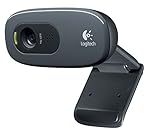
- This Certified Refurbished product is tested and certified to look and work proof as new restoration functionality. process includes, cleaning, inspection, basic and repacking. The product ships with all accessories, a minimum of 90 days warranty, and can only arrive in a generic box. Select sellers who maintain high performance can offer certified refurbished products on Amazon. com
- HD 720P, video calls and HD video recording, 2.4 GHz, Intel Core2 Duo, 2 GB RAM, 200 MB HDD space
- Video capture: Up to 1280 x 720 pixels, Logitech Fluid Crystal
- 3MP Sharp Photo Technology, Hi-Speed USB 2.0
- Built-in microphone filters out background noise
curl -G "https://api.screenshotneo.com/v1/shot" -d access_key=YOUR_API_KEY --data-urlencode url=https://stripe.com -o shot.webpSee the ScreenshotNeo documentation for API details. Sign up for 1,000 free screenshots a month, with no card required.
Quick Recap
Rank #4
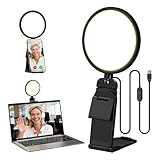
- Upgraded Light Panel — 200% Softer – LitONES features a 4-layer optical soft panel with edge-lit technology that eliminates glare and hotspots. The ultra-soft diffused light gently diminishes shadows, unifies complexion, and enhances your best features — delivering flattering light that ensures you always appear sharp, natural, and engaging in every video meeting
- Vivid On‑Camera Colors, Comfortable Long‑Hour Lighting – , Professional-grade CRI (Ra) 97.8 ensures true-to-life color reproduction in your videos, so you never look washed out on camera again. The soft, natural light is also gentle on your eyes, helping you stay comfortable and focused during long zoom calls or streaming sessions
- 50 Dimmable Modes - 5 color temperatures (3000K-6500K from cool white to warm tones) and 10 adjustable brightness levels (3%-100%) providing you with unparalleled flexibility, allowing you to achieve the perfect lighting for video calls, remote conferences, zoom meetings, streaming, podcasting, or content creation
- Angle It Any Way You Want – With 360° rotation and 180° tilt, the light head moves freely to put light exactly where you need it. Height adjusts from 6 to 8.9 inches to suit your setup. Use it as a key light to brighten your face, or as a balance fill light to soften shadows — simply hang it behind your monitor or place it on your desk
- Screen-Safe Hanging Mount – With a 2"–2.5" stretchable hanging clip, this webcam light installs instantly with no tools required. It fits most monitors and laptops—from thin to thick, regular to curved—and stays firmly in place without taking up desk space or scratching your screen
Product prices and availability are accurate as of the date/time indicated and are subject to change. Any price and availability information displayed on Amazon at the time of purchase will apply.
What’s actually slowing this PC down?
Pick the symptom - the matching free tool is one click away.

