Neither technology wins in every home. A Wi‑Fi range extender is usually the simpler choice when it can receive a strong, usable signal from your router at its proposed location. A powerline Ethernet kit is often the better candidate when walls, floors, or other obstructions block Wi‑Fi but the home’s electrical wiring offers a workable route. Your result depends on the weak link: the wireless path, the electrical circuit, or both.
The practical way to choose is to test the path each device needs, match the remote unit to your endpoint (Wi‑Fi, Ethernet, or both), and avoid judging either option by its package speed alone. Manufacturer guidance explains how the technologies work, but it does not establish a controlled, real-home speed or reliability winner.
As an Amazon Associate I earn from qualifying purchases.
Quick verdict: choose the path your home can support
| Question | Wi‑Fi range extender | Powerline Ethernet |
|---|---|---|
| What carries the link to the dead zone? | Wi‑Fi from the router to the extender | The home’s electrical wiring between two adapters |
| Best starting condition | A usable router signal is available where the extender will sit | Electrical outlets can provide a workable path, preferably on the same circuit |
| What the remote device can provide | Wireless access; some models may also have Ethernet | Ethernet, or Wi‑Fi and Ethernet on models designed for both |
| Main failure risk | The extender is placed inside the dead zone and cannot receive enough signal | Long distance, different circuits, poor wiring, or electrical interference reduce the link |
| Basic hardware | One extender paired with the existing router | At least two adapters and Ethernet cable for the router-side connection |
| What advertised rates mean | Package figures are not a guarantee of throughput at your location | “Up to 600 Mbps” for HomePlug AV and “gigabit physical speed” for HomePlug AV2 describe physical signaling, not guaranteed internet speed |
Use the extender first when the router still reaches the intended placement with a usable signal and you want the least installation effort. Investigate powerline when the wireless route is blocked but outlets have a plausible electrical path. If neither path is sound, changing placement, adding a wired Ethernet run, or using a different network design may be more effective than buying a faster-labeled device.
The Tool Desk
Outbyte Driver Updater FREEScan for outdated or missing drivers - takes under a minuteDriver Scan →Outbyte PC Repair FREERepair Windows errors before they cause bigger problemsFix Now →How each technology reaches a dead zone
Powerline turns electrical wiring into a network path
TP‑Link describes the concept this way: “Powerline products turn the electrical wiring of a home into network cables and transmit signals to every room.” A basic arrangement uses two adapters. The first connects to a LAN port on your router with Ethernet. The second is placed near the device or room that needs connectivity. Depending on the kit, the remote adapter supplies Ethernet only or creates a Wi‑Fi access point as well.
#1 Best Overall

- 𝐄𝐱𝐭𝐞𝐧𝐝 𝐘𝐨𝐮𝐫 𝐄𝐭𝐡𝐞𝐫𝐧𝐞𝐭 𝐂𝐨𝐧𝐧𝐞𝐜𝐭𝐢𝐨𝐧 𝐓𝐡𝐫𝐨𝐮𝐠𝐡 𝐘𝐨𝐮𝐫 𝐄𝐥𝐞𝐜𝐭𝐫𝐢𝐜𝐚𝐥 𝐒𝐲𝐬𝐭𝐞𝐦 - This device is meant for for areas where thick walls block Ethernet connections, where routers or range extenders do not work. Compatible with all TP-Link powerline adapters.
- 𝐀𝐕𝟏𝟎𝟎𝟎 𝐒𝐩𝐞𝐞𝐝𝐬 𝐔𝐩 𝐭𝐨 𝟕𝟓𝟎 𝐅𝐞𝐞𝐭 - Powered by HomePlug AV2, delivers AV1000 powerline speeds through existing electrical wiring. Speeds cannot exceed your internet plan's limit and may be lower due to wiring quality, distance, and interference.
- Ideal for multi-story homes, basements, attics, and garages.
- 𝐂𝐡𝐞𝐜𝐤 𝐛𝐞𝐟𝐨𝐫𝐞 𝐲𝐨𝐮 𝐛𝐮𝐲 - Adapters must be plugged directly into wall outlets on the same electrical circuit. Does not work with power strips, surge protectors, or extension cords. Place away from large appliances, such as washing machines, refrigerators, and air conditioners.
- 𝐀𝐝𝐯𝐢𝐬𝐨𝐫𝐲 - Performance may be limited or blocked in homes with AFCI breakers, which are standard in many homes built after 2000. Powerline may also not work with routers or gateways using modified, open-source (e.g., DD-WRT), or non-standard firmware.
The adapters communicate over the building’s electrical wiring rather than using Wi‑Fi for the inter-adapter link. That can avoid a wall or floor that severely attenuates wireless signals. It does not make the electrical path irrelevant: circuit layout, distance, wiring quality, and interference can all change the result.
A Wi‑Fi extender repeats the router’s wireless reach
A range extender receives the router’s Wi‑Fi and retransmits it toward the area with poor coverage. The extender therefore needs a usable signal at its own location. Putting it in the deepest part of the dead zone gives it little or nothing to repeat; moving it closer to the router can improve the link even though the extender then sits farther from the room you want to serve.
Thick walls, floors, metal structures, appliances, and other obstructions can limit the signal before it reaches the extender. An extender cannot create a reliable wireless backhaul when the router’s signal cannot get through to the extender in the first place.
Recommended Free Tools
Decide by checking the two signal paths
Check the proposed extender location
- Stand where you would install the extender, not only where the dead-zone device is located.
- Check whether a phone or laptop can maintain a stable connection to the router from that position.
- Move the trial position toward the router if the signal is intermittent, extremely weak, or disappears behind a wall or floor.
- Choose a location that still leaves useful coverage toward the target room. An extender placed too close to the router may waste coverage distance; one placed too far away may have no dependable backhaul.
This test answers the most important extender question: can the unit receive a signal worth repeating? It does not predict an exact throughput figure, because client hardware, channel conditions, construction, and network load vary.
Rank #2
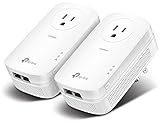
- EXTEND YOUR ETHERNET CONNECTION THROUGH YOUR ELECTRICAL SYSTEM - This device is meant for individuals that are not able to extend their Ethernet connections where routers or range extenders do not work. Speed cannot exceed your internet plan’s limit.
- HOMEPLUG AV2 - Delivers AV2000 powerline speeds over existing electrical wiring, extending home network wired connectivity by up to 750ft through thick walls and other barriers. Ideal for multi-story homes, basements, attics, and garages.
- CHECK BEFORE YOU BUY - Adapters must be plugged directly into wall outlets on the same electrical circuit. Does not work with power strips, surge protectors, or extension cords. Place away from large appliances, such as washing machines, refrigerators, and air conditioners.
- ADVISORY - Performance may be limited or blocked in homes with AFCI breakers, which are standard in many homes built after 2000. Powerline may also not work with routers or gateways using modified, open-source (e.g., DD-WRT), or non-standard firmware.
- 2 GIGABIT PORTS - Provides a secure wired network for connected devices, such as desktops, smart TVs, game consoles, and more. Ethernet cables are included. Tip: Expand connections with an Ethernet switch (sold separately).
Check the electrical route for powerline
- Identify an outlet near the router and another near the dead zone.
- Prefer outlets that are likely to be on the same electrical circuit. TP‑Link recommends this arrangement for its adapters, although homes differ in how circuits are wired.
- Use a direct wall outlet for each adapter during the initial test. Power strips and surge protectors can filter the high-frequency signals powerline adapters use.
- Consider distance, circuit boundaries, old or unusual wiring, and nearby electrical equipment that may introduce interference.
- Test the actual pair in the locations you need. A theoretical wiring route is not a performance guarantee.
The key powerline question is whether the adapters can establish a stable link across those particular outlets. A kit that works in one room may perform differently across another circuit or at a greater distance.
When a Wi‑Fi extender is the better fit
Choose an extender when the router signal is already usable
An extender makes sense when a suitable placement exists between the router and the dead zone. It can be attractive for phones, tablets, televisions, and other devices that need wireless access without a cable at the endpoint. Installation generally requires less physical planning than finding a compatible pair of electrical outlets.
Do not treat “more bars” at the dead-zone device as proof that the backhaul is healthy. The extender may show a strong local signal while its own connection back to the router remains weak. Evaluate both sides: the router-to-extender path and the extender-to-client path.
Quick wins for a faster PC:
Scan for outdated or missing drivers - takes under a minuteDriver Scan →Repair Windows errors before they cause bigger problemsFix Now →Fix the driver behind crashes, sound loss and screen glitchesFind Drivers →Use placement, not maximum distance, as the first adjustment
- Move the extender toward the router until its connection becomes stable.
- Avoid enclosing it behind furniture or placing it next to large metal objects and sources of electrical noise.
- Keep it in an open position where the signal can travel toward the target area.
- Retest the farthest room after every move rather than assuming the closest possible placement is best.
Recognize the extender’s limitation
If walls or floors prevent a usable signal from reaching every practical extender location, repeatedly repositioning the same unit will not solve the underlying path problem. In that case, test powerline or run Ethernet instead of relying on a wireless repeater to bridge an inaccessible section.
Rank #3

- 𝐄𝐱𝐭𝐞𝐧𝐝 𝐘𝐨𝐮𝐫 𝐄𝐭𝐡𝐞𝐫𝐧𝐞𝐭 𝐂𝐨𝐧𝐧𝐞𝐜𝐭𝐢𝐨𝐧 𝐓𝐡𝐫𝐨𝐮𝐠𝐡 𝐘𝐨𝐮𝐫 𝐄𝐥𝐞𝐜𝐭𝐫𝐢𝐜𝐚𝐥 𝐒𝐲𝐬𝐭𝐞𝐦 - This device is meant for individuals that are not able to extend their Ethernet connections where routers or range extenders do not work. Speeds cannot exceed your internet plan’s limit.
- 𝐇𝐨𝐦𝐞𝐏𝐥𝐮𝐠 𝐀𝐕𝟐 - Delivers AV1000 powerline speeds over existing electrical wiring, extending home network wired connectivity through thick walls and other barriers. Ideal for multi-story homes, basements, attics, and garages.
- 𝐂𝐡𝐞𝐜𝐤 𝐛𝐞𝐟𝐨𝐫𝐞 𝐲𝐨𝐮 𝐛𝐮𝐲 - Adapters must be plugged directly into wall outlets on the same electrical circuit. Does not work with power strips, surge protectors, or extension cords. Place away from large appliances, such as washing machines, refrigerators, and air conditioners.
- 𝐀𝐝𝐯𝐢𝐬𝐨𝐫𝐲 - Performance may be limited or blocked in homes with AFCI breakers, which are standard in many homes built after 2000. Powerline may also not work with routers or gateways using modified, open-source (e.g., DD-WRT), or non-standard firmware.
- 𝐆𝐢𝐠𝐚𝐛𝐢𝐭 𝐏𝐨𝐫𝐭 - provides secure wired networks for desktops, smart TVs or games consoles. Ethernet cables are included.
When powerline Ethernet is the better fit
Choose powerline when construction blocks wireless
Powerline can be useful when the router’s wireless signal cannot cross a particular wall or floor, but electrical outlets in both areas have a workable connection. The inter-adapter link travels through the wiring, so the obstruction that defeats Wi‑Fi may not affect the same way.
This is a conditional advantage, not a promise. Electrical panels, separate circuits, long runs, wiring condition, and interference can make the powerline route weak or unstable. Verify the link at the outlets you will actually use.
Match the remote adapter to the endpoint
- Ethernet-only kit: appropriate when the remote device has a network port, such as a desktop, game console, television, or access point.
- Wi‑Fi-capable powerline kit: appropriate when the remote room needs wireless access for several devices.
- Multiple wired devices: check how many Ethernet ports the remote unit provides; do not assume every model has the same port count.
- Limited outlets: check whether the specific adapter includes outlet passthrough. This feature is model-specific, not universal.
The first adapter also needs an Ethernet cable to connect to a LAN port on the router. A wired endpoint may require another Ethernet cable from the remote adapter.
How to install and test a Wi‑Fi extender
- Find a midpoint with usable router coverage. Place the extender between the router and the dead zone, but keep it within reliable wireless range of the router.
- Complete the manufacturer’s pairing process. Use the setup method supplied with the extender and associate it with your existing wireless network.
- Move it if the backhaul is weak. If setup reports a poor connection or the extender repeatedly disconnects, move it closer to the router rather than farther into the dead zone.
- Test the target room. Connect the device that originally lacked coverage and check stability in the places where you actually use it.
- Test at busy times. A connection that works briefly may still fail when several devices share the network or when interference changes.
- Keep the successful position. Mark the outlet or shelf where the extender maintains both a stable router link and useful coverage toward the target.
Because no controlled, representative head-to-head dataset establishes a universal speed winner, your own placement test is more meaningful than a package label.
Rank #4

- EXTEND YOUR ETHERNET CONNECTION THROUGH YOUR ELECTRICAL SYSTEM - This device is meant for areas where thick walls block Ethernet connections, where routers or range extenders do not work. Compatible with all TP-Link powerline adapters.
- AV600 SPEEDS UP TO 750 FEET - Delivers AV600 powerline speeds through existing electrical wiring. Speeds cannot exceed your internet plan's limit and may be lower due to wiring quality, distance, and interference.
- Ideal for multi-story homes, basements, attics, and garages.
- CHECK BEFORE YOU BUY - Adapters must be plugged directly into wall outlets on the same electrical circuit. Does not work with power strips, surge protectors, or extension cords. Place away from large appliances, such as washing machines, refrigerators, and air conditioners.
- ADVISORY - Performance may be limited or blocked in homes with AFCI breakers, which are standard in many homes built after 2000. Powerline may also not work with routers or gateways using modified, open-source (e.g., DD-WRT), or non-standard firmware.
How to install and test a powerline kit
- Connect the first adapter near the router. Plug it directly into a wall outlet and connect it to a router LAN port with Ethernet.
- Connect the second adapter near the dead zone. Start with a direct wall outlet, ideally one on the same electrical circuit as the router-side adapter.
- Wait for the adapter link. Follow the kit’s indicators or setup instructions to confirm that the two units recognize each other.
- Attach the endpoint. Plug in a wired device with Ethernet, or configure the remote unit’s Wi‑Fi function if the kit supports it.
- Remove filtering devices during testing. If either adapter is connected through a power strip, surge protector, or similar filter, move it to a wall outlet first.
- Test several outlets nearby. An adjacent outlet may be on a more favorable circuit path or be farther from an interfering appliance.
- Test the actual workload. Check the connection from the room and device that need service, not only the adapter status light.
If the pair cannot establish a stable link at the required outlets, changing to a higher advertised rate does not guarantee a solution. The electrical path itself may be the limiting factor.
Independent reader supportYour contribution helps us test, update, and keep practical guides available for everyone.Understanding powerline speed labels
Physical rate is not internet throughput
TP‑Link lists HomePlug AV products at up to 600 Mbps and describes HomePlug AV2 as delivering gigabit physical speeds. These figures describe signaling capability under the technology’s specification; they are not guaranteed throughput to your internet service, device, or application.
Actual results can be reduced by wiring conditions, circuit arrangement, distance, interference, adapter overhead, Ethernet limits, router capacity, and the speed of your internet connection. A package labeled with a higher number is not automatically better across a difficult circuit.
Compare like with like
When evaluating kits, first confirm that they support the connection type and endpoint you need. Then compare practical features such as Ethernet port count, Wi‑Fi capability, outlet passthrough, and compatibility with the electrical conditions in your home. Treat the advertised physical rate as one specification among several, not as a promised measurement.
Best Value

- Use your existing household electrical wiring to extend your existing Internet service to any room in your house..Standards: IEEE 1901 compliant. IEEE 802.3 compliant, this is not a Wi-Fi device
- Homeplug AV2 technology supports Gigabit speeds through your electrical outlets for improved coverage
- Extremely fast Powerline adapter for Gigabit speeds, perfect for connecting your existing internet access to smart TVs, streaming players & game consoles with 4K HD streaming and lag-free gaming through household electrical wiring, this is not a WiFI device
- Extra plug with our noise filtered power outlet built into the adapter to ensure top performance
- Multiple data streams (MIMO) with Beamforming technology to offer improved coverage by directing the signal where you need it through existing household electrical wiring, this is not a Wi-Fi device
Common failure modes and fixes
The extender shows a strong local signal but the room remains slow or unstable
- Move the extender closer to the router to improve its backhaul.
- Remove obstructions and avoid enclosed or metal-heavy locations.
- Retest with fewer active devices to distinguish congestion from coverage failure.
- If no practical location receives a usable router signal, test a powerline path or Ethernet run.
The powerline adapters do not pair
- Plug both units directly into wall outlets.
- Try outlets believed to share the same circuit.
- Temporarily move the adapters away from high-noise electrical equipment.
- Confirm that both units are part of the same compatible kit or network.
- Test a second outlet near each intended location; outlet position can change the electrical route.
The powerline link pairs but performance varies
- Check whether the adapters are separated by different circuits or a long wiring path.
- Remove power strips, surge protectors, and filtering devices from the test.
- Identify appliances that coincide with dropouts and retest with them disconnected or idle.
- Compare several nearby outlets and keep the one with the most stable result.
- Do not infer internet throughput from the adapter’s physical-rate label.
The remote room needs both wired and wireless access
Use a powerline kit whose remote unit explicitly provides Wi‑Fi and the Ethernet ports you need, or connect a separate access point to an Ethernet-only remote adapter. Feature availability varies by model, so verify the specific product rather than assuming every powerline kit supports both outputs.
Powerline Ethernet versus Wi‑Fi extender: decision checklist
| Your situation | First option to test | Reason |
|---|---|---|
| A clear, usable router signal reaches a convenient midpoint | Wi‑Fi extender | The wireless backhaul is available and installation is straightforward |
| Thick walls or a floor block Wi‑Fi, but outlets appear to share a circuit | Powerline kit | The adapters can use electrical wiring instead of the obstructed wireless path |
| The remote device has only Ethernet | Ethernet-only powerline kit or wired run | There is no need to add a second wireless hop |
| The remote room needs several wireless clients | Wi‑Fi-capable powerline kit, if the electrical test succeeds | The remote adapter can provide local Wi‑Fi without relying on a weak router signal |
| Outlets are on uncertain circuits or wiring is known to be problematic | Test before committing; also consider Ethernet | Powerline performance depends on the actual electrical route |
| No location has a usable router signal and powerline pairing is poor | Ethernet or another purpose-built network solution | Neither wireless repeating nor electrical signaling has a dependable path |
What the available evidence does—and does not—show
The cited guidance is manufacturer documentation explaining operation, placement, and limitations. It does not provide an independent, controlled comparison using representative homes, nor does it establish a general average speed or reliability advantage for one technology. Claims that powerline is always faster, or that extenders are always more dependable, go beyond that evidence.
For that reason, evaluate the installed connection in your own home. Test the locations, outlets, devices, and times of day that matter. If the required connection is not achieved, reposition the equipment or use the return policy available from your seller rather than assuming a different package rate will overcome a bad signal path.
Do these 3 things before closing this tab:
1Repair Windows errors before they cause bigger problems2Scan for outdated or missing drivers - takes under a minute3Clear out junk files and repair common Windows errorsQuick Recap
Product prices and availability are accurate as of the date/time indicated and are subject to change. Any price and availability information displayed on Amazon at the time of purchase will apply.

