Do these 3 things before closing this tab:
1Clear out junk files and repair common Windows errors2Fix the driver behind crashes, sound loss and screen glitches3Repair Windows errors before they cause bigger problemsYes—NOOK syncs your NOOK Shop library across devices that use the same bn.com account. Barnes & Noble says you can access that library on bn.com, in the NOOK App, or on a NOOK device. Selecting Sync or refreshing the Library downloads purchases made on another registered NOOK, phone, tablet, or the web. Reading-position behavior is documented specifically for the iOS app, while audiobooks follow separate synchronization rules.
What NOOK syncs across devices
NOOK synchronization is primarily an account-based Library service. A book or periodical purchased through the NOOK Shop is associated with the bn.com account used at checkout. When another NOOK device or NOOK App is signed in to that same account, its Library can retrieve the purchase.
As an Amazon Associate I earn from qualifying purchases.
| Access point | What Barnes & Noble documents | Important condition |
|---|---|---|
| bn.com | Sign in to view your NOOK Library and web purchases. | Use the account that owns the purchases. |
| NOOK App | Access the same NOOK Library on supported phones and tablets. | The app must be signed in to the same bn.com account. |
| NOOK device | Use the Library’s Sync control to download recent NOOK Shop purchases from the web or another linked device. | The device must be registered to the purchasing account and connected to the internet to download content. |
This does not mean every file or every piece of reading data automatically follows you. The official Library instructions concern NOOK Shop purchases and devices connected to one account. They do not establish universal synchronization for personal files, every annotation, or every reading setting.
Before you try to sync: confirm the account setup
The most important prerequisite is identity, not the model of reader. Sign in to bn.com and note the email address associated with the NOOK Library. Then check the account shown in the NOOK App and the registration details on the NOOK device. Those entries should match the account used when the book or periodical was purchased.
#1 Best Overall

- Carry your library with you (32GB of storage)
- Highest Resolution -A 6Inches high-resolution 300-dpi screen with built-in glare- scratch- and fingerprint-resistant lens provides a paper-like reading experience.
- Comfortable Design with Page-turning -Soft-touch finish makes it easy to grip and comfortable to hold for hours at a time. Touch screen or physical page-turning buttons to help you navigate the way you like it.
- Long Battery Life -It’s perfect for long road trips or even travel to remote corners of the world. Read for weeks on a single charge. Get going and never look back.
A device can be physically near another reader and still have a completely different Library if it is registered to another bn.com account. Likewise, buying on the web does not attach the title to every account used by a household. It attaches the purchase to the account that completed checkout. If several people share devices, decide which account owns the purchases before registering or signing in.
Once the account is correct, synchronization is a retrieval process. You refresh the destination Library, the service checks the account catalog, and the destination can download the title. You do not need to purchase the same book a second time simply because you want to open it on another registered device.
Will NOOK remember where you stopped reading?
eBooks in the iOS app
Barnes & Noble’s NOOK App for iOS support guidance says that after you sync the Library, content you had already begun reading opens to the more recently viewed page the next time you access it. The article, last updated June 24, 2025, describes this behavior for iOS. Its wording is: “After syncing your Library, any content that you had begun reading will open to the more recently viewed page the next time it is accessed.”
Recommended Free Tools
That is a documented iOS behavior, not proof that every Android release or every NOOK e-reader model resumes at exactly the same page. The reviewed support material does not establish identical reading-position behavior across all platforms, so treat other-platform resumption as unconfirmed rather than guaranteed.
Audiobook progress
Audiobooks have their own synchronization guidance. Barnes & Noble says audiobook listening progress, bookmarks, and notes automatically sync among internet-connected computers and Barnes & Noble NOOK Apps on any device signed in to the same bn.com account. This applies to the audiobook service described in its Help Center article, last updated January 8, 2025.
There is one explicit migration limitation: the last-listened location does not transfer from the old audiobook platform to the newer one. If you moved between those platforms, expect to locate your place manually even though subsequent progress can sync within the supported, connected apps and computers.
How to sync a NOOK Library manually
On a NOOK e-reader
- Connect the NOOK to Wi-Fi.
- Open Library.
- Tap or select the Sync button, shown as two curved arrows.
- Wait for the Library update to finish, then look for the title under the appropriate Library view.
Barnes & Noble describes this control as downloading recent purchases from the NOOK Shop, another linked device, and bn.com. A Sync action is a refresh request; it does not create a second copy of a purchase or require you to buy the title again.
Outdated Drivers Are Slowing You Down
One free scan finds every outdated or missing driver and matches the right update for your exact hardware.Free scan · exact hardware matchWindows Errors? Fix Them Before They Spread
Repair common Windows errors and clear accumulated junk for a smoother, more stable PC - no reinstall needed.Free scan · no reinstallIn the NOOK App for iPhone or iPad
- Sign in with the bn.com account that owns the purchase.
- Open the app’s Library.
- Pull down within the Library screen to refresh.
- Release when the refresh indicator appears, and wait for the synchronization to complete.
- Open the book again. For content already being read, Barnes & Noble’s iOS guidance says it should open to the more recently viewed page.
On Android and most mobile devices
- Open the NOOK App and go to Library.
- Swipe down on the Library screen to refresh.
- Keep the app connected until the refresh indicator disappears.
- Check the Library again for the purchase.
Barnes & Noble’s troubleshooting guidance groups Android, iOS, and most mobile devices under the swipe-down refresh method. Exact gesture behavior can vary with the device and app interface, but the action is performed from the Library rather than from inside an individual book.
On devices with a Library menu
For many other NOOK devices, open Library, open its menu, and choose Refresh. Labels and controls can differ by device, so use the Library menu rather than assuming that a phone-style swipe gesture is available.
What to check when a purchase is missing
Work through these checks in order. Each step addresses a different reason a legitimate purchase may not appear or download.
1. Confirm the account identity
Check the email address shown in the NOOK App, on bn.com, and in the NOOK device’s registration details. The purchase and the device or app must be associated with the same bn.com account. A different email address, an old account, or a newly registered device can make a purchase look absent even when the transaction succeeded.
What’s actually slowing this PC down?
Pick the symptom - the matching free tool is one click away.
Rank #2

- Listen to your favorite audiobooks with Bluetooth or headphones
- Read easily, everywhere
- Waterproof design allows you to read anywhere without worry
- Perfect reading day to night with night mode
- Soft touch finish on front and back for easy grip
2. Remove Library filters
Look at the Library’s display settings. Make sure the title is not excluded by a collection or content filter. If the Library has an Only show downloaded items option, turn it off while searching for the complete account library; otherwise, an owned but not-yet-downloaded book can remain hidden.
3. Refresh instead of waiting for an automatic update
Use the device’s Sync control, pull down in a mobile Library, or select Refresh from the Library menu on devices that provide that option. A manual refresh asks the service for the latest account catalog and is the first practical recovery step after buying on another device or on the web.
4. Check the connection and download policy
Wi-Fi is required to download NOOK content. Some app configurations permit downloads over cellular data, but carrier charges may apply. If a title is visible but will not download, move to a reliable Wi-Fi connection and check whether cellular downloading has been disabled in the app’s settings.
5. Verify title compatibility and software
Barnes & Noble advises checking whether the title is compatible with the particular device or app and whether the device software is current. Compatibility can affect whether a purchase appears usable even when it is correctly attached to the account.
6. Handle preorders separately
For a preorder that should now be available but will not download, Barnes & Noble’s troubleshooting page suggests archiving the title and then unarchiving it. Refresh the Library afterward and check that the title is no longer hidden by a downloaded-items filter.
Content that should not be assumed to sync
Personal or sideloaded EPUB files
NOOK Shop purchases and personal files are separate categories. Barnes & Noble’s Android transfer instructions describe sideloaded EPUB files under My Files, rather than as NOOK Shop Library purchases. That distinction means you should not promise that an EPUB copied into My Files on one device will appear automatically on another device. Move personal files separately and verify that the destination app or device supports the file.
Bookmarks, highlights, notes, and annotations in eBooks
The cited Library pages establish account-based purchase retrieval, and the iOS page establishes a more-recently-viewed page for started content. They do not establish that every eBook bookmark, highlight, note, or annotation synchronizes identically across all NOOK apps and e-reader models. Do not rely on a second device as the only copy of important annotations unless Barnes & Noble documents that behavior for your exact platform.
Different accounts
Registering two devices to different bn.com accounts does not make their purchased Libraries merge. Sync follows the account, not merely the owner’s name, device location, or the fact that both devices use NOOK software.
How the main reading setups differ
| Setup | Library access | Documented resume behavior | Best interpretation |
|---|---|---|---|
| NOOK e-reader | Same-account NOOK Shop purchases can be downloaded with Library Sync. | Not specifically established for every model in the cited material. | Useful as a dedicated reading device, but a second device is not required for synchronization. |
| NOOK App on iOS | Same-account purchases appear after a Library refresh. | Barnes & Noble documents reopening started content at the more recently viewed page after syncing. | The clearest platform-specific reading-position guidance in the cited support pages. |
| NOOK App on Android or another mobile device | Refresh the Library by swiping down, subject to account and compatibility checks. | The reviewed pages do not establish the same resume claim for every Android version. | Use the app for account Library access, but avoid assuming iOS behavior is universal. |
| bn.com | Sign in to reach the NOOK Library and web purchases. | A web reading-position guarantee is not established by the cited pages. | Useful for confirming the owning account and purchase history. |
No source reviewed here establishes model-to-model differences in purchase synchronization. The meaningful variables are the account, the content type, the platform’s refresh control, connectivity, and compatibility—not a claim that one particular NOOK model universally syncs better than another.
A reliable routine when reading on more than one device
- Buy or redeem the title while signed in to the bn.com account you intend to use everywhere.
- Sign in to that same account on bn.com, the NOOK App, or the NOOK device.
- After a purchase made elsewhere, open the destination Library and run its manual refresh control.
- Keep the destination connected to Wi-Fi while the title downloads.
- Turn off Only show downloaded items when checking whether an owned title exists but has not yet been downloaded.
- For audiobooks, use an internet-connected computer or NOOK App signed in to the same account and remember that old-platform listening position does not migrate to the newer platform.
- For personal EPUB files, transfer them independently; do not treat them as NOOK Shop content.
What “sync” means in practical terms
For a standard NOOK Shop purchase, sync means that the same account’s Library can be refreshed on another registered device or app and the title can then be downloaded. It does not necessarily mean instant delivery, a universal transfer of every reading detail, or automatic movement of files that were never purchased through the NOOK Shop.
If your goal is simply to read the same purchased book on a phone, tablet, web browser, and NOOK e-reader, the account-based Library is designed for that use. If your goal is to preserve a specific annotation set, move a sideloaded EPUB, or carry audiobook progress from the discontinued platform to the newer one, use the narrower rules above rather than assuming that all NOOK data travels together.
Rank #3
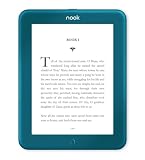
- Carry your library with you (32GB of storage)
- Highest Resolution -A 6Inches high-resolution 300-dpi screen with built-in glare- scratch- and fingerprint-resistant lens provides a paper-like reading experience.
- Comfortable Design with Page-turning -Soft-touch finish makes it easy to grip and comfortable to hold for hours at a time. Touch screen or physical page-turning buttons to help you navigate the way you like it.
- Long Battery Life -It’s perfect for long road trips or even travel to remote corners of the world. Read for weeks on a single charge. Get going and never look back.
Choosing between a NOOK device and the app
You do not need to buy a second NOOK e-reader to use Library synchronization. Barnes & Noble lists bn.com, the NOOK App, and NOOK devices as access points for the same account library. A dedicated NOOK can be useful if you prefer e-reader hardware, while the app is practical when your phone or tablet is already with you. The sync question is therefore about account access and supported content, not a requirement to own multiple devices.
When comparing setups, ask four specific questions: Is the device signed in to the account that owns the purchase? Is the item a NOOK Shop book or periodical, an audiobook, or a personal file? Does the platform provide the documented refresh control? Does the title meet that device’s compatibility requirements? These questions are more useful than assuming that a newer-looking device automatically has broader synchronization.
Support references and dates
- “Your NOOK Library” — Barnes & Noble Help Center, updated January 7, 2025; covers Library access points and same-account Shop purchase syncing.
- “NOOK GlowLight Devices – NOOK Library” — Barnes & Noble Help Center, updated January 13, 2025; covers GlowLight Library contents and syncing purchases from another device on the same account.
- “Barnes & Noble NOOK App for iOS – Refresh/Sync Content” — updated June 24, 2025; covers pull-to-refresh and the more-recently-viewed-page behavior.
- “Trouble Accessing eBooks? (Refresh Your Library)” — updated January 7, 2025; covers account checks, filters, refresh, Wi-Fi, software, compatibility, and preorder recovery.
- “B&N Audiobooks Library Syncing” — updated January 8, 2025; covers audiobook progress, bookmarks, notes, and the old-to-new platform limitation.
- “Barnes & Noble NOOK App for Android – Transferring eBooks” — updated April 27, 2022; distinguishes personal EPUB transfers in My Files from NOOK Shop content. Because this guidance is older, do not use it as proof of current compatibility beyond that distinction.
Frequently Asked Questions
Does NOOK sync books bought on bn.com?
Yes. A NOOK Shop purchase made on bn.com can be downloaded from the Library on another NOOK device or NOOK App registered to the same bn.com account. Refresh the destination Library rather than buying the title again.
How do I manually sync my NOOK library?
On a NOOK e-reader, open Library and select the Sync icon with two curved arrows. In the iOS, Android, and most mobile apps, open Library and swipe down. On many other devices, open the Library menu and choose Refresh.
Will NOOK remember my page on another device?
Barnes & Noble specifically documents the more-recently-viewed-page behavior for started content in its iOS app after a Library sync. The cited guidance does not prove identical resume behavior on every Android version or NOOK model.
Why is my purchased book missing?
Verify that the purchase and destination device use the same bn.com account, turn off Only show downloaded items, refresh the Library, and check Wi-Fi. Then review title compatibility and device software. For a released preorder, try archiving and unarchiving it.
Do NOOK bookmarks and highlights sync everywhere?
The cited pages do not establish universal eBook bookmark, highlight, or note synchronization across every app and e-reader model. Treat those details as platform-specific unless Barnes & Noble documents support for your exact setup.
Do sideloaded EPUB files sync to another NOOK?
Do not assume so. Barnes & Noble distinguishes personal EPUB transfers under My Files from NOOK Shop purchases. Transfer personal files separately and confirm that the destination supports them.
Does audiobook progress sync across NOOK devices?
Barnes & Noble says audiobook progress, bookmarks, and notes sync among internet-connected computers and NOOK Apps signed in to the same bn.com account. Listening position from the old audiobook platform does not transfer to the newer one.
Free tools Windows power users keep installed
One-click scans. No signup required.
Do I need two NOOK e-readers for sync to work?
No. The same account library can be accessed through bn.com or the NOOK App as well as a NOOK device. A second e-reader is optional, not a synchronization requirement.
The Bottom Line
Bottom line: NOOK syncs NOOK Shop books and periodicals through the same bn.com account. Refresh the destination Library, use Wi-Fi for downloads, and remove filters when a title is missing. Page-resume behavior is specifically documented for the iOS app; audiobook progress follows separate rules, and sideloaded files or eBook annotations should not be assumed to sync universally.
Quick Recap
Product prices and availability are accurate as of the date/time indicated and are subject to change. Any price and availability information displayed on Amazon at the time of purchase will apply.

