A scheduler’s run count doesn’t prove that an agent performed its intended work. Verify each link in the chain: the trigger fired, the right job ran, its conditions allowed execution, the expected state changed, and any result was delivered. The title’s exact assertion—and whether this specific agent really ran 40 times—cannot be established without the original code or incident record, so this guide focuses on how to find the failure without guessing.
What does “ran” actually mean?
A schedule can be configured without firing when expected. A trigger can fire while the intended job is skipped. A job can execute without changing the target state, and an agent can make changes while its response is not delivered. Treat these as separate outcomes rather than assuming that a run count proves successful work.


As an Amazon Associate I earn from qualifying purchases.
- Trigger: Did the platform record an actual scheduled event?
- Execution: Did the intended job, step, script, or callback run?
- Effect: Did the operation change the state the job was meant to change?
- Delivery: Was the result or acknowledgement made visible to the expected recipient?
Trace the failure in order
1. Confirm the trigger was delivered
Start with scheduler or workflow history, not just the cron expression or enabled setting. For GitHub Actions, scheduled workflows use POSIX cron, run in UTC by default, and run on the default branch. GitHub warns that scheduled events can be delayed under load and that some queued jobs may be dropped during high-load periods. See GitHub’s schedule syntax and workflow troubleshooting guide.
2. Check whether conditions skipped the work
If a workflow event exists but a job or step did not run, inspect its conditions. GitHub’s troubleshooting guide points to condition-evaluation details in the job log, including expanded runtime values and evaluation results. Those details can distinguish a delivered trigger from work that was ineligible to run.
#1 Best Overall
3. Run the underlying script or callback directly
Test the command outside the scheduler. Microsoft recommends this for Windows Task Scheduler because it separates a broken script or command from a scheduling problem. If direct execution fails, fix that first; changing the schedule will not repair the underlying operation. Microsoft’s Task Scheduler troubleshooting guide also covers cases where a task completes but expected actions do not occur.
4. Inspect execution records and errors
For Windows Task Scheduler, review the task’s status, History, Last Run Result, and the Task Scheduler Operational event log. A task marked complete is not sufficient evidence that its intended action succeeded; compare the records with what the task was supposed to do.
5. Assert the job’s meaningful postcondition
Make success depend on the result the job is responsible for, not merely on the process starting or returning without an exception. For example, the job might verify that a specific record was updated, an artifact was written, or a downstream system acknowledged receipt. Choose one postcondition that accurately represents the job contract, then make its failure visible in the job’s exit status or logs.
There is no basis here for naming the assertion that fixed the title’s incident. The relevant assertion depends on the agent’s intended outcome and code; asserting that an unrelated process completed could still let the real failure pass unnoticed.
Rank #3

- 2 Years of Cellular Service Included – Necto offers the most affordable cellular-enabled sensor with 2 full years of 4G LTE service included—no hidden fees, contracts, or WiFi required. With a built-in multi-network SIM card, you can remotely monitor conditions 24/7 and receive real-time alerts. After 2 years, you can renew the subscription from the app for only $6.99 a month.
- Instant Alert & 24/7 Monitoring - Keep tabs on your Home, RV, Car, or Pets from anywhere with the 3-in-1 temperature, humidity & power outage monitor. Customize the high and low temp/humidity thresholds and add up to 5 contacts for unlimited text and email alerts. Receive real-time alerts if critical changes in temp/humidity or a power loss occurs.
- Rechargeable Internal Battery - The Necto smart RV and pet monitor has a 3 day long-lasting rechargeable battery. Unlike WiFi sensors, Necto provides continuous monitoring in the event of a power outage, via its built-in battery and cellular technology. Receive instant alerts on your phone when battery power is low or if the device disconnects from the network.
- Intuitive Mobile App & Easy Setup - Our user-friendly mobile app gives you remote access to your sensor from anywhere. Use your smartphone or PC to customize alert thresholds, view past readings, and manage device settings with ease. The sensor takes minutes to install and requires no technical expertise. Simply activate the device through the app and plug it into any standard wall outlet.
- Fast Refresh & Free Data Storage - The industrial built-in temperature and humidity sensor takes readings every 10 seconds to make sure the temp/humidity are within the safe range. Every 10 minutes the most recent reading is updated on the online portal. Readings are stored on our servers for 1 year and can be downloaded anytime on a CSV file.
6. Check whether work happened but its output was discarded
Some agent runtimes separate tool activity from prompt output. Vercel Eve documents that scheduled prompts can make tool calls or writes while discarding the prompt’s output. If no message appeared, inspect the agent’s side effects and delivery records before concluding that nothing happened. Eve’s documented behavior is specific to that runtime, not a universal rule for scheduled agents. Vercel Eve documentation.
Independent reader supportYour contribution helps us test, update, and keep practical guides available for everyone.Scheduling behavior depends on the platform
Do not transfer one system’s timing or lifecycle rules to another. Check the documentation for the actual scheduler and runtime, especially for timezone, execution target, restart persistence, first-run timing, overlap handling, and output delivery.
Rank #4
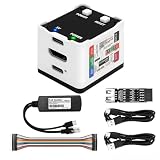
- 【Remote Control Operations Server】Sipeed NanoKVM is an IP-KVM solution based on the LicheeRV Nano RISC-V Linux single-board computer, inheriting the Nano's compact form factor and powerful capabilities. Breaking free from traditional host requirements for network connectivity and system software, NanoKVM functions as an external hardware device directly providing remote control capabilities.
- 【Powerful Interfaces】Sipeed NanoKVM features one HDMI input port that can be recognized by a computer as a display to capture screen content. One USB 2.0 port connects to the computer host, functioning as a HID device (e.g., keyboard, mouse, touchpad). It also utilizes spare TF card storage space, mounting it as a USB flash drive device.
- 【100Mbps Ethernet Support】Sipeed NanoKVM features a 100Mbps Ethernet port for network transmission of video and control signals. The Full version additionally includes an ATX power control interface (USB-C) for remote host power status monitoring and control. The Full version housing also incorporates an OLED display showing the device's IP address and KVM-related status.
- 【Server Management】Sipeed NanoKVM enables real-time monitoring and control of server operations. Supports remote desktop access and host power cycling: NanoKVM overcomes limitations requiring the host to be networked or specific system software, functioning as external hardware to provide direct remote control capabilities.
- 【Supports Remote Installation】Sipeed NanoKVM emulates a USB flash drive device, enabling mounting of installation images for system deployment or access to computer BIOS settings. The NanoKVM Lite features two serial ports for use with IPMI or connection to other development boards via web-based serial terminal interaction. Users may also expand functionality with additional accessories.
| System | Documented behavior relevant to diagnosis |
|---|---|
| GitHub Actions | Scheduled workflows use POSIX cron, run in UTC by default, and execute on the default branch. Events can be delayed under load, and some queued jobs may be dropped during high-load periods. GitHub documentation. |
| Windows Task Scheduler | Microsoft recommends testing the script outside the scheduler and checking task status, History, Last Run Result, and the Operational event log. Microsoft documentation. |
| Cloudflare Agents | Schedules persist across agent restarts in SQLite and execute through Durable Object alarms. An interval schedule first executes after its configured interval; a tick is skipped if the previous callback is still running. These are Cloudflare-specific semantics. Cloudflare documentation. |
| Vercel Eve | Scheduled prompts may make tool calls or writes while their prompt output is discarded. Eve documentation. |
Turn a successful run into observable evidence
Record enough information to tell where a future run stopped: the trigger or run identifier, the job or callback’s start and finish, condition outcomes, errors, and the postcondition’s result. Where delivery matters, record its acknowledgement separately from the work itself. This creates a useful distinction between “the schedule fired,” “the operation ran,” “the target changed,” and “the recipient got the result.”
What’s actually slowing this PC down?
Pick the symptom - the matching free tool is one click away.
When investigating an existing failure, follow those same stages in order. The first missing or failed record narrows the problem; a count of scheduled runs alone does not identify it.
Quick Recap
Product prices and availability are accurate as of the date/time indicated and are subject to change. Any price and availability information displayed on Amazon at the time of purchase will apply.

