Do these 3 things before closing this tab:
1Repair Windows errors before they cause bigger problems2Fix the driver behind crashes, sound loss and screen glitches3Clear out junk files and repair common Windows errorsChoose OLED for the cleanest motion and darkest-room image; choose Mini LED for brighter rooms, stronger sustained full-screen HDR, sharper desktop text, and no OLED-style burn-in mechanism. OLED pixels switch independently, so they can turn completely off beside a bright highlight. Mini LED is an LCD panel illuminated by thousands of small backlights grouped into local-dimming zones. That design can remain brighter over a larger part of the screen, but it may show a halo around small bright objects.
Neither panel type automatically has lower input lag. Monitor processing, firmware, refresh rate and the specific model determine that, so measured tests matter more than the OLED or Mini LED label.
As an Amazon Associate I earn from qualifying purchases.
OLED and Mini LED at a glance
The right choice depends on what you play, where the monitor sits and how much static content it displays. Use this table as a starting point, then verify the individual monitor’s measurements.
| Criterion | OLED | Mini LED LCD |
|---|---|---|
| Dark-room contrast | Best: each pixel can switch fully off | Very good with local dimming, but halos can appear |
| HDR peak and full-screen brightness | Strong highlights; brightness can fall as more of the screen becomes bright | Usually higher sustained output and better visibility in a bright room |
| Pixel response | Near-instantaneous; usually the clearest motion | Depends on the IPS or VA LCD; commonly slower and more variable |
| Burn-in exposure | Permanent retention is possible after prolonged static use, especially at high brightness | No OLED-style organic-emitter burn-in mechanism |
| Desktop text | Depends on WOLED or QD-OLED subpixel layout and pixel density | Generally sharper at equal pixel density because of a conventional RGB layout |
| Typical best use | Competitive or cinematic gaming in a dim room | Bright-room HDR, productivity and static-HUD-heavy games |
| Relative cost | Often carries a premium at comparable size and specification | RTINGS’ comparative summary names Mini LED as the cost winner; actual prices vary by model and region |
How the two display technologies make an image
OLED: one light source per pixel
OLED (organic light-emitting diode) pixels create their own light. A black pixel is not dimmed behind a filter; it is switched off. A star, muzzle flash or bright menu item can therefore sit directly beside a black area without the backlight leaking into the dark region. This pixel-level control is why OLED produces the strongest native contrast and avoids the haloing associated with zone-based backlights.
#1 Best Overall
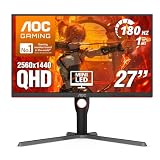
- Witness virtual worlds come to life on a stunning VA panel equipped with state-of-the-art Mini-LED backlight technology and 336 individual dimming zones that produce true blacks and brighter whites
- With Panel resolution 2560x1440, this monitor boasts a pixel density that delivers brilliantly sharp images with the finest details
- Lightning-fast 180Hz (overclocked, via DP1.4) refresh rate and rapid 1ms GtG response time lets you target moving opponents with precision, putting you ahead of the game. Fast-moving action and dramatic transitions will be rendered smoothly without the effects of ghosting
- Adaptive-Sync ensures ultra-smooth, tear-free team fights for flawless skill shots and stutter-free loading times
- The 3-sided frameless display with calibrated color gamut provides true-to-life images. Impressive 134% sRGB color gamut and VESA DisplayHDR 1000 brings characters to life and creates stunning imagery with rich details and diverse contrast
There are two common gaming-monitor structures. WOLED and QD-OLED use different subpixel arrangements, so text edges and color fringing can differ even at the same resolution and size. Pixel density, operating-system scaling and viewing distance determine whether you notice it. A high-density OLED can look excellent for mixed use, but a Mini LED with a conventional RGB stripe is the safer choice when crisp small text is a priority.
Mini LED: an LCD with a denser backlight
Mini LED is not a separate self-emissive panel technology. It is an LCD panel, usually IPS or VA, lit by thousands of small LEDs divided into local-dimming zones. The monitor raises or lowers each zone behind groups of pixels while the LCD controls the color of individual pixels.
More and smaller LEDs let a Mini LED monitor control light more precisely than a conventional edge-lit LCD. It still cannot switch every pixel off independently, however. If a bright object occupies only part of a dimming zone, some neighboring pixels receive backlight too, creating a visible glow or “bloom.” Zone count, zone size, dimming algorithm and the LCD panel itself all affect how obvious that glow is.
HDR brightness: peak numbers versus what you actually see
Representative brightness ranges
ViewSonic’s 2026 comparison lists typical OLED peak brightness of 400–1,000 nits and typical Mini LED peak brightness of 1,000–1,400+ nits. These are representative ranges, not a guarantee for every monitor. Test window size, HDR mode, firmware, thermal limits and the panel generation can move a result substantially.
A peak figure normally describes a small highlight window, such as a sun glint or explosion. It does not tell you how bright the monitor remains when a large part of the image is white. That distinction is central to the OLED-versus-Mini-LED decision.
Why Mini LED usually wins in a bright room
Mini LED can maintain high output across a larger percentage of the screen because its backlight is designed to illuminate broad areas continuously. Bright skies, snow fields, white web pages and full-screen flashes remain easier to see when sunlight or room lighting is washing out the display. This is also useful when you keep a game, chat window and browser visible for long sessions.
The underlying LCD can still limit contrast when local dimming is disabled or poorly tuned. In HDR mode, look for independent measurements of sustained full-screen brightness rather than relying on the highest number in a specification sheet.
Why OLED can look more dramatic in a dark room
OLED’s advantage is not simply the brightness of a highlight; it is the contrast between that highlight and a truly black background. A 700-nit highlight surrounded by pixels that are genuinely off can appear more convincing than a brighter highlight surrounded by a raised black floor or a visible halo. In a dark room, the absence of blooming around stars, subtitles and HUD elements is often more noticeable than the Mini LED’s extra peak output.
OLED also changes brightness as the bright area grows. Automatic brightness limiting and panel power limits can reduce output when much of the screen is white. That behavior protects the panel and manages heat, but it means an OLED specification or small-window measurement should not be treated as a full-screen HDR promise.
Response time, motion clarity and input lag
Pixel response
ViewSonic lists typical OLED gray-to-gray response of 0.01–0.03 ms, compared with 1–4 ms for IPS-based Mini LED monitors. Those figures are representative specifications, not universal results. OLED transitions are near-instantaneous across a wide range of brightness changes, so moving targets retain clearer edges and there is less visible trailing.
Mini LED’s response is determined mainly by the LCD panel underneath the backlight. A fast IPS model can be very responsive, while a VA model may show slower dark transitions or smearing in some overdrive settings. Local dimming itself can also react on a different timescale from the LCD pixels, producing a brief brightness change when an object enters or leaves a zone. Read a model’s response-time plots at the refresh rate you plan to use rather than trusting a single advertised number.
What’s actually slowing this PC down?
Pick the symptom - the matching free tool is one click away.
Rank #2

- 27" QHD MINI-LED IPS DISPLAY Experience sharp 2560×1440 QHD resolution on a 27-inch mini-LED IPS panel with 1152 local dimming zones, delivering vivid colors, deeper contrast, and detailed visuals for immersive gaming.
- 320HZ REFRESH RATE & 1MS RESPONSE TIME Dominate fast-paced gameplay with an ultra-smooth 320Hz refresh rate via HDMI 2.1 or DisplayPort 1.4 and fast 1ms GtG response time, minimizing blur and ghosting.
- DISPLAYHDR 1000 CERTIFIED Enjoy lifelike HDR visuals with DisplayHDR 1000 certification, featuring 700 nits HDR brightness and 1200 nits peak brightness for stunning highlights and enhanced contrast.
- ADAPTIVE SYNC & EYE COMFORT FEATURES Stay smooth and tear-free with Adaptive Sync, while Flicker-Free technology helps reduce eye strain during extended gaming sessions.
- WHITE GAMING DESIGN WITH FULL ERGONOMICS Stand out with a sleek white finish and fully ergonomic stand featuring height adjustment, tilt, swivel, and pivot for personalized comfort and setup flexibility.
Competitive games
For a high-refresh shooter, racing game or rhythm title, OLED is generally the easier route to clean motion. Its pixels do not need the same overdrive compromises as an LCD, and RTINGS reports that both WOLED and QD-OLED monitors have near-instantaneous response. Even the best Mini LED monitors generally cannot match OLED motion clarity.
That does not make a slow OLED competitive or a fast Mini LED unusable. Refresh rate, frame rate, variable-refresh-rate behavior and the monitor’s processing chain still matter. A Mini LED with stable high refresh and well-tuned overdrive can be an excellent competitive display if its measured motion performance suits your games.
Input lag is a separate measurement
Pixel response describes how quickly a pixel changes. Input lag is the delay between a signal arriving at the monitor and the resulting image appearing on screen. RTINGS states that panel type does not determine input lag; monitor processing and the individual model do. Check measurements at the resolution and refresh rate you will actually use, and note whether a low-latency or game mode is required.
Black levels, blooming and local-dimming behavior
OLED’s pixel-level black
Because an OLED pixel can be off, dark scenes retain detail without a backlight lifting the entire image. A white reticle on a black corridor stays sharply defined, and a letterbox bar remains black rather than gray. There is no zone boundary to reveal itself when a small object moves across the screen.
Quick wins for a faster PC:
Fix the driver behind crashes, sound loss and screen glitchesFind Drivers →Repair Windows errors before they cause bigger problemsFix Now →Mini LED’s zone-level compromise
Mini LED improves LCD contrast dramatically, but it controls groups of pixels rather than each pixel. A bright cursor, star or subtitle can illuminate its whole zone, creating a soft halo against a dark background. The effect varies with zone size and the local-dimming algorithm. Some monitors let you choose aggressive, balanced or disabled dimming; aggressive settings can deepen blacks while making transitions or halos more noticeable.
Blooming is most visible in dark-room viewing, at an oblique angle and around small high-contrast objects. In a bright room, ambient light can mask it, which is one reason the same Mini LED monitor can look better in daytime than at night.
Burn-in, image retention and expected longevity
What the OLED risk is
OLED burn-in is permanent, uneven wear that leaves a former static element faintly visible after the content changes. Fixed toolbars, taskbars, health bars, minimaps, streaming overlays and a desktop window left in one position are the relevant examples. Risk rises with repeated exposure, long sessions and high brightness; it is not a guaranteed outcome after a particular number of hours.
Modern monitors use protections such as pixel shifting, screen savers, logo dimming and compensation cycles. These reduce exposure but do not erase the underlying wear mechanism. If your workday consists of an unmoving spreadsheet or editor, treat those protections as mitigation rather than a promise of immunity.
Free tools Windows power users keep installed
One-click scans. No signup required.
What the long-term evidence does—and does not—show
RTINGS’ long-running television longevity study reported permanent burn-in eventually appearing on all OLED televisions in its test, while LED sets developed different failure modes. The result demonstrates that OLED burn-in is a real long-term possibility, but it was a television test and is not a precise lifespan prediction for every gaming monitor. Panel generation, brightness limits, compensation routines, content mix and warranty terms all differ.
Mini LED’s different failure profile
Mini LED has no organic-emitter mechanism that produces OLED-style burn-in. A static desktop does not permanently imprint an LCD pixel in the same way. The monitor can still fail through backlight, power-supply, LCD or electronics problems, and local-dimming zones can age or develop faults. Those are reliability issues, not image retention caused by a fixed logo or HUD.
Ways to lower OLED wear
- Enable the monitor’s pixel-shift, logo-dimming and compensation-cycle features.
- Let the display sleep when you leave the desk instead of showing a static desktop.
- Use the lowest brightness that remains comfortable, especially for long desktop sessions.
- Move or hide taskbars, toolbars and game HUD elements when the software allows it.
- Vary content over the week instead of leaving one application in the same position for hours.
- Read the manufacturer’s warranty language to see whether burn-in is covered, for what period and under what conditions.
Text clarity and productivity outside games
Mini LED monitors generally render small desktop text more cleanly at equal pixel density because their LCDs use a conventional RGB subpixel layout. This matters for code, spreadsheets, document editing and long browsing sessions. OLED text quality depends on whether the panel is WOLED or QD-OLED, its subpixel geometry and the operating system’s scaling. Color fringing is more apparent on some combinations than others, particularly when viewing fine dark text on a light background.
Rank #3

- Mini-LED – Improves HDR with full-array local dimming and 1,152 zones for deeper blacks and brighter highlights
- AI Dual Mode – Auto-adjusts to the optimal refresh rate when changing resolution for smooth transitions, no manual setup needed
- AI Menu – Customizes your display settings with AI features, activating automatically when you launch a game, and lets you share profiles easily
- Rapid IPS – Ensures the intensity and purity of colors when gaming
- 0.5ms (GtG, Min.) Response Time – Eliminates screen tearing and choppy frame rates
Resolution and density remain important. A high-density OLED viewed at an appropriate scale can be comfortable, while a low-density Mini LED can still look coarse. Before buying, inspect a model’s text photographs or an in-person sample at your normal viewing distance, and verify that your operating system and applications handle the panel’s subpixel layout well.
Crashes, No Sound, or Screen Glitches?
Random freezes, missing sound and display glitches usually trace back to one bad driver. Find and replace yours safely.Free scan · under a minutePC Slower Than It Used to Be?
A free scan shows the junk files, broken settings and background clutter dragging Windows down - then fixes them in one click.Free scan · Windows 10 & 11Which panel fits your room and games?
Choose OLED when these conditions describe you
- You play competitive or fast-moving games where the cleanest motion is a priority.
- Your room is dim enough that black level and the absence of blooming are easy to see.
- You want cinematic HDR scenes with bright highlights beside deep black.
- You can vary desktop windows and HUDs, allow the display to sleep and accept some long-term burn-in risk.
Choose Mini LED when these conditions describe you
- Daylight or strong room lighting makes sustained brightness more valuable than perfect black.
- You want bright skies, snow, explosions and large HDR areas to remain vivid.
- The monitor will spend many hours showing static toolbars, code, spreadsheets or a fixed game interface.
- Clear conventional-RGB text and avoiding OLED-style burn-in are more important than the last increment of motion clarity.
When the decision is genuinely close
A mixed-use desk in a moderately lit room can suit either technology. If you alternate between competitive games and office work, compare the exact OLED’s text rendering and warranty against the exact Mini LED’s measured response, blooming and sustained HDR. A dark room favors OLED’s contrast; a sunlit room favors Mini LED’s output. If both matter, plan the lighting and viewing position rather than assuming a panel label settles the question.
How to compare specific monitors before buying
Panel type is only the first filter. Use the following checklist with independent measurements and the manufacturer’s current specification page.
- Check measured input lag. Look for results at your target resolution and maximum refresh rate, with the low-latency mode identified.
- Read response-time plots. Confirm behavior at the refresh rate you use, including dark transitions on VA-based Mini LED models and overshoot from aggressive overdrive.
- Check HDR measurements. Separate small-window peak brightness from sustained full-screen brightness, and note the test mode and firmware.
- Inspect local-dimming behavior. Look for zone count, blooming photographs or measurements, transition speed and whether dimming can be adjusted for SDR and HDR.
- Check VRR behavior. Verify the supported variable-refresh range and look for flicker, especially when frame rates move through dark scenes.
- Confirm refresh rate, resolution and ports. Make sure your graphics card, console or laptop can deliver the advertised signal, including the required DisplayPort or HDMI version.
- Evaluate text rendering. Identify whether an OLED is WOLED or QD-OLED, note pixel density and check scaling at your normal distance.
- Read the warranty. Confirm the length, exclusions and claim process for OLED burn-in, dead pixels and backlight faults in your region.
- Account for the room. Measure where sunlight falls and whether you can control glare; a brighter monitor cannot compensate for severe reflections.
RTINGS lists HDR brightness, response time, VRR motion and console compatibility among its formal monitor tests. Use those categories to compare models rather than relying on a single headline specification.
Practical setup tips
Setting up an OLED for gaming and desktop use
- Run the panel’s first-use and compensation routines as directed; do not unplug the monitor during a required cycle.
- Enable automatic sleep and a short screen-saver timeout for desktop use.
- Keep static interface elements moving or hidden when the game offers that option.
- Use HDR for HDR games and video, but avoid running the desktop at maximum brightness all day unless you need it.
- Keep the monitor firmware current if the manufacturer provides updates that change protection or VRR behavior.
Setting up a Mini LED for consistent HDR
- Enable local dimming for HDR content and select the mode that balances black level against blooming in your room.
- Use the monitor’s measured or recommended HDR picture mode rather than raising every control to its maximum.
- Disable local dimming for SDR desktop work if its zone transitions distract you; the LCD remains usable without it.
- Test VRR with your usual frame-rate range, because dimming and refresh behavior can interact differently from fixed-refresh operation.
- Position the screen to reduce reflections, which can erase the perceived benefit of high HDR brightness.
Common mistakes and how to avoid them
Judging HDR by peak nits alone
A 1,400-nit small highlight does not prove that a monitor can sustain that output across a bright scene. Compare both peak-window and full-screen results, and note whether the display limits brightness as the bright area grows.
Assuming OLED always has lower input lag
OLED’s response advantage can make motion look faster, but input lag comes from the monitor’s processing path. A high-latency OLED can feel slower than a well-tuned Mini LED. Use measured lag data for the exact model.
Assuming Mini LED is free of all artifacts
Mini LED removes the OLED burn-in mechanism, not every display compromise. Blooming, dimming transitions, VRR flicker and LCD pixel response remain model-dependent. Inspect dark-scene tests before buying.
Ignoring static use patterns
A person who plays varied games for two hours a night has a different OLED risk profile from someone who leaves a bright taskbar and browser window visible for ten hours daily. Match the technology to the way the display will actually be used.
Comparing unlike test conditions
Brightness, response and lag numbers are meaningful only with their test method, window size, firmware, refresh rate and picture mode attached. Representative ranges from ViewSonic’s 2026 comparison cannot predict every panel, and television longevity results cannot be converted into a monitor lifespan.
Bottom line by priority
| Your priority | More suitable starting point | Reason |
|---|---|---|
| Fastest-looking motion | OLED | Near-instantaneous pixel response and generally cleaner motion |
| Bright room and large HDR areas | Mini LED | Higher typical sustained output and stronger full-screen visibility |
| Perfect blacks without halos | OLED | Pixels switch off individually |
| Static desktop or HUD-heavy use | Mini LED | No OLED-style burn-in mechanism |
| Sharp small text | Usually Mini LED | Conventional RGB layout is generally cleaner at equal density |
| Lowest possible input lag | Neither by default | Verify the individual monitor’s measured processing latency |
For most dark-room gaming setups, OLED delivers the more complete image and motion experience. For bright-room gaming, productivity, sustained full-screen HDR or long static sessions, Mini LED is the safer and often more practical choice. Make the final decision from the specific monitor’s measured brightness, response, lag, dimming behavior, VRR performance, text rendering and warranty—not from the panel name alone.
Quick Recap
Product prices and availability are accurate as of the date/time indicated and are subject to change. Any price and availability information displayed on Amazon at the time of purchase will apply.

