Quick wins for a faster PC:
Fix the driver behind crashes, sound loss and screen glitchesFind Drivers →Repair Windows errors before they cause bigger problemsFix Now →Use Activity Monitor when you need to find out what a process is doing, inspect resource use, or take action. Choose a menu bar system monitor when you want selected readings to stay visible as you work. For a quick CPU glance, Activity Monitor can also show CPU activity in the Dock, so a third-party app is not essential for that narrow purpose.
What Activity Monitor is best for
Activity Monitor is macOS’s built-in tool for investigating system activity. Apple documents views for processes, CPU, GPU, memory, energy, disk, network, and cache activity, as well as diagnostic and process-management functions. Its strength is helping you move from a symptom—such as sluggishness—to a process you can inspect or quit.
| # | Preview | Product | Price | |
|---|---|---|---|---|
| 1 |
|
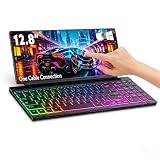
GAMKD Keyboard Monitor Combo, Foldable Touchscreen Portable Monitor 12.8" | $259.99 | Buy on Amazon |
As an Amazon Associate I earn from qualifying purchases.
Open Activity Monitor from Applications > Utilities, or find it with Spotlight. Apple’s Activity Monitor User Guide explains how to review resource use, locate apps or processes, and force quit a troublesome one. Use it when the question is “Which process is responsible?” rather than simply “How busy is my Mac?”
Reading CPU activity
In the CPU view, Activity Monitor separates processor activity into System, User, and Idle. Apple defines System as CPU capability used by macOS processes, User as capability used by opened apps and their processes, and Idle as capability not in use. The Apple CPU activity guide also documents current CPU Usage and recent CPU History windows.
#1 Best Overall
- 【Single-Cable Universal Compatibility for PC/Mac】Enjoy hassle-free one-cable connection to all laptops and desktops—works seamlessly with both USB-C and USB-A ports, fully compatible with Windows and macOS systems. IMPORTANT NOTE: If your screen displays “No Signal,” please follow the instructions in the user manual to check and install the required drivers.
- 【RGB Backlight & Premium CNC Aluminum Construction】Boost productivity in any lighting scenario with customizable RGB backlighting. Choose from breathing mode, 7 single-color options, or rainbow mode—easily controlled via FN+Q/W/E shortcuts. Crafted with a high-grade CNC aluminum body, this compact portable monitor boasts a sleek, professional appearance while delivering exceptional durability.
- 【10-Point Touch Interactive Display】Elevate your workflow beyond traditional typing with the highly responsive 10-point touch screen. This keyboard-monitor combo enables intuitive control: scroll through documents, zoom in on designs, or operate touch-enabled apps effortlessly, turning your laptop monitor extender into a fully interactive workstation.
- 【Whisper-Quiet Keyboard for Focused Work】Tailored for distraction-free environments, our portable monitor with integrated keyboard features a precise scissor-switch mechanism. With typing noise below 30dB, it delivers a stable, laptop-like typing experience—quieter and more durable than standard membrane keyboards. Perfect for use in libraries, offices, coffee shops, or any space where peace is key.
- 【180° Adjustable Hinge & Ultra-Portable All-in-One Design】This 12.8" portable monitor is built for maximum adaptability. The 180° hinge lets you lay it flat or adjust to your perfect viewing angle, adapting to any workspace. Its all-in-one design, combined with an integrated keyboard and premium CNC aluminum build, makes it the ultimate durable, portable solution for on-the-go professionals.
Those views help you check whether CPU use is currently high or has been elevated over time. If the Mac is unresponsive, Activity Monitor can also help you identify a process to quit; force quitting can make an app lose unsaved work, so use that action deliberately.
What menu bar system monitors are best for
A menu bar monitor is designed for at-a-glance awareness while you keep working. Instead of opening a utility each time, you choose readings to display or access from the menu bar. This can be useful if you routinely watch several categories or want graphs and alerts without returning to Activity Monitor.
Example: iStat Menus 7
The Mac App Store listing for iStat Menus 7 describes configurable modules for CPU and GPU, memory, disks, network, battery and power, sensors, time, and weather. It also lists history graphs, app-level CPU, memory, network, and disk information, configurable alerts, and a combined menu bar mode.
What’s actually slowing this PC down?
Pick the symptom - the matching free tool is one click away.
The listing says iStat Menus requires macOS 14.0 or later. It also notes that some GPU and sensor information depends on supported Mac hardware. Check the live listing and your Mac’s compatibility before installing; the available features and software requirements can change.
Can Activity Monitor replace a menu bar monitor for CPU?
Possibly, if CPU is all you need to glance at. Apple documents a way to display CPU activity in Activity Monitor’s Dock icon, along with the CPU Usage and CPU History windows. That provides a built-in option for quick CPU checks without installing another monitor.
The Dock option is a narrower alternative, not evidence that Activity Monitor reproduces a third-party app’s other menu bar modules. If you want persistent memory, sensor, battery, or alert information, compare the specific features you need rather than assuming the CPU display covers them.
Independent reader supportYour contribution helps us test, update, and keep practical guides available for everyone.How to choose between them
| What matters | Activity Monitor | Menu bar monitor |
|---|---|---|
| Main job | Investigate processes and resource use; inspect or quit processes and use diagnostics. (Apple Activity Monitor User Guide: source) | Keep selected system readings visible or readily available while working. (iStat Menus 7 listing: source) |
| Categories | Processes, CPU, GPU, memory, energy, disk, network, and cache. (Apple Activity Monitor User Guide: source) | Depends on the app and hardware. iStat Menus 7 lists CPU, GPU, memory, disks, network, battery and power, and sensors, among other modules. (App Store listing: source) |
| At-a-glance CPU | CPU Usage and CPU History windows; CPU activity can also appear in the Dock icon. (Apple CPU activity guide: source) | iStat Menus lists configurable menu bar modes and histories. (App Store listing: source) |
| Extra context and actions | Process inspection, process management, and diagnostics. (Apple Activity Monitor User Guide: source) | iStat Menus lists app-level resource information, graphs, and configurable alerts. (App Store listing: source) |
| Compatibility | Built into macOS; the cited guide does not state a minimum macOS version. | iStat Menus 7 lists macOS 14.0 or later; some information is hardware-dependent. (App Store listing: source) |
Choose Activity Monitor when you need to investigate
- You want to identify which app or process is using CPU or memory.
- You need to inspect energy, disk, network, GPU, or cache activity.
- You may need to locate and quit a troublesome process or use a diagnostic function.
Choose a menu bar monitor when you need persistent readings
- You want selected information visible or quickly accessible as you work.
- You regularly watch more than CPU, and the app supports the categories your Mac can report.
- Graphs or configurable alerts would help you monitor activity over time.
Use both when the jobs differ
These tools are not mutually exclusive. A menu bar monitor can provide ongoing visibility, while Activity Monitor remains available when you need process-level context or an action. Pick based on the task, not on an assumption that one is universally more accurate, lighter on battery, or more efficient: the cited documentation and listing do not establish a comparative performance result.
Free tools Windows power users keep installed
One-click scans. No signup required.
Quick Recap
Product prices and availability are accurate as of the date/time indicated and are subject to change. Any price and availability information displayed on Amazon at the time of purchase will apply.

