Windows 11 includes a built-in voice typing feature that lets you dictate text into documents, emails, search boxes, chat apps, and many other places where you would normally type. It is designed for quick dictation, so you can start speaking with a simple keyboard shortcut instead of opening a separate app.
To get the best results, you need a working microphone, the right speech and privacy settings, and a basic understanding of punctuation, commands, and auto punctuation. Once those pieces are set up, voice typing can be a fast way to write hands-free, reduce typing strain, or capture thoughts more naturally.
As an Amazon Associate I earn from qualifying purchases.
Requirements for Voice Typing in Windows 11
Windows 11 voice typing is built into the operating system, so you do not need to install a separate dictation app to get started. The main requirement is a working Windows 11 PC with access to Microsoft’s speech services, because voice typing processes your speech online for dictation. This means your computer should be connected to the internet when you use the feature, especially if you want reliable recognition, punctuation support, and faster conversion from speech to text.
Do these 3 things before closing this tab:
1Repair Windows errors before they cause bigger problems2Scan for outdated or missing drivers - takes under a minute3Clear out junk files and repair common Windows errorsYou also need a microphone that Windows can detect and use. A built-in laptop microphone is enough for basic dictation, but a headset, USB microphone, or earbuds with an inline mic often produce clearer results because they sit closer to your mouth and pick up less room noise. Before using voice typing, check that your preferred microphone is selected in Windows. Go to Settings > System > Sound, then look under Input. Choose the correct device, speak normally, and confirm that the input level meter moves.
#1 Best Overall

- 360 Degree Position Adjustable Gooseneck Design --Plug and play USB microphone Pick up the sound from 360-degree with high sensitivity, in the best possible location for sound to your PC gaming, dragon voice dictation, and talk to Cortana
- Mute Button & LED Indicator --One-click to mute/unmute your microphone for pc, Build-in LED indicator tells you the working status at any time
- Intelligent Noise-Canceling Tech --Premium omnidirectional condenser microphone with noise-canceling technology can pick up your clear voice and reduce background noise and echo
- USB Plug&Play(1.8/6ft USB Cable) -- No driver required. Just need to plug & play for the microphone to start recording, well compatible with Windows(7, 8, 10 and 11) and macOS. (NOT compatible with Xbox/Raspberry Pi/Android)
- Solid Construction--Adopting premium metal pipe and heavy-duty ABS stand to make sure that you will be satisfied with our computer mic quality
Voice typing must also have permission to access your microphone. If the tool opens but does not hear you, open Settings > Privacy & security > Microphone. Turn on Microphone access, then make sure access is allowed for desktop apps if you plan to dictate into programs such as Word, pad, Outlook, a web browser, or other traditional Windows applications. Without this permission, the voice typing panel may appear, but dictation will fail or stop immediately.
Basic checklist before dictating
- Windows 11 is installed: Voice typing is available as a built-in Windows 11 feature.
- Internet is connected: Online speech recognition is used to convert your voice into text.
- A microphone is available: Built-in, USB, Bluetooth, or headset microphones can work.
- The correct input device is selected: Confirm this in Settings > System > Sound.
- Microphone permissions are enabled: Check Settings > Privacy & security > Microphone.
- A text field is active: Click inside a document, message box, search field, or form before starting voice typing.
Language support is another factor. Voice typing works best when your Windows display, keyboard, and speech language match the language you plan to dictate. You can review these options in Settings > Time & language > Language & region and Settings > Time & language > Speech. If you dictate in English, for example, make sure an English language pack is installed and selected where appropriate. Mismatched language settings can cause incorrect words, missing punctuation behavior, or commands being interpreted as plain text.
Finally, you need an app or text area that accepts typed input. Voice typing can enter text into many places where you would normally use the keyboard, including Microsoft Word, pad, web forms, email messages, chat apps, and browser-based document editors. It is not limited to Microsoft apps, but the cursor must be placed in an editable field before you launch the tool. If there is no active insertion point, Windows may open the voice typing launcher without inserting any dictated text.
What’s actually slowing this PC down?
Pick the symptom - the matching free tool is one click away.
How to Start Voice Typing with the Keyboard Shortcut
Windows 11 voice typing is built around a quick keyboard shortcut: Windows key + H. You can use it in most places where you would normally type, including Microsoft Word, pad, Outlook, Microsoft Edge, Chrome, search boxes, chat apps, and many text fields inside desktop programs. Before pressing the shortcut, click inside the app or document where you want your dictated words to appear. The text cursor should be blinking in the target field.
- Open the app, document, message, or web page where you want to enter text.
- Click in the text box or document area so Windows knows where to insert the dictation.
- Press Windows key + H on your keyboard.
- When the voice typing launcher appears, select the microphone button if it does not start listening automatically.
- Begin speaking clearly at a steady pace. Your words should appear near the cursor as Windows recognizes them.
- Press Windows key + H again, click the microphone button, or stop speaking for a moment when you are finished.
The voice typing launcher is a small floating toolbar that usually appears near the bottom of the screen or close to the active text field. It includes a microphone button, a settings button, and a visual status indicator so you can tell whether Windows is listening. If the microphone icon is highlighted or animated, dictation is active. If it is idle, click it to resume. You can move the launcher by dragging it if it covers part of your document.
For hands-free dictation, open the voice typing launcher with Windows key + H, select the settings gear, and turn on the option to start voice typing automatically when you click in a text box. This is useful if you dictate frequently because the launcher can appear whenever Windows detects a compatible typing area. If you prefer manual control, leave this setting off and use the keyboard shortcut only when needed.
Using the shortcut in everyday apps
- Word processors: Click where you want the sentence or paragraph to begin, then press Windows key + H and dictate normally.
- Email: Click in the subject line or message body before starting voice typing. You can move between fields with your mouse or keyboard.
- Web browsers: Use it in search bars, online forms, social media posts, and browser-based editors.
- Messaging apps: Dictate short replies directly into the message box, then review the text before sending.
If nothing appears after you speak, first check that the text cursor is active in a writable field. Voice typing will not insert text into areas that are not editable, such as a normal web page, an image, or a protected document. Also make sure another app is not using the microphone in exclusive mode. Once the cursor is in the right place and the launcher shows that it is listening, Windows 11 should transcribe your speech directly into the selected app.
Free tools Windows power users keep installed
One-click scans. No signup required.
Rank #2

- Crystal-Clear Sound: This computer microphone features exceptional 360-degree omni-directional audio pickup, capturing your voice with clarity and natural tone within the optimal 6-12 inch range. And with windproof fluffy caps, the microphone can reduce the breaking noise generated by the spray and wind. You can create professional, authentic recordings effortlessly – without requiring specialized software or sound cards.
- Plug-and-Play, Easy To Use: No drivers or software, simply plug this usb microphone into your PC to be game-ready in seconds for gaming, streaming, or chatting. microphone for computer desktop for video recording is for windows and mac compatible. ( not a speaker.)
- Mute Button & LED Indicator: The gaming microphone features a touch-sensitive mute button, which allows you to instantly mute/unmute your computer microphone for desktop. This mute function effectively prevents audio mishaps during chats or recordings, ensuring your peace of mind. The built-in LED indicator shows the microphone status in real time (green: connected/working; red: mute mode).
- Multifunction Use: The microphone for podcast can be automatically recognized on your computer or pc. The desktop microphone for pc is versatile, not only it can be used for gaming, singing, home studio, Yahoo recording, YouTube recording, but also can use it for court reporting, remote training, business negotiation, video chatting and so on.
- Premium Materials & User-Friendly Design: This streaming microphone features a metal gooseneck tube and ABS shockproof base for durability, and a non-slip silicone pad that won't budge even if you tap the desktop hard during a passionate live broadcast. The small and compact design allows you to carry this gaming microphone pc in your backpack to the office, conference room or home without taking up a lot of space.
Using Punctuation, Commands, and Auto Punctuation
Windows 11 voice typing can enter more than plain words. As you dictate into a text field, document, email, chat, or browser form, you can speak punctuation marks and basic editing commands to shape the text as you go. This is useful when you want to write complete sentences without constantly reaching for the keyboard. For example, you can say “Hello comma thanks for your message period” and Windows will type “Hello, thanks for your message.”
Common punctuation works by saying the punctuation mark where you want it to appear. You can say period, comma, question mark, exclamation point, colon, semicolon, open quote, close quote, open parenthesis, close parenthesis, and new line. For longer writing, use new paragraph to create a paragraph break. If you are dictating a list, you might say “new line dash space” before each item, or use the keyboard afterward for formatting if the app does not interpret the spoken formatting exactly as expected.
Useful voice typing commands
- New line: moves the cursor to the next line.
- New paragraph: inserts a larger break for a new paragraph.
- Delete that: removes the most recent dictated phrase in supported situations.
- Select that: selects recently dictated text when supported by the app and context.
- Stop listening: pauses voice typing without closing the panel in some contexts.
Command behavior can vary depending on the app you are using. Microsoft Word, pad, Outlook, Edge, and many standard Windows text boxes usually handle dictation well, but some web apps or older desktop programs may treat commands as ordinary words. If Windows types “new line” instead of moving to a new line, use the Enter key for that action or try dictating in a simpler text editor first, then paste the text into the target app.
Windows 11 also includes auto punctuation, which can add periods, commas, and question marks automatically based on your speech patterns. To turn it on, press Windows + H to open voice typing, select the Settings gear in the voice typing launcher, then enable Auto punctuation. This can make dictation feel more natural because you can speak in full phrases instead of calling out every comma or period. It works best when you speak at a steady pace and pause briefly between sentences.
The Tool Desk
Outbyte PC Repair FREEClear out junk files and repair common Windows errorsFree Scan →Outbyte Driver Updater FREEScan for outdated or missing drivers - takes under a minuteDriver Scan →Auto punctuation is helpful, but it is not perfect. It may place commas where you would not, miss a sentence ending, or add a question mark when your tone rises. For formal documents, emails, reports, or anything you plan to send to others, review the text before you finish. Many users get the best results by leaving auto punctuation on for drafts, then manually correcting punctuation afterward. If you need precise formatting, such as legal text, code comments, technical instructions, or quoted material, spoken punctuation may be more reliable than automatic punctuation.
Changing Microphone and Speech Settings
If Windows 11 voice typing is using the wrong microphone, missing words, or producing inconsistent results, check your input and speech settings before troubleshooting the app you are typing into. Voice typing depends on the microphone selected in Windows, the microphone’s input level, privacy permission for speech services, and the language settings used for recognition.
Select the correct microphone
Start by choosing the microphone Windows should use for dictation. Open Settings, go to System > Sound, then look under Input. Select the microphone you want to use, such as a headset mic, USB microphone, webcam microphone, or laptop built-in microphone. If you have mulle devices connected, Windows may pick the wrong one automatically, especially after plugging in a headset or docking station.
Rank #3

- [Convenient Setup] Plug and play recording USB microphone for PC, with 5.9-Foot USB cable included for computer PC laptop, is connected directly to USB-A port for recording music, computer singing or podcast. The office condenser microphone for computer is easy to use and install. (NOT compatible with Xbox and Phones)
- [Durable Metal Design] Solid sturdy metal construction design, the computer microphone for Zoom meetings with stable tripod stand is convenient when you are doing voice overs or livestreams on YouTube. Durable material extends the service life of the voice-over microphone.
- [Mic Volume Knob] Gaming condenser USB mic compatible for PS4 with additional volume knob itself has a louder or quieter adjustment and is more sensitive. Your voice would be heard well enough through the zoom microphone USB when gaming, skyping or voice recording. Also, you can adjust your volume to zero and protect your privacy.
- [Widely Use] USB-powered design, the condenser microphone for recording no need the 48v Phantom power supply, works well with Cortana, Discord, voice chat and voice recognition. The podcast microphone for Mac, with USB-B to USB-A/C cable, is compatible with desktop, laptop or PS4/PS5, which meets most of your daily recording needs.
- [Clear Output Voice] Cardioid condenser microphone for PC captures your voice properly, producing clear smooth and crisp sound. Great computer recording mic for gamers/streamers/youtubers focus on the main source and reduces background noise. The streaming microphone does the job well for broadcast ,OBS and teamspeak.
After selecting the microphone, speak normally and watch the input meter. If the bar barely moves, open the microphone’s device page and raise the Input volume. If the bar stays near the maximum or your dictation sounds distorted in other apps, lower the level slightly. You can also use Test your microphone on the same page to confirm that Windows is receiving sound clearly.
Check microphone permissions
Voice typing also needs permission to access your microphone. Go to Settings > Privacy & security > Microphone. Turn on Microphone access, then make sure Let apps access your microphone is enabled. If you are dictating into a Microsoft Store app, browser, chat app, or document editor, verify that the relevant app is allowed to use the microphone.
- Microphone access: enables or blocks the microphone system-wide.
- App permissions: controls whether individual apps can use the microphone.
- Browser permissions: may also need to be allowed inside Edge, Chrome, or another browser if dictating into a web app.
Adjust speech language and online recognition
For better recognition, confirm that Windows is listening in the language and regional format you actually speak. Open Settings > Time & language > Speech. Under Speech language, choose the language you use for dictation, such as English United States or English United Kingdom. If your accent or vocabulary matches a different regional option, switching to that variant can improve accuracy.
On the same page, check the speech-related options available on your PC. Windows 11 voice typing uses Microsoft’s online speech recognition for many dictation features, so Online speech recognition may need to be enabled under Settings > Privacy & security > Speech. If this is turned off, voice typing may not start or may have reduced functionality. In managed work or school environments, this setting can be controlled by an administrator.
Install missing language features
If the speech language you want is not available, install it from Settings > Time & language > Language & region. Select Add a language, choose the language, and include speech features if Windows offers them during installation. After installing, return to the Speech settings page and select the new speech language. Restarting the target app, or signing out and back in, can help Windows apply the change cleanly.
Once these settings are configured, reopen the document, text field, or app where you want to dictate, press Windows logo key + H, and test a few sentences. If the transcript now matches your speech more closely, the issue was likely device selection, input level, permissions, or language configuration rather than voice typing itself.
Tips for More Accurate Dictation
Windows 11 voice typing works best when your speech is consistent, your microphone input is clean, and the app you are dictating into has an active text cursor. Before starting a long email, report, or , click inside the text field, press Windows + H, and say a short test sentence. If the words appear correctly, continue; if they are garbled, adjust your microphone position or input device before dictating several paragraphs.
Rank #4

- HIGH SENSITIVITY for CLEAR CALL - This portable USB microphone adpots a 6*10mm high sensitivity condensor microphone to capture clear voice, the audio signal processed by multi levels of audio gain amplifier and advanced ADC module, it provides crystal clear voice, reliable compatibility and noise cancelling. It's able to capture voice in 10ft distance clearly -it's very small, but powerful. Plug it into the computer, you'll experience better con-call immediately.
- PLUG-and-PLAY - The USB 2.0 interface is widely compatible with the most computer devices (Windows, Mac, Raspberry Pi, Linux, Chromebook & etc ) and softwares (Google Meetings, Zoom, Team, Skype & etc). Just plug it into the USB port and done. No extra driver or settings are required.
- COMPACT & PORTABLE - Like a flash disk, you can put it in the pocket with ease. Carry it with your laptop, and plug it in when you need it. No more tangled cords or bulky bases hogging your desk space, This mic is on a mission to keep your workspace sleek and organized.
- IDEAL REPLACEMENT - If you are looking for a quality microphone for work at home, online conferencing, online class, live streaming and webinar, this is a great choice. It's not a recording studio grade microphone, but the sound quality is better than most of laptop built-in microphones, and it's completely enough to meet your general demand.
- WHAT YOU GET - Packed in a metal carrying box, and comes with 12 months waranty. For any concern, you can send us messages and we will respond in 24 hours.
Speak at a natural pace, but avoid rushing through names, numbers, addresses, or technical terms. Voice typing usually handles common sentences well, but uncommon words may need clearer separation. For example, when dictating a product name, file path, medication, company name, or acronym, pause slightly before and after it. If a word is repeatedly misheard, type it manually the first time or spell it out if the context allows.
Improve your microphone input
- Use a headset or dedicated microphone: Built-in laptop microphones often pick up keyboard taps, fan noise, and room echo. A headset mic placed near your mouth usually gives Windows a cleaner signal.
- Keep the mic at a steady distance: Position it a few inches from your mouth and slightly off to the side to reduce breath sounds and popping on words that start with “p” or “b.”
- Reduce background noise: Close windows, move away from TVs or speakers, and avoid dictating near other conversations. Even low background speech can be interpreted as part of your dictation.
- Check the selected input device: If you use Bluetooth earbuds, a webcam, or a docking station, Windows may switch microphones. Confirm the right device under Settings > System > Sound > Input.
Dictation accuracy also depends on how you structure what you say. Use complete phrases instead of isolated fragments, because Windows can use surrounding words to choose the correct spelling. For example, “I will meet you there” is easier to interpret than saying “there” by itself. When adding punctuation manually by voice, say it clearly as part of the sentence, such as “Let’s review the budget comma then send the final version period.”
Recommended Free Tools
Dictation habits that help
- Pause between sentences: A brief pause gives voice typing time to process the sentence and insert punctuation more reliably when auto punctuation is enabled.
- Review as you go: After each paragraph, scan the text for wrong words. Correcting small errors immediately is faster than fixing a full page later.
- Dictate in a quiet app first: For long-form writing, consider dictating into Notepad or Word before pasting into a web form that may time out or refresh.
- Avoid talking over system sounds: Notification chimes, meeting audio, or media playback can interfere with recognition. Mute other audio when possible.
- Use consistent wording for commands: Say commands such as “delete that,” “new line,” or “new paragraph” distinctly, with a short pause before and after.
If you often dictate specialized content, such as legal, medical, academic, or programming-related text, expect to make some manual corrections. Windows 11 voice typing is designed for general dictation, so uncommon terminology, symbols, and mixed-language sentences may require editing. For best results, combine voice typing for the main draft with keyboard corrections for names, formatting, links, and exact punctuation.
Independent reader supportYour contribution helps us test, update, and keep practical guides available for everyone.Fixes for Common Voice Typing Problems
If voice typing does not start, first make sure your cursor is placed in a text field that accepts typing, such as a Word document, pad window, browser search box, email draft, or chat message. Press Windows + H again after clicking inside the text area. If the voice typing launcher appears but nothing is entered, close it with the X, reopen the app you are dictating into, and try the shortcut again.
Voice typing will not open
When the Windows + H shortcut does nothing, check that your keyboard is working and that the Windows key has not been disabled by gaming software or a keyboard lock mode. You can also restart Windows Explorer from Task Manager or simply restart the PC, which often clears a stuck input service. If the problem continues, install pending updates from Settings > Windows Update, since voice typing depends on current Windows speech components.
Windows cannot hear you
If the microphone icon appears but your words are not detected, open Settings > System > Sound and confirm that the correct microphone is selected under Input. Speak while watching the input level meter; if it does not move, choose another device, reconnect the headset, or test the microphone in another app. For Bluetooth headsets, disconnect and pair the device again, then make sure Windows is using the headset microphone rather than a laptop or webcam microphone across the room.
Quick wins for a faster PC:
Clear out junk files and repair common Windows errorsFree Scan →Scan for outdated or missing drivers - takes under a minuteDriver Scan →Repair Windows errors before they cause bigger problemsFix Now →- Go to Settings > Privacy & security > Microphone and turn on microphone access.
- Allow microphone access for desktop apps if you are dictating into programs such as Word, Outlook, or a browser.
- Check that the microphone is not muted on the headset cable, keyboard, docking station, or meeting app.
- Move closer to the microphone and reduce background noise from fans, speakers, or open windows.
Dictation is inaccurate or slow
Poor accuracy is usually caused by the wrong input device, background noise, or speech recognition trying to interpret unclear audio. Use a dedicated headset or external USB microphone when possible, and keep it a consistent distance from your mouth. In Settings > Time & language > Speech, confirm that your speech language matches the language and accent you are using. If you dictate in English but the speech language is set to another region, names, punctuation, and common phrases may be misheard.
Best Value
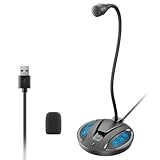
- Studio-Quality Sound: This desktop microphone for pc features an omnidirectional pickup pattern, focusing on your voice to capture every detail for loud, powerful audio. Its intelligent noise reduction effectively filters out keyboard clicks, fan humming, and background noise, delivering crystal-clear, distortion-free sound. Experience exceptional audio quality with this must-have computer microphone for desktop.
- Plug & Play USB Microphone for PC with Wide Compatibility: No drivers or complex setup! Connect directly to Windows/Mac via USB and be ready in seconds. Works flawlessly as a streaming microphone or podcast microphone with native support for Zoom, Teams, Skype, YouTube, Twitch and more. ( not a speaker.)
- One-Tap LED Mute & Ambient Lighting: This essential desktop microphone features an eye-catching mute button with instant tap control – mute/unmute effortlessly during calling or streaming. Customizable breathing lights (on/off switch) enhance your gaming microphone setup with sleek tech aesthetics, elevating any workstation or gaming mic with premium ambiance.
- Flexible Gooseneck Wired Desktop Microphone: Designed for pc gaming, this microphone for computer features a fully adjustable 360-degree metal gooseneck for effortless positioning and optimal sound capture. The flexible 5.7-inch gooseneck offers superior convenience, allowing you to easily orient it horizontally or vertically to suit the speaker's comfort. Perfect for online meetings and capturing studio-quality audio during live recordings.
- Durable: Built with a high-grade metal gooseneck and a weighted, shock-resistant ABS base featuring non-slip silicone pads, this podcast mic remains steadfastly anchored, resisting displacement even during enthusiastic live streaming sessions. Compact and remarkably lightweight, its design enables easy portability, effortlessly stow this versatile usb microphone in your bag for immediate use in offices, meeting rooms, or home studio setups.
Punctuation or commands are not working
If punctuation words are typed out instead of inserted as symbols, check whether auto punctuation is enabled from the voice typing launcher’s settings gear. You can still say punctuation marks directly, such as comma, period, question mark, new line, and new paragraph. Speak commands clearly with a short pause before and after them. If an app handles text input in an unusual way, try dictating into pad first, then copy and paste the text into the target app.
| Problem | Fix to try |
|---|---|
| Launcher opens but no text appears | Click inside the text field, restart the app, then press Windows + H again. |
| Microphone is not detected | Select the correct input device in Settings > System > Sound. |
| Access is blocked | Enable microphone permissions in Privacy & security. |
| Words are consistently wrong | Change the speech language, reduce noise, and use a closer microphone. |
For persistent issues, run the recording audio troubleshooter from Settings > System > Troubleshoot > Other troubleshooters. You can also remove and re-add the microphone in Device Manager, update the audio driver from the PC manufacturer, or test with a different user account to rule out a profile-specific settings problem.
Frequently Asked Questions
What keyboard shortcut starts voice typing in Windows 11?
Press Windows + H while your cursor is in a text box, document, browser field, or supported app. The voice typing launcher will appear, and you can select the microphone button if it does not start listening automatically.
PC Slower Than It Used to Be?
A free scan shows the junk files, broken settings and background clutter dragging Windows down - then fixes them in one click.Free scan · Windows 10 & 11Crashes, No Sound, or Screen Glitches?
Random freezes, missing sound and display glitches usually trace back to one bad driver. Find and replace yours safely.Free scan · under a minuteDoes Windows 11 voice typing work without an internet connection?
Windows 11 voice typing generally requires an internet connection because Microsoft’s online speech recognition helps convert your speech to text. If dictation is not starting or accuracy drops sharply, check that you are online and that online speech recognition is enabled in Windows settings.
How do I add punctuation while using voice typing?
You can say punctuation marks out loud, such as “comma,” “period,” “question mark,” or “new line,” while dictating. You can also turn on auto punctuation from the voice typing settings menu, which lets Windows insert some punctuation automatically based on your speech.
How do I change the microphone Windows 11 uses for voice typing?
Go to Settings > System > Sound and choose your preferred microphone under input devices. You should also test the input level there, because a muted, low-volume, or wrong microphone is one of the most common reasons voice typing fails.
What should I do if voice typing opens but does not type anything?
First, make sure your cursor is active in a place that accepts text, such as a document or search box. Then check microphone permissions under Settings > Privacy & security > Microphone, confirm your mic is selected in sound settings, and restart the app you are dictating into if it still does not respond.
Bottom Line
Windows 11 voice typing is a quick way to dictate text into documents, emails, search boxes, and many everyday apps once your microphone and speech settings are ready. Use Windows + H to start, speak clearly, add punctuation by voice when needed, and turn on automatic punctuation if it fits your workflow.
If dictation is inaccurate, check your microphone input, language, privacy permissions, and background noise before trying again. For the best results, practice a few common commands and keep your cursor in the text field where you want your words to appear.
Quick Recap
Product prices and availability are accurate as of the date/time indicated and are subject to change. Any price and availability information displayed on Amazon at the time of purchase will apply.

