Do these 3 things before closing this tab:
1Repair Windows errors before they cause bigger problems2Scan for outdated or missing drivers - takes under a minute3Clear out junk files and repair common Windows errorsOn Windows 8.1, you can sign in directly to the desktop and avoid the usual trip to Start. Right-click the taskbar, open Properties, choose the Navigation tab, and enable “When I sign in or close all apps on a screen, go to the desktop instead of Start.” Pin your everyday desktop programs to the taskbar as well, so you do not need Start to launch them.
These exact controls are documented for Windows 8.1, not necessarily for the original Windows 8. Check your version before changing anything. The operating system still works, but Microsoft ended Windows 8.1 support on January 10, 2023, so it no longer receives security updates.

As an Amazon Associate I earn from qualifying purchases.
What you can—and cannot—avoid
Windows 8.1 does not provide a switch that permanently deletes the Start screen. The Windows key, the Start button, and some system commands will still open it. What you can change is the automatic behavior: Windows can take you to the desktop after sign-in and after you close all apps, while the taskbar gives you a desktop-only launch point for the programs you use most.
The Tool Desk
Outbyte Driver Updater FREEScan for outdated or missing drivers - takes under a minuteDriver Scan →Outbyte PC Repair FREEClear out junk files and repair common Windows errorsFree Scan →That distinction matters because two different annoyances are often described as “switching to Start”:
#1 Best Overall
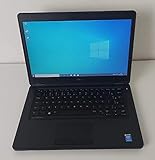
- Processor: Intel Core 5th Generation i5-5300U Processor (3M Cache, up to 2.90 GHz)
- 14.0 inch HD (1366x768) Anti-Glare LCD; Integrated webcam
- 500 GB SATA Hard Drive (7200 RPM); 8GB 1600MHz DDR3L Memory
- Intel Dual Band Wireless-AC 7265AC 802.11ac/a/b/g/n 2x2 + Bluetooth 4.0 LE Half Mini Card
- Windows 8.1 Pro (64Bit)
- Startup transition: the computer signs in to Start before you reach the desktop. The Navigation setting prevents this on supported Windows 8.1 installations.
- Launching programs: you return to Start simply to open a desktop application. Pinning that application to the taskbar removes the extra trip.
- Full-screen Windows Store apps: these apps have their own Windows 8.1 interface and may still take over the screen. The boot-to-desktop option does not turn them into desktop windows.
Use the first setting for the startup problem and taskbar pinning for the everyday-launch problem. Organizing Start is still useful as a fallback for apps or files you open occasionally.
First, confirm whether you have Windows 8 or Windows 8.1
Microsoft’s published instructions for starting at the desktop apply to Windows 8.1. The original Windows 8 release does not necessarily show the same checkbox, so do not assume that a missing option means you have overlooked it.
- Press Windows key + R to open the Run dialog.
- Type
winverand press Enter. - Read the version name in the About Windows window. It should identify Windows 8.1 if the steps in this article are available to you.
You can also look for the Windows 8.1 Update branding in installed updates or on the system information screen. The April 2014 Windows 8.1 Update changed several defaults, and a non-tablet computer that has that update may already boot to the desktop. If your machine already does so, there is nothing to change for startup.
What’s actually slowing this PC down?
Pick the symptom - the matching free tool is one click away.
If the window says Windows 8 rather than Windows 8.1, treat the instructions below as a compatibility check rather than a promise that the controls exist. Microsoft’s historical documentation separates Windows 8.1 features from Windows 8.0. Moving from an old release also involves hardware, driver, application, licensing, and support considerations; do not start an upgrade solely because a checkbox is absent.
Set Windows 8.1 to go straight to the desktop
This is the native setting that prevents the normal sign-in transition to Start. You need access to the desktop and a Windows 8.1 installation with the Navigation controls.
Rank #2

- Screen: Boasting an 11.6-inch anti-glare touchscreen with a crystal-clear resolution of 1366 x 768 pixels, you'll immerse yourself in stunning visuals without the annoying glare. Whether you're working on assignments, watching educational videos, or just browsing the web, this laptop's screen will elevate your experience to a whole new level.
- Design: Our Dark Grey Notebook is not just a laptop; it's a fashion statement. Sleek, slim, and weighing in at a mere 3 pounds, it's the epitome of portability. With dimensions measuring 11.6 x 0.8 x 8.1 inches, this beauty fits snugly in your bag, making it the perfect companion for students, professionals, and anyone on the move.
- Operating System: Equipped with Windows 11 Pro Education and a lightning-fast 3.4 GHz Celeron N100 processor, this laptop is designed for those who demand top-tier performance. Whether you're multitasking for school projects or handling business tasks, this laptop got your back.
- Graphics: Prepare to be amazed by the integrated Intel UHD Graphics! With 4GB of dedicated graphics card RAM, your favorite games and videos will run smoother than ever before. Whether you're a student looking for a break or a gamer ready to conquer new challenges, this laptop delivers an unparalleled visual experience.
- Memory&Storage: With 128 GB of lightning-fast SSD hard disk storage and 4GB DDR4 SDRAM, this laptop is designed for smooth and efficient performance. Say goodbye to lag, and hello to lightning-fast data access.
- Go to the desktop. If Start is open, select the Desktop tile or press Windows key + D.
- Right-click an empty area of the taskbar and select Properties.
- Open the Navigation tab.
- Under the Start screen settings, select When I sign in or close all apps on a screen, go to the desktop instead of Start.
- Select Apply, then OK. Depending on the dialog version, selecting OK alone may save the change.
There is a second route to the same panel. From Start, type taskbar, choose Taskbar and Navigation from the results, and then open Navigation. The labels can look slightly different between installations, but the checkbox text identifies the relevant control.
Test the change
- Sign out and sign in again, or restart the computer.
- Confirm that the first usable screen is the desktop rather than Start.
- Open a desktop program, close it, and close any other open apps. With the checkbox enabled, closing all apps should return you to the desktop rather than automatically showing Start.
The setting does not disable Start. Pressing the Windows key, selecting a Start shortcut, or using a function that explicitly opens Start will still take you there. It changes only the automatic destination after sign-in and after the specified apps are closed.
Recommended Free Tools
Pin desktop programs so Start is not needed for launching
Booting to the desktop solves only the first transition. Pinning gives you a permanent row of shortcuts for the programs you open repeatedly.
- Start the desktop application you want to keep handy.
- Find its icon on the taskbar.
- Right-click the icon, or press and hold it on a touch device.
- Select Pin this program to taskbar.
Close the program if you want; its icon remains on the taskbar. Select the icon any time to launch it directly from the desktop. Repeat the process for your browser, file manager, office software, media tools, or other traditional desktop programs.
Keep the taskbar usable
- Pin only programs you open frequently. A crowded taskbar recreates the search problem in a different place.
- Right-click an unwanted pinned icon and choose Unpin this program from taskbar.
- Separate desktop applications from temporary windows by keeping the pinned icons in a consistent order.
- Remember that the taskbar command is intended for desktop programs. A Windows Store app may offer a Start shortcut instead of the desktop pinning command.
Taskbar pinning is a launch shortcut, not a replacement for the application’s window model. A pinned desktop program opens on the desktop; a full-screen Store app can still open in its own full-screen environment.
Rank #3

- 14” Diagonal HD BrightView WLED-Backlit (1366 x 768), Intel Graphics
- Intel Celeron Dual-Core Processor Up to 2.60GHz, 4GB RAM, 64GB SSD
- 1x USB Type C, 2x USB Type A, 1x SD Card Reader, 1x Headphone/Microphone
- 802.11a/b/g/n/ac (2x2) Wi-Fi and Bluetooth, HP Webcam with Integrated Digital Microphone
- Windows 11 OS
Choose desktop defaults where Windows 8.1 offers them
Windows 8.1 includes additional Navigation and default-program controls that can reduce accidental trips to Start. They do not change every application, and some are relevant only to older software.
Open web links in desktop Internet Explorer 11
If Internet Explorer 11 is still installed and you rely on a legacy site or intranet, its Programs settings include an option to open links in desktop Internet Explorer. The historical Microsoft instructions also cover links associated with pinned websites. Selecting the desktop behavior keeps those links in a desktop window instead of sending you to a full-screen browser experience.
This is a compatibility setting for an obsolete browser, not a security recommendation. Internet Explorer is no longer a modern, supported choice for general web browsing. Use it only where an old application specifically requires it, and avoid treating the setting as a way to make unsupported software safe.
Review the other Navigation choices
The Navigation tab also contains controls for how Start behaves when you do open it, including whether Windows presents the Apps view automatically. These choices are useful if you occasionally need Start but prefer a list of installed programs over a rearranged tile layout. Change only the options that match your workflow; they do not affect the desktop-at-sign-in checkbox.
Organize Start as a fallback instead of a daily launch screen
Even with desktop startup enabled, you may need Start for an app, folder, or file that is not pinned to the taskbar. Treat it as an occasional catalog rather than your primary workspace.
- Place the applications you use most in the first visible tile group.
- Create separate groups for work, communication, media, and system tools so you can scan them quickly.
- Where Windows offers Pin to Start for an app, folder, or file, use it for items that are important but not frequent enough to occupy the taskbar.
- Remove duplicate or unused tiles. A smaller Start layout is faster to scan when you do have to open it.
Microsoft describes Start as a full-screen menu of tiles. Tile organization cannot prevent the screen change, but it shortens the time spent looking for something when a Start-only shortcut is unavoidable.
Why two Windows 8.1 computers can behave differently
Windows 8.1’s behavior depends partly on update level and device type. The Windows 8.1 Update released in April 2014 changed the default startup experience for many non-tablet computers: those systems generally opened at the desktop. Tablets were treated differently because the touch-oriented Start experience remained more central.
| Situation | Likely startup behavior | What to check |
|---|---|---|
| Windows 8.1 desktop or laptop with the April 2014 Update | Often starts at the desktop by default | Taskbar and Navigation Properties; the option may already be enabled or unnecessary |
| Windows 8.1 tablet | May continue to favor Start or another touch-oriented default | Navigation settings and the device’s update level |
| Windows 8.1 without the relevant update | May retain the earlier Start-at-sign-in behavior | Installed updates and the Navigation tab |
| Original Windows 8.0 | The documented Windows 8.1 checkbox may be absent | Confirm the version before looking for a setting that may not exist |
The update changed defaults; it did not remove your ability to adjust the supported Windows 8.1 behavior. If a computer already opens to the desktop, focus on taskbar pinning and Start organization rather than changing startup settings that are already doing what you want.
Compare the practical ways to reduce switching
| Method | Built into Windows 8.1? | What it prevents | Version or device considerations |
|---|---|---|---|
| Boot to desktop at sign-in | Yes | The automatic transition from sign-in to Start | Documented for Windows 8.1; update level and tablet status can affect the default |
| Return to desktop after closing all apps | Yes, through the same Navigation checkbox | Being sent to Start when the last app closes | Uses the exact “close all apps on a screen” behavior in Windows 8.1 |
| Pin desktop programs to the taskbar | Yes | Opening Start just to launch a frequently used desktop program | Best for traditional desktop applications; Store apps may expose different shortcuts |
| Set desktop browser behavior | Available for legacy Internet Explorer settings | Some links opening in a full-screen browser context | Relevant only where Internet Explorer 11 and a legacy workflow remain in use |
| Organize Start tiles | Yes | Long searches when Start is unavoidable | Does not prevent the screen transition; it makes the fallback menu faster |
For most desktop users, enable the first setting and pin the programs used every day. The other methods handle exceptions rather than replacing those two changes.
Troubleshoot the common failure modes
The Navigation tab or checkbox is missing
Run winver and confirm the system is Windows 8.1. The documented setting is not a guaranteed Windows 8.0 feature. If the computer is Windows 8.1 but the controls still do not appear, check whether you opened the actual Taskbar and Navigation Properties dialog rather than a similarly named personalization panel. If the option remains unavailable, use taskbar pinning and a compact Start layout instead of assuming the control can be added through an unofficial tweak.
Best Value

- 【Efficient Intel N150 Performance for Everyday Tasks】Powered by the Intel N150 processor with 4 cores and speeds up to 3.6GHz, this laptop delivers smooth performance for web browsing, office applications, online classes, and daily productivity with reliable efficiency.
- 【Fast DDR5 Memory and PCIe SSD Storage】Equipped with up to 32GB high-speed DDR5 RAM for responsive multitasking and a PCIe NVMe M.2 SSD (configurable up to 2TB) for fast boot times, quick file access, and improved overall system responsiveness.
- 【15.6" Full HD Anti-Glare Display】Enjoy clear visuals on a 15.6-inch Full HD (1920×1080) anti-glare display with 250 nits brightness and 45% NTSC color, designed for comfortable viewing during extended work, study, or streaming sessions.
- 【Modern Connectivity with USB-C and Wi-Fi 6】Stay connected with Wi-Fi 6 and Bluetooth 5.2, plus versatile ports including USB-C with Power Delivery and DisplayPort, USB-A 3.2, HDMI, and RJ-45 Gigabit Ethernet for flexible work and productivity setups.
- 【Business-Ready Design with Online Microsoft 365 Access】Designed for productivity, this laptop features a full-size keyboard with numeric keypad, firmware TPM 2.0 security, and an HD webcam with privacy shutter. Use Microsoft 365 online—no subscription needed—just sign in at Office.com to access Word, Excel, and PowerPoint in your browser.
The computer still opens Start after you enabled the option
- Reopen Taskbar and Navigation Properties and verify the checkbox is still selected.
- Use a full sign-out or restart to test; locking the screen is not the same as signing in again.
- Confirm that the machine is running Windows 8.1 and note whether it is a tablet or a touch-first device.
- If the desktop appears briefly and another program launches full screen, identify that program. The startup setting does not stop a Store app or another application from opening after sign-in.
Closing an app returns you to Start
The checkbox refers to closing all apps on a screen, not merely closing one window while another app remains open. Close the remaining apps, then test again. If Start still appears, revisit the Navigation tab and verify the exact “go to the desktop instead of Start” wording is selected.
A program will not pin to the taskbar
Make sure you are right-clicking the running program’s taskbar icon, not a Start tile or a shortcut in a search result. Desktop applications normally show Pin this program to taskbar. If the command is absent, the item may be a Store app or a nonstandard launcher; pin it to Start or create a desktop shortcut instead.
A full-screen app keeps interrupting desktop work
Boot-to-desktop affects where Windows starts, not how every application displays. Windows Store apps designed for the Windows 8.1 interface can still occupy the screen. If a desktop edition of the same tool exists and is compatible with your system, use that edition for a windowed workflow. Otherwise, close the app when finished and rely on the Navigation setting to return to the desktop.
Can you use Windows 8 without the Start screen?
You can use Windows 8.1 primarily from the desktop, but you cannot eliminate every route to Start with the built-in controls. Sign-in can go directly to the desktop, common desktop programs can launch from the taskbar, and Start can be reserved for less frequent items. The Start screen remains available whenever Windows or an application explicitly calls it.
That is the supported, low-risk approach: change the documented Navigation setting, use native taskbar pinning, and keep a small organized Start layout. Avoid registry hacks or third-party replacements merely to hide Start; they can introduce compatibility and security problems on an already unsupported operating system.
Windows 8 and 8.1 support status
Microsoft ended support for Windows 8 on January 12, 2016. Support for Windows 8.1 ended on January 10, 2023. Windows 8.1 computers continue to run after that date, but Microsoft no longer provides technical support, software updates, or security updates for them.
For a connected computer, the lack of security fixes is more important than the convenience of avoiding Start. Microsoft recommends moving to a currently supported Windows release. Before changing operating systems, check the computer’s processor, memory, storage, firmware, drivers, application requirements, and the availability of backups. If the machine cannot run a supported release, limit its exposure to untrusted networks and understand that the desktop setting does not address its security age.
Quick wins for a faster PC:
Repair Windows errors before they cause bigger problemsFix Now →Scan for outdated or missing drivers - takes under a minuteDriver Scan →Clear out junk files and repair common Windows errorsFree Scan →Quick Recap
A concise setup checklist
- Run
winverand verify that the computer is Windows 8.1. - Open Taskbar and Navigation Properties from the taskbar’s right-click menu or by searching for taskbar from Start.
- On Navigation, select When I sign in or close all apps on a screen, go to the desktop instead of Start.
- Apply the change and test it with a full sign-out or restart.
- Pin frequently used desktop applications by right-clicking their running taskbar icons and selecting Pin this program to taskbar.
- Arrange occasional apps, folders, and files into a few clear Start tile groups.
- Review desktop-browser defaults only if a legacy Internet Explorer workflow requires them.
- Record that Windows 8.1 is unsupported and plan a compatible move to a supported Windows release.
Product prices and availability are accurate as of the date/time indicated and are subject to change. Any price and availability information displayed on Amazon at the time of purchase will apply.

