What’s actually slowing this PC down?
Pick the symptom - the matching free tool is one click away.
Short answer: the 8BitDo Retro 87 Mechanical Keyboard – Xbox Edition cannot connect to Xbox consoles. Despite its Xbox branding and Xbox button, 8BitDo lists it for Windows 10 (version 1903 or later) and Android 9.0 or later. On those devices, you can connect by USB, the included 2.4 GHz adapter, or Bluetooth.
This guide explains each connection method, what the Xbox controls actually do, how to use Ultimate Software, how to move the keyboard between devices, and what to check when pairing, lighting or saved profiles fail.
As an Amazon Associate I earn from qualifying purchases.
The Xbox Edition is not compatible with Xbox consoles
The name refers to the keyboard’s Xbox design and official licensing, not console support. 8BitDo’s Xbox Edition support FAQ answers “No” when asked whether the keyboard can be used on Xbox consoles. You cannot use it to type in Xbox menus, chat, or games.
Do these 3 things before closing this tab:
1Repair Windows errors before they cause bigger problems2Fix the driver behind crashes, sound loss and screen glitches3Clear out junk files and repair common Windows errorsThe Xbox button is also not a console input. On Windows, the manual labels it as the Game Bar shortcut Win+G. The support FAQ says that button cannot be remapped.
#1 Best Overall

- 【Designed with Xbox】Inspired by the original Xbox console. Compatible with Windows 10(1903) or above, and Android 9.0 or above. (Not for Xbox consoles)
- 【RGB Backlight】Switch between 8 RGB lighting modes. Double-layered keycaps, creating a visually immersive typing experience.
- 【Independent Control Panel】Enjoy effortless operations with just a turn and a click. Volume knob.
- 【Dual Super Buttons】Offer large, programmable keys. Assign macros or other functions instantly—no software required.
- 【Ultimate Software V2 on PC】Effortlessly configure your programmable keys. Switch key mappings on the fly and take advantage of powerful macro functions for a personalized performance.
Supported operating systems and connection choices
The manufacturer lists two operating-system targets:
| Device or platform | What is established | Important qualification |
|---|---|---|
| Windows PC | Supported from Windows 10 version 1903 and later | Windows-only shortcuts and Ultimate Software features apply here. |
| Android device | Supported from Android 9.0 and later | Use the device’s Bluetooth settings or a compatible USB connection. |
| Xbox console | Not supported | The Xbox Edition branding does not change this limitation. |
| iPhone or iPad | Not established by the available official materials | Do not assume iOS or iPadOS compatibility from the Bluetooth feature alone. |
You have three connection methods. USB is the simplest fixed connection; 2.4 GHz uses the supplied receiver; Bluetooth avoids a receiver and is useful with supported Android devices. Bluetooth stores only one active device connection at a time, so changing devices requires pairing again.
Check these requirements before setup
Confirm the host is running a listed operating system before troubleshooting. A Windows computer should be on Windows 10 version 1903 or newer, while an Android device should be on Android 9.0 or newer. For 2.4 GHz operation, you need an available USB port for the included receiver. For wired operation, you need a USB port and the supplied cable. Bluetooth setup requires the host’s Bluetooth radio and access to its normal pairing screen.
The Tool Desk
Outbyte Driver Updater FREEScan for outdated or missing drivers - takes under a minuteDriver Scan →Outbyte PC Repair FREERepair Windows errors before they cause bigger problemsFix Now →Keep the adapter and cable together when you unpack the keyboard. The adapter is a dedicated part of the 2.4 GHz link; Bluetooth pairing does not replace it, and a generic receiver is not documented as a substitute. The keyboard’s mode switch must match the connection method before you begin. Many apparent connection failures are simply a switch left in the previous mode.
Connect the keyboard by USB
Use this method when you want a direct wired connection or when you are diagnosing wireless problems.
- Move the keyboard’s mode switch to OFF.
- Connect the supplied USB cable to the keyboard and to the device’s USB port.
- Wait for the operating system to recognize the keyboard before typing.
The manual’s USB procedure does not require a wireless receiver or Bluetooth pairing. If the keyboard is not detected, disconnect and reconnect the cable, try another USB port, and confirm that the mode switch is still set to OFF for wired operation.
USB is also a useful baseline test. If typing works over USB but not wirelessly, the keyboard itself is probably responding and you can concentrate on the receiver, pairing state or host wireless settings. If it fails over USB on more than one supported host, check the cable and ports before changing profiles or resetting the board.
Crashes, No Sound, or Screen Glitches?
Random freezes, missing sound and display glitches usually trace back to one bad driver. Find and replace yours safely.Free scan · under a minuteWindows Errors? Fix Them Before They Spread
Repair common Windows errors and clear accumulated junk for a smoother, more stable PC - no reinstall needed.Free scan · no reinstallConnect with the included 2.4 GHz adapter
The adapter provides a dedicated wireless link to a PC or another supported host with a USB port.
- Set the keyboard’s mode switch to 2.4.
- Insert the included 2.4 GHz adapter into the host device’s USB port.
- Wait for the connection indicator to finish its sequence. The manual says the indicator remains solid for about eight seconds and then turns off when the connection succeeds.
Pair the keyboard and adapter again
Re-pair only if the keyboard and receiver no longer communicate.
- Set the mode switch to 2.4.
- Hold the keyboard’s Pair button for three seconds, until the connection indicator blinks rapidly.
- Connect the 2.4 GHz adapter to the host device.
- Wait for the indicator sequence to complete before testing keystrokes.
Keep the adapter connected while testing. If the indicator never reaches the solid-then-off sequence, remove other nearby wireless receivers temporarily, reconnect the adapter, and repeat the pairing procedure.
Rank #2
- 8BITDO RETRO 87-KEY WIRELESS RGB MECHANICAL GAMING KEYBOARD - XBOX EDITION
The 2.4 GHz receiver is included, so there is no separate receiver purchase for normal setup. Store it safely when using USB or Bluetooth; losing it removes the documented 2.4 GHz option unless 8BitDo provides a replacement compatible with this model.
Connect by Bluetooth
Bluetooth is the receiver-free option for Windows and manufacturer-listed Android devices. The Bluetooth device name shown in the manual is 8BitDo Retro Keyboard X.
- Move the keyboard’s mode switch to BT.
- For first-time pairing, hold Pair for three seconds. Release it when the connection indicator blinks rapidly.
- Open the host’s Bluetooth settings.
- Select 8BitDo Retro Keyboard X.
- Wait for the indicator to stay solid for about eight seconds and then turn off. That sequence indicates successful pairing.
Move Bluetooth to another device
The support FAQ says the keyboard can have only one Bluetooth device connected at a time. To use a different computer or Android device, start the pairing process on that device again: switch to BT, hold Pair for three seconds until the rapid blink appears, then choose 8BitDo Retro Keyboard X in the new device’s Bluetooth menu.
If the old device keeps reconnecting, turn its Bluetooth off temporarily or remove the keyboard from that device’s saved Bluetooth list before pairing the new host.
Bluetooth is therefore a one-host-at-a-time arrangement, not a quick-switch multi-device memory. If you regularly alternate between two computers, 2.4 GHz on one host and Bluetooth on another may be more convenient than repeatedly deleting and recreating a Bluetooth pairing, but each host still has to meet the listed operating-system requirements.
What the controls do on Windows
Xbox button and Game Bar
On a Windows PC, the Xbox button invokes Windows Game Bar through Win+G. The manual labels this function “for Windows only.” It does not make the keyboard compatible with Xbox hardware, and the button itself cannot be reassigned.
Profiles, macros and lighting
8BitDo directs Windows users to Ultimate Software V2 for programmable keys, profiles, macros, RGB backlight settings and firmware updates. Connect the keyboard to the PC, open the software, select the keyboard, and save changes to the desired profile. The software page lists this product under Windows and macOS; the displayed mobile product lists do not establish phone or tablet customization support.
Because the Xbox button is fixed, configure other programmable controls when you need a shortcut that differs from the factory layout. Keep a note of your profile choices before resetting the keyboard: a factory reset removes them.
Use the software on a computer for configuration rather than assuming the Android Bluetooth connection exposes the same controls. The official listings do not establish an Android or iOS companion app for this model. Firmware updates are also a computer-side task in the documented workflow, so do them before disconnecting the board from the computer and moving it to a phone or tablet.
Use the keyboard with Android
Android 9.0 and later is the manufacturer-listed mobile compatibility target. Bluetooth is normally the most convenient method: put the keyboard in BT mode, hold Pair for three seconds, and choose 8BitDo Retro Keyboard X in Android’s Bluetooth settings.
Rank #3

- Officially Licensed by XBOX. Compatible with Windows and Android. Features an integrated XBOX Button for quick access to Game Bar on Windows.
- RGB Backlight with 8 Lighting Modes
- Independent Control Panel - Manage connections, volume, and button mapping with intuitive controls.
- Dual Super Buttons - Two large programmable buttons support macros, custom functions, and fast mapping without software.
- 8BitDo Core Green Tactile Switches & Hot-Swappable PCB - Features 8BitDo Core Green Tactile Mechanical Switches co-developed with Kailh, plus a hot-swappable PCB for easy switch customization.
The official materials supplied for this model do not list iOS or iPadOS. Bluetooth menus on an iPhone or iPad may look similar, but that similarity is not confirmation that this keyboard is supported. Treat Android 9.0+ as the documented mobile requirement and seek separate confirmation before buying for an Apple mobile device.
Android USB behavior can vary by device and available ports. The manufacturer lists wired USB as a connection method, but the host still needs to accept a keyboard over its USB connection. If Android does not recognize a wired connection, test Bluetooth first and verify the device’s own USB-host support rather than assuming the keyboard is defective.
Battery and included hardware
The Xbox Edition product specification lists an integrated rechargeable 4,000 mAh battery. 8BitDo claims up to 280 hours through 2.4 GHz and 300 hours through Bluetooth, with a stated charging time of 4–8 hours. These are manufacturer specifications from the product page accessed in 2026, not independent test results; actual runtime varies with use and lighting settings.
The box contents identified on the product page are the keyboard, a 2.4 GHz wireless adapter and a USB cable. The same page lists Bluetooth 5.0, wired USB and 2.4 GHz wireless as the available connection technologies.
Battery figures are useful for planning, not a guarantee of a particular work schedule. Backlight use, wireless mode and the age of the battery can affect runtime. Charge with the cable supplied by 8BitDo, and remember that charging time is listed as four to eight hours rather than a promise that every charge will take the same amount of time.
Customize switches and keycaps carefully
8BitDo says the keyboard accepts third-party 3-pin or 5-pin switches and third-party OEM keycaps. Before ordering replacements, verify both the part specification and the keyboard layout. A switch can have the correct pin count yet still be unsuitable for the board, and an OEM keycap set may not match the Retro 87’s key sizes or modifier arrangement.
Changing physical parts is separate from software remapping. Ultimate Software can configure supported programmable controls, but it cannot remap the Xbox button.
Quick wins for a faster PC:
Fix the driver behind crashes, sound loss and screen glitchesFind Drivers →Clear out junk files and repair common Windows errorsFree Scan →Replacement parts are an optional cost beyond the keyboard itself. No particular third-party switch or keycap model is confirmed here, so check the seller’s dimensions, pin arrangement and layout compatibility before paying. Keep the original parts until the replacements fit and function; a return or warranty claim is easier when you have not discarded the factory components.
Troubleshoot common connection failures
Nothing happens over USB
- Confirm the mode switch is at OFF, the manual’s wired position.
- Reconnect both ends of the supplied cable and try another USB port.
- Wait for the operating system to finish device recognition before pressing keys.
- If the host still does not detect it, test the keyboard on another supported Windows or Android host to separate a keyboard problem from a host-port problem.
The 2.4 GHz link does not connect
- Set the switch to 2.4 and make sure the included adapter is plugged into the host.
- For a lost pairing, hold Pair for three seconds until the connection indicator blinks rapidly, then reconnect the adapter.
- Wait for the indicator to stay solid for roughly eight seconds and turn off. Starting to type before that sequence ends can make a successful link appear unreliable.
Bluetooth pairing fails
- Use BT mode, not 2.4 or OFF.
- Hold Pair for three seconds and look for the rapid blink before opening the host’s Bluetooth list.
- Select the exact name 8BitDo Retro Keyboard X.
- Disable Bluetooth on the previously connected device if it immediately claims the keyboard.
- Remember that only one Bluetooth device can be connected at a time; pairing again is required when you move to another host.
Lighting controls do not work in Windows 11
8BitDo’s support guidance suggests opening Ultimate Software V2, setting the lighting mode to 8BitDo RGB, and turning off Windows Dynamic Lighting options. This is a documented troubleshooting suggestion, not a guarantee that every lighting problem has that cause. Apply the change, save it, and test the backlight again.
Ultimate Software does not offer phone controls
The available software information lists the keyboard under Windows and macOS, not in the displayed mobile product lists. Use the software on a compatible computer for profiles, macros, lighting and firmware work; do not promise that the same controls are available from an Android or iOS app.
Rank #4

- Hot-Swappable 87-Key RGB Mechanical Keyboard - Features a compact 87-key layout, RGB backlight, and hot-swappable PCB for flexible switch replacement.
- 8BitDo Cloud Gray Linear Switches - Equipped with 8BitDo Cloud Gray linear mechanical switches, co-developed with HUANO, for a smooth and responsive typing feel.
- Triple-Mode Connectivity - Supports Bluetooth, 2.4G wireless, and wired USB-C connections. Compatible with Windows 10 (version 1903) or above, and Android 9.0 or above.
- N-Key Rollover & Programmable Buttons - Supports n-key rollover for accurate input during fast typing and gaming. Includes programmable buttons, function shortcut keys, and Fn lock.
- Dual Super Buttons with Fast Mapping - The specially designed 8BitDo Dual Super Buttons offer large, programmable keys. Assign macros or other functions instantly—no software required.
A key behaves differently after customization
Check which profile is active and review key mappings in Ultimate Software before resetting. A swapped key or macro can look like a hardware fault. If you cannot identify the change, record your settings and use the documented factory reset as a final step.
Factory reset: use it only after other fixes
A reset erases configuration, so record any profile and remapping choices first. The manual’s procedure is:
- Press and hold Pair, Fast key mapping and Profile together.
- Continue holding them for five seconds.
- Release the keys after the reset completes, then pair the keyboard again if you use Bluetooth.
The reset clears saved profiles, Bluetooth pairing, key mappings and swapped keys. It is therefore a last troubleshooting step, not a routine way to change between computers.
Do not use the expansion ports for audio
The keyboard has four 3.5 mm ports. The support FAQ says these are for 8BitDo keyboard extensions, including Super Buttons and other compatible accessories. They are not headphone or microphone jacks. Plugging audio equipment into them will not turn the keyboard into an audio interface.
Choose the right connection for your setup
| Situation | Best documented option | What you need to remember |
|---|---|---|
| Desk-based Windows use with no wireless setup | USB | Set the switch to OFF and connect the cable. |
| Windows PC where you want wireless latency and a dedicated receiver | 2.4 GHz | Use the supplied adapter and set the switch to 2.4. |
| Supported Windows or Android host without a free USB port | Bluetooth | Select 8BitDo Retro Keyboard X; only one Bluetooth host can be connected at once. |
| Xbox console gaming or chat | None for this keyboard | The Xbox Edition is not console-compatible. |
| iPhone or iPad use | Not established | The manufacturer materials supplied here do not list iOS or iPadOS. |
Buying and setup decisions
Choose this model when your target is a Windows PC or a listed Android device and you value the choice of USB, a dedicated 2.4 GHz receiver and Bluetooth. Choose another keyboard if Xbox-console typing or gaming is a requirement. The Xbox logo, official licensing and Game Bar key do not change that decision.
Recommended Free Tools
Budget for the keyboard as supplied: the documented package includes the 2.4 GHz adapter and USB cable. Switches, keycaps and keyboard extensions are separate accessory decisions. Prices, stock and retailer terms change, so verify those details at the time of purchase rather than relying on an old listing. If you are buying specifically for Android, confirm the phone or tablet’s operating-system version and preferred connection method first.
First-use checklist
- Confirm Windows 10 version 1903+ or Android 9.0+.
- Decide whether USB, 2.4 GHz or Bluetooth best fits the host.
- Locate the mode switch, Pair button, cable and 2.4 GHz adapter.
- Complete the indicator sequence before judging a connection unsuccessful.
- On Windows, install or open Ultimate Software V2 only when you need profiles, macros, lighting or firmware functions.
- Write down custom mappings before experimenting with a reset.
- Keep the receiver and original keycaps or switches if you later customize the board.
Key specifications at a glance
| Specification | Manufacturer-listed detail |
|---|---|
| Model | 8BitDo Retro 87 Mechanical Keyboard – Xbox Edition |
| Keys | 87 |
| Wireless standards | Bluetooth 5.0 and 2.4 GHz wireless |
| Wired connection | USB |
| Battery | Rechargeable 4,000 mAh |
| Claimed runtime | 280 hours via 2.4 GHz; 300 hours via Bluetooth |
| Charging time | 4–8 hours |
| Operating-system listings | Windows 10 (1903)+ and Android 9.0+ |
| Included wireless accessory | 2.4 GHz adapter |
| Included cable | USB cable |
| Software | Ultimate Software V2 on PC for supported profiles, macros, lighting and firmware functions |
The runtime and charging figures are 8BitDo product-page specifications accessed in 2026, not independent measurements.
Frequently Asked Questions
Does the 8BitDo Xbox keyboard work on Xbox consoles?
No. 8BitDo’s Xbox Edition FAQ says it cannot be used on Xbox consoles. The Xbox branding and Xbox button refer to the design and Windows Game Bar shortcut, not console compatibility.
How do I connect the 8BitDo Xbox keyboard to a PC?
Use USB with the mode switch at OFF, 2.4 GHz with the switch at 2.4 and the included adapter, or Bluetooth with the switch at BT. For Bluetooth, hold Pair for three seconds and select 8BitDo Retro Keyboard X.
Free tools Windows power users keep installed
One-click scans. No signup required.
Can I use it with Android?
Android 9.0 and later is the manufacturer-listed mobile support target. Bluetooth is the simplest documented method; USB may work when the Android device accepts a keyboard over its USB connection.
Best Value
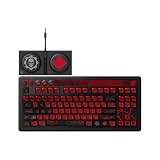
- Officially Licensed by XBOX and Gears of War. Compatible with Windows and Android.
- Hot-Swappable 87-Key RGB Mechanical Keyboard - Features a compact 87-key layout, RGB backlight, and hot-swappable PCB for flexible switch replacement.
- 8BitDo Cloud Gray Linear Switches - Equipped with 8BitDo Cloud Gray linear mechanical switches, co-developed with HUANO, for a smooth and responsive typing feel.
- Triple-Mode Connectivity - Supports Bluetooth, 2.4G wireless, and wired USB-C connections. Compatible with Windows 10 (version 1903) or above, and Android 9.0 or above.
- N-Key Rollover & Programmable Buttons - Supports n-key rollover for accurate input during fast typing and gaming. Includes programmable buttons, function shortcut keys, and Fn lock.
Does it work with iPhone or iPad?
Official materials for this model do not list iOS or iPadOS, so compatibility is not established. Do not buy it for an Apple mobile device without separate confirmation.
How many Bluetooth devices can it connect to at once?
Only one Bluetooth device can be connected at a time. Pair again when moving to another computer or Android device.
What is the Bluetooth pairing name?
The manual identifies the keyboard as 8BitDo Retro Keyboard X.
Crashes, No Sound, or Screen Glitches?
Random freezes, missing sound and display glitches usually trace back to one bad driver. Find and replace yours safely.Free scan · under a minutePC Slower Than It Used to Be?
A free scan shows the junk files, broken settings and background clutter dragging Windows down - then fixes them in one click.Free scan · Windows 10 & 11What does the Xbox button do on Windows?
It invokes Windows Game Bar with Win+G. The button is not remappable and does not provide Xbox-console support.
Can I change switches and keycaps?
8BitDo supports third-party 3-pin or 5-pin switches and third-party OEM keycaps. Check the exact part and Retro 87 layout before ordering.
Can the four 3.5 mm ports connect headphones?
No. They are interfaces for 8BitDo keyboard extensions such as Super Buttons and are not headphone or microphone jacks.
How do I reset the keyboard?
Hold Pair, Fast key mapping and Profile together for five seconds. The reset clears profiles, Bluetooth pairing, key mappings and swapped keys, so use it only after other troubleshooting and record settings first.
Free tools Windows power users keep installed
One-click scans. No signup required.
Why is lighting not working in Windows 11?
8BitDo suggests setting the lighting mode to 8BitDo RGB in Ultimate Software V2 and disabling Windows Dynamic Lighting options. This is a troubleshooting suggestion, not a guarantee of the cause.
What battery life does 8BitDo claim?
The product page claims up to 280 hours over 2.4 GHz and 300 hours over Bluetooth, with four to eight hours of charging time. These are manufacturer specifications, not independent test results.
The Bottom Line
The 8BitDo Retro 87 Xbox Edition is a Windows-and-Android mechanical keyboard, not an Xbox-console keyboard. Use USB, the included 2.4 GHz receiver or Bluetooth, remember that Bluetooth handles one host at a time, and use Ultimate Software V2 on a computer for customization. If console compatibility or iPhone/iPad support is essential, choose a model whose manufacturer explicitly lists those platforms.
Quick Recap
Product prices and availability are accurate as of the date/time indicated and are subject to change. Any price and availability information displayed on Amazon at the time of purchase will apply.
The Tool Desk
Outbyte PC Repair FREEClear out junk files and repair common Windows errorsFree Scan →Outbyte Driver Updater FREEFix the driver behind crashes, sound loss and screen glitchesFind Drivers →
