Recommended Free Tools
Yes. You can use a HomePod (2nd generation) as your Mac’s wireless speaker through AirPlay. Put the Mac and HomePod on the same network, then choose HomePod from Apple Music’s AirPlay control or from Control Centre’s Sound output. The first HomePod setup must be completed with an iPhone or iPad; a Mac cannot perform that setup.
What you need before connecting HomePod 2 to a Mac
The Mac-to-HomePod connection is an AirPlay connection over Wi‑Fi, not a cable connection. Prepare these items first:
| # | Preview | Product | Price | |
|---|---|---|---|---|
| 1 |

|
Apple HomePod (2nd Generation) Smart Speaker with Siri - Midnight | $302.47 | Buy on Amazon |
| 2 |

|
Apple HomePod – White (2nd Generation 2023) | $299.99 | Buy on Amazon |
| 3 |
|
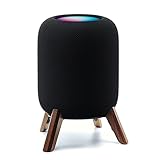
Real Wood Stand for Homepod 2nd gen (2023 Released),Desktop Bracket,Walnut | $25.99 | Buy on Amazon |
As an Amazon Associate I earn from qualifying purchases.
- A HomePod (2nd generation), introduced in 2023.
- A Mac and HomePod connected to the same network. Apple’s AirPlay instructions explicitly begin with this requirement.
- An iPhone or iPad for the initial HomePod setup in the Home app.
- The HomePod powered on and available in the home configured on that iPhone or iPad.
HomePod 2 specifications include 802.11n Wi‑Fi, Bluetooth 5.0, AirPlay sharing from a Mac, multiroom audio with AirPlay, and stereo-pair support. Those specifications do not change the documented Mac workflow: the Mac selects HomePod through AirPlay.
Free tools Windows power users keep installed
One-click scans. No signup required.
Set up HomePod 2 before using it with your Mac
Use an iPhone or iPad for initial setup
Apple states that an iPhone or iPad is required to set up HomePod and that HomePod cannot be set up with a Mac. Plugging the speaker in near your Mac is therefore not a substitute for completing setup in the Home app.
#1 Best Overall
- Premium, immersive, high-fidelity audio
- Connect the iPhone or iPad you will use for setup to the Wi‑Fi network you want HomePod to use.
- Open Apple’s Home app and follow the on-screen HomePod setup flow.
- When setup is complete, leave the iPhone or iPad connected to Wi‑Fi while you test AirPlay from the Mac.
Check the network before opening the Mac controls
The Mac and HomePod must be on the same network for the speaker to appear as an AirPlay destination. If the HomePod was configured on a different network, the Home app may present a network-mismatch alert. Use that flow to move HomePod to the intended network rather than repeatedly searching for it from the Mac.
Make HomePod the speaker for Apple Music on your Mac
Apple Music has its own AirPlay control, so this is the shortest route when your music is playing in Apple Music.
- Open Music on the Mac.
- Start playing a song, album or playlist.
- In the playback controls, click the AirPlay icon.
- Select your HomePod from the list of available speakers.
Audio should switch from the Mac’s current output to HomePod. To return to the Mac, open the same AirPlay control and select the Mac’s built-in output or another listed destination.
What’s actually slowing this PC down?
Pick the symptom - the matching free tool is one click away.
Use HomePod 2 with another Mac app
For a browser, video player, podcast app or another program that does not expose the Apple Music playback controls, use macOS Control Centre.
- Start the audio or video in the app you want to hear.
- Click Control Centre in the Mac menu bar.
- Under Sound, click AirPlay.
- Select the HomePod.
This changes the Mac’s AirPlay sound destination, allowing audio from the selected app—and other system audio routed through that output—to play through HomePod. The exact appearance of the controls can vary with macOS presentation, but the path remains Control Centre, Sound, AirPlay, then HomePod.
Apple Music AirPlay versus Control Centre AirPlay
| Situation | Where to choose HomePod | What to do |
|---|---|---|
| Music is playing in Apple Music | Apple Music playback controls | Click AirPlay and select HomePod. |
| Audio is playing in another app | Mac Control Centre | Click Control Centre, choose AirPlay under Sound, and select HomePod. |
| HomePod does not appear | Network and Home app checks | Confirm the Mac and HomePod share a network, then verify the iPhone or iPad setup and HomePod network. |
Can a Mac connect to HomePod 2 over Bluetooth?
HomePod 2 specifications list Bluetooth 5.0, but Apple’s instructions for using HomePod as a Mac speaker describe AirPlay over Wi‑Fi. That distinction matters: do not treat HomePod 2 as a conventional Bluetooth audio speaker whose pairing process is documented through the Mac’s Bluetooth menu.
For a Mac, follow the AirPlay procedure instead. The practical requirements are a completed HomePod setup and a shared network. If you need a speaker that is explicitly selected and paired as a standard Bluetooth audio device, HomePod’s documented Mac-speaker workflow does not establish that use case.
What happens when you use HomePod from a Mac?
AirPlay sends the Mac’s audio wirelessly
The Mac discovers HomePod as an AirPlay speaker on the shared network. Selecting it in Apple Music or Control Centre routes playback to the HomePod without a physical audio cable.
One-speaker selection from Mac Control Centre
Apple says, “You can’t use AirPlay to stream audio to multiple speakers from Control Centre on a Mac.” In other words, the normal Control Centre route selects one AirPlay speaker at a time. This is separate from HomePod’s support for multiroom audio in the broader AirPlay ecosystem.
Rank #2
- Features a 4" high-excursion woofer and five beamforming tweeters for deep bass, clear vocals, and detailed room-filling audio.
- Room Sensing technology automatically adjusts sound based on where the speaker is placed.
- Built-in Siri enables voice control for music, reminders, messages, smart home devices, and more.
- Supports AirPlay, Spatial Audio, Thread, Matter smart home control, Bluetooth 5.0, and Wi-Fi 4.
- Pair two HomePod speakers for stereo sound or use multiple units for whole-home audio playback.
Multiroom and stereo-pair capability
HomePod 2 supports multiroom audio with AirPlay. It also supports a stereo pair, but a stereo pair requires two HomePod speakers of the same model. Two different HomePod models should not be represented as a supported stereo pair under this requirement.
When your goal is simply to make one HomePod the Mac’s output, select the individual HomePod. If you are building a stereo pair, complete that arrangement in Apple’s Home environment first, then use the available AirPlay destination from the Mac.
The Tool Desk
Outbyte PC Repair FREEClear out junk files and repair common Windows errorsFree Scan →Outbyte Driver Updater FREEFix the driver behind crashes, sound loss and screen glitchesFind Drivers →Why HomePod does not show up in AirPlay on your Mac
1. The devices are on different networks
This is the first check because AirPlay discovery depends on the Mac and speaker being on the same network. Confirm the network name on the Mac and the network used by HomePod. If they differ, reconnect the Mac or move HomePod to the intended network through the Home app’s network-mismatch flow.
2. HomePod was never fully set up
A Mac cannot complete initial HomePod setup. Confirm that an iPhone or iPad finished the setup in the Home app. If setup was interrupted, reconnect that iPhone or iPad to Wi‑Fi and follow Apple’s reset or setup guidance.
3. The setup iPhone or iPad is not connected to Wi‑Fi
Apple’s troubleshooting guidance includes checking the iPhone or iPad used for setup. Reconnect it to Wi‑Fi, open the Home app, and verify that the HomePod is present and assigned to the intended network.
4. HomePod is associated with the wrong network
If the Home app reports a network mismatch, use the offered option to move HomePod to the network used by the Mac. Do not assume that placing the speaker physically beside the Mac changes its network assignment.
Do these 3 things before closing this tab:
1Clear out junk files and repair common Windows errors2Scan for outdated or missing drivers - takes under a minute3Repair Windows errors before they cause bigger problems5. The AirPlay list needs to be checked again
After correcting the network or setup issue, reopen Apple Music’s AirPlay menu or Control Centre’s Sound panel and check the list again. The speaker must be discovered on the network before it can be selected.
Recovery procedure when normal checks do not work
- Confirm the Mac is connected to the intended Wi‑Fi network.
- Confirm the HomePod was set up with an iPhone or iPad.
- Reconnect that iPhone or iPad to Wi‑Fi.
- Open the Home app and inspect the HomePod’s network status.
- If Apple presents a network-mismatch alert, move HomePod to the Mac’s network.
- If setup remains incomplete or unavailable, use Apple’s reset/setup flow from the Home app and then repeat the AirPlay selection steps on the Mac.
Resetting should be a recovery step, not the first response to a missing AirPlay destination. A different network or incomplete iPhone/iPad setup is a more direct explanation and should be checked first.
Limitations to understand before relying on HomePod for Mac audio
It is not a cable-connected Mac speaker
The documented connection is wireless AirPlay. HomePod is not configured by plugging it into the Mac as a USB or analog speaker.
Rank #3
- Compatibility: The wooden stand is applicable for homepod 2nd gen (2023 released) smart speaker. Four wood legs and stronger metal ring stably hold the homepod speaker well on table/desk/carpet/floor, make the homepod 2nd to stay firmly on the stand, don't worry about slip off and fall out in using
- Protection Function: Add anti-slip silicone pads to the bottom of wooden legs to prevent the speaker from sliding, hold the speaker up without any water affection on table. The steel frame holds the home pod 2nd tightly and the wooden leg protect speaker from 4 directions, as safe as a house
- Unique Design: The desktop wooden mount with right size doesn't take much space, but matches with homepod 2nd gen well. It's a simply, stylish, safe, sturdy design to use for office, home, garden etc. The stand is suitable for sound and easy to install
- Real Wood Materials: The wood stand is made of walnut from North America. It's 100% real wood and coating by oil, not corrode and not rust. The smooth wood leg is polished by manual. The black walnut is suitable for more places and occasions as more people like
- Extensive Using Occasions: 1 pack solid wood stand with steel ring, soft foam, silicone pad in the box. Setup the wooden mount with homepod speaker on table, desk, wardrobe, cabinet in house, home, office and shop. (Notes: Apple homepod 2nd speaker is not included in this order.)
Control Centre does not select multiple speakers
From a Mac, Control Centre cannot stream to multiple AirPlay speakers at once. If you need multiroom playback, use an AirPlay arrangement that supports it rather than expecting the Mac Control Centre selector to provide a multi-speaker list.
No official Mac-to-HomePod latency figure is published here
Apple’s cited support and specification pages do not publish a latency measurement for Mac-to-HomePod AirPlay. Therefore, there is no official number to use when promising timing performance. AirPlay should not be presented as guaranteed for latency-sensitive gaming, live monitoring or musical performance.
Network quality affects the experience
Because the documented path uses Wi‑Fi, the shared-network requirement is fundamental rather than optional. A HomePod that is powered on but associated with another network will not become available merely because both devices are in the same room.
Independent reader supportYour contribution helps us test, update, and keep practical guides available for everyone.Choosing the right connection route
| Your goal | Recommended route | Important condition |
|---|---|---|
| Play Apple Music from the Mac | Music app → AirPlay → HomePod | Mac and HomePod must share a network. |
| Route audio from another Mac app | Control Centre → Sound → AirPlay → HomePod | HomePod must already be set up with an iPhone or iPad. |
| Use two speakers as a stereo pair | Configure a stereo pair, then select its AirPlay destination | The two HomePods must be the same model. |
| Play in multiple rooms | Use AirPlay multiroom support | Mac Control Centre itself cannot stream to multiple speakers. |
| Pair as a typical Bluetooth speaker | Not the documented Mac workflow | Apple lists Bluetooth 5.0, but its Mac instructions use AirPlay over Wi‑Fi. |
Frequently asked questions
Can I connect HomePod 2 to a MacBook?
Yes. A MacBook can send audio to HomePod 2 through AirPlay when both are on the same network and HomePod has been set up with an iPhone or iPad.
Can I make HomePod the default speaker for every Mac app?
You can select HomePod as the Mac’s AirPlay sound destination through Control Centre for audio from other apps. Apple’s documented instructions do not promise a separate permanent default setting for every application, so use the Sound and AirPlay control when you need to change the destination.
Why is HomePod visible in Apple Music but not elsewhere?
Apple Music exposes an AirPlay control inside the app, while other apps use the Mac’s Control Centre. Check Control Centre, then Sound, then AirPlay rather than looking only inside the application.
Can I use two HomePod 2 speakers in stereo?
Yes. HomePod supports stereo pairing when both speakers are the same model. After the pair is configured, select the resulting AirPlay destination from the Mac.
Can I play to several AirPlay speakers from Mac Control Centre?
No. Apple explicitly says that Control Centre on a Mac cannot stream audio to multiple speakers. HomePod supports AirPlay multiroom audio, but that limitation still applies to the Mac Control Centre selection method.
Is HomePod 2 suitable for live music monitoring or competitive gaming?
Apple’s cited pages do not provide a Mac-to-HomePod AirPlay latency measurement. Without an official latency figure, do not assume that the wireless route meets timing requirements for live monitoring or latency-sensitive gaming.
Quick Recap
Product prices and availability are accurate as of the date/time indicated and are subject to change. Any price and availability information displayed on Amazon at the time of purchase will apply.

