To use Brave Leo’s end-to-end encrypted chat, open Leo in a current Brave browser, choose GLM 5.3 Flash from the model selector, and send your prompt. In this mode, Brave says your browser encrypts the prompt only after the selected trusted execution environment (TEE) passes attestation. A Brave relay forwards ciphertext, while the attested NEAR AI TEE decrypts and processes the request. The relay can see your source IP, but the TEE does not receive it.
The procedure is available in Brave Nightly, Beta, and Release channels. The important limitation is scope: the documented end-to-end protection applies to GLM 5.3 Flash, not automatically to every Leo model or feature. Chat history is a separate, local-device feature that can be disabled or erased.
As an Amazon Associate I earn from qualifying purchases.
What Brave Leo’s encrypted chat actually protects
Leo is Brave’s browser-integrated assistant. You do not install a separate app or extension: open Leo from the browser toolbar, sidebar, or address bar and ask a question. The encrypted-chat implementation changes how a supported prompt travels from your device to the model.
With GLM 5.3 Flash selected, Brave describes this sequence:
#1 Best Overall

- Unmatched Security: The MC02 isn't just a smartphone; it's your digital guardian. Unlike other smartphones that sell your data, ours protects your privacy. Enjoy an intentional mobile experience where your personal information stays yours—never tracked, sold, or compromised
- Your Digital Sanctuary: An ecosystem of secure communications, access essentials such as Email, Calendar, Contacts, Notes and Storage without advertising-based data infiltration. The built-in VPN allows you to protect your connectivity and privacy, even on public networks
- Intuitive Design: Experience the MC02's seamless blend of sleek design and user-friendly interface, complemented by an IPS display. Capture stunning moments with 64MP/24MP cameras, shoot in 4K video, all while enjoying ample storage with 128GB memory and a long-lasting battery
- Privacy at Your Fingertips: Regain control and true consent of your digital and mobile use, with real-time insights from the groundbreaking Data & Carbon Ledger. Empower yourself with real-time data to view the safety risk and environmental imprint of individual apps
- Apostrophy OS: The MC02 includes a 12-month Apostrophy Services subscription, designed to protect your digital sovereignty beyond a standard OS. Threema comes pre-installed—a Swiss messenger known for rigorous data protection—so you can communicate with added peace of mind from a smartphone that values your privacy as much as you do.
- The browser contacts the selected NEAR AI TEE and verifies its attestation.
- Only after successful verification does the browser receive the key needed to encrypt the conversation.
- The browser encrypts your prompt and relevant conversation context before transmission.
- A Brave relay forwards the encrypted message.
- The attested TEE decrypts and processes the prompt inside its protected environment.
- The response returns through the encrypted channel to Leo.
“End-to-end” here means the plaintext prompt is protected from the relay and from ordinary network handling between your browser and the attested processing environment. It does not mean that no system ever handles plaintext: the TEE must decrypt the prompt to generate a response. It also does not hide all metadata. The relay can see the connecting source IP, while the TEE can process the prompt without receiving that IP.
Brave’s published design uses remote attestation, Oblivious HTTP (OHTTP), ephemeral X25519 keys, HPKE, and AES-128-GCM. These components establish an authenticated encryption path and separate network identity from message content. If attestation fails, Brave says the browser will not receive the encryption key and will not relay the message.
What you need before starting
- A current Brave installation in the Nightly, Beta, or Release channel. The encrypted-chat announcement identifies all three channels as supported.
- A desktop or Android device with Leo available in the browser interface.
- The GLM 5.3 Flash model selected in Leo’s model menu. The documented encrypted mode is tied to this model, and model availability can change.
- An internet connection capable of reaching Brave’s relay and the NEAR AI service.
Brave says the free Leo experience does not require an account or signup. Leo is built into the browser, so there is no additional extension to install. Premium is a separate paid tier with higher rate limits; Brave lists its price as $14.99 per month in its 2026 help information. The published material describes the same core privacy protections for both tiers, but it does not establish every account or billing detail for Premium.
Recommended Free Tools
Open Leo on desktop
Toolbar or sidebar
- Launch Brave and open the page you want to discuss, if any.
- Click the Leo icon in the browser toolbar or open Leo from the sidebar.
- If the icon is not visible, type your question in the address bar and choose Ask Leo from the suggestions.
Leo opens in a panel or sidebar. You can ask about the current page, enter a standalone question, or attach selected tabs through the context selector.
Address-bar shortcut
- Click the address bar.
- Type your prompt.
- Choose Ask Leo instead of navigating to a search result.
This route is useful when you want a quick answer without first opening the full sidebar. The same model-selection and encryption requirements still apply.
Open Leo on Android
- Open Brave on your Android device.
- Tap the address bar and enter your question.
- Choose Ask Leo from the address-bar options. Alternatively, open the main menu and tap Leo.
- When Leo appears, open its three-dot settings menu and select GLM 5.3 Flash.
- Enter the prompt and tap the send control.
Leo’s Android interface is part of Brave itself. You do not need a separate Leo download or browser extension. The browser seals the prompt and conversation context before sending it to the encrypted service path.
Rank #2

- Solid Black Privacy Protection: Keep your camera fully covered with these Brvlsoc vinyl webcam covers, designed in a sleek, solid black finish to discreetly protect your privacy across all your smart devices.
- Multiple Sizes for All Devices: Comes in various sizes to fit everything from laptops and tablets to smartphones, smart TVs, and gaming consoles—providing full compatibility and coverage versatility.
- Restickable & No Residue: These low-tack vinyl stickers are restickable, allowing multiple uses without leaving behind sticky residue or damaging your device surface.
- Ultra-Thin & Durable Design: The covers are thin, flexible, and water-resistant, ensuring your device closes easily while maintaining lasting adhesion for everyday protection.
- Safe & Non-Scratching: Made from smooth, soft vinyl that won’t scratch your screen or webcam lens, these reusable camera covers provide peace of mind without compromising functionality.
Select the encrypted model before sending anything sensitive
Model selection is the step most likely to be missed. Leo may offer multiple models, but the documented end-to-end encrypted mode is GLM 5.3 Flash, identified by Brave as the open-weight model running in NEAR AI TEEs.
The Tool Desk
Outbyte PC Repair FREEClear out junk files and repair common Windows errorsFree Scan →Outbyte Driver Updater FREEFix the driver behind crashes, sound loss and screen glitchesFind Drivers →- Open Leo on desktop or Android.
- Open Leo’s three-dot settings menu.
- Open the model selector.
- Choose GLM 5.3 Flash.
- Confirm that the selected model remains visible before submitting the prompt.
Do not assume that switching to another model preserves the same encryption guarantee. Brave’s documentation specifically applies the described protection to GLM 5.3 Flash. If the model disappears, is renamed, or cannot be selected in your build, treat its availability as changed rather than assuming another model is covered.
Send a private prompt
- With GLM 5.3 Flash selected, type the question in Leo’s input box.
- Review the text for secrets you did not intend to disclose. Encryption protects the transmission path; it does not make an intentionally submitted password, private key, medical record, or customer identifier safe to share with an AI model.
- Press Send on desktop or tap the send control on Android.
- Wait for Leo to return the response. A failed attestation prevents the key from being issued and the message from being relayed.
The browser encrypts the prompt and conversation context before transmission. Consequently, the relay handles ciphertext rather than readable question text. The TEE is the component that decrypts the request and generates the answer.
How the privacy path works
Attestation comes first
Attestation is a verification step between your browser and the selected TEE. The browser checks that it is communicating with the expected protected environment before accepting the encryption key. Brave says the key is supplied only after the TEE passes verification. A failed check stops the encrypted-chat flow instead of silently falling back to an unverified plaintext request.
The relay separates IP metadata from content
The Brave relay is a forwarding layer. It can observe the source IP address needed to connect to it, but it does not receive the readable prompt because the browser has already encrypted it. The NEAR AI TEE receives the prompt needed for processing, but the relay arrangement keeps the user’s IP away from that processing environment.
The cryptographic building blocks
- Ephemeral X25519 keys: temporary key material used to establish the session without relying on a long-lived user encryption key.
- HPKE: a hybrid public-key encryption construction used to protect key exchange and encrypted payload handling.
- AES-128-GCM: authenticated symmetric encryption that protects the message contents and detects tampering.
- OHTTP: a request-handling design that helps separate the requester’s network identity from the content service.
These names describe the published implementation; they are not a promise that every Leo model, mode, or future release uses the same path. Check the selected model and current Brave documentation when the privacy requirement is strict.
Rank #3

- Protect Personal Privacy: Web camera cover can efficiently protect personal and family online privacy secure and prevents unwanted hacking attacks. It also protects your front camera from dirt and dust.
- Compatible with Most Devices: Webcam cover perfectly fits most models of computers, tablets, and cell phones. Such as MacBook Pro, MacBook Air, Mac, laptops, surfaces Pro, iPad Pro, Android tablet, PC, all-in-one desktop, cell phone, and more smartphones. Please note that the lens cover needs to be used on a flat surface and not suitable for full-screen devices.
- Ultra-Thin and High Quality: Mini size Web camera cover slide is only 0.027 inches in thickness which will not interfere with the closing lid of your laptop. It also does not interfere with web use or indicator light. It is made of premium high-strength ABS plastic that could provide long-term reliable protection for your privacy. One set comes with 6 pieces of webcam covers in two different dimensions (3pcs in 1.10*0.43*0.027 inch, 3pcs in 0.71*0.36*0.027 inch), which meet your everyday need.
- Easy to Use: Laptop Camera Cover Slide is extremely easy to install. Just need to remove the back sticker and align it to your webcam, attach and press firmly for 15 seconds. It can be opened or closed with just one simple finger movement, when the webcam is not in use just cover it to provide you with privacy security. And you can easily remove the webcam privacy cover, it doesn’t leave any sticky traces on your devices.
- Quality Guarantee and After-Sales Service: If you have any questions, please feel free to contact us, We will reply within 24 hours and give a satisfactory solution.
Ask Leo about several tabs without sharing the wrong page
Leo can use open pages as context, but tab context is an explicit selection. Attach only the tabs you want the assistant to read.
- Open Leo on desktop or Android.
- Find the paperclip context selector in the Leo interface.
- Review the list of available tabs.
- Select the pages Leo should use and deselect pages that contain unrelated or sensitive information.
- Submit the prompt after checking the selected-tab list.
For example, you can select a product specification and a standards document, then ask Leo to list their differences. If an email, banking page, internal dashboard, or private document is open but not relevant, leave it deselected. The encryption protects whatever you send; it does not change the fact that selected page text becomes part of the prompt context.
When tab context is useful
- Summarizing a long article while keeping the source page available.
- Comparing two documentation pages.
- Extracting requirements from several open specifications.
- Asking follow-up questions that depend on the page text rather than general model knowledge.
When to avoid attaching a tab
- The page includes credentials, session tokens, recovery codes, or payment details.
- The page contains personal information belonging to someone else.
- You have not checked whether hidden or dynamically loaded content includes data you would not submit.
- The question can be answered without page context.
Manage Leo conversation history
Leo history is separate from the encrypted network path. Brave documents history as a local-device feature: conversations are encrypted at rest on the device, and you can disable or clear them.
Do these 3 things before closing this tab:
1Repair Windows errors before they cause bigger problems2Scan for outdated or missing drivers - takes under a minute3Clear out junk files and repair common Windows errorsOpen history
- Type
brave://leo-aiin Brave’s address bar and open it, or open Conversation History from the Leo sidebar. - Select a saved conversation to continue it or inspect its local record.
Chat history is documented as available in Brave version 1.75x and above on desktop and Android. The notation “1.75x” is how the help material identifies the version family; update Brave if the history interface is missing.
Disable history
- Open Brave Settings.
- Open Leo.
- Turn off the chat-history option.
Disabling history prevents new conversations from being retained by this local feature. It does not retract a prompt already sent to the model, and it does not change which tabs you attach to a live request.
Clear stored Leo data
- Open Settings → Leo, or use the history controls in the Leo interface.
- Choose Clear Leo data.
- Confirm the deletion when Brave asks.
Clearing local data removes the device’s stored Leo history. If you use multiple devices, check each device separately; the documented history feature is local-device storage rather than a cloud-synchronized archive.
Rank #4

- Briliant Purple Color: Make your iPhone13Pro stand out with a brilliant violet purple color that changes under different lighting and angles. The stronger light indoor or outdoor, the brighter private screen protector color will present. Fully embellishing your phone to showcase your personality!
- 28° Privacy Screen: Use the most appropriate color depth for the 28° anti-peep coating, it is only visible to persons directly in front of screen, while satisfying privacy and visual comfort. Protecting your privacy and sensitive information well in malls, buses, metro, restaurant or other public area.
- Anti Blue Light Protection: The protective privacy glass is combined with EVA multi-coating technology and filter technology, but still allows non-harmful light through the screen, prevent sleep disorders and eye strain.
- 9H Hardness: The screen saver is made from 9H multiple tempered glass layer which provide shatterproof protection from high impact drop and preventing your iphone from any scratch. The screen protector will self-expel air bubble when automatically bonding with the screen.
- Package Include: Inside the package, it comes with 2 x iPhone14/13/13Pro privacy screen protector glass, 1 x easy apply components pack.
Incognito and Tor limitations
Brave documents Leo history as unavailable in Incognito or Tor modes. That is a history limitation, not evidence that those modes add another Leo encryption layer. If you need a saved local conversation, use a normal browsing window and manage retention through the Leo settings.
Free Leo and Leo Premium
Brave positions Premium as a higher-limit tier rather than a different privacy architecture. The documented comparison is:
| Area | Free Leo | Leo Premium |
|---|---|---|
| Rate limits | Standard limits; the exact allowance is not stated in the cited material. | Higher rate limits, as documented by Brave. |
| Model availability | Access depends on the models exposed in the current Brave build; GLM 5.3 Flash is the documented encrypted-chat model. | Additional or broader model access may be available under Premium; the exact current model list is not stated here. |
| Account requirement | No account or signup is required for the free Leo experience. | Premium account requirements are not specified in the cited information. |
| Device coverage | Leo is built into supported desktop and Android Brave versions. | Brave describes Premium as a Leo tier; the cited material does not provide a separate device matrix. |
| Privacy treatment | Brave describes the same core privacy protections when the documented encrypted model is used. | Brave describes the same core privacy protections when the documented encrypted model is used. |
| Price | Free experience. | $14.99 per month, according to Brave Help Center information from 2026. |
Choose Premium for capacity or rate-limit reasons, not because the published material describes it as a fundamentally different encrypted-chat protocol. For the strongest documented privacy behavior, verify that GLM 5.3 Flash is selected in either tier.
Independent reader supportYour contribution helps us test, update, and keep practical guides available for everyone.What Brave can and cannot read
What the relay cannot see in the documented flow
The relay forwards encrypted payloads and therefore does not need the plaintext prompt to route the request. It can still see the source IP associated with the connection.
What the TEE must see
The TEE decrypts the prompt and conversation context because it has to process them. The published arrangement is designed so that this processing environment does not receive the user’s IP from the relay.
Outdated Drivers Are Slowing You Down
One free scan finds every outdated or missing driver and matches the right update for your exact hardware.Free scan · exact hardware matchPC Slower Than It Used to Be?
A free scan shows the junk files, broken settings and background clutter dragging Windows down - then fixes them in one click.Free scan · Windows 10 & 11What remains under your control
- The words you type into Leo.
- The tabs you attach through the paperclip selector.
- Whether local conversation history is enabled.
- Whether you continue a previous conversation from local history.
End-to-end encryption does not remove normal account, device, browser, or endpoint risks. Someone who can use your unlocked device may be able to view local Leo history. A malicious page, browser compromise, screen recorder, or copied prompt can expose information before encryption or after decryption. Use ordinary device security and avoid submitting secrets that the model does not need.
Best Value
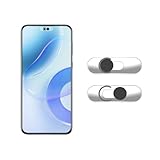
- Camera privacy protection: Simply slide the lens cover to block the front camera of your phone, effectively preventing the camera from being activated under malicious software and hacker attacks, keeping you away from intruders, and protecting your personal information.
- Clever design: The bottom is transparent design, and when attached to the lens area, it will not obstruct the screen display or affect the appearance of the phone. Combined with a sliding cover design, it can be easily opened and closed, preventing dust and scratches, and providing privacy protection at any time.
- Scope of application: This phone’s front lens cover is designed specifically for single front camera models, providing you with a more fitting and save worry user experience. Please make sure to confirm before purchasing that your Android phone's front camera is a single independent lens.
- Excellent lens cover: Made of high-quality ABS plastic, with a thickness of only 0.02 inches, it is lightweight and wear-resistant. Paired with a sticky backing, it adheres firmly and is not easy to peel off. Simply sliding cover, ensuring both lens protection and privacy security.
- Simple installation: First, wipe the lens clean, align the front lens cover with the lens position, and lightly press the edge to firmly fit it. Slide the lens cover again to open and close smoothly without affecting the normal shooting of the camera.
Troubleshoot encrypted Leo chat
GLM 5.3 Flash is missing
- Update Brave and restart the browser.
- Confirm you are using a Nightly, Beta, or Release build identified as supporting the feature.
- Open Leo’s three-dot menu and check the model selector again.
- Do not substitute another model and assume it has the same end-to-end guarantee.
Model availability can change independently of the browser’s general Leo interface. If the model is not offered after updating, the documented encrypted mode is not available in that session.
The request does not send
- Check the network connection and try again.
- Ensure GLM 5.3 Flash is selected.
- Look for an attestation or verification error. A failed attestation is expected to block key delivery and message relay.
- Restart Brave and retry from a normal browser window.
Do not treat a blocked request as proof that the prompt was delivered. Brave’s stated behavior is to withhold the key and stop relaying when verification fails.
Leo used the wrong page context
- Open the paperclip context selector.
- Deselect every tab that is not necessary.
- Keep only the intended source pages selected.
- Rewrite the prompt so it names the task and the relevant pages clearly.
- Send the corrected request.
Tab selection is a per-request decision. Review it every time you ask about multiple pages, especially when private tabs are open beside public sources.
Quick wins for a faster PC:
Repair Windows errors before they cause bigger problemsFix Now →Fix the driver behind crashes, sound loss and screen glitchesFind Drivers →Clear out junk files and repair common Windows errorsFree Scan →Conversation history is unavailable
- Check whether you are in Incognito or Tor mode; Brave documents history as unavailable there.
- Confirm that Brave is version 1.75x or above if you expect the history feature.
- Open
brave://leo-aior the sidebar’s Conversation History. - Check Settings → Leo if history was disabled.
Turning history back on affects future local retention; it does not recreate conversations that were already cleared.
Use Leo safely for important decisions
Encryption protects confidentiality during the documented transfer and processing path, but it does not guarantee correctness. Brave warns that Leo can produce inaccurate or misleading answers. Treat responses as assistance, not authoritative evidence.
Quick Recap
- Verify legal, medical, financial, security, and safety-critical claims against primary documentation or a qualified professional.
- Ask Leo to show its assumptions and identify uncertainty, then check those points yourself.
- Use attached source pages when you need a summary grounded in documents, but verify that the selected pages are current and trustworthy.
- Do not paste passwords, private keys, one-time codes, or data that is unnecessary for the task.
- Remove personal identifiers from a prompt when an anonymized description will work.
A practical privacy checklist
- Update Brave or confirm that your current Nightly, Beta, or Release build supports encrypted Leo chat.
- Open Leo from the toolbar, sidebar, Android menu, or address bar’s Ask Leo option.
- Open the three-dot settings menu and select GLM 5.3 Flash.
- Check the prompt for secrets and unnecessary personal information.
- Use the paperclip selector to attach only the tabs required for the answer.
- Send the request and wait for the attestation-backed encrypted flow to complete.
- Review the answer independently when the consequences matter.
- Open
brave://leo-aior Conversation History only when you want to retain or revisit a local conversation. - Disable history under Settings → Leo or choose Clear Leo data when local retention is not appropriate.
Key limitations to remember
- The documented end-to-end encryption applies to GLM 5.3 Flash; it should not be generalized to every Leo model.
- Attestation is a gate, not a background promise: if verification fails, Brave says no encryption key is issued and the request is not relayed.
- The relay can see the source IP even though it cannot read the encrypted prompt.
- The TEE decrypts and processes the plaintext prompt, while the published relay design keeps the user’s IP away from that environment.
- Local Leo history can be disabled or erased and is unavailable in Incognito and Tor modes.
- Leo’s answers may be inaccurate or misleading, so encryption does not remove the need for fact-checking.
Product prices and availability are accurate as of the date/time indicated and are subject to change. Any price and availability information displayed on Amazon at the time of purchase will apply.

