Connect the monitor to the iPad Pro’s USB-C or Thunderbolt-capable port, then pair the keyboard and mouse separately. Use a direct USB-C video cable when the monitor accepts USB-C, or a USB-C display adapter for HDMI and VGA screens. The iPad Pro generation, monitor input, cable bandwidth, and adapter determine the available resolution and refresh rate.
This setup makes the monitor show iPadOS content; it is not the same as Sidecar, which uses an iPad as a second display for a Mac.
As an Amazon Associate I earn from qualifying purchases.
What this setup does
An iPad Pro can drive an external monitor while you control iPadOS with a physical keyboard and pointer. Depending on the iPad Pro model, iPadOS version, app, and display, the monitor can mirror the iPad screen, show an app-specific second-screen view, or provide an extended workspace. Apple describes these as three different behaviors, so do not assume that every iPad Pro and monitor combination provides a desktop-style extended desktop.
The monitor is receiving video from the iPad Pro. The iPad is not acting as a monitor for another computer. That reverse arrangement is Apple’s Sidecar feature: Sidecar makes the iPad a display for a Mac, whereas the setup in this guide makes a monitor display the iPad.
#1 Best Overall

- WHY MAGIC KEYBOARD FOR IPAD — The incredibly thin and portable Magic Keyboard features a glass trackpad with haptic feedback, a great typing experience with a function row, USB-C pass-through charging, front and back protection, and magnetic attachability. No pairing or charging required.
- COMPATIBILITY — Magic Keyboard works with iPad Pro 13-inch (M4 and M5).
- DESIGNED FOR COMFORT — Magic Keyboard features a two-cantilever hinge design for smooth, adjustable viewing angles. Backlit keys with a scissor mechanism and a 10-key function row give you more versatility than ever. The built-in glass trackpad features haptic feedback and support for Multi-Touch gestures using the cursor.
- PROTECTIVE KEYBOARD AND CASE — Folds to provide front and back protection wherever you go and features a USB-C connector for pass-through charging. Available in black or white.
- Accessories are sold separately and subject to availability. Compatibility varies by generation.
Check compatibility before buying or plugging anything in
Identify the iPad Pro generation
Display capabilities vary substantially between generations. Look in Settings > General > About for the model name and model number, then match that information to Apple’s current USB-C display-support list. “iPad Pro” alone is not enough to predict the maximum resolution or Thunderbolt behavior.
Identify the monitor input
- USB-C video input: A single USB-C cable can carry video, and in some monitor setups power can travel back to the iPad through the same connection.
- Thunderbolt input: A Thunderbolt display requires an iPad Pro model that supports Thunderbolt displays and a compatible Thunderbolt cable.
- HDMI input: You need a USB-C digital video adapter and an HDMI cable, unless the adapter includes a permanently attached HDMI plug.
- VGA input: Use Apple’s USB-C VGA Multiport Adapter or another compatible USB-C-to-VGA video adapter and a VGA cable. VGA is an older analog standard, so it is not a choice for modern high-resolution output.
Decide what else must connect
If the desk needs charging, a keyboard, storage, or other USB accessories at the same time as video, plan for a USB-C hub or dock with the exact ports and power behavior you need. A simple video adapter may not provide charging or peripheral ports. A hub’s advertised port count does not establish its supported video resolution; check its detailed specifications.
Display limits by iPad Pro generation
Apple’s published limits are maximum capabilities for the listed models, not a promise that every monitor, cable, adapter, and app will operate at that maximum. The monitor’s own input standard and the cable’s bandwidth can reduce the result.
Free tools Windows power users keep installed
One-click scans. No signup required.
| iPad Pro models | USB-C DisplayPort output | Thunderbolt display support |
|---|---|---|
| 11-inch (1st and 2nd generation); 12.9-inch (3rd and 4th generation) | Up to 5K | Not listed by Apple as supported for these models |
| iPad Pro M4 and M5; 11-inch (3rd and 4th generation); 12.9-inch (5th and 6th generation) | Up to 6K | Supported on these models |
Apple’s support information identifies USB-C DisplayPort output for these model groups. It also identifies Thunderbolt display support for iPad Pro M4 and M5, 11-inch (3rd generation), and 12.9-inch (5th and 6th generation). If your model is not in the Thunderbolt-supported group, use a USB-C display connection or a suitable HDMI/VGA adapter instead of assuming a Thunderbolt monitor will work.
Choose the right cable or adapter
Direct USB-C monitor connection
For a monitor with USB-C video input, connect a cable that explicitly supports video and the bandwidth required by the target resolution and refresh rate. Apple recommends a high-bandwidth USB-C cable for high-resolution displays and gives the cable supplied with the display and a Thunderbolt cable as examples. A USB-C cable sold only for charging may not carry video or may be limited to a lower data rate.
Rank #2

- WHY MAGIC KEYBOARD FOR IPAD — The incredibly thin and portable Magic Keyboard features a glass trackpad with haptic feedback, a great typing experience with a function row, USB-C pass-through charging, front and back protection, and magnetic attachability. No pairing or charging required.
- COMPATIBILITY — Magic Keyboard works with iPad Pro 11-inch (M4 and M5).
- DESIGNED FOR COMFORT — Magic Keyboard features a two-cantilever hinge design for smooth, adjustable viewing angles. Backlit keys with a scissor mechanism and a 10-key function row give you more versatility than ever. The built-in glass trackpad features haptic feedback and support for Multi-Touch gestures using the cursor.
- PROTECTIVE KEYBOARD AND CASE — Folds to provide front and back protection wherever you go and features a USB-C connector for pass-through charging. Available in black or white.
- Accessories are sold separately and subject to availability. Compatibility varies by generation.
Check both ends of the cable. A USB-C plug does not by itself reveal whether the cable supports DisplayPort Alt Mode, USB 3 data rates, or Thunderbolt. Read the monitor and cable specifications together, especially if you are targeting 5K or 6K.
USB-C to HDMI
For an HDMI monitor or television, connect a USB-C Digital AV Multiport Adapter or another compatible USB-C-to-HDMI adapter to the iPad Pro, then attach the HDMI cable and select the monitor’s HDMI input. Apple says HDMI 2.0 adapters can output 4K at 60 Hz on iPad Pro, but the adapter, HDMI cable, monitor, app, and iPadOS settings all affect the final signal.
Outdated Drivers Are Slowing You Down
One free scan finds every outdated or missing driver and matches the right update for your exact hardware.Free scan · exact hardware matchPC Slower Than It Used to Be?
A free scan shows the junk files, broken settings and background clutter dragging Windows down - then fixes them in one click.Free scan · Windows 10 & 11Apple documents a specific behavior for its USB-C Digital AV Multiport Adapter: the iPad Home Screen and apps are displayed at 1080p and 60 Hz, while video playback can switch to the content’s resolution up to 4K at 60 Hz when Match Content is enabled. Do not treat that video figure as a guarantee that the Home Screen will run at 4K.
USB-C to VGA
For a VGA projector or monitor, connect a USB-C VGA Multiport Adapter, attach the VGA cable, and choose the display’s VGA input. VGA carries video only; audio, charging, and extra USB ports depend on the adapter and the rest of your setup. Expect lower image quality and fewer resolution options than with USB-C or HDMI.
USB-C hub or dock
A hub can combine display output, charging, and USB peripherals so one connection goes to the iPad Pro. Select a hub whose video output matches the monitor—USB-C DisplayPort, HDMI, or VGA—and verify the supported resolution and refresh rate. Also verify whether its USB-C power-delivery port actually passes enough power to charge the iPad while the display and peripherals are active. Third-party hub features are model-specific; a hub that physically fits is not necessarily compatible with every iPadOS accessory or display mode.
Rank #3
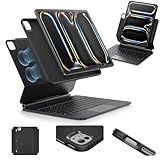
- Compatibility: only for iPad Pro 13" (M5/M4, 2025/2024); Model: A2925, A2926, A3007,A3360,A3361,A3362
- Work from Anywhere: upgrade your iPad to getting-stuff-done mode by transforming it into a portable productivity machine and be ready to work wherever
- Quick-Set Magnetic Stand: ultra-strong magnets seamlessly combine case and tablet to let you easily open the floating cantilever stand to the angle for typing or browsing
- Multiple View Modes: back case detaches for instant hands-on access with full-body protection and can be set up in raised screen view, for better posture during use, and portrait mode, for the way to FaceTime
- Quick and Easy Navigation: use every millimeter of the extended, ultra-sensitive multi-touch trackpad to tap, pinch, and swipe with precision and navigate your iPad in a whole new way
Connect the external display
- Turn on the monitor and note the input you intend to use. If it has several inputs, identify the exact port label, such as USB-C, HDMI 1, HDMI 2, or VGA.
- Connect the video path. For direct USB-C, plug the video-capable cable into the iPad Pro and the monitor. For HDMI or VGA, connect the USB-C adapter to the iPad, then connect the matching video cable to the adapter and monitor. For a hub, connect the hub first and then attach its display output and any power supply.
- Select the monitor input. Use the monitor’s physical controls or on-screen menu to choose the port you used. Some displays switch automatically; others remain on the previous input.
- Wait for iPadOS to negotiate the signal. The monitor may briefly go black while it identifies the resolution and refresh rate. Keep the iPad unlocked during the first connection so you can see whether the Home Screen appears.
- Set video options in the app when applicable. Video apps may expose a Match Content or similar option. With Apple’s USB-C Digital AV Multiport Adapter, Match Content allows supported video to switch up to 4K at 60 Hz even though the Home Screen and apps are documented at 1080p and 60 Hz.
If the display stays blank, disconnect the cable from the iPad and monitor, reconnect both ends firmly, and select the input again. If that does not restore the picture, power-cycle the monitor and repeat the connection. A blank screen is often an input-selection, cable-bandwidth, or adapter-capability problem rather than a setting hidden in iPadOS.
Quick wins for a faster PC:
Clear out junk files and repair common Windows errorsFree Scan →Scan for outdated or missing drivers - takes under a minuteDriver Scan →Connect a keyboard
USB keyboard
Plug a USB keyboard directly into the iPad Pro’s USB-C port, or attach it through a compatible USB-C hub or dock. If the keyboard uses USB-A, the hub or adapter must provide a USB-A port. Wired input avoids Bluetooth pairing and radio interference, but it consumes the iPad’s port unless your display or hub provides another connection path.
Bluetooth keyboard
- Put the keyboard into pairing or discovery mode. Follow the keyboard’s hardware instructions; many models require holding a pairing key.
- On the iPad, open Settings > Bluetooth and turn Bluetooth on.
- Tap the keyboard under Other Devices.
- Enter the pairing code on the keyboard if iPadOS displays one, then confirm the connection.
After pairing, test typing in a text field before arranging the rest of the desk. If the keyboard does not appear, turn its power off and on, return it to discovery mode, and keep it close to the iPad during pairing.
Pair a mouse or trackpad
Bluetooth mouse and trackpad support requires iPadOS 13.4 or later. Apple lists every iPad Pro model as supported for this feature, provided the iPad is running a compatible iPadOS version.
- Charge or power on the mouse or trackpad.
- Put it into pairing or discovery mode.
- Open Settings > Bluetooth on the iPad.
- Tap the accessory under Other Devices.
- Complete any pairing-code prompt, then move the pointer on the monitor to confirm the connection.
When connected, iPadOS displays a circular pointer. Open Settings > General > Trackpad & Mouse to adjust pointer speed, scrolling behavior, and secondary-click behavior. The exact controls can vary between a mouse and a trackpad.
Do these 3 things before closing this tab:
1Scan for outdated or missing drivers - takes under a minute2Repair Windows errors before they cause bigger problems3Fix the driver behind crashes, sound loss and screen glitchesRank #4

- Compatibility: For iPad Pro 11-inch (1st, 2nd, 3rd, 4th gen) - A1980, A2013, A1934, A1979, A2228, A2068, A2230, A2231, A2377, A2459, A2301, A2460.Viewing Angles: 10°-60°
- Do it all with Combo Touch: Four versatile use modes allow you to type, sketch, view and read without ever having to remove your iPad Pro from the keyboard case
- Detachable keyboard and adjustable kickstand: Remove the keyboard when you're done typing for more flexibility and enjoy 50 degrees of adjustable viewing angles
- Large, click-anywhere trackpad: This iPad keyboard case features a responsive and reliable trackpad that allows you to use the entire surface to work and perform Multi-Touch trackpad gestures
- Backlit, laptop-like keyboard: Backlit keys auto-adjust to your environment with 16 levels of brightness and a full row of iPadOS shortcut keys provide one-tap access to volume controls and more
Apple notes that the first-generation Magic Mouse and first-generation Magic Trackpad do not support scrolling or other gestures in iPadOS. The pointer can still move and click, but those older accessories will not provide the full gesture set available from newer compatible hardware.
Use the three display modes appropriately
Mirroring
Mirroring puts the same iPadOS image on the external monitor. It is useful for presentations, teaching, demonstrations, and a television across the room. The monitor may scale the image differently from the iPad’s built-in display, so check text size and aspect ratio before presenting.
App-specific second screen
Some apps send a dedicated view to the monitor while retaining controls on the iPad. A video app might show playback on the monitor, for example, while the iPad remains available for browsing or transport controls. This behavior is controlled by the app and is not available universally.
Extended workspace
Supported iPad Pro models and iPadOS versions can provide an extended workspace rather than a simple mirror. Windows can then occupy the iPad and external display separately. Whether this appears, and which multitasking controls are available, depends on the exact model and current iPadOS support. If you only see a mirror, verify the model and software before replacing the cable; the limitation may be platform support rather than a faulty accessory.
Arrange a practical desk setup
Single-cable monitor setup
When the monitor accepts USB-C video and power delivery, one high-bandwidth USB-C cable may carry the display signal and charge the iPad. Confirm the monitor’s power output and the cable’s video capability. If the monitor supplies insufficient power, the iPad can still display video while its battery decreases.
Best Value
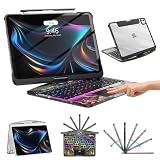
- Compatible with iPad Pro 13 inch: Only designed for iPad Pro 13 inch M5 2025 (Model : A3360, A3361, A3362) , iPad Pro 13 inch M4 2024 (Model : A2925, A2926, A3007). NOT compatible with any other model devices. Please check your iPad model number on the back before purchasing.
- 360 Rotating Kickstand with Multi-View Flexibility: Equipped with a built-in 360 omnidirectional rotating stand, it allows for smooth and precise angle adjustment. Whether you're typing, drawing, or presenting, it instantly adapts to your needs. You can easily lock the viewing angle, helping maintain a healthy sitting posture and enjoy a comfortable using experience.
- Type in Style with 7-Color Backlighting: Elevate your typing experience day and night! This integrated wireless keyboard for iPad Pro 13 boasts vibrant 7-color illumination that you can fully customize to suit your mood or surroundings, complete with 3 adjustable brightness levels for clarity in any light.
- Wireless Keyboard with Precise Trackpad: The iPad Pro 13 inch case comes with a responsive wireless keyboard and smooth trackpad, delivering a laptop-like experience for effortless navigation, editing, and app switching, boosting productivity and creativity.
- Full Protection & Transparent Design :iPad Pro keyboard case 13 inch provides superior protection with premium hardshell design, ensuring all-around defense against drops, scratches, and dust. Precision cutouts provide full access to all ports. The sleek, transparent back highlights your device’s original design, perfectly combining minimalist style with durability.
Adapter or hub setup
With HDMI or VGA, connect the adapter to the iPad and keep the keyboard and pointer on Bluetooth, or use a hub that adds USB ports for wired peripherals. Connect the hub’s charger to its power-delivery input when available. A hub can reduce cable swapping, but it also introduces another component whose firmware, power handling, and video specification must be compatible.
Bluetooth versus wired input
| Choice | Advantages | Considerations |
|---|---|---|
| Bluetooth keyboard and mouse or trackpad | Leaves the iPad’s USB-C port available for the display; fewer desk cables | Requires charging or batteries; pairing and wireless interference can affect reliability |
| USB keyboard and mouse | No Bluetooth pairing; predictable wired connection | Needs a free USB port or hub and adds cable clutter |
| Trackpad | Supports pointer movement plus iPadOS gestures on compatible models | Gesture support depends on the accessory generation and iPadOS |
Fix common problems
No picture on the monitor
- Confirm that the monitor is powered on and set to the input used by the iPad.
- Unplug and reconnect the video cable at both ends.
- If an adapter or hub is involved, reconnect it directly and test again.
- Power-cycle the monitor, then reconnect the iPad.
- Check that the cable supports video and enough bandwidth for the selected resolution.
- Check the adapter’s HDMI or VGA specification and the monitor’s supported resolution and refresh rate.
Picture appears at a lower resolution or refresh rate
Start with the cable and adapter specifications. A charging-only USB-C cable, an older HDMI adapter, or a hub that shares bandwidth among several ports can impose a lower mode. Confirm the target resolution against the iPad Pro generation limits in Apple’s support documentation and against the monitor’s own input limits. For Apple’s USB-C Digital AV Multiport Adapter, remember that the documented 1080p/60 Hz behavior applies to the Home Screen and apps, while compatible video can switch up to 4K/60 Hz with Match Content.
Bluetooth mouse or trackpad will not pair
- Charge the accessory or replace its batteries.
- Put it back into discovery mode rather than merely turning it on.
- Open Settings > Bluetooth and select it under Other Devices.
- Disconnect unused Bluetooth accessories while testing. Apple warns that multiple active Bluetooth devices can make wireless interference more likely.
- If it was previously paired with another computer or tablet, remove that old connection or switch the accessory to a different pairing slot.
The pointer moves but scrolling or gestures do not work
Check Settings > General > Trackpad & Mouse and the accessory generation. First-generation Magic Mouse and Magic Trackpad do not support scrolling or other gestures in iPadOS, so changing a setting cannot add those capabilities to that hardware.
The Tool Desk
Outbyte PC Repair FREERepair Windows errors before they cause bigger problemsFix Now →Outbyte Driver Updater FREEFix the driver behind crashes, sound loss and screen glitchesFind Drivers →The software keyboard disappeared
iPadOS may hide the on-screen keyboard when a physical keyboard, mouse, or trackpad is connected. Tap the keyboard button at the lower-right of the text-entry area to show the software keyboard again. Disconnecting the physical keyboard also allows iPadOS to return to its normal on-screen keyboard behavior.
Keyboard works but the monitor does not
Test each subsystem separately. Disconnect the display and type in a text field to confirm the keyboard. Then reconnect the display without changing Bluetooth settings. If the keyboard and pointer remain functional while the monitor is blank, concentrate on the selected input, video cable, adapter, and display bandwidth rather than re-pairing the accessories.
Accessory selection checklist
- Monitor input: Choose direct USB-C/DisplayPort for the simplest digital path, Thunderbolt only when the iPad Pro model supports it, or HDMI/VGA when that is what the monitor provides.
- Resolution and refresh rate: Match the monitor’s target mode to the iPad Pro generation, adapter, cable, and monitor input.
- Cable bandwidth: Use a high-bandwidth USB-C or Thunderbolt cable for high-resolution displays; do not infer video support from the USB-C plug shape.
- Power: Decide whether the monitor, hub, or dock must charge the iPad while the display and accessories are active.
- Ports: Count the USB ports required by a wired keyboard, mouse, storage, or other peripherals before choosing a hub.
- Pointer features: Choose a trackpad if gestures matter, and verify that the accessory generation supports the iPadOS behaviors you expect.
- Wireless environment: Bluetooth input is convenient, but keep unused accessories disconnected while diagnosing interference.
Apple documentation to consult for model-specific details
Apple’s “Charge and connect with the USB-C port on your iPad” support article, published March 17, 2026, lists model-specific display limits, high-bandwidth cable guidance, adapter behavior, and supported accessory categories. The current iPad User Guide page “Connect iPad to a display with a cable” covers direct USB-C connections, HDMI/VGA adapters, input selection, and reconnecting or power-cycling a display. Apple’s “Connect a Bluetooth mouse or trackpad to your iPad,” published May 8, 2026, documents the iPadOS 13.4 requirement, pairing flow, and interference troubleshooting. “Use a Bluetooth mouse or trackpad with your iPad,” published April 3, 2026, explains pointer controls and the limitations of first-generation Magic Mouse and Magic Trackpad. Check those pages for changes when you update iPadOS or change iPad Pro models.
Quick Recap
Product prices and availability are accurate as of the date/time indicated and are subject to change. Any price and availability information displayed on Amazon at the time of purchase will apply.
What’s actually slowing this PC down?
Pick the symptom - the matching free tool is one click away.

