Recommended Free Tools
A scheduled YouTube livestream gives listeners an upcoming event page and a way to set reminders; it does not create or transmit your radio station’s audio. To put the station on air, schedule the event in YouTube Studio, send the audio feed from an encoder using YouTube’s stream URL and key, then start the event after checking its preview. For an always-on station, you also need an operating plan for monitoring, recovery and stream rotation: scheduling alone does not guarantee uninterrupted broadcasting.
What a scheduled stream does—and what it does not
Scheduling establishes an upcoming livestream and its watch page. It can notify interested viewers and let them set reminders. A separate encoder must send the live feed to YouTube. As YouTube puts it, “To start streaming, enter your YouTube Live server URL and stream key into your encoder.” YouTube’s encoder instructions describe that connection and the event workflow.
As an Amazon Associate I earn from qualifying purchases.
That distinction matters for radio: a scheduled event is not a playlist, audio player or 24/7 automation system. The station’s audio source and encoder have to keep supplying a signal, and someone should be prepared to monitor it and respond if it stops.
Check channel eligibility and prepare the audio feed
Enable livestreaming in advance
YouTube’s general guidance says a channel must be verified and must not have had a live-streaming restriction in the previous 90 days. The guidance also states a minimum age of 16 to livestream. First-time livestream enablement can take up to 24 hours, so do not leave activation until just before launch. Check the current requirements for the channel in YouTube’s livestreaming tips.
#1 Best Overall

- All-in-One Internet Radio Component: Seamlessly access thousands of global stations via Wi-Fi or LAN, using Skytune, enjoy Podcasts, local FM radio, and stream music from your phone via Bluetooth (Requires external speakers or amplifier—no built-in speaker driver).
- HiFi Integration Ready: Easily connect to your home audio system with stereo line-out or optical output. No built-in speaker—designed as a pure tuner for audiophiles who want flexibility, or if you already have an amplifier or stereo systems to connect with.
- Smart Streaming & Playlist Control: Supports UPnP and DLNA for streaming music from networked PCs or NAS drives. Create and manage playlists or stream directly from your home server.
- Enhanced User Control: Comes with a full-function remote control and 3.2" color screen. Browse stations, set sleep timers, alarms, EQ sound modes, and manage your favorites. Option to display a clock while playing with adjustable dimmer settings.
- Multiple Playback Modes & Alarms: Supports alarm via favorite station, FM, or tone. Sleep timer, kitchen timer, podcast playback with resume function, and remote web control via Skytune website.
Choose the station’s actual audio path
Decide what will feed the encoder: for example, a computer playing the station’s programming, a mixer output, or another compatible audio source. YouTube documents the use of external audio hardware, but a preamp, microphone or USB audio interface is not required for every station. Add hardware only when the chosen source and signal chain need it, and verify that its inputs and outputs match the equipment and encoder.
For music or other third-party material, confirm that the station has the rights needed to broadcast it on YouTube. A scheduled stream does not grant music rights or prevent copyright claims or restrictions.
Rank #2

- Listen to Thousands of Radio Stations from Around the World With Clear Reception - More than 25,000+ internet radio stations categorized by Location, Genre and Most Popular. Discover radio shows you love. Thousands of free rock, jazz, news and talk shows to choose from! All you need is a WiFi internet connection. Add your own favorite stations by submitting a valid URL to Skytune.
- Bluetooth receiving included so that you can send audio from a smartphone or tablet to the CC WiFi 3 Internet Radio. A 5dBi external antenna is included for best 2.4 Ghz Wi-Fi reception and distance within your home.
- Great Audio With Full Voice Clarity – Includes a line-out which can be used for remarkable results with an amplified speaker system or any AM, FM stereo receiver for superior audio. An adjustable equalizer (Line Out and Headphone) for advanced users centered at 105, 300, 850, 2400 and 6800 Hz plus an adjustable 3D setting for depth. Settings can be adjusted to your ear.
- Great Bedside Radio – It’s small and easy to use. Comes with a clock, dual alarm, sleep timer (15, 30, 45, 60, 120, 150, and 180 minutes) and stereo headphone jack. The included large sized remote control gives you quick access to preset stations. Presets: first 10 presets using the remote buttons, 100+ in sequence list.
- Additional Features – Adjustable Backlight, 5-volt AC adapter and USB to radio power cord included. Weight: 1 lbs. 2.6 oz. Size: 6.5” W x 3.9” H x 3.9” D. 2 Year limited warranty. U.S. based tech support.
Schedule the event in YouTube Studio
- Open YouTube Studio and select Create → Go Live → Manage → Schedule stream.
- Create a new stream or reuse prior settings. Set the title, description, thumbnail, privacy, date and time for the event, and review any copied options before saving.
- Open the event in Live Control Room and copy its stream URL and stream key into the encoder. Treat the key like a password: anyone with access may be able to send a feed to the channel. If it is exposed, reset it in Live Control Room and update the encoder.
- Check the watch page and event details. Scheduled streams can support notifications and reminders. YouTube says trailers are available only to channels with more than 1,000 subscribers and no Community Guideline strikes; see Manage live stream settings for the applicable event options.
YouTube’s reuse-settings feature can copy prior metadata, stream key, settings and auto-start/auto-stop selections. Reuse can save setup time, but inspect the copied event carefully so an old date, title, privacy setting or key is not carried forward unintentionally.
Configure the encoder and network for reliable audio
Use a supported protocol and sustainable settings
YouTube recommends RTMPS. Its encoder settings guide lists supported protocols, codecs and resolution-specific bitrate ranges. Set the encoder to a supported configuration that your equipment and upload connection can sustain. For a radio station, prioritize clean, stable audio; sending a high-resolution video setting is not useful unless the station has video content and the bandwidth to support it.
Rank #3

- Internet wireless Wi-Fi radio: simply connect the radio to your internet network to access an extensive number of world’s radio channels, powerful and stereo output with rich sound.
- FM radio: Ordinary FM band without internet access. Can display radio texts if available.
- Bluetooth & UPnP/ DLNA Compatible: Play your preferred music or podcast using Bluetooth (such as Spotify or other audio streaming services) or UPnP/DLNA compatible device, also support Micro SD card.
- Personalize your favourite list up to 99 presets: Easy to manage favourites from FM and Internet radio in ONE list via 3 quick preset or remote control. Free to add new audio stream URL.
- Option to display the time when radio is playing, the backlight is adjustable, can be totally off / Multi-languages menu display / Remote control.
There is no single bitrate or resolution that fits every radio setup: it depends on the encoder, the content being sent, and the available connection. Consult YouTube’s current settings page and the encoder’s documentation rather than guessing or selecting the highest option by default. Leave headroom in the internet connection for normal network variation.
Test the complete chain
Before airtime, confirm that the audio source reaches the encoder, the encoder can connect to YouTube, and the stream preview sounds and looks right. YouTube recommends configuring encoders at least two hours before an event and starting them at least 15 minutes before it. Its guidance also recommends monitoring and checking failover arrangements where continuity matters. These lead times are especially useful for finding a silent input, wrong key or unstable connection while there is still time to fix it.
Rank #4
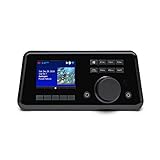
- Connect the Grace Link to your traditional stereo or receiver to stream music and more; Total control with the Grace smartphone app, infra-red remote control, or the front panel controls via the 2.8-inch color display (no built in speaker)
- Supports 100,000 Internet radio stations and 100 presets; Built-in apps: Spotify Connect, Pandora, Amazon Music HD, Prime, and Unlimited, iHeartRadio, Radio.com, BBC, NPR, Sleep Sounds, Calm Radio, Shoutcast, Live365, Podcast, SiriusXM (subscription sold separately by SiriusXM), add your favorite station to your my stuff folder
- With Chromecast built-in, you can stream your favorite music from your phone, tablet, or laptop right to your favorite speakers or stereo system. Easily control your Grace Link with hundreds of apps you already know and love from your iPhone, iPad, Android phone or tablet
- Analog and pure digital outputs to connect to your favorite stereo or receiver; Analog inputs to stream your favorite CD or Turntable to any room of your home, to other Grace devices, or any brand Chromecast built-in speaker
- Supports Hi-Res files up to 24-bit/192kHz; Built in 5 band equalizer; Play audio from UPnP / DNLA media servers, Bluetooth 5.0 receiver to play from your phone or transmit to listen on headphones, RJ45 jack and built in dual band Wi-Fi; What's in the box: Grace Link, manual, Infra-red remote control and batteries, 12V 1A power adapter
Start the scheduled livestream
- Start the station’s audio playback or mixing source and confirm that it is producing the intended signal.
- Start the encoder with the scheduled event’s stream URL and key. Wait for the incoming signal and preview to appear in Live Control Room.
- Check the watch page, audio level and stream status. If the preview is correct, select Go live in Live Control Room unless the event’s tested auto-start configuration is intended to start it.
- Keep monitoring the audio and connection. Auto-start and auto-stop can control event start or stop when enabled, but they do not replace monitoring or a tested recovery procedure.
- When ending an event, stop the feed and use End Stream as appropriate. Confirm the archive and the next event’s behavior in the actual channel setup.
Plan for continuity beyond one scheduled event
YouTube says streams under 12 hours are automatically archived. That is useful for replay, but it means an operator should not assume one scheduled event is a safe, indefinite broadcast container. Plan a rotation or restart approach appropriate to the channel and encoder, test it before relying on it, and verify how the archive and next event behave. The cited YouTube guidance does not establish one universal method for uninterrupted 24/7 radio.
A continuity plan should identify who notices a dropped feed, how they restore the audio source and encoder, what backup connection or equipment is available, and how the next event is started. Test the backup path; an untested spare computer or internet connection is not a reliable failover plan.
Troubleshooting common failures
- Livestreaming is not enabled: Complete channel verification and activation well before launch. First-time enablement can take up to 24 hours, and restrictions may make the channel ineligible.
- No preview appears in Live Control Room: Confirm that the encoder is running, the stream URL and key belong to the scheduled event, the key has not been reset, and the network permits the selected protocol.
- The preview is silent: Check the selected encoder audio input, source playback, mixer routing and cable/interface connections. Verify the level at the encoder rather than assuming that audible playback at the source is reaching YouTube.
- Audio or video repeatedly buffers or disconnects: Use a supported encoder configuration and reduce settings if the connection cannot sustain them. Check the upload connection and test a backup path; monitor the stream rather than relying on a single preflight check.
- The event does not start when expected: Confirm that the correct scheduled event is open and that its preview is ready. Select Go live when appropriate; do not assume scheduling or auto-start will create the feed.
- The stream ends or archives unexpectedly: Check the event duration and YouTube’s under-12-hour archive behavior, then verify the planned rotation and next-event process. A single scheduled event should not be treated as proof of indefinite operation.
- The stream key may be exposed: Reset it in Live Control Room and replace the old key in the encoder before resuming.
Or let it run in the cloud
If you want a YouTube radio stream built from uploaded recordings without leaving a computer or OBS running at home, StreamNeo is a cloud option. Upload recordings, add your YouTube stream key, and go live; StreamNeo loops uploaded videos, not a live microphone or camera feed. It is YouTube-only.
Quick Recap
- Nothing has to stay on at home: the stream runs from the cloud.
- Any quality up to 4K 60fps at one flat price per slot; videos stream as uploaded, without re-encoding or quality tiers.
- Automatic recovery if YouTube drops the stream.
- The first day is free with no card (one free day per account).
- Monthly: $9.99 per month.
To try it, start a StreamNeo free day.
Product prices and availability are accurate as of the date/time indicated and are subject to change. Any price and availability information displayed on Amazon at the time of purchase will apply.

