Free tools Windows power users keep installed
One-click scans. No signup required.
A NAS running Tailscale can act as a gateway to your home LAN, letting your traveling Tailscale-connected phone or laptop reach selected devices that cannot run Tailscale themselves. Set up a subnet route on the NAS, enable it for your tailnet, and make sure your access policy permits the connection. This does not route all your internet traffic through home; that is a separate exit-node feature.
What a NAS subnet router does
A subnet router advertises a route for a private network, such as your home LAN, to your Tailscale network (tailnet). Once the route is available and authorized, a device connected to your tailnet can contact LAN devices by their local IP addresses even if those devices cannot install Tailscale. Examples include some printers, smart-home hubs, and other network equipment.
As an Amazon Associate I earn from qualifying purchases.
The NAS must be running and connected to both Tailscale and the LAN it is routing. Tailscale’s subnet-router guide, last updated October 29, 2025, explains the route-advertisement model.
Quick wins for a faster PC:
Repair Windows errors before they cause bigger problemsFix Now →Fix the driver behind crashes, sound loss and screen glitchesFind Drivers →Clear out junk files and repair common Windows errorsFree Scan →Subnet router or exit node?
| Option | Traffic destination | What must run Tailscale | Use it when |
|---|---|---|---|
| Subnet router | Devices on the advertised private LAN route | The NAS or another gateway; individual LAN endpoints do not need Tailscale | You need to reach selected home-network devices while away. |
| Exit node | Internet-bound traffic from the client, routed through the selected device | The exit-node device and the client using it | You want your internet connection to exit through home. |
These features solve different problems. A subnet route is the relevant choice for reaching a device on your home LAN; an exit node is not required for that. Tailscale describes the distinction in its exit-node documentation.
#1 Best Overall

- Expanded 5.9 GHz spectrum support enables additional high-speed 80 and 160 MHz channels
- 2.5GbE port enables support for the fastest ISPs and can optionally be configured as a LAN port
- Create and define up to 5 separate networks to segregate and contain vulnerable devices
- Parental controls, web filtering, traffic control, and threat prevention put you in control over your network
- Comprehensive VPN server solution with remote desktop and site-to-site tunneling provides flexible and secure remote connectivity
What you need before setup
- A NAS model and operating-system version supported by Tailscale’s current instructions for that platform.
- Tailscale installed and connected on the NAS, with the NAS reachable on your home LAN.
- The LAN’s actual network range in CIDR notation, such as the range shown in your router’s LAN settings. Do not copy an example route unless it matches your network.
- Permission to enable IP forwarding where the platform requires it, advertise the route, and approve or otherwise authorize it in your tailnet.
- An access policy that allows the traveling device and its user to reach the intended LAN addresses and services.
Set up the route
- Identify the LAN CIDR. Check your router or network settings and note the home subnet in CIDR notation. Confirm it is the network containing the devices you need to reach.
- Install and connect Tailscale on the NAS. Follow the instructions for your NAS platform, then verify the NAS appears as connected in the tailnet.
- Enable IP forwarding if required. Routing depends on forwarding traffic between interfaces. Tailscale’s IP-forwarding guide, last validated March 16, 2026, documents this requirement and related troubleshooting.
- Advertise the route. Use the platform’s instructions to configure Tailscale on the NAS to advertise your LAN CIDR with
--advertise-routes. Use the exact command or configuration method specified for your NAS; do not assume the same command entry point works on every vendor’s package. - Enable or approve the route. In the Tailscale admin console, enable the advertised route if approval is required. A tailnet policy may automatically approve it; otherwise, advertising alone does not make the route usable.
- Check access policy. Configure the applicable access rules so the traveling user’s device can reach the required LAN addresses and ports. Route availability and permission to use it are separate controls.
- Test from away from home. Connect the phone or laptop to Tailscale on a network outside your home, then try the target device using its LAN IP address and the relevant application or service. A successful route does not guarantee that every device responds to every diagnostic method.
Follow the instructions for your NAS platform
Synology
Tailscale’s Synology integration guide, last validated January 5, 2026, documents route advertisement and platform-specific limitations. It says Synology can advertise routes but cannot currently accept routes from other subnet routers. The guide also notes DSM 7 restrictions and hybrid networking: shared-subnet devices may be reachable over UDP and TCP without responding to ping. Treat those details as the documented state on the page’s validation date and check the live guide for changes.
QNAP
Tailscale’s QNAP integration guide requires command-line steps using the Tailscale package’s CLI for subnet-router configuration. Follow that QNAP-specific workflow rather than assuming the Synology procedure or a generic NAS interface applies.
Quick Recap
Best Value

- Your Personal Streaming Server - Build your own Netflix-style media library and stream 4K movies, shows and photos to any device without monthly fees
- Create Your Own Cloud - Store your entire photo, video and music collection; access from anywhere with fast 282 MB/s transfer speeds
- Creator-Grade Backup Solution - Protect your irreplaceable content with automated backups to cloud services, external drives and remote NAS
- Multi-Layered Data Protection - Combine RAID redundancy, automated backups and snapshot technology to prevent data loss from any cause
- Smart Home Surveillance - Support up to 30 IP cameras with AI detection, instant alerts and secure remote monitoring
Rank #4

- 1.7GHz Dual-core processor for fast, uncompromising performance
- Powerful 4x4 802.11ac wave 2 radios with MU-MIMO and up to 2.53Gbps breakthrough wireless speeds
- Smart Connect for seamless transition between maximum speed or range
- Hardware accelerated Layer 7 traffic control and monitoring
- Dual WAN capable for load balancing and failover support
Rank #3
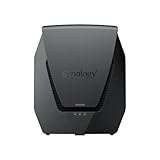
- Dual-band Wi-Fi 6 with 5.9 GHz support and configurable WAN/LAN 2.5GbE port enable fast wireless and wired transfers
- Comprehensive network security provided through Threat Prevention, VLAN segmentation, and WPA3 support
- Standalone router that can be incorporated into a mesh system for whole home coverage
- Parental controls and web filtering keep your family protected
- DS router app provides easy-to-follow setup and network management through your mobile device
Rank #2

- Dedicated Tri-band 2.13 Gbps (400+867+867 Mbps) bandwidth optimized for performance and reliability
- Easy setup and remote management from web client or mobile app
- Comprehensive parental management and easy-to-use inter face with Safe Access
- Single Wi-Fi name and seamless roaming with 802.11 k/v/r support
- Create advanced VPNs with WebVPN, Synology SSL VPN, and SSTP VPN capability
How to tell where a setup is failing
- The NAS is not connected to Tailscale: Resolve the NAS’s Tailscale connection first; it cannot route traffic while offline.
- The route is advertised but unavailable: Check whether it needs approval or enabling in the admin console and whether the tailnet policy permits it.
- The route is enabled but the device cannot be reached: Verify the CIDR matches the home LAN, IP forwarding is enabled where required, and the destination device is online and listening on the service you are trying to use.
- Ping fails but the service works—or vice versa: Ping is not a definitive test of reachability. Synology’s documented hybrid-networking behavior can allow UDP and TCP access without a ping response.
- The device is reachable at home but not while traveling: Confirm the client is connected to Tailscale and authorized by policy, then test using the device’s LAN IP. If the remote network uses an overlapping IP range, the same address may refer to a different local device; the cited setup guidance does not establish a universal fix for that case.
Product prices and availability are accurate as of the date/time indicated and are subject to change. Any price and availability information displayed on Amazon at the time of purchase will apply.

