What’s actually slowing this PC down?
Pick the symptom - the matching free tool is one click away.
Upload both files that make up a Satisfactory blueprint—the .sbp Blueprint Module and its matching .sbpcfg configuration file—to the running save’s SaveGames/blueprints/{SESSION NAME} directory. Stop the server first, place the pair in the correct operating-system and service-account path, restart the server, and reload the save in game. This workflow is for PC dedicated servers; console releases cannot use it.
Playing with friends? Godlike.Host runs hosted Satisfactory servers from 10 data-center locations, with free DDoS protection.
What you need to upload
A Satisfactory blueprint is not a single file. It is a pair that must stay together:
As an Amazon Associate I earn from qualifying purchases.
Recommended Free Tools
.sbp— the Blueprint Module containing the build layout and design data..sbpcfg— the companion configuration file containing metadata such as the description and icon.
The two files share the same blueprint name and are matched by the game. Uploading only the .sbp, renaming one file independently, or pairing files from different blueprints can prevent the blueprint from appearing. The current PingRite Game Admin guide (2026) likewise specifies that every upload needs both the .sbp and matching .sbpcfg files.
Keep the pair together from the moment you download or export it. If you organize blueprints on your computer, put both files in one folder and preserve the original base name. The configuration file is not an optional thumbnail: without the matching metadata file, the server may have no complete blueprint entry to display.
#1 Best Overall

- 【AMD Ryzen 5 3501U Mini PC For Enhanced Daily Performance】Powered by AMD Ryzen 5 3501U processor with 4 cores and 8 threads, this mini pc provides responsive performance for office applications, home entertainment, online learning, media playback, and everyday computing.
- 【16GB Memory & 512GB Storage With Expansion Options】Built with 16GB DDR4 RAM and 512GB PCIe 3.0 NVMe SSD, this mini computer provides more space for applications, files, videos, and daily content. Upgrade memory up to 32GB, expand SSD storage up to 2TB, or add a 2.5-inch HDD.
- 【Flexible Small Desktop Computer For Home Applications】This small desktop computer is designed for home office, streaming, personal server setups, digital entertainment, and light gaming. The upgraded memory helps support smoother operation when using more applications.
- 【Triple Display Setup & Flexible Connectivity】Dual HDMI ports and a full-function USB-C port support up to three displays. This micro pc offers convenient connectivity with WiFi 6, Bluetooth 5.3, Gigabit Ethernet, and multiple USB ports.
- 【Compact Mini Desktop With Space-Saving Design】Measuring only 5.0 × 4.4 × 1.6 inches, this small pc saves valuable desk space. VESA mount support allows installation behind compatible monitors, making it suitable for home offices and compact workspaces.
Check that this method applies to your server
PC dedicated servers
The file-upload procedure applies to a Satisfactory dedicated server running on Linux or Windows. You need administrator access through a hosting control panel, SFTP, or another approved file-transfer method. The process is the same whether the server is rented from a host or operated on your own machine; only the profile path changes.
Before transferring anything, confirm that you can stop and start the process cleanly. A host’s Files tab may expose the correct directory directly, while a self-managed installation may require an SFTP client or local filesystem access. If you cannot see the service account’s profile, ask the host which account runs the dedicated-server process and where its active save directory is located.
Console saves and releases
Console blueprints are embedded in individual saves, and console releases cannot use Satisfactory dedicated servers. You therefore cannot transfer a console blueprint to a PC dedicated server by copying .sbp files. The instructions below are specifically for PC dedicated-server installations.
Prepare the server before touching files
Identify the save or session that is actually running
The final directory is named for the active session or save. A server can contain several session folders, so first note which save your server loads when it starts. The folder name must correspond to that running session. Putting files in the parent blueprints directory, or in a different session folder, leaves the upload invisible even when the files themselves are valid.
If you administer multiple saves, treat each session directory as a separate destination. A blueprint copied into one session folder is not automatically available in another. When the names are unclear, create a harmless test blueprint in the intended save and later inspect the folder that receives it; that generated folder identifies both the session and the profile used by the server.
Stop the server cleanly
Use the host panel’s Stop or Shutdown control. If you administer the machine directly, stop the dedicated-server service through the method used to launch it. Uploading while the process is running can leave files locked or allow the server to overwrite changes during a save operation. Wait until the panel reports that the process has stopped before opening the directory.
Do not rely on merely disconnecting from the game. The server process can continue running after every player leaves, so use the service manager or control panel and verify that it has fully stopped.
Rank #2

- 【1-Year Worry-Free Warranty】Your satisfaction is our priority. Glorlin provides a 1-year warranty covering any hardware malfunctions. We support returns or exchanges to ensure a 100% worry-free shopping experience. Have a question? Reach out to us through our official after-sales email for a prompt solution.
- 【Reliable Performance with Ryzen 7 Processor】Powered by AMD Ryzen 7 8745HS (8 cores, 16 threads, up to 4.9GHz), this mini pc delivers stable performance for daily workloads. Suitable for office tasks, programming, and multitasking, it works well as a ryzen mini pc for both home and business use.
- 【Radeon 780M Graphics for Media and Light Gaming】Equipped with integrated Radeon 780M graphics, this mini gaming pc supports smooth 4K video playback and handles many popular games at adjusted settings. A practical mini computer for media, editing, and casual gaming.
- 【Mini PC 16GB RAM and Fast Storage】This mini pc 16gb ram configuration includes single 16GB DDR5 memory (4800MHz,3GB is assigned to VRAM by default) and a 1TB NVMe SSD, offering quick boot times and responsive system performance. Dual M.2 slots allow storage expansion up to 4TB for growing files and projects.
- 【Quad 4K Display Support for Productivity】The mini desktop computer supports up to four 4K displays via HDMI, DisplayPort, and dual USB-C ports. Ideal for multi-screen workflows such as coding, trading, or content creation with improved efficiency.
Make a backup when your host provides one
Use the control panel’s backup or restore function, or copy the relevant save and blueprint folders before making changes. A backup gives you a recovery point if a file is placed in the wrong session directory or an automated deployment restores an earlier state. This is an operational precaution rather than a requirement for the file format.
Find the blueprint directory
Blueprints live separately from ordinary save files. Open the profile used by the dedicated-server process, then follow FactoryGame/Saved/SaveGames/blueprints and the active session folder. The documented locations are:
| Server setup | Blueprint directory |
|---|---|
| Linux dedicated server | ~/.config/Epic/FactoryGame/Saved/SaveGames/blueprints/{SESSION NAME} |
| Windows server running as a normal user | %LOCALAPPDATA%FactoryGameSavedSaveGamesblueprints{SESSION NAME} |
| Windows server launched through NSSM | %WINDIR%System32configsystemprofileAppDataLocalFactoryGameSavedSaveGamesblueprints{SESSION NAME} |
| Windows Server service | %WINDIR%ServiceProfilesNetworkServiceAppDataLocalFactoryGameSavedSaveGamesblueprints{SESSION NAME} |
Replace {SESSION NAME} with the actual directory name created for the save. On Windows, the path depends on the account that runs the service, not necessarily the account you use to log in interactively. A normal user profile, an NSSM system account, and the Windows NetworkService profile each have different locations. On Linux, the tilde represents the home directory of the user running the server process.
These paths are not substitutes for the ordinary save-game directory. The blueprint files belong under the separate blueprints tree, followed by the session-name folder. If a file manager opens at SaveGames, do not stop there: continue into blueprints and then the matching session folder.
Upload a blueprint step by step
- Obtain the complete pair. Keep the
.sbpfile and its matching.sbpcfgfile together. Do not upload a similarly named configuration file from another blueprint. - Stop the server. Confirm that the process is fully stopped in the control panel or service manager.
- Open the file manager or SFTP connection. Navigate to the profile path for the operating system and service account, then open
Saved/SaveGames/blueprints. - Open the active session folder. Choose the subfolder whose name corresponds to the save the server loads. If several folders exist, verify the name against the server’s configured save or the folder that changes when you create a blueprint in that save.
- Transfer both files. Upload the
.sbpand matching.sbpcfginto that session folder. They should be side by side, not in a newly created extra subfolder. - Check the transfer. Verify that both filenames and extensions are intact. A file accidentally saved as
.sbp.txtor.sbpcfg.txtis not the required format. - Start the server. Use the panel’s Start control or launch the service normally. Allow the save to finish loading before joining.
- Reload the save in the game. Join the server, leave and re-enter if necessary, and open the Blueprint build menu. The official Satisfactory Wiki notes that the save must be reloaded before downloaded or shared blueprints appear.
Uploading through a host file manager
Stop the server first, select the active session directory in the Files tab, and use its upload control for both files. Wait for each transfer to finish before closing the page. Then verify that the filenames shown by the manager end in exactly .sbp and .sbpcfg, with no extra text or nested upload directory.
Uploading through SFTP
Connect with the account authorized by the host, browse to the profile belonging to the server process, and open the same SaveGames/blueprints/{SESSION NAME} path. Transfer the two files in one session so it is easy to confirm that both arrived. SFTP does not change the required destination or file pair; it is simply another administrator-approved way to reach the directory.
What to do when the blueprints folder is missing
A new installation may not contain the directory until a blueprint has been created in game. The official server documentation identifies this as expected behavior. The simplest way to generate the structure is:
Free tools Windows power users keep installed
One-click scans. No signup required.
Rank #3
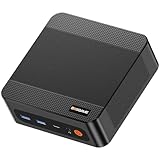
- ❓Why Choose Mini PC: Reclaim 60% of your workspace with the ultra-compact Mini Computers 24GB 1TB. Small enough to slip into your backpack for travel, business trips, or remote work, it’s a powerhouse that defies its size. Designed to handle everyday professional tasks with ease, the Ryzen 9 6900HX provides smooth and stable responsiveness for multitasking and essential content creation. It’s an efficient solution for those who need a snappy, compact system for consistent daily workloads—at a price point far more accessible than bulky towers or laptops. it’s the ultimate high-value investment for good performance and total peace of mind.
- ⚡Unleash Powerful Performance with Ryzen 9 6900HX: Bosgame P6 mini pc ryzen 9 powers through demanding tasks with the AMD Ryzen 9 6900HX(8C/16T,up to 4.9GHz). It makes Handles smooth 1080p video editing in DaVinci Resolve, runs 2–3 lightweight virtual machines, and plays esports titles like CS2 at high settings.This CPU delivers powerful performance in a compact form factor—ideal for creators, developers, and power users who need speed without compromise.
- 🖥️ Experience Smooth Light Gaming & Multitasking on Three Monitors: Drive three 4K displays simultaneously via HDMI, DisplayPort, and USB-C (all supporting 4K@60Hz). The ryzen 9 mini desktop pc is perfect for light gaming, professional workflows, or content creation where every screen matters. Enjoy lag-free performance across all monitors with powerful integrated Radeon 680M graphics.
- 🚀 Fast Memory & Storage for Instant Responsiveness: Equipped with 24GB onboard LPDDR5X RAM (4800MT/s) and a 1TB M.2 NVMe PCIe 4.0 x4 SSD, this mini desktop computer ryzen 9 boots instantly and handles large files effortlessly. Great for office tasks, light photo editing (Photoshop), and 2D drafting in AutoCAD, ensuring seamless multitasking and zero slowdowns.
- 🌍 Future-Proof Expansion & Connectivity for Professional Needs: Expand storage up to 8TB with an additional M.2 NVMe drive. This ryzen mini pc features dual USB 3.2 Gen2 ports and a full-function USB-C (supports data, PD3.0, and DP). The dual 1Gbps Ethernet ports are purpose-built for advanced setups, including DIY soft routers (OpenWrt/pfsense), home servers, hardware firewalls, and high-speed network switching. With built-in Wi-Fi 6E and Bluetooth 5.3, it’s the ultimate hub for home offices, media streaming, or complex lab environments. {Please note: To activate Bluetooth 5.3, please download the latest driver from the official Intel website; otherwise, it defaults to Bluetooth 5.2.}
- Start the server and connect to the intended save.
- Create and save any blueprint in the Blueprint Designer.
- Stop the server cleanly after the blueprint has been saved.
- Refresh the host’s file manager or reconnect through SFTP.
- Open the newly generated
SaveGames/blueprints/{SESSION NAME}directory and upload the two files.
An administrator with direct filesystem access can create the documented directory structure manually, but the final session-name folder still has to correspond to the active save. Creating only blueprints without the correct session subfolder does not give the game a usable destination. Generating a folder in game is often safer because it confirms that you are looking at the profile and session the service actually uses.
Confirm that the upload worked
Use the in-game Blueprint menu
After the restart, load the same save into which you copied the files and open the Blueprint build menu. Look for the uploaded blueprint’s icon and description. Those details come from the .sbpcfg file, while the build itself comes from the .sbp file.
Check the menu only after the save has finished loading. Looking at a menu from an older client session can make a successful upload appear missing even when the files are in the correct location.
Distinguish a stale menu from a bad upload
If the server restarted but the menu still shows the old list, reload the save rather than relying on the existing session. The official Wiki specifically requires a save reload for downloaded shared blueprints to appear. A complete restart followed by a fresh join is the most direct way to perform that reload on a dedicated server.
Windows Errors? Fix Them Before They Spread
Repair common Windows errors and clear accumulated junk for a smoother, more stable PC - no reinstall needed.Free scan · no reinstallOutdated Drivers Are Slowing You Down
One free scan finds every outdated or missing driver and matches the right update for your exact hardware.Free scan · exact hardware matchTroubleshooting by symptom
| Symptom | Likely cause | Fix |
|---|---|---|
| No new blueprint appears | Files are in the parent blueprints folder or the wrong session directory, or the save was not reloaded. |
Move both files into blueprints/{SESSION NAME} for the running save, restart the server, and reload the save. |
| Only one file was transferred | The .sbp module or its matching .sbpcfg metadata file is missing. |
Upload the complete pair from the same blueprint, then restart and reload. |
The blueprints directory does not exist |
No blueprint has yet been created in that save. | Create and save a blueprint in game, stop the server, refresh the file manager, and use the generated session directory. |
| The path in the guide is empty | The server process runs under a different Windows account or Linux user than expected. | Determine whether it runs as a normal Windows user, an NSSM system account, the Windows NetworkService account, or a Linux user, then use that account’s profile path. |
| The files are visible but the game rejects them | An extension was changed during download or upload, or the two files do not belong together. | Check the complete filenames, restore the original extensions, and transfer the matching pair again. |
| Blueprints appear in one save but not another | The files were copied to a different session-name folder. | Copy the pair into the folder belonging to the save currently loaded by the server. |
| The icon or description is missing | The .sbpcfg file was omitted, renamed, or came from another blueprint. |
Remove the mismatched file and upload the configuration file that shares the module’s original base name. |
| Files disappear after a restart | The transfer was made while the service was running, or an automated restore replaced the directory. | Stop the server before copying, confirm the destination, and check the host’s backup or restore controls. |
How hosting tools affect the process
When choosing or configuring a dedicated-server host, the important capabilities for blueprint management are practical rather than cosmetic:
- File-manager or SFTP access: You need a way to place both files in the session directory without relying on a host employee.
- Clean stop and start controls: The panel should let you stop the process before editing and restart it afterward.
- Service-account visibility: Documentation or support should identify whether the server runs as a normal user, a system account, or a Linux service user, because that determines the profile path.
- Backups and restore: A recent save and configuration backup makes it safer to correct a misplaced upload.
- Support for the Satisfactory dedicated-server build: The host must actually run the PC dedicated-server software; a generic game-file panel is not enough.
No particular host is required. If a provider hides the service-account path, does not expose file transfer, or cannot stop the server cleanly, ask support where the active SaveGames/blueprints/{SESSION NAME} directory is before uploading anything. Compare providers on those operational capabilities rather than assuming that every game-hosting panel uses the same Windows or Linux profile.
File-management practices that prevent repeat problems
Keep each pair together
When archiving blueprints locally, store the .sbp and .sbpcfg in the same folder and preserve their original base name. This makes it less likely that a configuration file is omitted or paired with the wrong module during a later transfer.
Do these 3 things before closing this tab:
1Fix the driver behind crashes, sound loss and screen glitches2Clear out junk files and repair common Windows errors3Scan for outdated or missing drivers - takes under a minuteRank #4
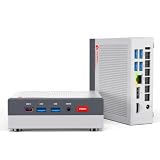
- MEET THE RETRO X3 POWERED BY AMD RYZEN 7 H 255: This Ryzen mini PC is equipped with an AMD Ryzen 7 H 255 processor (8C/16T, 16MB Cache, up to 4.9GHz), unlocked full 54W TDP for sustained high performance ,running much faster than i7-13700H, i9-13900H, R7-8745HS, and 6800H. This Ryzen Mini PC is Ideal for home studios, compact offices, mobile workstations, photo/video editing, 3D modeling, and big data analysis
- Powerful Radeon 780M iGPU, Retro Gaming Aesthetic Mini Gaming PC Boasting AMD Radeon 780M integrated graphics (12 Compute Units, 2600MHz core frequency, RDNA3 architecture), this retro mini gaming PC delivers fluid 1080p gameplay for LOL for CS2, Genshin Impact, retro emulators and casual AAA titles, outperforming older Vega & Intel Iris Xe graphics significantly on 3DMark benchmark. Adopted vintage console-inspired retro appearance with modern industrial design, it combines nostalgic gaming vibe with compact size, perfect for game lovers seeking unique desktop aesthetics. Note: This model uses onboard soldered LPDDR5 RAM, not upgradeable memory slots.
- MODERN POWER IN A RETRO-INSPIRED FORM: ACEMAGIC Flagship Retro X3 MINI PC is designed for players who love the charm of classic games and the thrill of modern play. Classic home console colors and elements meet modern industrial design, evoking nostalgic gaming memories! The Radeon 780M delivers ~8x the frame rate of Vega 2 in most games, and scores ~55% higher than Intel Iris Xe (11th/12th gen) in 3DMark & Superposition. Known as the most powerful integrated graphics, it rivals entry-level discrete GPUs
- 16GB LPDDR5 RAM & 1TB NVMe PCIe 4.0 SSD: Comes with 16GB LPDDR5 6400MT/s RAM and a 1TB NVMe PCIe 4.0 SSD (expandable up to 4TB). Data transfer speed is 10x faster than traditional SATA SSDs, greatly improving boot times and app responsiveness. The tool-free removable top cover grants instant access to PCIe slots — upgrade in seconds without tools. Future-proof your storage with ease
- DP2.0/ 4K Triple Display & Full-Featured Connectivity Support triple independent display output via DP2.0, HDMI 2.1 and USB4 Type-C, bringing up to 4K@60Hz or 4K@120Hz ultra-high resolution visual experience for gaming and content creation. Rich ports include: USB4 40Gbps Type-C (DP1.4, PD100W power input & PD15W output), 6×USB-A 3.2 Gen ports, 2.5Gbps RJ45 wired LAN, 3.5mm audio jack. The 2.5G high-speed Ethernet eliminates lag for online competitive gaming and large file transmission.
Record the target session
If your server hosts multiple saves, note which session folder each upload belongs to. A blueprint copied to one session is not automatically available in every other session directory.
Use the server’s own generated folder as a reference
When names are unclear, create a harmless test blueprint in the target save and inspect which folder receives it after stopping the server. That generated location is the best indicator of the account and session path used by that installation.
Do not edit while the server is writing
Stop the process before copying, replacing, or removing blueprint files. Starting the server only after the transfer is complete avoids a race between the file manager and the game service.
Do not flatten or rename the directory tree
The session-name folder is part of the destination, not a label that can be omitted. Keep the hierarchy exactly as generated: the service profile, then FactoryGame/Saved/SaveGames/blueprints, then the active session folder. Place the two files directly in that final folder.
Quick checklist
- PC dedicated server, not a console release.
- Matching
.sbpand.sbpcfgfiles in hand. - Correct operating-system and service-account profile identified.
- Active save or session folder identified.
- Server stopped before file transfer.
- Both files placed directly in
SaveGames/blueprints/{SESSION NAME}. - Server restarted and the save reloaded before checking the Blueprint menu.
Frequently Asked Questions
Where is the Satisfactory dedicated-server blueprint folder?
On Linux it is ~/.config/Epic/FactoryGame/Saved/SaveGames/blueprints/{SESSION NAME}. On Windows, the location depends on the account running the service: a normal user uses %LOCALAPPDATA%FactoryGameSavedSaveGamesblueprints{SESSION NAME}, while NSSM and NetworkService installations use their respective system profiles.
Which files do I upload for one blueprint?
Upload the matching .sbp Blueprint Module and .sbpcfg configuration file together. The module contains the layout; the configuration file contains metadata such as the icon and description.
Why do uploaded blueprints not show up?
Check that both files are directly inside the active session-name folder, not only in the parent blueprints directory. Stop and restart the server, then reload the save before opening the Blueprint menu.
Best Value

- 【FAST RYZEN 7 PERFORMANCE】 – Powered by AMD Ryzen 7 7730U (8 Cores/16 Threads, up to 4.5GHz Turbo, a 7nm process using the Zen 3 (Cezanne) architecture), this mini PC delivers ~30% faster multi-core performance than Ryzen 5825U/7430U models. Ideal for multitasking, smooth 1080p video editing in DaVinci Resolve or Lightroom, and running 20+ Chrome tabs smoothly. Handles light gaming like League of Legends, Minecraft, and CS:GO at 60+ FPS. Note: Not designed for AAA titles like Elden Ring.
- 【16GB UPGRADABLE RAM & 1TB PCIe SSD】 – P4 Ultra mini computers come with 16GB DDR4 3200MHz RAM (expandable to 64GB via dual SODIMM slots) and a spacious 1TB PCIe 3.0 NVMe SSD—double the storage of standard 512GB competitors. Store 500+ light modern games, 10,000+ high-res photos, or 200+ hours of 4K video without worrying about space. Features an additional M.2 slot for future expansion up to 16TB total, perfect for growing data needs.
- 【TRIPLE 4K DISPLAY & VERSATILE CONNECTIVITY】 – P4 Ultra mini desktop pc computers upport three independent 4K@60Hz displays simultaneously via HDMI, DisplayPort, and USB-C, boosting productivity for traders, designers, and programmers. Equipped with 2x USB 3.2 ports, 2x USB 2.0 ports, 1x Full Function USB-C port and a combined audio/mic jack. WiFi 6E (6GHz band) ensures lag-free streaming and faster downloads, while Bluetooth 5.2 provides stable connections for wireless keyboards, mice, and headphones.
- 【DUAL 2.5GbE LAN FOR PRO USERS】 – Unlike standard mini PCs with single Gigabit Ethernet, the P4 Ultra mini pc ryzen 7 features dual 2.5G LAN ports, enabling link aggregation for up to 5Gbps throughput. Perfect for setting up a home NAS, Plex media server, pfSense/Untangle firewall, or home lab environment. Compact 3.2L chassis fits anywhere—mount it behind your monitor with the included VESA bracket, or place it discreetly on your desk or shelf.
- 【WHISPER-QUIET COOLING】– Engineered with an advanced thermal design and low-noise fan system, P4 Ultra ryzen 7 mini pc is ideal for home offices, media rooms, or late-night productivity. Its efficient cooling ensures stable operation under load without distracting noise, making it a perfect fit among Mini Desktop Computers that prioritize both power and peace.
How do I upload .sbp files to my server?
Stop the PC dedicated server, open the correct service-account profile through the host’s file manager or SFTP, and place the .sbp beside its matching .sbpcfg in SaveGames/blueprints/{SESSION NAME}. Restart the server and reload the save.
Quick wins for a faster PC:
Clear out junk files and repair common Windows errorsFree Scan →Fix the driver behind crashes, sound loss and screen glitchesFind Drivers →What if the blueprints folder does not exist?
Connect to the intended save, create and save any blueprint in game, stop the server, and refresh the file manager or SFTP connection. The game should generate the session-specific directory.
Can I put the files in the ordinary SaveGames folder?
No. Blueprint files use the separate SaveGames/blueprints/{SESSION NAME} directory. The ordinary save-file location is not the blueprint destination.
Can console blueprints be copied to a dedicated server?
No. Console blueprints are embedded in individual saves, and console releases cannot use Satisfactory dedicated servers. This file-transfer workflow is for PC dedicated-server installations.
Do I need to stop the server before uploading?
Yes. Use the host’s Stop or Shutdown control, or stop the service directly. This prevents locked files and prevents the running process from overwriting changes during a save operation.
The Bottom Line
For a PC Satisfactory dedicated server, upload the matching .sbp and .sbpcfg files to the active save’s SaveGames/blueprints/{SESSION NAME} folder. Use the profile belonging to the actual service account, stop the server before editing, restart it afterward, and reload the save before checking the Blueprint menu. If the folder is missing, create one blueprint in game to generate the correct session directory.
Quick Recap
Product prices and availability are accurate as of the date/time indicated and are subject to change. Any price and availability information displayed on Amazon at the time of purchase will apply.

