The Tool Desk
Outbyte Driver Updater FREEScan for outdated or missing drivers - takes under a minuteDriver Scan →Outbyte PC Repair FREERepair Windows errors before they cause bigger problemsFix Now →There is no single switch that turns off every beauty filter across social apps and your phone. First remove the selected Lens, Filter, Effect, or Retouch option in the app where you see it. If your face still looks processed, check the phone’s camera or video-call effects separately; those controls can operate independently of the social app.
Start with the app where the effect appears
- Open the app’s camera or call screen. Look for a selected Lens, Filter, Effect, Retouch, Beauty, or similarly named control.
- Choose the neutral option. If available, select Off, None, Original, or the default camera view. The exact control and route depend on the app version, account, and region.
- Check the preview again. Removing one selected effect may not disable other effects or change processing in another app.
Current official information does not establish a universal current tap-by-tap route for turning off beauty controls in Instagram or TikTok. Use the controls visible in your version rather than relying on a route that may have changed. TikTok feed-personalization settings are not camera beauty controls.
As an Amazon Associate I earn from qualifying purchases.
What to check in specific social apps
Snapchat
Snap says Snapchat’s camera opens without Lenses or Filters, while its creative tools can change how people look. Remove the currently selected Lens or Filter in the camera interface if you do not want it on a particular Snap. That action does not establish a global switch for all appearance-changing Lenses, nor does it control effects in other apps. See Snap’s camera explanation and its Filters and Lenses support index.
Instagram and TikTok
Because the official information available does not establish reliable current setting paths for these apps, check the camera screen itself for an active effect and its off or neutral option. Menus can change with app releases, device, account, and region.
#1 Best Overall

- 【Premium Webcam Cover】-This webcam privacy cover is an accessory of laptop webcam. No worry about interfering with web camera lens use or indicator light; No damage to your device in any way as well. A helpful privacy protector and dust separator.
- 【Privacy Protector】-Slide the web camera cover over your webcam lens when not in use, and prevents web hackers from Spying on you. It is perfect to provide privacy security and peace of mind to individuals, groups, organizations, companies and governments. It also protects your camera lens from dust,and keeps it in high-definition resolution all the ways.
- 【Durable Material】-The web cam cover is made of high-strength plastic, which ensures that your privacy is protected for a long and lasting period of time. The back of the web camera privacy cover slide also has a strong 3M adhesive layer. It helps the privacy protector stick firmly to your device. The most convenient, super thin design, and extra mini size, make it perfectly combine with your devices.
- 【Wide Compatibility】-This webcam cover is compatible with most popular webcams with flat area surrounding lens or with protruding lens, such as Logitech HD Pro Webcam C920 C930e and C922, Logitech C615 and C270. It can be also used as a cover for the peep hole on door.
- 【2 Pack Webcam Cover】 - The streamcam cover kit comes with 2 pack. Please clean the lens surface before applying. Make sure the mounting surface is cleaned completely so that it sticks properly and firmly. Any problems, please contact us and we will reply in 24 hours.
Meta’s restrictions for some teens in the United States
Meta’s August 27, 2026 announcement describes restrictions on cosmetic-surgery filters, extended to extreme makeup filters, for people under 18 in participating US states and territories, following judicial approval. This is an age- and location-scoped platform policy, not a user-accessible setting that disables all filters for everyone. Meta’s announcement describes the scope.
BeReal
BeReal’s Community Standards describe an authenticity commitment and say people should represent themselves accurately. That statement does not prove a particular camera setting or that every image is unprocessed. Read the BeReal Community Standards for the platform’s stated expectations.
Rank #2

- FINALLY, NO MORE STICKY RESIDUE - Tired of adhesive webcam covers that leave gunk on your screen or fall off after a week? This slide-on cover clips over your laptop or tablet bezel with zero adhesive, zero tape, and zero residue. Slides open when you need your camera, slides closed when you don't. Clean, simple, and reusable.
- GREAT VALUE, STOCK UP AND SHARE — Four covers per pack at a great price! Keep one on your laptop, one on your tablet, and share the rest with family, coworkers, or anyone who values their privacy.
- MADE IN THE USA - Every cover is designed and manufactured by us in the USA using flexible, durable material that grips your bezel without scratching your screen. No offshore mass production. When you buy Gadget Ray, you're buying direct from the people who made it.
- FITS MOST LAPTOPS AND TABLETS - Works with MacBook Pro, MacBook Air, iPad, Dell, HP, Lenovo, and most laptops and tablets with standard bezels. Best fit on slim devices used without heavy cases. Designed to be used while your laptop is open - simply remove and reattach in seconds when needed.
Check whether the phone is adding an effect
If the social app’s effect is off but the preview still looks different, compare the native Camera app with the social app. Then check video-call controls if the change happens during a call. Phone camera processing, call effects, social-app effects, and edits to a saved photo are separate layers; a setting in one does not necessarily change the others.
Quick wins for a faster PC:
Scan for outdated or missing drivers - takes under a minuteDriver Scan →Clear out junk files and repair common Windows errorsFree Scan →Samsung Galaxy camera and photo controls
Samsung’s examples are model- and software-specific, not a single global Galaxy beauty toggle. For a Galaxy A70 running Android 9, Samsung’s Colombia-market instructions give this path: Camera > wand icon > Beauty > Beauty: Off. This dated path should not be assumed to match newer Galaxy phones. Samsung’s US support information covers Face effects when editing in Gallery and Portrait effects in Camera; check the support page for your exact model and software before following a route. See Samsung’s Galaxy A70 instructions and Samsung’s photo and video editing guidance.
Rank #3

- ✅Package included: California JOS (3Large+3Medium+3Small) webcam Privacy cover in Black color, All In One Solution in one Package, Assembly &Packed in USA !
- ✅ Ultra-thin design by California JOS: Super thin design, perfect curve edges, and extra mini size, which means it can be perfectly combine with your devices. Webcam Cover is only 0.03 inches thick and does not feel its existence when the laptop lid is closed.
- ✅ Universal Design by California JOS: Webcam Cover is compatible with most Laptop Computer, Smartphones, iPad,iphone, MacBook, MacBook Pro, Tablets PC, PS4 and all-in-one desktops. Many pieces package, meet your all cameras need.
- ✅ Easy to Install: Use cloth to clean the surface of device's webcam, then remove adhesive tape from the back of the camera cover Slide, align the lens, and firmly press for 15 seconds to achieve a strong, Also, the adhesive can be easily applied and removed from the device without any traces.
- ✅ Variety of sizes/shapes: Includes 9 pieces (3 large ovals, 3 medium rectangles, 3 standard ovals) in black color. A versatile solution for all your devices—laptops, tablets, phones, webcams, and more! With at least 3 options, it suits any situation. The large oval is specifically designed for the Tesla Model 3/Y interior cabin camera.
Samsung video-call effects
On the Galaxy S23 FE, the user manual places video-call controls under Settings > Advanced features > Video call effects and lists a Face option. This is separate from a social app’s Lens or filter and is specific to that manual’s device context. See the Galaxy S23 FE user manual.
iPhone video calls
Apple documents video effects for FaceTime and supported third-party conferencing apps. During a supported call, tap your video tile and deselect Portrait or other active effects. In a third-party app, open Control Center, select the app, and turn off selected effects. Availability depends on the iPhone model and operating-system version. Portrait primarily blurs the background, while Studio Light changes illumination; neither is automatically a beauty filter. See Apple’s video-conferencing effects instructions.
Rank #4
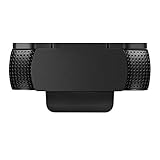
- Protecting Your Digital Life: Covers your webcam when not in use, and prevents web hackers from Spying on you. It is perfect to provide privacy, security and peace of mind to individuals, groups, organizations, companies and governments.
- Fits on Devices: Compatible with Logitech C920, C922, C922x and C930e etc Flat Camera, It does not damage your device in any way.
- You can cover your webcam at any time by effortlessly open and closed it!
- Does not interfere with webcam use or indicator light
- 100% Satisfaction Guaranty: If you aren't completely satisfied with your purchase, just contact us
Separate live effects from edits to saved photos
Turning off a live camera or call effect does not undo changes already made to a saved image. Conversely, editing a saved image does not turn off a live effect for future captures. On eligible iPhone photos, Apple lets you remove Portrait mode effects in Photos; ordinary tint filters can also be edited back to Original. Portrait blur, Portrait lighting, and color filters are distinct from skin retouching. See Apple’s Portrait mode controls.
Samsung Gallery also offers Face effects such as brightening skin tone or enlarging eyes during photo editing. These are edits to an image, not proof that the live camera has a persistent beautification setting enabled. Samsung describes these tools in its photo and video editing guidance.
Find the layer when an effect keeps coming back
- Take a comparison photo in the native camera. If it looks as expected, the effect may be specific to the social or call app.
- Check the social app’s live camera. Clear any selected Lens, Filter, Effect, Retouch, or Beauty control, then compare again.
- Check a call separately. Look at the call app’s own controls and the phone’s system-level video-call effects.
- Check a saved image separately. Look for edits or Portrait effects in the photo editor; changing an existing photo does not alter future camera previews.
- If multiple apps show similar processing, consult the device maker’s support instructions for your exact model and software rather than assuming an app-level filter is responsible.
Effects do not all change your face
A background blur, lighting adjustment, color filter, and face-retouching effect can all alter the image, but they are not interchangeable. Google Meet, for example, offers Effects and Portrait Mode for calls and says its processing happens on-device in real time, frames are deleted after processing, and facial data is not stored on the device or sent to Google servers. Those privacy descriptions are Google’s statements, not independent audit findings. See Google Meet’s effects and Portrait Mode help.
Google’s 2020 guidance on selfies recommended that face-retouching settings be off by default so users can choose when to enable them. That is guidance, not a guarantee about the current defaults of every app or device. Google’s October 1, 2020 post is attributed to Vinit Modi, Product Manager.
Quick Recap
Product prices and availability are accurate as of the date/time indicated and are subject to change. Any price and availability information displayed on Amazon at the time of purchase will apply.
Recommended Free Tools

