What’s actually slowing this PC down?
Pick the symptom - the matching free tool is one click away.
Friend battle challenges in Pokémon GO are controlled by a single setting. You turn them on or off in the app’s Settings under General, and turning the option off stops friends from challenging you. Niantic’s help pages use two different names for this option, so the steps below point to what you should look for on your screen.
Turn friend battle challenges on or off
Use the same steps to enable or disable challenges. The option appears under the General section of Settings.
As an Amazon Associate I earn from qualifying purchases.
- Open Pokémon GO and go to Settings.
- Tap General.
- Find the battle-challenge option and check or uncheck it. Niantic’s troubleshooting page names it Allow Battle Challenges with Friends. Its battle guide calls it Battle Challenges from Friends.
Checked means friends can send you Trainer Battle challenges. Unchecked means they cannot. The label may differ slightly depending on your app version or language, so use the wording that appears on your device.
The Tool Desk
Outbyte PC Repair FREERepair Windows errors before they cause bigger problemsFix Now →Outbyte Driver Updater FREEFix the driver behind crashes, sound loss and screen glitchesFind Drivers →What happens when the option is off
Niantic’s help article “Battling Other Trainers” says that turning the feature off stops you from receiving Battle Challenges from friends. Niantic’s troubleshooting page adds that when the option is unchecked, a friend who tries to challenge you sees a message indicating that you are not currently receiving challenges. Your friends are not notified that you turned the setting off; they only see that message when they try to challenge you.
#1 Best Overall
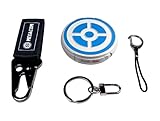
- ✅ FASTER & BETTER AUTO CATCHER: Now you can complete your box faster with the megacom DuoMon, which will drastically speed up the catching and collecting process so you can become the ultimate trainer faster.
- ✅ SMALLER & MORE LIGHTWEIGHT GO ACCESSORY: The upgraded design is not only more space-saving, but also more compact, The convenient size (2.36" x 2.36" x 0.5") and weight (0.9oz) make carrying your autocatcher a breeze.
- ✅ ULTRA-CONVENIENT VOICE ASSISTANT: Never miss another rare pocket monster or valuable item thanks to the built-in voice broadcast function. Paired with the LED notification light, you will be notified every time there's progress.
- ✅ MORE STABLE 65FT WIRELESS CONNECTION: Designed to make catching Pokemon easier than ever, our autocatcher accessory will easly connect to any Android smartphone or iPhone and stay connected without any interruptions.
- ✅ MUST-HAVE CATCHER FOR EVERY TRAINER: multiple advanced features, this automatic Pokemon catcher is made for both Pokemon Go beginners and experienced trainers who want to reach another level.
How to challenge a friend
Niantic’s battle guide describes the route for sending a challenge. The challenge does not require you to be near your friend.
- From Map View, open your Trainer Profile.
- Open the Friends tab and select the friend you want to battle.
- On the friend’s profile, tap the Battle icon.
- Tap LET’S BATTLE! to send the challenge.
If you do not see the Battle icon on a friend’s profile, check the troubleshooting steps below before assuming the feature is unavailable.
Rank #2
![Brook Pocket Auto Catch Plus with Keychain - Upgraded Version of Auto Catch, Auto Spin, Catching Pocket Monsters, Collecting Items, Wristband Bracelet Auto Catcher Accessory [Exclusive Version]](https://m.media-amazon.com/images/I/41a9yiN4ZBL._SL160_.jpg)
- 【Automatic Catch & Spin】 Hands-free device that automatically catches Pocket Monsters and spins stops, helping you collect items and level up without constant screen time.
- 【Stable Bluetooth Connection】 Upgraded wireless performance ensures a fast, stable link to your smartphone, reducing disconnects during walks, events, and long play sessions.
- 【Enhanced Auto-Detection】 Improved sensors increase catch and spin responsiveness, maximizing efficiency for both casual explorers and dedicated players.
- 【Wearable Comfort Design】 Lightweight wristband-style build offers all-day comfort. Easy one-button control and clear LED indicators let you check status at a glance.
- 【Long-Lasting Battery】 Rechargeable battery provides extended gameplay support, making it ideal for community days, travel, or daily auto-catch routines.
If invites or the Battle icon are missing
Niantic’s troubleshooting article, “I’m not seeing Trainer Battle invites or the Battle icon on the Friend screen,” lists checks to run in this order.
Recommended Free Tools
1. Confirm your own setting is enabled
Go to Settings, then General, and make sure Allow Battle Challenges with Friends is checked. A missing invite is most often caused by this option being unchecked on your own account.
Rank #3
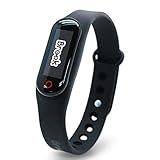
- Auto catch Pokemon and collect items. Vibration feedback. Enjoy Pokemon Go on the move without looking at your smartphone! It will also tell you when it’s time to recharge the battery. If there is connection problem of the device, please make sure you have updated the app to the latest version.
- Device requires Bluetooth low-energy compatible smartphone with Pokémon GO app installed.
- Compatible with Android devices with 2 GB RAM or more, Bluetooth Smart (Bluetooth Ver. 4.0 or higher) capability, and Android Ver. 4.4-6.0 installed.
- Compatible with iPhone 5/5c/5s/SE/6/6s/6s Plus/7/7 Plus devices with iOS Ver. 8-10 installed.
- Please charge for two hours before use it. If the device can't be connected after update ( no matter phone's or the product's update ) , please delete the bluetooth history of the device and pair again in the game.
2. Synchronize the device date and time
Set your phone or tablet’s date and time to update automatically from the network so that they match your local time. Niantic lists this as a standard check when invites or the Battle icon do not appear.
3. Check child-account permissions
If the account belongs to a child, a parent or guardian controls whether Trainer Battles and other social features are available. Niantic says these permissions can be enabled or disabled through the applicable portal, and its child-access help article points to two places to check:
Rank #4

- The packaging is Japanese, but item works the same as the US version.
- Catch Pokémon and track your rest rhythm with the Pokémon GO Plus + accessory!
- Keep track of your sleep with the press of a button
- Press and hold the central button on the Pokémon GO Plus + accessory and place it by your pillow to track your rest rhythm on the Pokémon Sleep app
- There’s a Pikachu within your Pokémon GO Plus + that can sing you lullabies and act as your morning alarm; Pikachu grows friendlier the more you sleep, unlocking even more sounds!
- Pokémon Trainer Central
- Niantic Kids Parent Portal
The adult who manages the account should review multiplayer permissions there. Niantic’s child-access article explains how permissions for Friends, Gifting, and Trading are handled for these accounts.
4. Contact Niantic support
If the problem continues after these checks, Niantic’s troubleshooting page directs players to contact support through the Pokémon GO Help Center.
Best Value

- Catch Pokémon and track your rest rhythm with the Pokémon GO Plus + accessory!
- Keep track of your sleep with the press of a button
- Press and hold the central button on the Pokémon GO Plus + accessory and place it by your pillow to track your rest rhythm on the Pokémon Sleep app
- There’s a Pikachu within your Pokémon GO Plus + that can sing you lullabies and act as your morning alarm; Pikachu grows friendlier the more you sleep, unlocking even more sounds!
- Spin PokéStops or throw Poké Balls automatically in Pokémon GO for hands-free gameplay (and Great Balls and Ultra Balls can be thrown too!)
Sources and how current this guidance is
The steps above come from Niantic’s official Pokémon GO Help Center. The help pages do not show a version-by-version comparison of menu labels, so the names may change as the app is updated. The search listings for these articles showed relative “last updated” ages of roughly seven months for the battle article, seven months for the troubleshooting article, and about seven months for the child-access article. These are search-result indicators, not confirmed publication dates, so check the help pages directly if you need the most recent wording.
Sources: Niantic, “Battling Other Trainers”; Niantic, “I’m not seeing Trainer Battle invites or the Battle icon on the Friend screen”; Niantic, “How can my child access social features such as Friends, Gifting, and Trading?”
No first-hand testing is implied here. These steps describe what Niantic’s official help pages say, and the exact labels on your device are the final guide.
Free tools Windows power users keep installed
One-click scans. No signup required.
Quick Recap
Product prices and availability are accurate as of the date/time indicated and are subject to change. Any price and availability information displayed on Amazon at the time of purchase will apply.

