Free tools Windows power users keep installed
One-click scans. No signup required.
Start by defining the scope of the failure, then test the network in layers: power and link, IP addressing, VLAN tagging and DHCP, gateway and firewall reachability, DNS, and finally WiFi radio and client compatibility. A UniFi device can show offline while still powered, and a WiFi client can associate successfully while receiving no usable address. These symptoms require different fixes. Work from reversible checks toward resets, and keep a wired or local-console recovery path available.
1. Establish what is actually broken
Write down when the problem started and what changed immediately beforehand. Moving an access point, adding a switch, changing a port profile, creating a WiFi network, enabling a network override, updating software, and changing DNS are all useful clues. Do not begin by changing several settings at once; you will lose the evidence that identifies the fault.
As an Amazon Associate I earn from qualifying purchases.
| Observed scope | First place to investigate | Useful comparison |
|---|---|---|
| One wired or WiFi client | The client, its cable or radio connection, and its DHCP lease | Test another client on the same network |
| One access point, switch, or gateway appears offline | Power, physical link, IP address, and controller reachability | Substitute a known-good cable, port, or laptop |
| One SSID or VLAN fails | Tagged uplinks, DHCP, gateway, and firewall path | Test a wired client on that VLAN |
| Every network or client fails | Gateway, upstream Internet service, core switch, or controller | Check whether local device-to-device traffic still works |
A wired client that works on the same VLAN as a failing WiFi client points toward radio settings, authentication, or the client itself. If both wired and wireless clients fail only on one VLAN, prioritize the VLAN and DHCP path. If devices on every network fail, stop adjusting individual SSIDs and inspect the gateway, core switch, and controller.
What’s actually slowing this PC down?
Pick the symptom - the matching free tool is one click away.
2. When a UniFi device shows offline
“Offline” in the UniFi Network application does not prove that the hardware has lost power. The device may be powered but unable to obtain an address, reach the application, or use the network assigned to its management interface.
#1 Best Overall

- High Performance : Cat 6 ethernet cable support up to 10 Gbps and 550 Mhz application. Cat6 patch cable are made of 26 AWG pure copper with reliable performance. Ethernet cables compliant with ANSI TIA 568.2 D standard.
- Clean Up Home network: Cat6 short patch cable is perfect to connect patch panel to switch, clean up your network rack with the cables all be the same and save hours of time to make your own patch cable.
- Widely Compatible : Cat6 ethernet cable are widely use in data center application. Ethernet patch cable connect patch panels to switch and other various devices. Cat6 cable also used for homenetwork such as router, computer, tv and server.
- Easy Unplug Design: Cat6 ethernet cord with snagless plug protects plugs when routing through cable managers or pathways. Cat 6 patch cable are easy plug and unplug from ports.
- Support POE POE+:Cat 6 ethernet cables are made of pure copper conductors. Cat 6 cable supports IEEE802.3at and IEEE802.3af protocol poe power supply.
Check power and the physical link
- Reseat the Ethernet cable at both ends.
- Replace it with a known-good patch cable. This isolates a damaged cable; it cannot correct a VLAN, DHCP, DNS, or WiFi configuration error.
- Move the device to another switch port, or substitute the PoE injector or adapter if the model uses one.
- Observe the model-specific LED or display behavior. Ubiquiti’s connectivity guidance notes that a device that is blue and flashes off every five seconds lacks network connectivity, but LED meanings differ between device families. Use the guide for the exact model rather than applying a color rule universally.
If the device remains dark after a known-good power source and cable, the fault is probably physical. If it powers normally, continue with addressing before considering a reset.
Find the device’s address
In UniFi Network, open Settings > Networks > IP Leases and look for the device. From a phone connected to the relevant UniFi network, WiFiman Discovery can also show local devices. Without a UniFi Gateway, that discovery view is limited to the network or VLAN used by the phone.
For a clean isolation test, unplug the UniFi device and connect a laptop to the same cable and switch port. A laptop that receives no address, or an automatic private address such as 169.254.x.x, indicates an address-assignment or link-path problem. It does not identify whether the DHCP server, VLAN tag, port, or cable is responsible, so test those elements separately.
Interpret missing, fallback, and unexpected addresses
- No address: inspect the port profile, tagged path, DHCP service, and link status.
- 192.168.1.20: treat this fallback address as a sign that the device did not receive its expected management configuration. Check switch-port tagging, network overrides, and loops.
- An unexpected address: investigate for a rogue DHCP server or an incorrect network assignment before adopting the device.
- The expected address is present: test whether the device can communicate with the UniFi Network application locally.
Test controller reachability instead of opening the device to the Internet
The device and UniFi Network application must be able to reach each other over TCP port 8080 for the documented communication check. Inspect local firewall or antivirus rules, inter-VLAN routing, and any ACL that separates the management network from the controller. This is a local-path diagnosis; do not indiscriminately expose management ports to the public Internet. Follow the adoption procedure appropriate to your deployment.
Rank #2

- High-Performance Connectivity: This Cat 6 ethernet cable is designed for superior performance, with a 24 AWG copper wire core. It provides universal connectivity as an ethernet cord for LAN network components such as PCs, servers, printers, routers, and more, ensuring reliable and fast network connections
- Advanced Cat6 Technology: Experience Cat6 performance with higher bandwidth at a Cat5e price. This network cable is future-proof, ready for 10-Gigabit Ethernet and backwards compatible with any existing Cat 5 cable network. It meets or exceeds Category 6 performance according to the TIA/EIA 568-C.2 standard
- Reliable Wired Network Solution: Known variously as a Cat6 network cable, ethernet cable Cat 6, or Cat 6 data/LAN cable, this RJ45 cable offers a more secure and reliable connection than wireless networks. It's ideal for internet connections that demand consistency and security
- Durable and Secure Design: The connectors of this ethernet cable feature gold-plated contacts and strain-relief boots for enhanced durability. Bare copper conductors not only improve cable performance but also comply with communication cable specifications
- High-Speed Data Transfer: With up to 550 MHz bandwidth, this ethernet cord is ideal for server applications, cloud computing, video surveillance, and streaming high-definition video. It also supports Power over Ethernet (PoE, PoE+, PoE++) for powering devices like IP cameras, VoIP phones, and wireless access points, ensuring fast and reliable network performance.
3. Fix a WiFi network or VLAN that gives clients no address
A client can successfully associate with an SSID and still have no usable network because DHCP traffic cannot cross the tagged path. Trace the affected VLAN from the access point, through every intervening switch, to the gateway and DHCP service.
Trace every hop
- Identify the VLAN ID assigned to the SSID or device network.
- Inspect the AP uplink port and confirm that the VLAN is allowed as a tagged network.
- Inspect each switch-to-switch uplink. A single port that omits the VLAN breaks clients downstream of that point.
- Inspect the gateway network definition and confirm that DHCP is enabled on the intended virtual network.
- Use the UniFi VLAN Viewer in the Ports tab to compare the tags presented on each path.
Common profile and override mistakes
- Using the client SSID VLAN as the AP’s primary or native management network.
- Omitting the client VLAN from an upstream trunk or tagged port.
- Applying Network Override to a VLAN that conflicts with the port’s native network.
- Applying an override for a VLAN that is not carried upstream.
- Creating a loop while rearranging switches, causing unstable forwarding and leases.
Correct the path one hop at a time, then renew the client lease. If a wired test client on the same VLAN also fails to obtain an address, the radio and password are not the primary problem. If wired DHCP works but wireless DHCP fails, return to the AP uplink profile and SSID VLAN assignment.
4. Separate DNS failure from a broader Internet outage
When a client has an address, can reach local devices, but cannot open sites by name, test DNS before changing routing. A DNS failure is different from a lost WAN connection: direct access to a known IP may still work while names fail.
Check the resolver and filtering path
DNS uses UDP port 53. Review the DNS servers handed out by DHCP, any internal resolver or filtering service, and firewall rules that block DNS. Ubiquiti warns that a custom internal DNS setup can fail to resolve required ui.com domains. If you are unsure, its guide suggests comparing your configured resolver with an ISP-provided server or a public resolver such as 1.1.1.1 or 8.8.8.8. Use that comparison as a diagnostic; a homelab may intentionally depend on internal zones, split DNS, or local filtering.
Rank #3

- IN THE BOX: 3-foot RJ45 Cat-6 Ethernet patch internet cable
- COMPATIBILITY: RJ45 connectors ensure universal connectivity
- PERFORMANCE: Transmits data at speeds up to 1,000 Mbps (or 1 Gigabit per second); 10x faster than Cat-5 cables (100 Mbps)
- USES: Connects computers to network components in a wired Local Area Network (LAN); great for laptops, tablets, routers, printers, gaming consoles, and more
- DURABLE DESIGN: Gold plated RJ45 connectors for accurate data transfer and corrosion-free connectivity
Use the correct settings location
| Deployment | Where to change DNS |
|---|---|
| Cloud Gateway | UniFi Network > Settings > Internet > DNS Server |
| Non-gateway console receiving settings by DHCP | Change the DNS server in the DHCP service or the console’s IP configuration |
A console that receives DNS by DHCP may retain the old value until its lease expires, usually around 24 hours. Power-cycling the console can force an earlier renewal. Check the actual lease and resolver shown by the console rather than assuming that saving a setting changed it immediately.
5. Troubleshoot clients that cannot join WiFi
First confirm whether the client fails before authentication, authenticates but receives no address, or joins and then drops. Those stages point to different causes.
Authentication and compatibility checks
- Re-enter the password and test with a second client.
- For enterprise authentication, verify RADIUS reachability, shared secrets, certificates, and the authentication server’s logs.
- Update the access point software and the client’s WiFi driver or firmware.
- Confirm that the client supports the band being broadcast.
- Temporarily test default WiFi settings to remove advanced features from the equation.
- Disable Fast Roaming when an older client does not support 802.11r.
- Reduce the minimum data rate if a legacy device cannot meet the configured threshold.
IoT-specific tests
Many IoT devices support only 2.4 GHz. Put an affected device on a dedicated 2.4 GHz SSID rather than changing the entire home network. Ubiquiti describes WPA2 as more broadly compatible with IoT than WPA3 and notes that protected management frames can also cause failures. Treat those as scoped diagnostic changes on a segregated IoT network; do not weaken the primary network permanently just to accommodate one device.
Signal and radio conditions
Use the client and radio views to inspect signal, airtime utilization, retries, interference, and channel overlap. Ubiquiti’s operational guidance uses these reference bands:
Rank #4
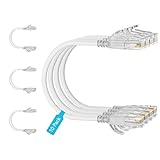
- 【10G High Performance】Slim cat6 patch cable provide fast and stable data transmission, supporting up to 10Gbps and 550MHz bandwidth. Cat6a patch cable maintains efficient and low loss signal transmission, whether for streaming media or internet connection. 0.5ft patch cable cat6 are great for building or upgrading LAN, and can meet various network connection needs.
- 【Pure Copper】Cat 6 patch cables are made of 30AWG 100% Bare copper. The excellent conductivity and twisted pair design of slim ethernet cable enable stable data transmission with maximum efficiency. Cat 6 patch cable 0.5 ft can easily handle high-bandwidth application demands and is suitable for home or office network settings.
- 【Ultra Slim design】The thin cat 6 patch cable is designed for high-density cabling environments. Cat6 slim patch cables diameter of almost half a standard ethernet cable, making it very great for cabling in data centers and server rooms. Patch cables 0.5ft with narrow boot design, easy to wire and move, optimizes cable management and saves space.
- 【Easy to Use】Ultra thin Cat6 ethernet cable are very flexible and easy to bend, without feeling stiff when bent. Cat 6 patch cable 0.5 ft with snagless boot for easy to plug and unplug. Short ethernet cable 6 inch are very flexible when moving from port to port,making them easy to use and organize.
- 【Flexible wiring】Thin cat6 cable can be flexibly routed in tight spaces, making them easy to replace and detect faults. 0.5 foot patch cable are used to connect patch panels to switches to reduce cable clutter. 0.5ft patch cable save more space in network racks and switches, making the wiring around network switches very neat.
| Received signal | Guidance |
|---|---|
| Above -60 dBm | Excellent |
| -60 to -70 dBm | Acceptable |
| -70 to -75 dBm | Clients should begin to roam |
| Below -80 dBm | Instability or drops are likely |
These are Ubiquiti troubleshooting guidelines, not an independent performance study or a guarantee. A strong signal with high retries can still indicate interference or a congested channel. A weak signal is better addressed with AP placement, transmit-power planning, or an additional AP than by repeatedly changing passwords.
WiFi Agent eligibility
When available, WiFi Agent can provide a first-pass check for ISP disruption, outdated or offline APs, WPA3-only compatibility, manually selected channels, and MLO compatibility with older clients. Ubiquiti lists UniFi Network 9.1 or later, an owner or administrator role, direct access while connected to UniFi WiFi, remote access enabled, and between one and five APs as availability conditions. These requirements and menus can change with software releases, so verify them against the version installed in your lab.
Independent reader supportYour contribution helps us test, update, and keep practical guides available for everyone.6. Diagnose slow speeds, drops, and intermittent access
Record whether the symptom follows a client, an AP, a channel, or a location. A single client with poor signal is a different problem from every client on one AP experiencing retries.
Windows Errors? Fix Them Before They Spread
Repair common Windows errors and clear accumulated junk for a smoother, more stable PC - no reinstall needed.Free scan · no reinstallOutdated Drivers Are Slowing You Down
One free scan finds every outdated or missing driver and matches the right update for your exact hardware.Free scan · exact hardware match- Open the client details and record signal strength, negotiated rate, retries, and connection history.
- Inspect AP radio statistics for airtime utilization and channel overlap.
- Compare the affected AP with a nearby AP serving the same SSID.
- Test at the same location on both bands when the client supports them.
- Check whether roaming occurs near the -70 to -75 dBm range and whether the client remains attached below -80 dBm.
- Run a wired speed test on the same VLAN to separate WAN performance from WiFi performance.
Manual channel selection, excessive channel width, neighboring interference, and an outdated AP can each produce drops without any DHCP problem. Change one radio variable at a time and observe the result before making another change.
Best Value

- At half the size of standard Cat6A patch cables (0.149" v 0.29"), SlimRun Cat6A helps reduce congestion in high-density environments, such as data centers and telecommunications rooms
- With SlimRun Cat6A, you can fit more cables in the same space, saving you the time and cost of expanding or replacing cable pathways
- 0.118-inch diameter, 30AWG flexible cable and snagless narrow boot design
- 10-Pack
7. Manage UniFi when the Internet is down
An Internet outage does not automatically remove local management. Keep a local path to the console and gateway so you can distinguish a WAN failure from a LAN or controller failure.
- Connect a laptop or phone to the local network, preferably by Ethernet if WiFi is unstable.
- Find the console address in the gateway’s lease table or with WiFiman Discovery.
- Open the control plane by its local IP address. Ubiquiti also documents
unifi/when a UniFi Gateway is on the network. - Use the mobile app’s local-instance list if the browser path is unavailable.
- For self-hosted Network Servers, the documented local management port is 8443; other listed console types use 443.
- Sign in with current local credentials and confirm the exact workflow for your console type.
Local access depends on the LAN, console service, and credentials still functioning. If the gateway itself is down, connect to the self-hosted controller or another local management path rather than assuming the cloud service is the only option.
8. Decide when to reset or replace hardware
Factory reset and readoption are late-stage actions. Before resetting, capture the current configuration, device address, VLAN assignment, switch-port path, controller status, and available logs or support data. A reset destroys useful evidence and may leave you without a working management network.
Use substitution to isolate hardware
- A known-good cable that restores link implicates the original cable or its termination.
- A different switch port that restores power or link implicates the original port or its PoE circuitry.
- A known-good PoE injector or adapter that restores operation implicates the power source.
- A laptop that also fails on the same port points back to the cable, port profile, VLAN, or DHCP path rather than the UniFi device.
If physical substitution consistently isolates a failed cable, port, injector, or device, stop changing network settings and use the applicable hardware warranty or replacement process. A basic Ethernet cable tester can be useful for recurring wired faults, but it will not test VLAN configuration, DHCP reachability, DNS, or radio behavior.
9. A compact recovery order
Use this order whenever the symptom is unclear:
- Define the scope and identify the last change.
- Verify power, link LEDs, cable, switch port, and PoE source.
- Find the device or client address and look for
169.254.x.x,192.168.1.20, or an unexpected DHCP lease. - Test the tagged VLAN path from AP or endpoint to gateway and DHCP service.
- Confirm controller reachability over the local path, including TCP 8080 for the documented device/application check.
- If addresses and local traffic work, test DNS and resolver policy.
- For WiFi-only symptoms, inspect authentication, band support, signal, retries, interference, and roaming.
- Preserve local access, collect evidence, and only then reset or replace equipment.
This sequence keeps a cable fault from being mistaken for a VLAN fault, a DHCP problem from being mistaken for a password problem, and a DNS problem from being mistaken for a complete Internet outage.
Quick Recap
Product prices and availability are accurate as of the date/time indicated and are subject to change. Any price and availability information displayed on Amazon at the time of purchase will apply.

