Find the exact point of failure before you reset anything. A smart-home connection problem can originate with the device’s power or pairing mode, your phone or app, the Wi‑Fi password or band, router isolation settings, an internet outage, or an ecosystem integration such as Alexa or Apple Home. Work through those layers in order: identify the failed stage, verify the device and phone, test Wi‑Fi and bands, check local-network settings, then isolate the home network with a hotspot. Factory-reset only after the simpler checks fail.
Identify what “won’t connect” means
Connection failures occur at different stages, and each stage points to different remedies. Note the exact screen, light pattern, or error message before changing settings.
As an Amazon Associate I earn from qualifying purchases.
| Failure stage | What you see | Most likely areas to check |
|---|---|---|
| Discovery | The app cannot find the accessory at all. | Power, pairing mode, Bluetooth, phone permissions, platform compatibility, and distance during setup. |
| Network visibility | The device or app cannot see your Wi‑Fi network. | Supported Wi‑Fi band, router broadcast settings, signal strength, and whether the phone is on the intended network. |
| Authentication | The network appears, but the password is rejected or setup loops. | Exact case-sensitive password, changed SSID or password, band selection, and router security compatibility. |
| Setup completion | The device joins Wi‑Fi but never finishes being added to the home. | App version, local-network permission, Bluetooth handoff, hub/controller requirements, and router client isolation. |
| Post-setup control | The device was added but commands fail later. | Internet or router outage, local isolation, manufacturer-cloud status, firmware, or an Alexa/Apple Home integration. |
Google Home and Nest Help summarizes the same principle: “Several factors can prevent your Google Home or Nest device from pairing correctly.” Treat the failed stage—not the word “Wi‑Fi”—as your starting point.
PC Slower Than It Used to Be?
A free scan shows the junk files, broken settings and background clutter dragging Windows down - then fixes them in one click.Free scan · Windows 10 & 11Outdated Drivers Are Slowing You Down
One free scan finds every outdated or missing driver and matches the right update for your exact hardware.Free scan · exact hardware matchStart with scope: one device or the whole home?
If several devices failed together
Do not reset each accessory. Check whether phones, computers, and streaming devices can reach the internet. A router reboot, internet outage, changed network name (SSID), changed password, or recent security-setting change can affect every smart device. If other devices also lost access, restart the router once. If the network remains unavailable afterward, check your internet provider’s outage status or contact the provider.
#1 Best Overall

- Powered by SmartThings: Connect, monitor, and automate your home through the SmartThings app. Build a reliable, unified smart home using Samsung's proven ecosystem
- Matter + Zigbee Smart Home Hub: Supports the newest Matter standard plus Zigbee for lighting, sensors, plugs, switches, thermostats, and more - thousands of compatible devices. PLEASE NOTE: Z-Wave not supported
- Easy Setup with Wi-Fi or Ethernet: Get started in minutes using Wi-Fi or a wired Ethernet connection for apartments, houses, and expanding smart home systems - Z-Wave not supported
- Automations That Work for You: Create custom routines for security, lighting, comfort, and energy savings. Many local automations continue working even if your internet goes offline
- Wide Device Compatibility: Connect compatible smart devices from Aeotec and many other brands to build a unified system for lighting, voice control, energy management, and climate settings
If only one device is affected
Keep the router unchanged initially and concentrate on that accessory’s power, pairing state, compatibility, band support, and manufacturer app. A single-device failure is more likely to be local to the accessory or its setup path than to the ISP.
If the device worked before
Ask what changed immediately beforehand: a new SSID or password, router replacement, firmware update, moved access point, guest-network assignment, or a platform-account change. Re-entering the current credentials and re-establishing the device’s network connection may be enough; preserve existing automations until you know a reset is necessary.
Make the accessory ready to pair
Confirm power and wake state
- Use the supplied power adapter or a known-good outlet and look for the normal status light or startup sound.
- Battery devices may need a charged battery before pairing mode will start.
- Allow a device that has just booted or updated time to become responsive before beginning setup.
Enter the correct pairing mode
Most accessories require a deliberate pairing action, such as holding a button until an LED flashes. Follow the model’s manual rather than assuming that powering it on is sufficient. If the accessory was previously configured on another network, it may need network-reconfiguration mode instead of first-time setup mode.
Quick wins for a faster PC:
Clear out junk files and repair common Windows errorsFree Scan →Fix the driver behind crashes, sound loss and screen glitchesFind Drivers →Repair Windows errors before they cause bigger problemsFix Now →Check platform compatibility
Verify that the model supports the platform you are using and that any required hub or controller is present. Alexa’s compatibility guidance covers devices using Wi‑Fi as well as Zigbee, Bluetooth, and Matter; those technologies have different pairing and controller requirements. A Bluetooth-only or Zigbee accessory cannot be treated as a Wi‑Fi device simply because it appears in a general smart-home app.
Prepare the setup phone and app
- Join the intended Wi‑Fi. Connect the phone or tablet to the home network you want the accessory to use. Avoid beginning setup while the phone is silently using a different SSID, a guest network, or cellular data.
- Enable Bluetooth when required. Many platforms use Bluetooth for the initial handoff even when the accessory ultimately communicates over Wi‑Fi. Google’s general pairing guidance also says Bluetooth should not be connected to another Bluetooth device during setup.
- Turn off cellular data temporarily. Google recommends disabling cellular data during certain speaker and display setup flows so the phone does not switch away from the local Wi‑Fi path.
- Allow local-network access. On iOS 14 or later, Google Home needs Local Network permission to discover devices. Open the phone’s Settings, find the app, and enable Local Network access if it is off.
- Update and restart. Install the current version of the manufacturer or platform app, force-close it, reopen it, and restart the phone. A second phone or tablet on the same Wi‑Fi can distinguish a phone-specific permission problem from an accessory problem.
- Keep the app account consistent. Use the household account and home that should own the device. An accessory added to a different home or account can appear to be missing even though its Wi‑Fi connection succeeded.
Apple’s setup guidance likewise expects Bluetooth to be on and the iPhone or iPad, previously added accessories, and home hubs to share the same Wi‑Fi network.
Rank #2
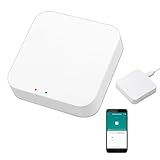
- 2 MODES IN 1 GATEWAY: This Smart home hub support Bluetooth mesh (SIG) + Zigbee3.0 multi-protocol communication. Only one gateway is needed to connect devices of different protocols to the 2.4Ghz network.
- APP REMOTE CONTROL: Smart Bluetooth Zigbee hub works with smart life/Tuya App, Support Adding devices, device reset, third-party control and group control. You can manage and remotely control the device through the Smart Life App. You can manage and remotely control your lights, fingerbot and other smart devices via the app, even when you're not home.
- VOICE CONTROL: The smart hub Support voice control, Simply give a voice command to Alexa or Google home to control devices(such as turn on/off the smart plug, turn on/off the Finger Bot).
- SMART HOME AUTOMATION: Sub-devices of the gateway act as trigger conditions for Interacting with devices such as ZigBee, Bluetooth, Wi-Fi, for device linkage. Featured as one powerful network bridge for whole house linkage in a real sense for all smart home devices.
- SUPPORT 128 DEVICES: Support up to 128 Tuya smart home devices, such as ZigBee Motion Sensor, Leak Detector, BLE Finger Bot, Zigbee Door Sensor, BLE Thermometer, ZigBee Window Gate Sensor, etc. NOTE: Supports Tuya/SmartLife devices only.
Verify Wi‑Fi credentials, band support, and distance
Test the network and password
Use another device in the same location to confirm that the SSID is visible and internet access works. Re-enter the password manually, checking capitalization, punctuation, and accidental spaces. Google’s speaker and display instructions describe the password as case sensitive and specify at least eight characters for those products; that is product-specific guidance, not a universal Wi‑Fi password rule.
If the router’s SSID or password changed, update the accessory through its manufacturer app or put it into the model’s network-reconfiguration mode. Do not assume that a device will automatically inherit the new credentials.
Free tools Windows power users keep installed
One-click scans. No signup required.
Check the accessory’s supported bands
Wi‑Fi compatibility is model-specific. Amazon recommends 2.4 GHz for smart-home Wi‑Fi devices, while Apple notes that some accessories are not compatible with 5 GHz. Google’s speaker and display setup instructions for dual-band networks suggest trying both 2.4 GHz and 5 GHz. Therefore:
- Read the accessory manual or specifications for supported bands before changing the router.
- If the device supports only 2.4 GHz, connect the setup phone to the 2.4 GHz network or temporarily give the bands distinct names so you can select the correct one.
- If the device supports both, try the other band when setup stalls, but do not assume that moving every device to 2.4 GHz is always better.
Use sensible setup distance
Place the accessory near the router during initial setup so a weak signal is not mistaken for an authentication failure. After setup, move it to its intended location and test control there. There is an important device-specific exception: Amazon says some Alexa devices placed immediately next to the router may have trouble and advises moving them at least 6 ft (2 m) away. “Closer is better” and “not directly beside the router” are both conditional rules, not universal distances.
Inspect router settings that block local communication
Separate internet access from local access
A device can have internet access while still being unable to communicate with your phone, speaker, hub, or other local devices. Google identifies access-point isolation, client isolation, and guest mode as settings that can prevent devices on the same network from seeing one another.
Rank #3
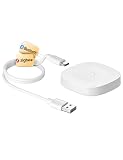
- 【2 Modes in 1 Gateway】Support MOES/Tuya Bluetooth mesh (SIG) + Zigbee3.0 multi-protocol communication. Only one gateway is needed to connect devices of different protocols to the 2.4Ghz network.
- 【Support 128 Devices】 Support up to 128 Tuya smart home devices, such as Bluetooth Door Lock, ZigBee Light Switch No Neutral, Bluetooth Finger, Zigbee Power Monitor Plug, Bluetooth Thermometer, ZigBee Window Gate Sensor, etc.
- 【Sound & Light Alarm】 Support sound and light alarm.Support Local Scenario / Support Local Automation / Support Security Function and be integrated into the Tuya Security Saas Platform.
- 【Voice & App Remote Control】 No matter where you are, you can control the connected smart devices through the MOES/Smart Life App on your mobile phone. Support voice control of Alexa, and Google Assistant.
- 【ESAY SET-UP】Designed for quick and easy set-up with absolutely no wiring or technical skills required.Quickly and easily add, reset, and group devices via the hub.
Check isolation and guest networks
- Open the router’s administration app or web interface.
- Look for names such as AP isolation, client isolation, wireless isolation, or a guest-network setting that blocks local access.
- For a trusted home network, disable the isolation feature only if the accessory requires local discovery or control, then retry setup.
- If you use a guest SSID, move the phone and accessory to the primary network or enable the router’s documented local-access option for guests.
Router menus and security implications differ by model. Use the router maker’s instructions for the exact setting, and avoid weakening isolation on a network where untrusted clients are connected. If your router cannot provide the documented band or local-access behavior the device needs, only then consider replacement hardware; configuration checks should come first.
What’s actually slowing this PC down?
Pick the symptom - the matching free tool is one click away.
Tell device connectivity apart from platform integration
Manufacturer app works, Alexa does not
Complete setup in the manufacturer’s app first for third-party Wi‑Fi products that are not Matter-certified. Test basic on/off or status control there. If control works in that app but not in Alexa, the Wi‑Fi connection is probably functioning; investigate the Alexa skill or integration instead. Disable and re-enable the skill, confirm that the correct account is linked, and run device discovery again. If the manufacturer app also fails, return to the accessory’s network status, credentials, and router checks.
Apple Home reports an unsupported accessory or network
Confirm that the model is compatible with Apple Home and that any required manufacturer app, bridge, or hub has been configured. If Home marks an accessory as unsupported, Apple says a firmware update through the manufacturer’s app may be required. When Home reports an incompatible network, check for 2.4 GHz support because some accessories do not support 5 GHz. Keep the iPhone or iPad, home hubs, and accessory on the same intended network during setup.
Matter over Wi‑Fi
Matter does not eliminate network requirements. Amazon specifies that a Matter-over-Wi‑Fi device connects on the same 2.4 GHz Wi‑Fi network as a compatible Matter controller. Follow the product and platform instructions for the required controller, QR code, account, and firmware. Do not substitute Zigbee or Bluetooth pairing steps for Matter-over-Wi‑Fi steps: those protocols use different radios and, often, different hubs.
Independent reader supportYour contribution helps us test, update, and keep practical guides available for everyone.Restart in a controlled order
- Unplug or power-cycle the accessory and wait for its normal idle state.
- Restart the phone or tablet used for setup.
- Force-close and reopen the manufacturer or platform app.
- Restart the router and wait until ordinary devices regain internet access.
- Repeat pairing with the phone on the intended SSID and Bluetooth enabled where required.
Restarting clears temporary discovery and DHCP states without deleting the accessory’s configuration. If the router is still offline after rebooting, stop device troubleshooting and resolve the internet or router outage first.
Rank #4

- Stability Upgrade Quick Connection:Supports Bluetooth or WiFi connection.The improved WiFi technology let you quick connection and stay stable,no disconnection worries. Please keep the smart plug connected to your stable 2.4GHz network.(Note: Only 2.4Ghz WiFi)
- Hand-Free Voice Control:Smart plugs that work with Alexa and Googel Assistant. Just give a simple voice command to Alexa or Google Assistant to control your connected home devices. Enjoy the joy of smart home devices.
- APP Remote Control From Anywhere:You also can control your outlet timers anywhere anytime via the APP directly when you are away. Monitor and control connected electrical equipment in your home.The smart outlet plug compatible with GHome APP, Smart Life App and Tuya App.
- Schedules and Timer Function:Easy to set timers and add schedules to connected smart home devices circularly or randomly, making them work as scheduled like auto-off and auto-on to save energy and money. Such as lamps, fan, humidifier, Christmas light timers etc.
- Group Control and Sharing:You can set a group for some wifi smart plugs and control connected appliances with one tap. Also you can share your wifi outlet plug by App with your families and enjoy the smart life together.
Use a phone hotspot as a diagnostic, not a permanent fix
Create a temporary hotspot with a phone or tablet and attempt setup only if the accessory supports the hotspot’s band and security mode. A successful hotspot connection proves that the accessory can join at least one Wi‑Fi network; it shifts attention toward the home router, its settings, or the ISP. It does not prove that the device will work reliably on the home network.
Google cautions that hotspot use is not fully supported and can depend on carrier policy, signal quality, interference, and the mobile plan. A failed hotspot test therefore does not conclusively prove that the accessory is defective. Turn the hotspot off after the test and restore the accessory to the home network before normal use.
Factory-reset only after simpler checks fail
What a reset can and cannot do
A factory reset erases the accessory’s saved network and account state, so it can clear a corrupted configuration. It cannot fix an unsupported Wi‑Fi band, a blocked local network, an incorrect platform integration, or an ISP outage. Reset instructions vary by model; use the manufacturer’s documented button sequence or app command.
Remove the device from the app separately when necessary
Some platforms retain a device entry after the hardware is reset. Apple recommends consulting the accessory manual or maker for removal and re-add instructions. Google notes that factory-resetting certain Seamless Setup devices does not itself remove them from the Google Home app, so delete the stale entry separately if the app refuses a fresh setup.
Record the state before resetting
- Write down the exact model, firmware version, and error text.
- Note the SSID, band, router model, and whether other devices are online.
- Capture automation names or room assignments you may need to recreate.
- Confirm that you know the account credentials used by the manufacturer and smart-home platform.
Symptom-to-action guide
| Symptom | Next action |
|---|---|
| Accessory is not discovered | Check power, pairing mode, Bluetooth, Local Network permission, app version, and platform compatibility; try a second setup phone. |
| SSID is missing | Check the documented Wi‑Fi band, router broadcast, signal distance, and whether the phone is on the correct network. |
| Password rejected | Re-enter the exact case-sensitive password, verify that the SSID/password was not recently changed, and test the other supported band. |
| Setup reaches 90–100% then fails | Check local-network permission, AP/client isolation, guest-network restrictions, and hub/controller requirements. |
| Device works in its own app but not Alexa | Repair or re-enable the Alexa skill and rediscover devices; do not reset the hardware first. |
| Several devices stopped at once | Check router status, internet outage, SSID/password changes, and recent router settings before touching individual devices. |
| Hotspot works but home Wi‑Fi does not | Investigate the home router’s band, security, isolation, DHCP behavior, or ISP; the accessory has demonstrated basic Wi‑Fi connectivity. |
When to escalate
Contact the device manufacturer with the model, firmware, exact error, and steps already attempted when the accessory cannot pair on a known-compatible network or shows a persistent hardware fault. Contact the ISP when multiple household devices cannot reach the internet after a router restart. Contact the router manufacturer for model-specific isolation, band, security, or firmware settings rather than guessing at menu names.
There is no reliable population-wide percentage for smart-home connection failures. Outcomes depend on the device model, country, router firmware, app version, and platform. Treat every band, distance, password, and reset instruction as scoped to the product or support procedure that specifies it.
Quick Recap
Prevent the next connection failure
- Keep a record of the SSID and password changes that affect smart devices.
- Use a clearly named primary network for trusted home devices instead of an isolated guest SSID when local control is required.
- Update accessory firmware and companion apps before migrating routers or platforms.
- Document which accessories use Wi‑Fi, Matter, Zigbee, or Bluetooth and which hub or controller each requires.
- After any router change, test one representative device before resetting the rest.
- Leave factory-reset instructions and account details accessible for the person responsible for the home.
Product prices and availability are accurate as of the date/time indicated and are subject to change. Any price and availability information displayed on Amazon at the time of purchase will apply.

