Connect the camera to your computer with its micro-USB cable, open the VTech removable drive that matches its model, and copy files manually. The exact drive name and folders depend on the camera generation, so check the model number before moving or uploading files.
Find your camera’s model number first
VTech’s original Kidizoom Action Cam (model 1707), Action Cam 180 (model 5070), and Action Cam HD (model 5202) do not all use the same drive label or folder guidance. Use the data drive named for your model—not VT SYSTEM, which contains system data.
| # | Preview | Product | Price | |
|---|---|---|---|---|
| 1 |
|
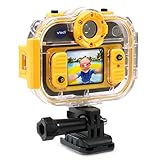
VTech Kidizoom Action Cam 180 | $99.98 | Buy on Amazon |
| 2 |

|
VTech Kidizoom Action Cam, Yellow | $89.99 | Buy on Amazon |
| 3 |
|
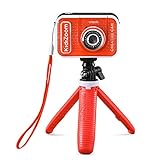
VTech KidiZoom Creator Cam, Red | $69.49 | Buy on Amazon |
| 4 |

|
VTech KidiZoom Creator Cam Ultra - Rechargeable Camera with Tripod, Blue | $59.99 | Buy on Amazon |
| 5 |

|
VTech KidiZoom Camera Pix Plus, Blue | $49.99 | Buy on Amazon |
As an Amazon Associate I earn from qualifying purchases.
| Camera | Removable drive | Backup folder | Upload folders |
|---|---|---|---|
| Original Action Cam, model 1707 | VTech 1707 | DCIM | DOWNLOAD/PHOTO for photos; DOWNLOAD/VIDEO for videos |
| Action Cam 180, model 5070 | VTech 5070 | DCIM/100VTECH | DOWNLOAD/PHOTO or DOWNLOAD/VIDEO |
| Action Cam HD, model 5202 | VTech 5202 | Use the model’s guide for folder instructions | Use the model’s guide for folder instructions |
These names and folders come from VTech’s original Action Cam guide, Action Cam 180 guide, and Action Cam HD guide.
Do these 3 things before closing this tab:
1Scan for outdated or missing drivers - takes under a minute2Repair Windows errors before they cause bigger problems3Fix the driver behind crashes, sound loss and screen glitchesConnect the camera and copy photos or videos
- Turn on the computer and connect the small end of the micro-USB cable to the camera. Connect the larger end to a USB port on the computer.
- Wait for the camera’s removable drive to appear, then open the VTech drive whose label matches the model number.
- For a backup, open the model’s backup folder and copy the photos and videos to a folder on your computer. On model 1707, captured media is in DCIM; on model 5070, it is in DCIM/100VTECH.
- Wait until copying is complete, safely eject the camera’s drive using your computer’s eject option, and then unplug the cable.
Connecting does not automatically import files. VTech’s support FAQ states, “The picture transfer operation does not start by itself”; open the drive and copy the files yourself. See the VTech Action Cam support FAQ.
#1 Best Overall
- Take photos and records videos on the go
- Take selfies or shoot videos with exciting features like slow and fast-motion using the 180° rotatable camera
- Use included accessories to mount the camera to your bike, skateboard and more and take great action shots. Add the all-weather, water-resistant case for use up to 6' underwater
- Includes two platform-style games and one augmented reality game for even more fun
- Rechargeable Li-ion Polymer battery with continuous photo-taking and recording time of 2.5 hours. Action cam has a microSD card slot; with a 32GB microSD card (sold separately) the camera records 240 minutes of 640 x 480 video or 278,400 photos
Put photos or videos onto the camera
For models 1707 and 5070, use the designated DOWNLOAD/PHOTO folder for photos or DOWNLOAD/VIDEO for videos. Do not assume the same folder instructions apply to model 5202; follow its own guide. VTech warns that files made by other cameras may not be compatible with the original Action Cam. For model 1707, its support FAQ also describes moving JPEG images intended for viewing on the camera into DOWNLOAD/PHOTO.KIDIZOOM. Check the guide for your exact model and file type before uploading.
Fix common connection and transfer problems
The camera does not appear on the computer
- Check that the cable is connected firmly at both ends and that you are using the camera’s micro-USB port.
- Wait for the removable drive to appear, then look for the VTech label matching the model: VTech 1707, VTech 5070, or VTech 5202.
- Use the VTech-named data drive, not VT SYSTEM.
VTech’s cited guides establish the camera-side connection, but they do not confirm current Windows or macOS compatibility across all three generations. The 2015 manual for model 1707 lists Windows XP, Vista, 7, or 8 and Mac OS X 10.6–10.10; that historical list should not be treated as a current compatibility guarantee. The manual is available from VTech.
Rank #2
- Kids camera is durable, versatile and able to capture the most memorable moments; action cam is a waterproof camera meant for kids
- 2 mounts attach the kids digital camera to bikes, skateboards and more; underwater camera comes with a waterproof case to take photos and videos in up to 6 feet underwater
- Features 1.4-Inch Color video camera LCD screen and the ability to take videos, photos, stop-motion videos and time-lapse photos
- Kids action camera comes with kids games, fun photo effects, frames and filters; download photos and videos using included micro USB cable
- Toy camera has a rechargeable li-ion Polymer battery with Continuous photo-taking and recording time of 2.5 hours, action cam has a micro memory card slot; with a 32GB micro memory card (sold separately) the camera records 240 minutes of 640 x 480 video or 278, 400 photos
The drive opens, but files seem to be missing
Check the backup folder for your model. If an Action Cam 180 has a memory card installed, its removable drive displays the memory card’s content only; VTech notes that behavior in the model 5070 guide.
What’s actually slowing this PC down?
Pick the symptom - the matching free tool is one click away.
Nothing transfers automatically
That is expected: wait for the drive to appear, open it, and copy the files manually. For the original model, captured images are under DCIM.
Rank #3
- Create your own awesome videos on this HD video camera with a built-in microphone and special effects like time-lapse video; set to English or Spanish
- Swap in 20+ animated backgrounds to get chased by a T-Rex, go to outer space or become invisible with the included green screen fabric
- Comes with easy on-camera editing, creativity tools and a tabletop tripod/selfie stick
- Video can only be uploaded to a computer via the included USB cable at an adult's discretion; green screen required for some special effects
- Intended for ages 5+ years; requires 3.7-volt rechargeable lithium ion battery, included; recharge battery with included USB cable
Uploads fail or do not show on the camera
Confirm that the files are in the correct upload folder for the camera model and media type. For the original model, files from other cameras may not be compatible; consult its guide before trying another file format or folder.
The cable is missing or damaged
A replacement micro-USB cable may work, but check that it fits the camera’s connector and your computer’s USB port. VTech’s guides describe the included cable and connection, but do not validate specific third-party replacements.
Quick Recap
Best Value
- 2.0 megapixel digital camera with 4X zoom, 1.8” screen and four games; create a Talking Photo using your own photo, voice and voice effects
- Experiment with 40+ camera effects like photo frames, stamps, kaleidoscope effects, collages, video themes and more
- Stitch together 2–5 images to make a panoramic photo; create animations with up to 100 photos
- MicroSD card slot for memory expansion up to 32GB (card not included); transfer data to computer (USB cord not included)
- Intended for ages 3–8 years; requires 4 AA batteries; batteries not included. Kid-friendly photo and video camera with loads of creativity tools and special effects; makes the perfect birthday present or holiday gift for kids ages 3–8 years old
Rank #4
- Create content like a pro with 20+ interactive backgrounds, creativity tools, on-camera editing and a tripod/selfie stick; transfer to a computer with a USB-C cable (not included) with an adult's help
- Make the background disappear using Magic Background Removal or use the included green screen for professional-quality results
- Use hand gestures to pop up more than 40 on-screen animations; use creativity tools to create trick videos like upside-down and miniature effects
- Build a sandwich, travel through space, and take on fun challenges while building hand-eye coordination in three exciting action games
- Intended for ages 5+ years; requires 3.7-volt rechargeable lithium-ion battery, included; recharge battery with a USB-C cable (not included)
Product prices and availability are accurate as of the date/time indicated and are subject to change. Any price and availability information displayed on Amazon at the time of purchase will apply.
Free tools Windows power users keep installed
One-click scans. No signup required.

