What’s actually slowing this PC down?
Pick the symptom - the matching free tool is one click away.
Start System Transfer during the Nintendo Switch 2’s initial setup. Use local communication when you still have the original Nintendo Switch and can keep both consoles nearby. Use Nintendo’s server-transfer option only when the original console will not be available at setup, such as after a trade-in or giveaway. Both methods require internet access, and at least one user profile on the original Switch must be linked to a Nintendo Account.
Read the save-data and reset consequences before choosing. A local transfer removes certain saves from the source console after they move. A server transfer uploads data, initializes the source Switch, and gives you a displayed deadline—Nintendo says server-held data can remain for up to one year—to download or cancel and restore the transfer.
As an Amazon Associate I earn from qualifying purchases.
What to prepare before turning on Switch 2
System Transfer is designed to move your digital purchases, eligible save data, users, and many console settings. It is not a complete image backup, and it does not make every Switch game compatible with Switch 2. Prepare the consoles and accounts first so the setup flow does not stop halfway.
Have these items ready
- The original Nintendo Switch, unless you deliberately choose server transfer because you will not have it when setting up Switch 2.
- Switch 2 and the original console connected to reliable internet. Nintendo requires an active internet connection for System Transfer.
- At least one user profile on the original Switch linked to a Nintendo Account. Sign-in credentials for that account should be available.
- Both consoles charged or connected to their power supplies. Keep them close together for local communication.
- A list of users who share the original console, including anyone whose profile is not linked to a Nintendo Account. Their save-data consequences must be understood before you begin.
- Game-specific migration instructions for any title that uses a shared save rather than Nintendo’s ordinary save-transfer process. Animal Crossing: New Horizons is Nintendo’s stated example.
Do not buy a microSD Express card as a prerequisite. Switch 2 saves remain in system memory, and a card cannot hold or carry them. A card is only an optional way to add space for downloadable software, updates, downloadable content, screenshots, and videos.
#1 Best Overall

- NEXT GEN GAMING: Works with Nintendo Switch 2.
- READY FOR TOMORROW. Ready for future products with a PCIe-NVMe interface; performs at UHS-I speeds with microSD UHS-I and UHS-II devices.
- EXPONENTIALLY FASTER PERFORMANCE. Up to 4.4 times faster transfer speeds than our fastest microSD UHS-I cards [9]. Transfer a 2-hour HD movie in less than 3.5 seconds [1]; save up to 2.8 minutes transferring 60 minutes of 4K UHD video [4] shot at 30 fps when paired with the SanDisk PRO-READER SD Express Dual Card (sold separately) [9]
- DURABILITY YOU CAN COUNT ON: Cards are waterproof, temperature-proof, humidity-proof, drop-proof, shock-proof, magnetic-proof, x-ray proof, and wear-out proof [5].
- HEAT MANAGEMENT REIMAGINED. SanDisk ThermAdapt helps keep devices from overheating with a specially designed enclosure and controller that uses dynamic adaptive thermal management.
Choose the right transfer method
The choice is mainly about whether the original Switch will be available and which consequence you can accept. Nintendo presents local communication as the normal choice when you still have the source console. Server transfer is intended for a source that will be traded in, given away, or otherwise unavailable during Switch 2 setup.
| Question | Local communication | Server transfer |
|---|---|---|
| Will you have the original Switch during Switch 2 setup? | Yes. Both consoles are used together and kept nearby. | No. The original Switch uploads its data before it leaves your possession. |
| When is the transfer started? | From the System Transfer screen during initial Switch 2 setup. | From the transfer flow that uploads the source data to Nintendo’s server, followed by retrieval during Switch 2 setup. |
| What happens to the source after upload or transfer? | Nintendo deletes specified save data from the source after the transfer. Cloud-backed exceptions remain as described below. | Nintendo initializes the source console after the upload. |
| How long is the data available? | There is no server-download deadline for the local method. | Nintendo says server-transfer data is stored for up to one year. The exact Download Deadline appears during setup. |
| Best fit | You still own both consoles and want the direct, nearby transfer. | The source will be gone before you can set up Switch 2. |
If the old Switch is available, use local communication unless a particular user or game requires a separate migration process. If you are using server transfer, do not hand over or reset the old console until the upload has completed and you have confirmed that you understand the deadline shown on screen.
How to transfer locally when both consoles are available
Local communication is performed as part of the first-run setup on Switch 2. Nintendo’s on-screen prompts can change with system software, so follow the labels shown on your consoles rather than relying on an older screenshot.
- Keep the consoles near each other. Place the original Switch and Switch 2 where neither will lose power or wireless communication during the process.
- Begin Switch 2’s initial setup. Continue until the setup presents the System Transfer option. Do not skip the transfer choice if you intend to move users and settings as part of this setup.
- Connect Switch 2 to the internet. Complete the network step and install any update the setup requires before proceeding.
- Select the local-transfer path. The setup will ask you to use the original Switch. Keep its screen available and follow the corresponding prompts.
- Sign in with the transferring user’s linked Nintendo Account. The account must be the one linked to a user profile on the original Switch. If multiple users are involved, read each confirmation carefully so the correct profiles are included.
- Confirm the transfer on both systems. Accept the warnings about source-console data only after every person who uses the original Switch has reviewed the save-data exceptions.
- Let the consoles finish. Do not power either system off, move it out of range, or interrupt the network connection while users, settings, captures, and eligible saves are being processed.
- Complete any post-setup downloads or registrations. Nintendo notes that software downloads and virtual-game-card registration tasks can require follow-up after the system transfer.
Local transfer is not a second backup of every save. Nintendo removes source-console save data covered by the transfer rules after completion. The exact exceptions are important enough to check before you confirm, especially for unlinked users and games without Save Data Cloud Backup support.
How to use server transfer when the old Switch will not be available
Server transfer is for a different situation: the source console is still in your possession long enough to upload its data, but it will not be beside Switch 2 when you perform the new-console setup. This is the route to consider before a trade-in or giveaway.
- Start the server-transfer process on the original Switch. Use the System Transfer instructions shown by Nintendo on the source console and connect it to the internet.
- Review the source-console warning. Nintendo initializes the original Switch after the upload. Treat this as a one-way preparation for handing the console over, not as a temporary copy that leaves the old system ready for normal use.
- Upload the data and wait for completion. Keep the source powered and connected until Nintendo confirms that the upload has finished.
- Record the Download Deadline. When you later set up Switch 2, the setup screen displays the date by which the server-held data must be retrieved. Nintendo says the maximum storage period is up to one year, but the displayed deadline controls your case.
- Set up Switch 2 with internet access. Choose the transfer-retrieval option during initial setup and sign in with the Nintendo Account associated with the upload.
- Download the stored transfer before the deadline. Follow the prompts to bring the users, eligible saves, settings, and other supported data onto Switch 2.
- If you change your mind, act before the deadline. Nintendo’s flow provides a way to cancel and restore the server-held transfer before the displayed deadline. Do not wait until the final day if you need that option.
Because the source is initialized after upload, server transfer should not be chosen merely for convenience when both consoles are available. It is the appropriate fallback when the old hardware will not be present for Switch 2 setup.
Rank #2

- TRANSFER SPEEDS UP TO 800 MB/S: With sequential read speeds up to 800 MB/s, get into your game up to 4× faster than our standard microSD cards (UHS I)¹.
- DYNAMIC THERMAL GUARD: Keeps its cool even when the action heats up. Dynamic Thermal Guard helps reduce overheating for fast, smooth gameplay.
- ALL YOUR GAMES ON ONE TINY CARD: Store all your games and downloadable content (DLCs) with up to 512GB of reliable storage. No deleting. No compromises.
- 6-PROOF PROTECTION WITH 3-YEAR LIMITED WARRANTY: Built to last, made for peace of mind. Anything can happen when you’re gaming on the go. With 6 types of protection²⁻⁹, the P9 Express can handle it all—helping maintain your game progress.
- NEXT-GEN AND BACKWARD COMPATIBLE: Your microSD Express card is compatible with Nintendo Switch 2¹⁰ and microSD UHS-I¹¹ devices, including tablets, drones, cameras and more.
What System Transfer moves
Nintendo’s transfer list includes more than game saves. The following items or statuses are included in the supported transfer scope, although some software still needs to be downloaded or registered afterward.
Windows Errors? Fix Them Before They Spread
Repair common Windows errors and clear accumulated junk for a smoother, more stable PC - no reinstall needed.Free scan · no reinstallOutdated Drivers Are Slowing You Down
One free scan finds every outdated or missing driver and matches the right update for your exact hardware.Free scan · exact hardware matchUsers, accounts, and activity
- All users on the source console.
- User settings and signed-in Nintendo Accounts.
- Friends, play activity, and users played with.
- Qualifying save data associated with supported users and games.
Console settings and organization
- Screenshots and videos stored in the source system memory.
- Registered network devices.
- Parental Controls settings and the linkage to the Parental Controls app.
- Mii data.
- Virtual-game-card console status.
- Pass-Enabled Console status.
- HOME Menu software order and group settings.
Moving a library record or virtual-game-card status does not necessarily mean that every title is already installed on Switch 2. Nintendo notes that software downloads and virtual-game-card registration tasks may need to be completed after setup. Plan for additional download time and enough internal or compatible expansion storage for the games you want to reinstall.
What does not transfer automatically
Several settings are deliberately left for you to configure on Switch 2. Nintendo specifically identifies the following items as non-transferring or requiring adjustment:
- Bluetooth audio devices and their settings.
- Custom controller button mappings.
- Time and time zone.
- Region.
- System language.
- GameChat settings.
Set these after the transfer rather than assuming a missing option indicates a failed migration. The time, region, language, and time-zone choices are handled during initial setup; Bluetooth audio and controller mappings can be paired or recreated afterward.
Save-data cautions that can change your decision
Save handling is the most consequential part of the process. Read this section before confirming either route, and explain it to every person who uses the source console.
Linked accounts and cloud-backed saves
For local transfer, Nintendo says supported cloud-backed saves for users linked to Nintendo Accounts remain on the old system and are copied to Switch 2. This exception does not mean every save is protected. The game must support Save Data Cloud Backup, and the user must be linked as required by Nintendo’s transfer rules.
Rank #3
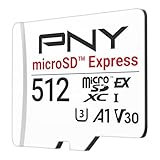
- ELEVATE YOUR GAMING: Engineered with next-generation PCIe Gen 3x1 microSD Express technology to achieve blazing fast performance up to 890MB/s Read and up to 810MB/s Write speeds.²
- LIGHTNING FAST DOWNLOADS: Experience extreme performance up to 4.4x faster than standard UHS-I microSD cards, to spend less time waiting and more time playing! More than double your gaming device’s internal storage with up to 512GB of expanded AAA game space.¹,²
- READY FOR NEXT-GEN GAMING: Compatible with microSD Express Host Devices, including Nintendo Switch 2, and backwards compatible with microSD UHS-I and UHS-II devices like portable gaming devices and more!⁴
- STAY COOL UNDER PRESSURE: Engineered to maximize cooling efficiencies with a heat dissipation dissipative design and adaptive thermal technology.³
- A1 APP PERFORMANCE: A1 Application Performance rating allows users to run gaming apps directly from the microSD card when gaming and delivers faster app launch and performance.
Unlinked users
Save data belonging to an account that is not linked to a Nintendo Account is deleted from the source after the local transfer. Before starting, identify those profiles and decide whether the owners need a separate, game-specific migration path. Do not assume that transferring the user record itself preserves every save.
Games without Save Data Cloud Backup support
Nintendo also says save data for games that do not support Save Data Cloud Backup is deleted from the source after local transfer. Check important titles individually rather than treating the cloud-save exception as universal. A Nintendo Switch Online membership is not required to run System Transfer, and cloud-save backup is a separate feature available only to supported games.
Shared-save games
The general System Transfer cannot move shared-save games such as Animal Crossing: New Horizons. Use that game’s separate migration instructions instead. Complete that migration before disposing of the old console, because the ordinary transfer confirmation does not substitute for the game’s own process.
Free tools Windows power users keep installed
One-click scans. No signup required.
Server transfer is a source-console reset
With server transfer, the source Switch is initialized after its upload. That is a broader consequence than simply removing selected saves. Verify the upload and keep the Download Deadline available before the old console leaves your possession.
Games, digital purchases, and compatibility
System Transfer moves the account and supported data used to access your purchases, but it does not guarantee that every Nintendo Switch game runs perfectly on Switch 2. Nintendo says Switch 2 plays compatible physical and digital Nintendo Switch games, while some games may be unsupported or not fully compatible.
Check your important titles
Make a short list of games you intend to play immediately and check Nintendo’s current compatibility information for each one before transferring or selling the original console. Pay particular attention to games that depend on accessories, special peripherals, shared saves, or online services. The transfer can preserve your account and eligible save data even when a particular title has compatibility limits.
Rank #4

- NEXT GEN GAMING: Works with Nintendo Switch 2.
- READY FOR TOMORROW. Ready for future products with a PCIe-NVMe interface; performs at UHS-I speeds with microSD UHS-I and UHS-II devices.
- EXPONENTIALLY FASTER PERFORMANCE. Up to 4.4 times faster transfer speeds than our fastest microSD UHS-I cards [9]. Transfer a 2-hour HD movie in less than 3.5 seconds [1]; save up to 2.8 minutes transferring 60 minutes of 4K UHD video [4] shot at 30 fps when paired with the SanDisk PRO-READER SD Express Dual Card (sold separately) [9]
- DURABILITY YOU CAN COUNT ON: Cards are waterproof, temperature-proof, humidity-proof, drop-proof, shock-proof, magnetic-proof, x-ray proof, and wear-out proof [5].
- HEAT MANAGEMENT REIMAGINED. SanDisk ThermAdapt helps keep devices from overheating with a specially designed enclosure and controller that uses dynamic adaptive thermal management.
Physical and digital copies
Digital purchases are associated with the transferred Nintendo Account, while physical game cards still need to be inserted when you play a card-based title. After setup, some digital software may need to be downloaded again, and Nintendo says virtual-game-card registration can require a separate follow-up action. These are normal post-transfer tasks, not evidence that your purchase history disappeared.
Do these 3 things before closing this tab:
1Scan for outdated or missing drivers - takes under a minute2Repair Windows errors before they cause bigger problems3Fix the driver behind crashes, sound loss and screen glitchesmicroSD Express storage: optional, not a transfer requirement
Switch 2 uses microSD Express cards for additional storage of downloadable software, updates, downloadable content, screenshots, and videos. Nintendo states that compliant cards can be up to 2 TB. The card is sold separately and is not needed to move users, settings, or save data.
“Game save data cannot be saved or copied to a microSD Express card.”
— Nintendo Support, microSD Express Card FAQ
Keep saves in system memory when planning your storage. A microSD Express card cannot be used as a save-data backup, cannot replace System Transfer, and cannot solve a missing-save problem after the source has been initialized.
What happens to an old Switch microSD card
Existing Nintendo Switch microSD cards are not compatible with Switch 2 for game data. Do not expect to insert the old card and continue using its installed games on the new console. Captures stored on an old card may be imported by following Nintendo’s specific instructions, but that capture process is separate from save-data transfer.
After Switch 2 finishes setup
Use this sequence to verify the move while the original console is still available, if you used local communication:
Best Value

- Ultra-Fast Read Speeds — Experience read speeds up to 900 MB/s and write speeds up to 620 MB/s, delivering rapid file transfers and smooth performance for gaming, photography, and 4K video recording.
- Optimized for Gaming & Devices – Tested with Switch 2 and compatible with laptops, tablets, cameras, and Android devices that support microSD Express or UHS-I. Ideal for expanding storage without lag.
- 4K Video & High-Resolution Support – Capture and store 4K UHD videos and high-res photos seamlessly thanks to Class 10, U3, V30, and A2 performance ratings.
- Reliable & Durable Design – Built for long-term use with shockproof, temperature-resistant, waterproof, and X-ray-resistant protection, keeping your data safe wherever you go.
- Multiple Capacity Options – Available in 256GB, 512GB and 1TB options to suit your storage needs. Note that actual usable storage may be slightly less due to system formatting and a portion reserved for card management functions, which is a standard industry practice to ensure optimal performance and reliability.
- Open the user list and confirm that every expected profile appears.
- Check the Nintendo Account sign-in for each transferring user.
- Open several important games and verify that their eligible saves are present.
- Confirm that screenshots and videos stored in system memory are visible.
- Check friends, play activity, Mii data, Parental Controls, HOME Menu groups, and the expected network-device registrations.
- Download software that did not arrive automatically and complete virtual-game-card registration tasks when prompted.
- Reconnect Bluetooth audio devices and recreate custom controller mappings.
- Set the time, time zone, region, language, and GameChat preferences.
- Review compatibility for any game that will not launch or does not behave as expected.
Do not erase, trade in, or give away the old Switch until these checks are complete when using local communication. For server transfer, the source is initialized as part of the upload process, so your protection is the successful upload, your Nintendo Account access, and retrieval before the displayed deadline.
Troubleshooting and recovery decisions
The System Transfer option is not visible
System Transfer is intended to begin during Switch 2’s initial setup. If setup has already passed the transfer screen, stop before improvising with a reset or deletion. Check Nintendo’s current support instructions for the exact recovery path for your software version, and make sure the consoles are connected to the internet.
The account will not sign in
Confirm that the Nintendo Account is linked to a user profile on the original Switch and that you are using that account’s credentials. An internet connection and at least one linked profile are requirements for System Transfer. If several users share the console, identify which account is being used for the transfer before retrying.
Quick wins for a faster PC:
Clear out junk files and repair common Windows errorsFree Scan →Scan for outdated or missing drivers - takes under a minuteDriver Scan →Repair Windows errors before they cause bigger problemsFix Now →A save is missing on Switch 2
First identify the category: an unlinked user save, a game without Save Data Cloud Backup support, or a shared-save title may not be handled by the general transfer. Check whether the game has its own migration instructions. For supported cloud-backed saves, verify that the correct Nintendo Account is signed in and that the title is compatible with Switch 2.
A game or download is absent
System Transfer can move purchase and virtual-game-card information without installing every piece of software. Connect Switch 2 to the internet, complete the required download or registration step, and check the title’s Switch 2 compatibility status. A microSD Express card can provide space for downloads, but it cannot restore a save.
The server deadline is approaching
Use the Download Deadline shown during setup as the controlling date. Retrieve the transfer before it expires. If you no longer want to proceed, use Nintendo’s cancellation and restoration option before that deadline; do not assume the data will remain available after the displayed date merely because the maximum possible storage period is up to one year.
Which route is safest for your situation?
Choose local communication when both consoles are in your possession, you can keep them nearby, and you want to inspect Switch 2 before giving up the old system. Choose server transfer only when the old Switch will not be available during setup and you accept that it is initialized after upload. In either case, protect shared-save games separately, verify each important title’s compatibility, and remember that microSD Express storage is optional and never a substitute for save transfer.
The Tool Desk
Outbyte PC Repair FREERepair Windows errors before they cause bigger problemsFix Now →Outbyte Driver Updater FREEScan for outdated or missing drivers - takes under a minuteDriver Scan →Quick Recap
Product prices and availability are accurate as of the date/time indicated and are subject to change. Any price and availability information displayed on Amazon at the time of purchase will apply.

