Quick wins for a faster PC:
Repair Windows errors before they cause bigger problemsFix Now →Fix the driver behind crashes, sound loss and screen glitchesFind Drivers →Clear out junk files and repair common Windows errorsFree Scan →Euro Truck Simulator 2 has two ways to skip a long drive. Use the built-in Quick Travel option to move to a discovered city’s service shop (or to your garage from Garage Manager). On PC, you can also enable the developer console, use goto to move the free camera, and press Ctrl+F9 to place the truck at a carefully chosen location. The first method is supported and limited; the second is more precise but requires editing config.cfg and is unavailable for vehicle teleportation during online jobs.
Playing with friends? Godlike.Host runs hosted Euro Truck Simulator 2 servers from 10 data-center locations, with free DDoS protection.
Which method is best depends on what “teleport” means for your trip. Quick Travel is a normal game feature with eligibility rules and a distance-based charge. Developer teleport is a debugging tool: it can reach a specific map coordinate, but you must move the camera separately from the truck and choose a safe landing point. The steps below cover both methods, their costs, version history, limits and the fixes for common mistakes.

As an Amazon Associate I earn from qualifying purchases.
Which ETS2 teleport method should you use?
Your choice depends on whether you want a supported shortcut or exact control over the truck’s position.
| Method | Setup | Where you can arrive | Precision | Important limits |
|---|---|---|---|---|
| Quick Travel | No configuration changes | A discovered city with a service station; Garage Manager can target your garage | Service shop or garage | Destination must be eligible; the normal trip uses a distance-based charge |
| Developer teleport | Edit config.cfg, enable g_console and g_developer, then restart |
Any map position you can safely select with the free camera | Camera-level positioning, including coordinates | Vehicle teleport does not work in online jobs; unsafe camera placement can make the truck fall |
For ordinary single-player progression, start with Quick Travel. Use the developer method when a destination is not eligible for Quick Travel or when you need to place the truck at a particular road position. Quick Travel is simpler and keeps you inside the ordinary interface; developer teleport trades that simplicity for control.
#1 Best Overall

- Ca. 6000 km of motorway and 600 km of country road, to a scale of 1:10
- Numerous detailed models of motorway interchanges
- 16 cities, some of them with unique road designs (e.g. roundabouts or bridges)
- Numerous POIs in cities and near motorways and country roads
- All large waterways.Ground based on real satellite data.Licensed vehicles from Scania and MAN.Purchase trucks and trailers.Hire drivers
What “teleport” means in ETS2
ETS2 does not have one universal teleport command that accepts a city and instantly drives the truck there. The supported feature is Quick Travel, which chooses a service-shop or garage destination from the game’s menus. The developer workflow is a two-stage operation: goto moves the debug camera, then Ctrl+F9 places the truck where that camera is sitting.
That distinction explains most failed attempts. Seeing a new city through the free camera does not mean the truck has moved. Conversely, Quick Travel will not put you on an arbitrary street, because its destinations are deliberately limited to discovered cities with an eligible service station, or to a garage selected through Garage Manager.
Windows Errors? Fix Them Before They Spread
Repair common Windows errors and clear accumulated junk for a smoother, more stable PC - no reinstall needed.Free scan · no reinstallOutdated Drivers Are Slowing You Down
One free scan finds every outdated or missing driver and matches the right update for your exact hardware.Free scan · exact hardware matchHow Quick Travel works in ETS2
Quick Travel is the game’s built-in fast-travel feature. It was introduced in update 1.41, released on July 15, 2021. The game moves your truck instantly to the selected destination’s service shop rather than simulating the route between the two cities.
In normal use, ETS2 calculates a charge based on the distance of the Quick Travel trip. The feature is therefore a convenience inside the game’s economy, not a free command. The interface shows the destination and asks you to confirm before the move is made, so check that you selected the intended city or garage.
Requirements for a Quick Travel destination
- You must have discovered the city already.
- The city must contain a service station or service shop that the game can use as the arrival point.
- A city without an eligible service shop will not appear as a selectable Quick Travel destination.
Quick Travel is therefore not a command that accepts any arbitrary city name. Discovery status and service-shop availability determine what the normal interface allows. If a city is absent from the list, entering its name elsewhere will not unlock it for the supported travel menu.
Quick Travel from the world map
- Open the World Map.
- Choose a discovered city that has an eligible service station.
- Select Quick Travel from the city’s available actions.
- Review the destination and the trip charge, then confirm.
After confirmation, the truck appears at the destination service shop. The game applies its distance-based Quick Travel charge as part of the normal trip. You do not need to edit a file, open a console or use a keyboard shortcut for this method.
Quick Travel from Garage Manager
- Open Garage Manager.
- Choose the garage you want to reach.
- Select Quick Travel.
- Confirm the move when the destination is shown.
When Quick Travel is started from Garage Manager, the destination is the selected garage rather than a city service shop. This is useful when you want to resume from a garage without first locating a service station on the map. The garage workflow does not turn every city into a destination; it specifically targets the garage you selected.
The economy-reset exception in version 1.47
SCS Software added a separate recovery choice in version 1.47, released in 2023. If an economy reset occurs while the game is loading, the game can offer a free Quick Travel to any service station instead of sending you only to the headquarters garage. This free choice is tied to that economy-reset situation; it is not a replacement for the ordinary Quick Travel rules or a general free-travel toggle.
How to enable the ETS2 developer console on PC
The developer method is not enabled by default. You must change two console settings, save the file, and restart the game before the console commands become available. This procedure applies to the PC installation; the normal Quick Travel menu remains the supported option when you do not want to edit configuration files.
Find and edit config.cfg
- Close Euro Truck Simulator 2 completely.
- Open the ETS2 user folder. On Windows, this is normally
DocumentsEuro Truck Simulator 2. macOS and Linux use their platform-specific ETS2 support directories. - Open
config.cfgin a plain-text editor. - Find the following settings and change each value to
1:
uset g_console "1"
uset g_developer "1"- Save the file without changing its
.cfgextension. - Launch ETS2 again. A restart is required for the changed settings to take effect.
Both switches matter. g_console allows the console interface, while g_developer enables the developer functions used by the camera and vehicle-placement workflow. Setting only one value can leave the console or its commands unavailable.
The Tool Desk
Outbyte PC Repair FREERepair Windows errors before they cause bigger problemsFix Now →Outbyte Driver Updater FREEFix the driver behind crashes, sound loss and screen glitchesFind Drivers →If the game still behaves as though the console is disabled, verify that you edited the active ETS2 user folder and the configuration used by the profile you are playing. Recheck both lines, save again, and restart rather than testing while the game is still open. A running game may continue using the settings it loaded at startup.
Rank #2
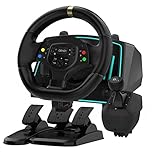
- Professional 1080° Racing Simulator Experience - Take control of your racing games with a full 1080° rotation steering wheel for ultra-precise handling. Adjustable between 270°–1080°, this wheel lets you fine-tune sensitivity for every racing style—from tight street racing to realistic truck simulation.
- Multi-Platform Compatibility – Clear and Reliable - Works with Xbox One, Xbox Series X|S, PS4, PS3, Switch, PC (Windows 7/8/10/11), and Android. ✅ Best performance with racing games like Forza Horizon, F1, Assetto Corsa, Gran Turismo, Euro Truck Simulator, and Need for Speed. ⚠️ For PC use, please enable “Xinput Mode” for game recognition.
- 6-Speed H-Shifter + Responsive Pedal Set - Includes a 6-speed manual shifter with push-down reverse for smooth and realistic gear transitions. The 3-pedal set features a progressive brake, sensitive throttle, and independent clutch, providing the feeling of a real car cockpit.
- Secure Mounting & Durable Design - Clamp-style mounting fits any desk, racing rig, or flat surface. Reinforced ABS housing and a weighted steering base prevent slipping during aggressive turns. The included suction cups keep pedals firmly in place—even on smooth floors.
- Easy Setup – Plug & Drive - No complex drivers or software needed. Simply: Connect the USB cable Switch to the correct platform mode Calibrate the steering angle once Then, you’re ready to race! LED indicators guide your connection and calibration status for an effortless start.
How to teleport with goto and Ctrl+F9
The developer workflow has two distinct stages. The goto command moves the debug camera; it does not move the truck. The truck is placed only after you position that camera and use Ctrl+F9.
Open the console and move the camera to a city
- Press the grave/tilde key to open the developer console.
- Enter a city command, for example:
goto berlin- Press Enter. The camera jumps to the named city and free-camera mode becomes available.
A city name is only one form of the command. You can also provide a coordinate triplet in the form goto <x;y;z>, replacing the letters with the desired map coordinates:
goto <x;y;z>Coordinates are useful when you already know a precise map position, while a city name is a convenient way to get near a broad area. In either case, the command’s immediate result is a camera move. If the truck remains where it was, that is expected at this stage.
Enter free camera and choose a safe arrival point
- Press
0on the number row to enter or return to free-camera control. - Use the numpad movement keys to fly the camera toward the road or other drivable ground.
- Stop at a location that is close to the road and reasonably level.
- Check that the camera is not floating high above the map or positioned over an unsafe drop.
The camera’s final position determines where the truck will be placed. A city-center camera jump is only a starting point; you still need to select a practical, grounded location before committing the vehicle. Move laterally and vertically as needed until the view is close to the road surface. Being near the road is more important than landing on the exact visual center of a city.
Place the truck
- With the free camera positioned at the safe spot, press
Ctrl+F9. - Allow the game to place the truck at that camera location.
- Exit free-camera mode and check that the truck is on usable ground before driving.
Older instructions sometimes tell players to press F9 alone. The currently documented vehicle-placement shortcut is Ctrl+F9. If you press the wrong key, the camera can remain in place while the truck stays at its original location.
Why goto sometimes appears not to work
The most common misunderstanding is treating goto as a complete vehicle-teleport command. It is a camera command first. The correct sequence is:
- Enable both developer switches and restart ETS2.
- Open the console and run
goto citynameorgoto <x;y;z>. - Press
0to control the free camera. - Use the numpad to move close to safe, level ground.
- Press
Ctrl+F9to move the truck.
Skipping the last two steps leaves the truck at its original position even though the view has changed. If the camera jumps but nothing else happens, that is evidence that the first stage worked, not that the command failed.
Do these 3 things before closing this tab:
1Repair Windows errors before they cause bigger problems2Fix the driver behind crashes, sound loss and screen glitches3Clear out junk files and repair common Windows errorsSafety, jobs and other developer-teleport limits
Keep the camera near the ground
Do not press Ctrl+F9 while the camera is high above the terrain. The truck can be dropped from that height, fall through the map, or land in an unusable position. Move the camera close to the road or another clearly grounded area first. A level surface is safer than a steep slope or an elevated structure. The command does not automatically correct a dangerous height for you.
Online jobs are excluded
The developer-console reference documents vehicle teleportation as unavailable during online jobs. If the command sequence does not place the truck while an online job is active, this is a mode restriction rather than a missing key press. Finish or leave the job according to the game’s normal rules, then use Quick Travel where its regular eligibility rules permit it. Do not assume that enabling the console overrides the online-job limitation.
Quick Travel and developer teleport serve different purposes
Quick Travel deliberately places the truck at a service shop or garage and keeps the process inside the normal game interface. Developer teleport gives you camera-level control, but that control also lets you select positions the ordinary interface would never offer. The extra precision is why camera placement and job restrictions matter. Quick Travel is the predictable choice for routine repositioning; the developer route is a troubleshooting or sandbox tool for a specific location.
Version history you should know
- Version 1.41 (July 15, 2021): SCS Software listed Quick Travel among the gameplay additions. This is the point at which the built-in fast-travel method became part of ETS2’s normal interface.
- Version 1.47 (2023): SCS added a recovery choice for an economy reset during loading. In that specific situation, the player can choose free Quick Travel to any service station rather than being sent only to the headquarters garage.
The 1.47 recovery option should not be confused with developer teleport or with a permanent change to ordinary Quick Travel pricing. It appears because of the economy-reset event; everyday trips still follow the regular destination and distance-charge rules.
Rank #3

- The ATS Shifter comes with customized button , allows you to use switches to quickly switch between high and low gears. It supports up to 18 gears and also includes custom setting button for personalized preferences, offering a seamless and immersive gameplay experience.
- aikeec USB shifter is designed specifically for Euro Truck Simulator 2 (ETS2) and American Truck Simulator (ATS) games or FIA ETRC 18 WOS .Versatile Compatibility: Our USB Gearshift is compatible with popular racing wheel models such as Logitech G25, G27, G29, G920, Thrustmaster TH8A.
- The American truck simulator shifter provide three different sizes of adapter accessories to ensure compatibility with other brand models shifter shalft . If you require a different adapter size, simply replace the 10mm or 12 mm adapter plugs with the appropriate size.
- Easy Installation with Plug and Play: The USB Gearshift comes with an upgraded 2-meter long cable, including an independent USB connection. Plug and play without need of driver , , only supports PC windows system Set up steps: →①Open the game settings in ETS2/ATS: Options → Controls (Keyboard → Select "Add joystick/controller") →②Select "Transmission H-Shifter" →③Choose the "Shifter layout" (Eaton Fuller 10/13/18 speeds) →④Set "Shifter Toggle: 1 Joy Button 1" for the first switch →⑤Set "Shifter Toggle: 2 Joy Button 2" for the second switch →⑥Enable "Shifter Toggle use Switch Mode"
Troubleshooting checklist
The console will not open
- Close the game before editing the file.
- Confirm
uset g_console "1"anduset g_developer "1"are both present and set to1. - Make sure you saved the correct ETS2
config.cfgin the active user location. - Launch the game again after saving; changing the file while ETS2 is running will not apply the settings immediately.
goto moved the view but not the truck
- Remember that
gotomoves the debug camera only. - Press
0, fly the camera with the numpad, and select a safe ground position. - Press
Ctrl+F9, not justF9.
The truck falls or lands badly
- Return to free camera with
0. - Move the camera down near the road or another grounded surface.
- Choose a reasonably level location before pressing
Ctrl+F9again.
Teleporting from a high camera position is the specific hazard to avoid; selecting a nearby, level arrival point prevents most bad placements. If the first landing is unsafe, reposition the camera rather than repeatedly pressing the placement shortcut from the same height.
The city is missing from Quick Travel
- Check whether you have discovered the city.
- Check whether it has a service station or service shop.
- If either condition is missing, use another eligible city, travel normally to discover the area, or use the developer method on PC when no online job is active.
A missing city is normally an eligibility issue, not a fault with the map. Quick Travel does not expose every named settlement, and the destination list is intentionally tied to discovery and service-shop availability.
The destination is correct but the arrival point is unexpected
Quick Travel always uses the destination type associated with the menu you used. A city selection sends you to that city’s service shop; Garage Manager sends you to the selected garage. For street-level precision, use the developer camera method instead of expecting the supported menu to choose a custom road segment.
Recommended Free Tools
Choosing the right method for common situations
| Situation | Best option | Reason |
|---|---|---|
| You simply want to skip a long single-player drive | Quick Travel | It requires no file editing and uses the normal map interface. |
| You need to return to one of your garages | Garage Manager → Quick Travel | The garage workflow targets the selected garage directly. |
| The destination city has no service shop | Developer teleport on PC, if eligible | The console method is not limited to Quick Travel’s service-shop destinations. |
| You need a precise road-level position | Developer teleport | Free-camera placement lets you choose the final location. |
| You are currently doing an online job | Do not rely on developer vehicle teleport | Vehicle teleportation is unavailable in online jobs. |
| An economy reset occurred during loading in version 1.47 | Use the offered free Quick Travel | That recovery flow can send you to any service station. |
Quick reference: ETS2 teleport commands and keys
| Input | Purpose |
|---|---|
goto <cityname> |
Moves the debug camera to a named city. |
goto <x;y;z> |
Moves the debug camera to supplied map coordinates. |
0 |
Enters or returns to free-camera control. |
| Numpad movement keys | Flies the free camera to the desired local position. |
Ctrl+F9 |
Places the truck at the camera’s current location. |
The command and key sequence does not bypass the online-job restriction, and a camera position that is too high or not grounded can produce an unsafe landing. The two configuration lines are prerequisites, not teleport commands themselves.
Frequently asked questions
Is there an ETS2 teleport command that moves the truck directly?
There is no single direct city-to-truck command in this workflow. goto moves the debug camera. You must then enter free camera, choose a safe position and press Ctrl+F9 to place the truck.
Can I teleport to any city with Quick Travel?
No. The city must already be discovered and have an eligible service station or service shop. Cities without one do not appear as Quick Travel destinations.
How much does Quick Travel cost?
Ordinary Quick Travel uses a distance-based charge. The game shows the trip in the interface before you confirm it. The free service-station option is a separate recovery choice offered when an economy reset occurs during loading in version 1.47.
Free tools Windows power users keep installed
One-click scans. No signup required.
Can Quick Travel take me straight to my garage?
Yes. Open Garage Manager, select the garage and choose Quick Travel. That workflow targets the selected garage instead of a city service shop.
Why does goto berlin only change my view?
That is the expected behavior. goto moves the camera. Press 0, use the numpad to reach safe ground and then press Ctrl+F9 to move the truck.
Why does the truck fall after Ctrl+F9?
The camera was probably too high or over an unsafe surface. Return to free camera, move close to a reasonably level road or grounded area and press Ctrl+F9 there.
Does developer teleport work during an online job?
No. Vehicle teleportation is documented as unavailable during online jobs. This is a mode restriction, not an indication that your key sequence is wrong.
Rank #4
Do I need to edit config.cfg for Quick Travel?
No. Quick Travel is built into the normal interface. Editing config.cfg and enabling g_console and g_developer is required only for the developer-console method.
Is F9 or Ctrl+F9 the current vehicle-placement key?
Use Ctrl+F9. Older guides may mention F9 alone, but the currently documented shortcut for placing the vehicle is Ctrl+F9.
Bottom line
Use Quick Travel when an already discovered city with a service station—or a garage selected in Garage Manager—is all you need. It requires no configuration changes and applies the normal distance-based charge. On PC, enable both developer switches for more control: goto moves the camera, and Ctrl+F9 moves the truck after you place that camera close to safe ground. The developer route is precise, but it requires configuration editing, careful positioning and a non-online-job situation.
Frequently Asked Questions
Is there an ETS2 teleport command that moves the truck directly?
There is no single direct city-to-truck command in this workflow. goto moves the debug camera; you must then enter free camera, choose a safe position and press Ctrl+F9 to place the truck.
What’s actually slowing this PC down?
Pick the symptom - the matching free tool is one click away.
Can I teleport to any city with Quick Travel?
No. The city must already be discovered and have an eligible service station or service shop. Cities without one do not appear as Quick Travel destinations.
How much does Quick Travel cost?
Ordinary Quick Travel uses a distance-based charge shown before confirmation. The free service-station option is a separate recovery choice offered when an economy reset occurs during loading in version 1.47.
Can Quick Travel take me straight to my garage?
Yes. Open Garage Manager, select the garage and choose Quick Travel. That workflow targets the selected garage instead of a city service shop.
Why does goto only change my view?
That is expected: goto moves the camera. Press 0, use the numpad to reach safe ground and then press Ctrl+F9 to move the truck.
What’s actually slowing this PC down?
Pick the symptom - the matching free tool is one click away.
Why does the truck fall after Ctrl+F9?
The camera was probably too high or over an unsafe surface. Move close to a reasonably level road or grounded area before pressing Ctrl+F9.
Does developer teleport work during an online job?
No. Vehicle teleportation is unavailable during online jobs.
Do I need config.cfg for Quick Travel?
No. Quick Travel is built into the normal interface. Editing config.cfg and enabling both developer variables is required only for the console method.
Is F9 or Ctrl+F9 the current vehicle-placement key?
Use Ctrl+F9. Older guides may mention F9 alone, but the currently documented shortcut is Ctrl+F9.
The Bottom Line
Quick Travel is the supported, no-configuration shortcut for discovered cities with service stations and for garages selected in Garage Manager. For exact PC placement, enable g_console and g_developer, use goto to move the camera, position it near level ground and press Ctrl+F9. Developer vehicle teleport is unavailable during online jobs, and unsafe camera height can make the truck fall.
Quick Recap
Product prices and availability are accurate as of the date/time indicated and are subject to change. Any price and availability information displayed on Amazon at the time of purchase will apply.

