Crashes, No Sound, or Screen Glitches?
Random freezes, missing sound and display glitches usually trace back to one bad driver. Find and replace yours safely.Free scan · under a minuteWindows Errors? Fix Them Before They Spread
Repair common Windows errors and clear accumulated junk for a smoother, more stable PC - no reinstall needed.Free scan · no reinstallTo screenshot a Shopify store, open the exact storefront, page preview, or authorized admin screen you need, arrange the browser or device to show the right content, then use your device’s built-in screenshot control. Review the resulting image for crop, responsive layout, and private information before you share it. Shopify provides the page and preview; the capture itself is an operating-system function.
Choose the Shopify view you actually need
A useful screenshot starts with the correct view. A public storefront, a theme or page preview, and the Shopify admin answer different questions and have different access requirements.
| View | Who can see it | Access | Best use |
|---|---|---|---|
| Public storefront | Customers and other visitors | Normally no Shopify sign-in | Showing the live shopping experience, product presentation, navigation, or a visual bug |
| Page or theme preview | People with the preview link or store access, depending on how it is shared | Open the preview generated from the editor | Checking an edited page before publishing |
| Shopify admin | Authorized staff | Shopify account sign-in and the required permissions | Documenting settings, configuration, orders, or an admin error |
Shopify’s Help Center says that after you create or edit a page, you can preview it to review how it displays on the online store. A preview is therefore the appropriate evidence for an unpublished change; a public storefront capture shows what visitors can currently reach.
Prepare the page before capturing it
Open the right URL
For a customer-facing image, open the store’s public domain and navigate to the precise collection, product, cart, or content page. For an edit in progress, use the preview action in Shopify’s page or theme editor instead of assuming the live URL has updated. For an admin problem, sign in through a browser account that is authorized for that store. Shopify notes that browser access can manage all aspects of a store, while some features may not be available in the mobile app.
#1 Best Overall

- ✅Business Oriented - Two size rubber padded brackets collectively fit any 4"-15.6" devices, iPad or iPhone or portable monitor, an ideal docking station display stand for perfect match of large or small tablet PCs typically used at restaurant shop point of sale, office home desktop, etc.
- ✅Broad Application - AboveTEK portable monitor stand is an ideal reception & kiosk POS solution in retail/hospitality/entertainment/education industries that allows you to type, press, view, swivel with great stability. Confidently interact with customers at restaurant, check out at register, collaborate in group meeting at office, present products or services at showroom, and many more.
- ✅Highly Flexible - 360° rotatable iPad stand combined with 220° folding range offer unparalleled adjustment for typing or showcasing without missing any viewing angles. Flip display in a second between cashier and shopper or switch landscape/portrait mode instantly.
- ✅Steady Support - Sturdy and heavy base ensures wobble-free structure and great stability, while the light and smooth turning of tablet holder/arm enables high efficiency in busy settings. Rubber padding on both bracket holder & base give strong protection on your device for best professional presentation.
- ✅Ergonomic Design - AboveTEK iPad stand with a user-friendly wire holes provide perfect charging port access for smartphones and tablets while in use, keeping your gadgets always juiced up. Allen key included to easily tighten holder rotation/folding for different tablet weights to suit customized scenario.
Set the state a viewer should see
- Dismiss anything that is not part of the evidence, such as an unrelated browser tab or notification.
- Open menus, variant selectors, accordions, or cart drawers only when their open state is the subject of the screenshot.
- For a product image, select the intended variant and gallery frame before capturing.
- Let images and other visible content finish loading. A partially loaded hero image can make a valid page look broken.
- If the issue is intermittent, note the time and the steps that produced it; the screenshot alone does not record those conditions.
Choose a meaningful viewport
Browser width and device presentation can change a Shopify theme. Shopify explains that many themes use large images or slideshows that scale to browser height or adapt to screen size, and that supported image formats affect delivery. A desktop capture is not evidence of the mobile layout. Resize the browser or use the phone or tablet view that matches the audience you are trying to represent. Record the viewport or device when that distinction matters.
Take the screenshot on a computer
Use the screenshot function built into your operating system. The Shopify keyboard-shortcuts documentation covers admin navigation and theme-editor shortcuts; it is not a universal guide to Windows, macOS, Linux, or ChromeOS screenshot commands. Because controls differ by operating-system version and keyboard, use the screenshot or screen-capture command documented for the computer in front of you rather than applying an unverified shortcut.
- Bring the Shopify view to the foreground and set the desired browser size and zoom.
- Start the operating system’s screen-capture tool.
- Select the whole display, the browser window, or a rectangular region according to what the recipient needs.
- Capture only after the page has reached the intended state.
- Save in the format your workflow accepts, then open the file and inspect it before sending it.
Full-page and long-page captures
A normal screen capture records the visible viewport, not automatically the entire document. Some operating systems or browsers offer a scrolling-capture mode, but its availability and behavior are device-specific. If your tool has no reliable scrolling capture, take a sequence of overlapping images or provide a PDF generated by a method your organization already approves. Do not claim that a single image includes content below the fold unless you have verified the result.
Precise crops
When support needs one error message or one product card, select a region rather than sharing the entire desktop. Keep enough surrounding context to identify the page and state. A crop that removes the address bar, page title, or relevant control may be harder to diagnose.
Rank #2
![Cash Drawer, Receipt Printer, Barcode Scanner [Compatible with Shopify POS]](https://m.media-amazon.com/images/I/41XvxPuHTkL._SL160_.jpg)
- Compatible with: ✅Shopify POS on Android ✅Shopify POS on iPad
- The receipt printer can connect to your tablet via Bluetooth or Ethernet (via router)
- The Cash drawer connects directly to the receipt printer with the included RJ11 cable.
- The Thermal Printer does not require ink or toner. (Thermal paper roll required - 80mm or 3-1/8 inches paper width).
- PRINTER SETUP: In Shopify POS, tap Settings>Set up a new device > Receipt printers, and follow the prompts. (The Cash drawer connects directly to the receipt printer with the included RJ11 cable, no setup required) SCANNER SETUP: 1- In the included manual, scan Bluetooth HID mode. 2-On your device, Search for Bluetooth devices, and pair. 3-In Shopify POS app, go the Settings, and enable "Allow HID mode" 4-Android only- On device, go to Settings > System > Keyboard > Physical keyboard and turn on "Show on-screen keyboard"
Take the screenshot on a phone or tablet
Open the storefront, preview, or admin page in the device browser or Shopify app, then use that device’s built-in screenshot control. The exact gesture or button combination varies by model and operating-system release, so consult the device’s own screenshot help if you do not know it.
- Hold the device in the orientation that matches the intended presentation.
- Wait for responsive images, menus, and product media to settle.
- Capture the complete visible state, including an error message and enough page context to identify it.
- Check the saved image for notification banners, personal messages, or other overlays.
A mobile-app screen and a mobile-browser storefront are not interchangeable evidence. State which one you captured when reporting a discrepancy.
Review privacy, accuracy, and readability
Before sharing, open the saved image at its actual size and run this checklist:
- Correct view: Is this the live storefront, an editor preview, or an admin screen requested by the recipient?
- Correct state: Are the selected variant, menu, cart contents, and error message the ones relevant to the issue?
- Readable detail: Can someone read the text without enlarging a heavily compressed image?
- Private data: Does it expose customer names, addresses, email addresses, order numbers, staff accounts, API keys, internal URLs, or financial information?
- Context: Is enough of the browser or page visible to establish where the problem occurred?
- File integrity: Does the image open correctly after transfer, and is the format accepted by the ticketing or documentation system?
Public storefront images generally contain only visitor-facing content. Admin captures can contain private business and customer data, so share them only with people who are authorized to receive it. Redact sensitive values with an approved editor rather than covering them temporarily with a movable window.
The Tool Desk
Outbyte PC Repair FREEClear out junk files and repair common Windows errorsFree Scan →Outbyte Driver Updater FREEFix the driver behind crashes, sound loss and screen glitchesFind Drivers →Rank #3
![Cash Drawer and Thermal Receipt Printer,[Compatible with Shopify POS]](https://m.media-amazon.com/images/I/31W+2dx43UL._SL160_.jpg)
- Compatible with: ✅Shopify POS on Android ✅Shopify POS on iPad
- The receipt printer can connect to your tablet via Bluetooth or Ethernet (via router)
- The Cash drawer connects directly to the receipt printer with the included RJ11 cable.
- The Thermal Printer does not require ink or toner. (Thermal paper roll required - 80mm or 3-1/8 inches paper width).
- SETUP: In Shopify POS, tap Settings>Set up a new device > Receipt printers, and follow the prompts. (The Cash drawer connects directly to the receipt printer with the included RJ11 cable, no setup required)
Use screenshots effectively in Shopify support requests
For a store-creation error, Shopify recommends sending a screenshot of the error together with the existing store’s myshopify.com URL, organization name, the steps already tried, confirmation that the required permissions are available, and the intended store URL when relevant. Put those details in the support request instead of expecting the image to provide them.
Capture the error while it is visible, not after navigating away. If the message includes a request ID, timestamp, or actionable code, make sure it remains legible. A screenshot documents what appeared; it does not prove the underlying cause or that the problem is reproducible.
Troubleshoot a poor or misleading capture
The image is blank or partly loaded
Wait for the page and its images to finish loading, then capture again. Check the same URL in a fresh browser tab if the first tab has stale content. If the blank area persists, record the browser, device, viewport, and time alongside the image.
The screenshot shows the wrong version of the page
Confirm whether you opened the public URL or an editor preview. A preview can show an unpublished change, while the public storefront may still show the previous version. Include the preview or storefront label in your report so the recipient knows which state was captured.
Do these 3 things before closing this tab:
1Scan for outdated or missing drivers - takes under a minute2Clear out junk files and repair common Windows errors3Fix the driver behind crashes, sound loss and screen glitchesRank #4

- ✅Business Oriented - Two size rubber padded brackets collectively fit any 4"-15.6" devices, iPad or iPhone or portable monitor, an ideal docking station display stand for perfect match of large or small tablet PCs typically used at restaurant shop point of sale, office home desktop, etc.
- ✅Broad Application - AboveTEK portable monitor stand is an ideal reception & kiosk POS solution in retail/hospitality/entertainment/education industries that allows you to type, press, view, swivel with great stability. Confidently interact with customers at restaurant, check out at register, collaborate in group meeting at office, present products or services at showroom, and many more.
- ✅Highly Flexible - 360° rotatable iPad stand combined with 220° folding range offer unparalleled adjustment for typing or showcasing without missing any viewing angles. Flip display in a second between cashier and shopper or switch landscape/portrait mode instantly.
- ✅Steady Support - Sturdy and heavy base ensures wobble-free structure and great stability, while the light and smooth turning of tablet holder/arm enables high efficiency in busy settings. Rubber padding on both bracket holder & base give strong protection on your device for best professional presentation.
- ✅Ergonomic Design - AboveTEK iPad stand with a user-friendly wire holes provide perfect charging port access for smartphones and tablets while in use, keeping your gadgets always juiced up. Allen key included to easily tighten holder rotation/folding for different tablet weights to suit customized scenario.
Desktop and mobile layouts disagree
Capture each viewport separately and label the files accordingly. Theme images, slideshows, navigation, and text wrapping can legitimately change with browser width; one screenshot cannot stand in for both presentations.
The page is longer than the image
Use a verified scrolling-capture feature if your device provides one. Otherwise create a clearly numbered sequence with overlapping boundaries, or supply an approved PDF. Avoid stitching images in a way that duplicates or omits content.
An admin screen cannot be opened
Check that you are signed in to the correct store and that your account has the permission required for that area. Shopify states that browser access can manage all aspects of a store, but some features may not be available in the mobile app; switch to a browser when the app does not expose the needed screen.
Support cannot act on the screenshot
Add the requested store URL, organization, reproduction steps, permission confirmation, and intended URL. Explain what you expected, what appeared, and whether the issue occurs on a public storefront, preview, or admin page.
Best Value
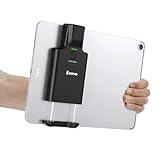
- Widely Compatible Clip Design – Fits Phones & Tablets The Eyoyo scanner features an upgraded vertical retractable clip with a flexible range of 5.7"–7.1", designed to fit iPad, iPad Air, iPad Pro 9.7"/10.5"/11", Surface Go 3, tablets, and large-screen smartphones such as Samsung S22/S23 Ultra. The reinforced back-clip design provides a secure grip to keep your device steady while scanning. Please make sure your device size is within the supported clip range before use.
- Advanced 1D & 2D Scanning – Paper, Screen, Damaged & Curved Barcodes Equipped with advanced 2D CMOS imaging technology, this wireless barcode scanner delivers fast and accurate reading of most 1D and 2D barcodes, including ISBN, UPC/EAN with supplementals, Code 39, Interleaved 2 of 5, Code 93, Code 128, Codabar, QR, Data Matrix, PDF417, and more. It can scan paper labels, digital screen codes, mobile coupons, e-wallets, loyalty cards, and many poorly printed, damaged, low-contrast, or curved-surface barcodes when positioned at a proper angle and distance.
- Bluetooth & USB Wired Connection – Wireless Freedom or Stable Wired Use This scanner supports Bluetooth wireless and USB wired connection for flexible daily use. Use Bluetooth pairing to work freely with inventory apps on your phone, iPad, tablet, or computer without cable limitations, or switch to USB wired mode when you need a stable direct connection. Please note: this model does not support 2.4G wireless connection.
- 3000mAh Long-Lasting Battery with Power Indicators Built with a 3000mAh rechargeable battery, the Eyoyo Bluetooth barcode scanner delivers up to 30 hours of continuous scanning on a full charge. For lighter use, such as around 5,000 scans per day, it can last up to 30 days without recharging. Smart LED indicators clearly show remaining battery levels at 25% / 50% / 75% / 100%, as well as charging and discharging status, so you always know when it is time to recharge.
- Ergonomic Design & Flexible Scanning Modes Designed with three scan buttons, the Eyoyo Bluetooth scanner supports different holding positions and user habits for comfortable left- or right-handed operation. A dedicated power switch helps conserve battery life when not in use. It supports instant upload and storage modes, sound on/off, custom prefix/suffix digits, hidden characters, programmable keyboard keys, and multiple scanning modes including key trigger, auto-sensing, and continuous scanning, giving you flexible control for retail, warehouse, inventory, and mobile work scenarios.
Automate repeatable captures with ScreenshotNeo
If you need a clean image of a Shopify storefront for documentation, regression checks, or a content workflow, ScreenshotNeo can capture the URL through one request instead of configuring a browser. It accepts a URL and returns PNG, JPEG, WebP, or PDF. Its cleanup step accepts cookie or consent banners like a visitor and removes more than 60 known consent platforms, newsletter popups, and chat widgets; each cleanup step can be turned off.
ScreenshotNeo bills only clean shots. Bot checks or CAPTCHAs, blank pages, timeouts, failed loads, and cache hits cost nothing, and each response identifies the result with X-Page-Verdict and X-Billed headers. It also provides an MCP server for Claude, Cursor, and other MCP clients, with take_screenshot, get_page_info, and capture_pdf tools.
One-call examples
Replace https://your-store.myshopify.com with the storefront or preview URL you are authorized to capture. The API documentation is at https://screenshotneo.com/docs/.
curl -G "https://api.screenshotneo.com/v1/shot" -d access_key=YOUR_API_KEY --data-urlencode url=https://your-store.myshopify.com -o shot.webpimport requests
r = requests.get("https://api.screenshotneo.com/v1/shot", params={"access_key": "YOUR_API_KEY", "url": "https://your-store.myshopify.com"}, timeout=90)
open("shot.webp", "wb").write(r.content)const q = new URLSearchParams({ access_key: 'YOUR_API_KEY', url: 'https://your-store.myshopify.com' });
const res = await fetch(`https://api.screenshotneo.com/v1/shot?${q}`);Options useful for Shopify pages
- Full-page capture with lazy images loaded, or capture one element with a CSS selector.
- Dark mode, 12 device presets, any viewport, and retina scale for responsive checks.
- PDF paper size, margins, landscape mode, and page ranges.
- Custom CSS and JavaScript, a click before capture, hidden selectors, and waits for a selector, delay, or network idle.
- Blocking for ads, trackers, requests, or resource types.
- Custom headers, cookies, user agent, and Authorization for protected previews.
- Timezone and geolocation, transparent backgrounds, image resizing, and a TTL-based cache.
- Signed links for public
<img>tags, asynchronous jobs with signed webhooks, bulk capture of up to 100 URLs per call, a usage API, and an OpenAPI specification.
Parameter names used by other screenshot APIs also work, which can reduce migration effort. For reliability, inspect the verdict and billing headers in your job logs, and use asynchronous jobs and signed webhooks when a large capture set should not block a request.
What’s actually slowing this PC down?
Pick the symptom - the matching free tool is one click away.
Plans and cost
| Plan | Included shots | Price |
|---|---|---|
| Free | 1,000 per month | $0; no card required |
| Starter | 3,000 | $5 |
| Growth | 15,000 | $15 |
| Pro | 60,000 | $39 |
| Scale | 250,000 | $99 |
| Business | 1,000,000 | $249 |
Every feature is available on every plan. Yearly billing gives two months free. The free tier includes 1,000 screenshots each month with no card, while paid plans start at $5 for 3,000 shots.
Or skip the browser setup
Use the one-call example above when you need a repeatable Shopify capture: cookie banners, newsletter popups, and chat widgets are removed before the shot; bot checks, blank pages, and failed loads are never billed; and an MCP server lets AI agents take screenshots. You get 1,000 screenshots a month free with no card, and paid plans start at $5 for 3,000. Create a free ScreenshotNeo account.
Frequently Asked Questions
Can a screenshot prove that a Shopify checkout or payment succeeded?
No. It records the visible page at one moment. Use Shopify’s order and payment records, logs, or a reproducible test to establish transaction status.
Should I capture a preview link or the live domain for an unpublished change?
Use the preview for an unpublished edit and the live domain for what customers can currently access. Label the file so the recipient can distinguish those states.
Is a phone screenshot equivalent to a browser screenshot on a computer?
No. The app, mobile browser, desktop browser, viewport, and theme breakpoint can all present different content. Identify the device and app or browser used.
Quick Recap
Product prices and availability are accurate as of the date/time indicated and are subject to change. Any price and availability information displayed on Amazon at the time of purchase will apply.




