What’s actually slowing this PC down?
Pick the symptom - the matching free tool is one click away.
The fastest manual Mac screenshot is Shift-Command-3: press and release all three keys to capture the entire screen. For more control, use Shift-Command-4 for a selected area, or press Shift-Command-4 and then Space to capture a window or menu. Screenshots normally save to the desktop.
This guide covers each shortcut, clipboard captures, timers, window shadows, editing, file locations, limitations, and an automated alternative for developers.
Choose the Mac screenshot shortcut you need
| What you need | Shortcut | What happens |
|---|---|---|
| Entire screen | Shift-Command-3 | Captures everything visible on the display. |
| Part of the screen | Shift-Command-4 | Turns the pointer into a crosshair so you can drag a rectangle. |
| One window or menu | Shift-Command-4, then Space | Changes the pointer to a camera for selecting a highlighted window or menu. |
| More settings | Shift-Command-5 | Opens Screenshot with capture modes, timer, destination, and thumbnail options. |
Apple documents these shortcuts in Take a screenshot on Mac and the Mac User Guide. Screenshot is available in macOS Mojave 10.14 and later.
Capture the whole screen
- Arrange the display exactly as you want it captured. Close private messages, notifications, or other information that should not appear.
- Press and release Shift-Command-3 together. Apple’s wording is: “To take a screenshot, press and then release these three keys together: Shift, Command and 3.”
- Look for the screenshot file on the desktop. A floating thumbnail may appear briefly in the lower-right corner.
If you have multiple displays, the shortcut captures the visible desktop content according to macOS’s normal multi-display behavior. Use a selected-area capture when you need only one region.
Quick wins for a faster PC:
Clear out junk files and repair common Windows errorsFree Scan →Fix the driver behind crashes, sound loss and screen glitchesFind Drivers →Repair Windows errors before they cause bigger problemsFix Now →#1 Best Overall

- WIRELESS, RECHARGEABLE CONVENIENCE — Magic Keyboard with Numeric Keypad connects wirelessly to your Mac, iPad, or iPhone via Bluetooth. And the rechargeable internal battery means no loose batteries to replace.
- WORKS WITH MAC, IPAD, OR IPHONE — It pairs quickly with your device so you can get to work right away.
- ENHANCED TYPING EXPERIENCE — Magic Keyboard delivers a remarkably comfortable and precise typing experience. Its extended layout features document navigation controls for quick scrolling and full-size arrow keys. The numeric keypad is ideal for spreadsheets and finance applications.
- GO WEEKS WITHOUT CHARGING — The incredibly long-lasting internal battery will power your keyboard for about a month or more between charges. (Battery life varies by use.) Comes with a Lightning to USB Cable that lets you pair and charge by connecting to a USB port on your Mac.
- SYSTEM REQUIREMENTS — Requires a Bluetooth-enabled Mac with macOS 10.12.4 or later, an iPad with iPadOS 13.4 or later, or an iPhone or iPod touch with iOS 10.3 or later.
Screenshot part of the screen
- Press and release Shift-Command-4. The pointer becomes a crosshair.
- Drag from one corner of the required area to the opposite corner.
- Release the mouse or trackpad button to take the shot.
Adjust the selection while dragging
- Press Escape before releasing to cancel.
- Hold the Space bar while dragging to move the selected rectangle without changing its dimensions.
- If the rectangle is wrong, release and start the shortcut again; the selection is not committed until you release the pointer.
This mode is usually the cleanest choice for a single dialog, chart, paragraph, or browser section because it excludes the rest of the desktop.
Screenshot a window or menu
Capture a window
- Open and position the window.
- Press Shift-Command-4, then press and release Space. The pointer changes to a camera.
- Move over the target window. macOS highlights the selectable window.
- Click to capture it.
Capture a menu
- Open the menu you want visible.
- Use Shift-Command-4, then Space.
- Click the highlighted menu area.
Remove the window shadow
Hold Option while clicking the highlighted window. This omits the drop shadow around the window. Without Option, macOS normally includes the shadow.
Some applications restrict window screenshots. Apple specifically notes that Apple TV is an example of an app that may not allow screenshots of its windows. A failed capture in a protected app is a restriction, not necessarily a keyboard problem.
Use Screenshot for a timer and other controls
- Press Shift-Command-5 to open the Screenshot toolbar.
- Choose a mode: capture the entire screen, a selected window, or a selected portion.
- Open Options.
- Choose a timer if you need time to open a menu, position a tooltip, or move the pointer out of the way.
- Choose a save destination such as Desktop, Documents, Clipboard, Mail, Messages, or another available location.
- Set whether a floating thumbnail appears and whether the pointer is included, where those controls are offered by your macOS version.
- Click Capture or press Return.
The same toolbar also offers screen recording. Recording creates a video; it is different from the still screenshot requested here. Close the toolbar with Escape when finished.
Copy a screenshot straight to the clipboard
Add Control to the normal shortcut when you want to paste the image immediately instead of creating the usual desktop file:
Rank #2

- Magic Keyboard is available with Touch ID, providing fast, easy and secure authentication for logins and to unlock your Mac.
- Magic Keyboard with Touch ID and Numeric Keypad delivers a remarkably comfortable and precise typing experience.
- It features an extended layout, with document navigation controls for quick scrolling and full-size arrow keys, which are great for gaming.
- The numeric keypad is also ideal for spreadsheets and finance applications.
- It’s wireless and features a rechargeable battery that will power your keyboard for about a month or more between charges.
- Control-Shift-Command-3 copies the entire screen.
- Control-Shift-Command-4 copies a selected area.
- For a window, press Control-Shift-Command-4, then Space, and click the window.
Paste with Command-V in an email, document, chat, image editor, or other app that accepts images. Apple also documents Control-clicking the floating thumbnail and choosing Save to Clipboard.
Find, rename, edit, and share the screenshot
Find the file
Unless you changed the destination, open the desktop and look for a file whose name begins with “Screenshot” and includes the date and time. If it is not there, press Shift-Command-5, open Options, and check the selected Save to location.
Use the floating thumbnail
Click the thumbnail to open markup tools. You can draw, add shapes or text, crop, rotate, and share from the preview. Wait for the thumbnail to disappear if you want macOS to finish saving the file without opening an editor. You can also drag the thumbnail directly into another app or folder.
Do these 3 things before closing this tab:
1Repair Windows errors before they cause bigger problems2Fix the driver behind crashes, sound loss and screen glitches3Clear out junk files and repair common Windows errorsRename or move it
In Finder, select the image, press Return, type a new name, and press Return again. Drag it to another folder or attach it to a message. Clipboard captures do not create a file until you paste and save them from the destination app.
File format and macOS version notes
Basic shortcuts work on current macOS releases, but options can vary by Mac model and system version. Apple describes a format choice on supported Macs running macOS Tahoe 26 or later: SDR (Most Compatible) uses PNG, while HDR uses HEIF. Treat that setting as model- and version-dependent; it is not required for ordinary captures. If another person must open the image, PNG or a format your recipient supports is usually the safer selection.
Rank #3

- 【For Mac Only (macOS 11.3+)】This wired keyboard and mouse combo is designed exclusively for Mac – works with Mac mini, Mac Pro, MacBook Air/Pro, iMac, iMac Pro and more. Please note: not fully functional with non-Mac devices.
- Dual USB-C/USB-A Connectivity: This wired keyboard and mouse combo works with both the latest USB-C MacBook models and older USB-A iMac/Mac Mini models — plug and play, no setup, no battery anxiety, no dropped connections.
- One Port for Both: The USB-A mouse can be connected directly to the keyboard, so you only need to use one port on your Mac to power both the keyboard and the mouse. Cleaner desk, less cable clutter, more space to work. Perfect for compact desks and dorm rooms.
- Full-Size Keyboard: With number pad for spreadsheets and data entry, plus multimedia hotkeys — screenshot, lock, mute, volume — smoother, faster workflow on data-heavy days.
- Ergonomic & Comfortable: The 6° tilt keeps your wrists comfortable through long work sessions, and the mouse offers 4 DPI settings. Built for the office, responsive for editing and design — from morning meetings to late-night deadline pushes.
Troubleshooting common screenshot problems
Nothing happens when I press the shortcut
- Press and release the keys together rather than holding them for several seconds.
- Use the Command key, not Control, for a normal file capture. Control is an intentional clipboard modifier.
- Open Shift-Command-5. If the toolbar appears, macOS is receiving the command and you can capture from the buttons.
- Check System Settings > Keyboard > Keyboard Shortcuts > Screenshots if a custom shortcut or conflict has disabled the defaults.
The screenshot is not on the desktop
The save location may have been changed. Open Shift-Command-5 > Options > Save to and select Desktop or the folder you prefer. If you used Control, the image is on the clipboard instead of in a file.
The wrong area was captured
Press Escape during a crosshair selection and try again. Hold Space while dragging to reposition the rectangle. For a precise application window, use the camera mode instead of estimating its edges manually.
Recommended Free Tools
A menu closes before I can capture it
Open the menu, then use the window/menu shortcut. If timing is difficult, choose a timer in Shift-Command-5 > Options, start the capture, and open the menu during the countdown.
A protected window is blank or unavailable
Some apps deliberately block screenshots; Apple TV is one example cited by Apple. macOS shortcuts cannot override that application policy. Capture permitted content or use an export function supplied by the app.
The floating thumbnail is in the way
Wait a moment for it to save, drag it elsewhere, or turn off Show Floating Thumbnail in Shift-Command-5 > Options.
Rank #4

- SHORTCUTS AT A GLANCE: 52 essential macOS shortcuts sit on your palm rest, in your sightline. Stop Googling "how to screenshot on Mac" — glance down, find it, keep working.
- ESSENTIALS ONLY: We curated only the shortcuts you'll actually use, grouped by task — Basics, Navigation, Finder, Screenshots, System. Clean layout, easy to scan, easy to remember.
- ZERO RESIDUE, ZERO DAMAGE: Premium vinyl with residue-free adhesive lifts off clean when you're ready — no glue marks, no discoloration, no damage to your MacBook.
- BUILT FOR DAILY LIFE: Water repellent matte vinyl shrugs off coffee spills, sweat, and smudges. Fade-resistant print stays sharp for years. Ultra-thin 0.10mm — you won't feel it under your wrists.
- FITS YOUR MACBOOK: For 13"/15" MacBook Air, 14"/16" MacBook Pro, and 2026 13" MacBook Neo. Choose Clear Black for light MacBooks (Silver, Starlight, Sky Blue, Blush, Citrus), Clear White for dark MacBooks (Midnight, Space Black, Indigo), or Opaque Black and Pink for any model.
Or skip the browser setup
If you need repeatable screenshots of public web pages rather than a one-off image of your Mac display, ScreenshotNeo provides a website screenshot API and MCP server. It accepts a URL and returns PNG, JPEG, WebP, or PDF. Before capture it accepts cookie or consent banners and removes more than 60 known consent platforms, newsletter popups, and chat widgets; each step can be disabled. Bot checks, CAPTCHAs, blank pages, timeouts, failed loads, and cache hits are not billed, and response headers identify the page verdict and billing status.
One GET request is enough:
curl -G "https://api.screenshotneo.com/v1/shot" -d access_key=YOUR_API_KEY --data-urlencode url=https://stripe.com -o shot.webpSee the ScreenshotNeo documentation for authentication, output options, and all parameters.
Python
import requests
r = requests.get("https://api.screenshotneo.com/v1/shot", params={"access_key": "YOUR_API_KEY", "url": "https://stripe.com"}, timeout=90)
open("shot.webp", "wb").write(r.content)
Node.js
const q = new URLSearchParams({ access_key: 'YOUR_API_KEY', url: 'https://stripe.com' });
const res = await fetch(`https://api.screenshotneo.com/v1/shot?${q}`);
ScreenshotNeo also offers full-page captures with lazy images loaded, CSS-selector element captures, dark mode, 12 device presets and custom viewports, retina scale, PDF paper and page controls, custom CSS and JavaScript, click-before-capture actions, hidden selectors, waits for selectors, delays or network idle, ad/tracker/request blocking, custom headers, cookies, user agents, Authorization, timezone, geolocation, transparent backgrounds, resizing, chosen cache TTLs, signed links, asynchronous jobs with signed webhooks, bulk capture for up to 100 URLs per call, a usage API, and an OpenAPI specification. Parameter names used by other screenshot APIs also work, which can simplify a migration.
Every plan includes every feature: Free provides 1,000 shots per month with no card; Starter is $5 for 3,000; Growth $15 for 15,000; Pro $39 for 60,000; Scale $99 for 250,000; and Business $249 for 1,000,000. Yearly billing gives two months free.
Create a free ScreenshotNeo account to get 1,000 screenshots a month without a card.
The Tool Desk
Outbyte Driver Updater FREEFix the driver behind crashes, sound loss and screen glitchesFind Drivers →Outbyte PC Repair FREERepair Windows errors before they cause bigger problemsFix Now →Manual shortcut or automated capture?
| Need | Best choice |
|---|---|
| A quick record of what is on your Mac now | Shift-Command-3 or Shift-Command-4 |
| A clean, single application window | Shift-Command-4, then Space |
| A delayed capture or different save folder | Shift-Command-5 and Options |
| Immediate pasting into another app | Add Control to the shortcut |
| Scheduled, repeatable web-page images or PDFs | ScreenshotNeo API or MCP server |
Frequently Asked Questions
Can I take a screenshot without saving a file?
Yes. Add Control to the screenshot shortcut, then paste the resulting image with Command-V.
Best Value
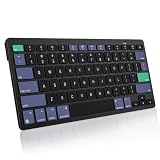
- For Mac ONLY — Designed for macOS 10.10+. Works with MacBook Pro/Air, iMac, Mac Mini, Mac Studio, Mac Pro and Mac Neo. NOT compatible with Windows, Android, iPad, iPhone, or Chromebook. If you don't own a Mac, this keyboard will NOT work for you.
- 2× AAA Batteries (Not included) power it for up to 6 months with auto-sleep. NOT Rechargeable — No USB-C charging, No charging cables to carry.
- Bluetooth Pairs in Seconds — No Receiver, No Driver Needed. Connects to one Mac at a time (no multi-device switching). For best stability, keep within 30 ft of your Mac. Auto-sleep saves battery when idle.
- Compact Travel Size (No Numpad) — At just 10.8 oz and 11.2 inches wide, this Mac keyboard is built for how you move. Slim enough for a backpack pocket, light enough for coffee shops, co-working, or the airplane tray table. No cables, no receiver to carry.
- Smart Function Keys – Work Faster: The full row of MacOS shortcut keys puts screen brightness, volume, media playback at your fingertips. No more memorizing complex key combos—just one tap. (No backlit keys – keeps it ultra-slim and extends battery life.)
How do I cancel a selected-area screenshot?
Press Escape before releasing the mouse or trackpad button.
Why does a window screenshot include a shadow?
macOS includes it by default; hold Option while clicking the highlighted window to omit it.
Does Shift-Command-5 record video too?
Yes. Its toolbar includes recording controls, but choose one of the still-image modes for a screenshot.
The Bottom Line
Use Shift-Command-3 for the whole screen, Shift-Command-4 for a region, and Shift-Command-4 followed by Space for a window or menu. Shift-Command-5 adds timers and save controls; add Control when the image should go straight to the clipboard.
Quick Recap
Product prices and availability are accurate as of the date/time indicated and are subject to change. Any price and availability information displayed on Amazon at the time of purchase will apply.




