What’s actually slowing this PC down?
Pick the symptom - the matching free tool is one click away.
The fastest reliable setup is to power on the Alexa Tablet 11, choose language and accessibility options, connect Wi‑Fi, install its first update, sign in to the Google and Amazon accounts you need, and create a screen lock. After that, a long press on an empty part of the Home screen opens the controls for wallpaper, widgets, app layout, and Home settings.
Before you start
Have the tablet, an Amazon account, your Wi‑Fi network name and password, and (if you want Google Play or Google services) a Google account ready. Amazon includes the tablet and a USB‑C charging cable in the box, but not a power adapter. A compatible USB power adapter with a USB‑C cable can charge it.
As an Amazon Associate I earn from qualifying purchases.
If you are deciding whether the device fits your use, Amazon announced the Alexa Tablet 11 with the following specifications. They are manufacturer claims, not independent test results, and price and availability can change by country and date.
Free tools Windows power users keep installed
One-click scans. No signup required.
| Specification | Amazon-announced detail |
|---|---|
| Display | 11 inches, 2.5K resolution, 276 pixels per inch, 90 Hz refresh rate |
| Processor | 8-core processor |
| Memory | 8 GB RAM |
| Storage | 64 GB |
| Audio | Dolby Atmos speakers |
| Battery claim | Up to 15 hours of video playback, according to Amazon; not independently tested |
| Announced US starting price | $329.99 for the 8 GB/64 GB configuration |
| Announced shipping | From October 14, 2026, in the United States, Mexico, and Canada |
Check the live listing in your country for the current price, delivery date, storage configuration, and included items. Do not assume a keyboard, pen, or folio made for another Alexa Tablet model will fit: Amazon’s setup guidance specifically confirms its Pro Keyboard, Pro Pen, and Book Cover for the Alexa Tablet 12 Pro, not for the Tablet 11.
#1 Best Overall
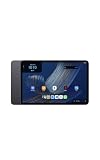
- Fast performance, all-day battery: Up to 15 hours of video playback. Quick performance with 8-core chip and 8GB RAM for smooth streaming, reading, and more. Wi-Fi 6, 8MP rear and front cameras.
- Stunning 2.5K resolution display: Watch, read, and create in sharp detail and vivid color. Smooth scrolling with 90Hz. Dual speakers powered by Dolby Atmos.
- Feels as good as it looks: Thin, light, and durable aluminum unibody design.
- Over a million apps on Google Play: From social media and streaming to fitness, finance, and gaming, find the apps you already love and discover new ones.
- Seamless and personalized: Amazon apps—Prime Video, Kindle, Audible, Amazon Music, Amazon Luna—are built-in and sync across devices with single sign-on and personalized content.
How to set up your Alexa Tablet 11, step by step
1. Turn the tablet on
- Hold the power button on the top edge for about three seconds.
- Release it when the display turns on and the startup screen appears.
If nothing appears, connect the USB‑C cable to a suitable power adapter and let the tablet charge before trying again. A completely depleted battery may need charging time before it responds.
2. Choose a language and make accessibility adjustments
Select the language you want to use throughout the interface. The first-run screens also provide accessibility controls. Turn on TalkBack if you need spoken guidance, Magnification if enlarged content helps you see controls, or Display Size if you want larger interface elements. These choices can be changed later, so you can enable them temporarily while learning the device.
3. Select “Get Started” and decide whether to transfer settings
Tap Get Started. You have three practical setup routes:
The Tool Desk
Outbyte Driver Updater FREEScan for outdated or missing drivers - takes under a minuteDriver Scan →Outbyte PC Repair FREEClear out junk files and repair common Windows errorsFree Scan →- Transfer from Android: scan the QR code shown during setup to move Wi‑Fi details, accounts, and settings from an Android device.
- Transfer from an iPhone or iPad: connect the Apple device with a USB‑C cable when prompted to transfer Wi‑Fi and other available settings.
- Start fresh: skip transfer and choose your Wi‑Fi network manually.
Transfer is optional. A clean setup is often preferable if the tablet will be shared, used by a child under a managed profile, or configured for a different purpose than your phone.
4. Connect to Wi‑Fi, or continue temporarily offline
Choose your network and enter its password if you are setting up manually. Amazon says initial setup can begin without Wi‑Fi, but internet access is required for app downloads and some features. Connecting early also allows the tablet to check for system updates.
If your network does not appear, move closer to the router, confirm that the router is powered on, and check that the network is visible to another device. If the password is rejected, re-enter it carefully; Wi‑Fi passwords are case-sensitive.
Rank #2
- Fast performance, all-day battery: Up to 15 hours of video playback. Quick performance with 8-core chip and 8GB RAM for smooth streaming, reading, and more. Wi-Fi 6, 8MP rear and front cameras.
- Stunning 2.5K resolution display: Watch, read, and create in sharp detail and vivid color. Smooth scrolling with 90Hz. Dual speakers powered by Dolby Atmos.
- Feels as good as it looks: Thin, light, and durable aluminum unibody design.
- Over a million apps on Google Play: From social media and streaming to fitness, finance, and gaming, find the apps you already love and discover new ones.
- Seamless and personalized: Amazon apps—Prime Video, Kindle, Audible, Amazon Music, Amazon Luna—are built-in and sync across devices with single sign-on and personalized content.
5. Let the first software update finish
After the tablet is online, allow time for an update. Keep it connected to power if the update is large or the battery is low, and do not force a restart while installation is in progress. A fresh update can change the wording or order of later setup screens, but the account and security choices remain the same.
PC Slower Than It Used to Be?
A free scan shows the junk files, broken settings and background clutter dragging Windows down - then fixes them in one click.Free scan · Windows 10 & 11Crashes, No Sound, or Screen Glitches?
Random freezes, missing sound and display glitches usually trace back to one bad driver. Find and replace yours safely.Free scan · under a minute6. Add the Google account you need for Play Store access
Sign in to a Google account if you want Google Play or Google apps and services. This account serves a different purpose from your Amazon account: it governs Google’s app and service ecosystem on the Android-based tablet. You can skip it if you do not need Google Play, then add an account later through the tablet’s account settings.
7. Sign in to your Amazon account
Use your Amazon account for Amazon services and apps, including Alexa, Prime Video, Kindle, Audible, Amazon Music, and Amazon Photos. Signing in also associates the tablet with your Amazon settings and purchases. If you have trouble authenticating, use Amazon’s password-recovery flow rather than repeatedly guessing a password.
8. Create a screen lock before finishing
Choose a PIN, password, or pattern. This primary lock protects the tablet and remains necessary even when you use fingerprint recognition. Fingerprint unlock is an additional method, not a replacement for the PIN, password, or pattern.
On Tablet 11, you can enroll a fingerprint during setup or later from Settings. Follow the on-screen enrollment prompts, touching the sensor repeatedly and changing the finger angle when requested. Keep the primary PIN, password, or pattern somewhere secure: the tablet may require it after a restart or in other security-sensitive situations.
Quick wins for a faster PC:
Scan for outdated or missing drivers - takes under a minuteDriver Scan →Clear out junk files and repair common Windows errorsFree Scan →What you see on the Alexa Tablet 11 Home screen
Understanding the screen’s zones makes customization easier. The default layout combines Amazon content, Alexa suggestions, apps, and Android controls.
Rank #3
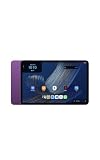
- Fast performance, all-day battery: Up to 15 hours of video playback. Quick performance with 8-core chip and 8GB RAM for smooth streaming, reading, and more. Wi-Fi 6, 8MP rear and front cameras.
- Stunning 2.5K resolution display: Watch, read, and create in sharp detail and vivid color. Smooth scrolling with 90Hz. Dual speakers powered by Dolby Atmos.
- Feels as good as it looks: Thin, light, and durable aluminum unibody design.
- Over a million apps on Google Play: From social media and streaming to fitness, finance, and gaming, find the apps you already love and discover new ones.
- Seamless and personalized: Amazon apps—Prime Video, Kindle, Audible, Amazon Music, Amazon Luna—are built-in and sync across devices with single sign-on and personalized content.
| Area | How to reach it | What it does |
|---|---|---|
| For You / Discover | Swipe right from the Home screen | Personalized content from services such as Kindle, Prime Video, Netflix, and Disney+ |
| Up Next | Visible on the Home screen | Alexa suggestions, weather, reminders, recommended actions, and a Google-powered search bar |
| Apps Grid | Main Home screen area | Customizable location for app icons and widgets |
| Apps Dock | Bottom quick-access area | Up to six pinned apps |
| Apps Drawer | Swipe up from the Home screen | List of all installed apps |
| Alexa access | Say “Alexa” or tap the Alexa button | Hands-free voice interaction or text-first interaction through the button |
The Apps Grid and Apps Dock are separate. Removing an icon from the grid does not uninstall the app, and placing an app in the dock does not remove it from the Apps Drawer.
How do I change my tablet wallpaper?
- Go to the Home screen.
- Press and hold an empty area where there is no app icon or widget.
- Choose the wallpaper option from the Home-screen controls.
- Select the available image or wallpaper category, preview it, and apply it as prompted.
The empty-space long press is the key gesture. If a normal tap opens an app, move to an unoccupied part of the Apps Grid and hold your finger down until the customization controls appear.
How do I open Home settings?
Press and hold an empty part of the Home screen, then choose Home settings. This is the same customization entry point used for wallpaper and the app list. Review each setting before changing it; the available labels can vary after software updates.
Recommended Free Tools
Use Home settings when you want to adjust the behavior or presentation of the launcher rather than simply move one icon. If you only need to place an app or widget, the long-press menu and drag gestures are faster.
How do I add and arrange widgets?
Add a widget
- Press and hold an empty area of the Home screen.
- Choose the widget option.
- Browse the available widgets and select one.
- Place it in an open position in the Apps Grid and release your finger.
A widget occupies more space than an app icon, so you may need to move existing icons first. Weather, reminders, search, and service-specific widgets can make information visible without opening an app, but they also consume Home-screen space.
Move or remove a widget
- Press and hold the widget until it lifts from the layout.
- Drag it to another open position, then release.
- To remove it, drag it to the on-screen remove option when shown.
Removing a widget does not uninstall its app. You can add it again from the widget picker.
Rank #4
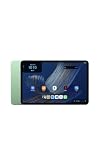
- Fast performance, all-day battery: Up to 15 hours of video playback. Quick performance with 8-core chip and 8GB RAM for smooth streaming, reading, and more. Wi-Fi 6, 8MP rear and front cameras.
- Stunning 2.5K resolution display: Watch, read, and create in sharp detail and vivid color. Smooth scrolling with 90Hz. Dual speakers powered by Dolby Atmos.
- Feels as good as it looks: Thin, light, and durable aluminum unibody design.
- Over a million apps on Google Play: From social media and streaming to fitness, finance, and gaming, find the apps you already love and discover new ones.
- Seamless and personalized: Amazon apps—Prime Video, Kindle, Audible, Amazon Music, Amazon Luna—are built-in and sync across devices with single sign-on and personalized content.
How to organize apps on the Home screen
Pin an app to the Apps Dock
Press and hold an app icon in the Apps Grid, then drag it into the Apps Dock. The dock supports up to six pinned apps. Choose the apps you open most often—such as a browser, messages, camera, or reading app—rather than filling it with rarely used shortcuts.
If all six positions are occupied, move an existing dock icon back into the Apps Grid before adding another. The app remains installed either way.
Rearrange the Apps Grid
Press and hold an app icon, drag it to the desired location, and release. You can place frequently used apps near the first Home-screen position and group related apps together. Leave a clear area if you plan to add a large widget later.
Find an app in the Apps Drawer
Swipe up from the Home screen to open the Apps Drawer. It contains all installed apps, including those that are not pinned to the grid or dock. Use the drawer when you want to launch an app without changing your carefully arranged Home screen.
Independent reader supportYour contribution helps us test, update, and keep practical guides available for everyone.Choose light or dark appearance
Dark Theme is on by default. To change it, open Settings > Display > Dark Theme, then choose the appearance you prefer. The setting affects the system interface; individual apps may use their own appearance controls.
Dark Theme can be comfortable in low light, while a light appearance may be easier to read in bright surroundings. If an app looks unchanged, check that app’s own display settings rather than assuming the tablet setting failed.
Best Value
- Fast performance, all-day battery: Up to 15 hours of video playback. Quick performance with 8-core chip and 8GB RAM for smooth streaming, reading, and more. Wi-Fi 6, 8MP rear and front cameras.
- Stunning 2.5K resolution display: Watch, read, and create in sharp detail and vivid color. Smooth scrolling with 90Hz. Dual speakers powered by Dolby Atmos.
- Feels as good as it looks: Thin, light, and durable aluminum unibody design.
- Over a million apps on Google Play: From social media and streaming to fitness, finance, and gaming, find the apps you already love and discover new ones.
- Seamless and personalized: Amazon apps—Prime Video, Kindle, Audible, Amazon Music, Amazon Luna—are built-in and sync across devices with single sign-on and personalized content.
Use gesture navigation or the three-button layout
Gesture navigation is the default. If you prefer visible Back, Home, and Recent buttons, open Settings > System > Gestures > Navigation mode and select 3-button navigation.
| Navigation choice | Best for | What changes |
|---|---|---|
| Gesture navigation | Users who want more screen space and swipe-based controls | Navigation actions are performed with edge and bottom gestures rather than persistent buttons |
| 3-button navigation | Users who want familiar, always-visible controls | Back, Home, and Recent buttons appear on screen |
If you switch modes and the controls feel unfamiliar, open the same Navigation mode screen to change back. This setting changes navigation behavior, not the Apps Grid, wallpaper, or installed apps.
Use Alexa from the Home screen
You can say “Alexa” for hands-free interaction when voice access is available, or tap the Alexa button for text-first interaction. Up Next can surface proactive suggestions, weather, reminders, and recommended actions. The Google-powered search bar provides a separate route for web or device searches.
These entry points serve different purposes: voice is quickest when your hands are occupied, the Alexa button is useful when you want to type, and the search bar is suited to a conventional text search.
Fix common setup problems
The tablet will not power on
- Connect it to a working USB power adapter and let it charge.
- Check that the USB‑C cable is fully inserted at both ends.
- After charging, hold the power button again for about three seconds.
If an error leaves the tablet unresponsive, Amazon recommends holding the power button for 20 seconds to restart it.
Wi‑Fi is missing or will not connect
- Move closer to the router and verify that another device can see the network.
- Recheck the network name and case-sensitive password.
- Restart the router if other devices also cannot connect.
- Continue setup offline if necessary, then connect later for apps, updates, and features that require internet access.
An account sign-in fails
Confirm whether the screen is asking for your Google account or Amazon account; they are separate credentials with different purposes. For an Amazon login problem, use the password-recovery flow. For Google account problems, use Google’s account-recovery process rather than repeatedly entering guesses.
The Home-screen menu does not appear
- Return to the Home screen rather than the Apps Drawer.
- Press and hold an actually empty area; touching an icon opens its app menu instead.
- Wait for the customization controls to appear before lifting your finger.
- After an update, check again because menu wording can change while the empty-space long press remains the main entry point.
A practical first-day configuration
- Finish the system update before arranging the screen, so a restart does not interrupt your layout work.
- Set the PIN, password, or pattern and enroll a fingerprint only after the primary lock works.
- Choose Dark Theme or the light appearance under Display.
- Select gesture navigation or 3-button navigation based on which control style you recognize.
- Keep the Apps Dock for six high-frequency apps.
- Place one or two useful widgets in the Apps Grid, leaving room for readable icons.
- Use the Apps Drawer for everything else instead of overcrowding the first page.
- Swipe right to review For You / Discover content and decide whether those recommendations are useful to your routine.
With those choices made, the Tablet 11 has a secure unlock method, the accounts needed for its app ecosystems, and a Home screen that reflects how you actually use it.
Do these 3 things before closing this tab:
1Clear out junk files and repair common Windows errors2Scan for outdated or missing drivers - takes under a minute3Repair Windows errors before they cause bigger problemsQuick Recap
Product prices and availability are accurate as of the date/time indicated and are subject to change. Any price and availability information displayed on Amazon at the time of purchase will apply.

