Do these 3 things before closing this tab:
1Clear out junk files and repair common Windows errors2Scan for outdated or missing drivers - takes under a minute3Repair Windows errors before they cause bigger problemsConnect the Hue Bridge to your router with the included Ethernet cable and to power, then add it and your lights in the Philips Hue app. Philips Hue’s official guides use two different Bridge setup orders: one prepares the Bridge before opening the app, while another scans its QR code first. Follow the sequence shown for your kit and in your app rather than mixing the two.
What you need before you start
- A Hue Bridge and compatible Hue lights. If you are buying a starter kit, check the listing to confirm exactly which items it includes.
- A router with an available Ethernet port, the Bridge’s power supply, and the included Ethernet cable for the starter-kit setup.
- A phone with the Philips Hue app installed. In the starter-kit flow, the phone should be connected to the same Wi-Fi network as the Bridge.
- Light fixtures where the bulbs can be powered during setup.
Philips Hue’s US starter-kit guide describes connecting the Bridge to the router by Ethernet. The phone’s Wi-Fi connection and the Bridge’s Ethernet connection are separate: use the same local network for the app setup.
As an Amazon Associate I earn from qualifying purchases.
Set up the Bridge using the sequence for your kit
Philips Hue publishes two official setup sequences. The starter-kit guide prepares and powers the Bridge before opening the app. Its UK Bridge guide uses a QR-first sequence, scanning the code while the Bridge is unplugged. Your packaging and the app’s current prompts should determine which order you use.
The Tool Desk
Outbyte PC Repair FREERepair Windows errors before they cause bigger problemsFix Now →Outbyte Driver Updater FREEScan for outdated or missing drivers - takes under a minuteDriver Scan →Starter-kit flow: connect the Bridge first
- Plug the Bridge’s power supply into an outlet.
- Connect the Bridge to your router with the included Ethernet cable.
- Wait for the first two lights on the Bridge to turn on.
- Put the Hue bulbs in fixtures and make sure the fixtures can supply power to them.
- Install and open the Philips Hue app on a phone connected to the same Wi-Fi network as the Bridge.
- Follow the app prompts to connect the Bridge. The app then searches for lights and guides you through the remaining setup.
These steps follow Philips Hue’s US starter-kit instructions.
#1 Best Overall
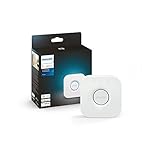
- WHAT’S IN THE BOX: Includes one Hue Bridge that unlocks the full potential of your Philips Hue system, including automations, smart control from anywhere in the world, and so much more
- SECURE AND STABLE CONNECTION: With Zigbee advanced technology, the bridge ensures a reliable connection that won't strain your Wi-Fi, Hue lights work when your Wi-Fi is down
- CONTROL LIGHTS FROM ANYWHERE: The Hue hub enables out-of-home control, control your lights with the Hue app anywhere you have an internet connection, with your home assistant
- ENJOY SMART LIGHTING FOR YOUR ENTIRE HOME, INDOORS AND OUT: Add up to 50 lights and accessories to your smart lighting system, a Hue Bridge is required to control Hue outdoor lights and accessories
- LEVEL UP YOUR MOVIES, MUSIC, AND GAMES WITH SURROUND LIGHTING: Make your lights dance, flash, dim and brighten along to your movies, TV shows, PC and music, the sync requires HDMI Sync Box
QR-first flow: scan the Bridge before plugging it in
- Leave the Bridge unplugged initially so its QR code is easy to scan.
- Open the Hue app, choose the option to add a Bridge, and scan the Bridge’s QR code.
- Follow the app’s on-screen prompts, including when to connect the Bridge to power and the router.
If you skipped the initial prompt, Philips Hue’s UK Bridge guide says you can add it from Settings > Devices using the plus button. App labels may vary by version or region.
Add bulbs to a Bridge that is already set up
- In the Hue app, open Home > Add devices. Philips Hue also documents the route Settings > Devices, then the plus button.
- Choose the room for the lights and scan their product QR codes in the app.
- After scanning the codes, power on the lights and continue in the app.
- Name each light and choose an icon when prompted.
If a bulb has no QR code, choose the no-QR option to search for the device or enter its serial number. These steps are from Philips Hue’s UK bulb setup guide.
Rank #2

- WHAT’S IN THE BOX: Includes one Hue Bridge and two Hue white and color ambiance LED smart 60W A19 E26 base light bulbs suitable for most fixtures; perfect for general lighting anywhere in your home
- UNLOCK THE POWER OF THE HUE BRIDGE: Enjoy automations, control from anywhere, a secure, stable connection that won’t drain Wi-Fi, use Matter to connect your devices to your Hue smart lighting system
- MILLIONS OF COLORS: The White & Color Ambiance range offers warm-to-cool white and millions of colors. Simply screw it in - our smart LED bulbs can dim, brighten, and set the mood instantly
- ENJOY PRESET SCENES: Light your routines with Hue lamps throughout the day; set a 24-hour natural light scene that mimics the sun or choose light to help you focus, unwind, and more
- VOICE CONTROL: Set up voice control in the Hue app and use simple voice commands to control your Hue lights with Alexa or Google Assistant
Choose the right connection method
A Hue Bridge is the route covered above. Philips Hue also describes Bluetooth and direct Matter pairing, but these are alternative ways to connect certain lights and do not follow the Bridge procedure.
| Connection method | What it requires | Pairing route |
|---|---|---|
| Hue Bridge | Hue Bridge, router connection by Ethernet for the documented starter-kit flow, and a phone on the same local Wi-Fi network during setup. | Add the Bridge in the Hue app, then add lights. See the starter-kit guide. |
| Bluetooth without a Bridge | A Hue bulb that supports Bluetooth and a phone with Bluetooth enabled. | Use the separate Bluetooth setup path in the Hue app. The cited guide does not establish that Bluetooth provides the same functionality as using a Bridge. See the bulb guide. |
| Direct Matter pairing | A Matter-enabled Hue light and a compatible Matter controller. | Pair through a smart-home app using the bulb’s Matter QR code or pairing code. If the bulb is already connected to a Hue Bridge, remove it from that Bridge before pairing directly through Matter. See the bulb guide. |
When setup does not follow the expected order
- The app asks you to scan a code before connecting the Bridge: use the QR-first flow and follow its prompts; it is an official Philips Hue setup sequence.
- You skipped the Bridge prompt: open Settings > Devices and tap the plus button, as described in the UK Bridge guide.
- A bulb has no QR code: use the app’s no-QR option to search or enter its serial number.
- The app cannot find a bulb during starter-kit setup: check that it is fitted in a powered fixture, then continue with the app’s search flow.
Philips Hue’s support guidance cited here covers setup paths, not a full diagnostic procedure for every router, app version, or light model. For issues beyond these steps, use the support instructions for your region and product.
Quick Recap
Rank #4

- WHAT'S IN THE BOX - This starter kit includes one Hue Bridge and four E26 smart light bulbs; to get started, install your Bridge and color changing light bulb using the Hue app, and you’re ready to go
- CREATE AMBIANCE WITH COLOR - Set the mood with millions of colors and a library of preset light scenes designed by Hue’s lighting experts—with special holiday scenes and the option to create your own
- DIM EASILY - Adjust from full brightness all the way down to 2% using the Hue app to achieve the right level of lighting with your smart light bulb, whether you’re reading or unwinding before bed
- CONTROL WITH YOUR VOICE - Connect to your preferred home assistant and control your led light bulb effortlessly with voice commands—compatible with Alexa, Google Assistant, and Apple Home
Rank #3

- WHAT'S IN THE BOX - Includes one Hue Bridge and four Hue White and Color Ambiance smart 75W A19 light bulbs suitable for most fixtures; Perfect for decorative and general lighting anywhere in your home
- UNLOCK THE FULL POWER OF HUE WITH THE INCLUDED BRIDGE - Enjoy automations control from anywhere in the world, and a secure, stable connection that won't drain your Wi-Fi. Use Matter to connect smart home devices to your Hue smart lighting system.
- ENJOY PRESET SCENES - Light your routines throughout the day; Set a 24-hour natural light scene that mimics the sun or choose light to help you focus unwind, and more
- VOICE CONTROL - Convenient smart control; Set up voice control in the Hue app and use simple voice commands to control your lights with Alexa or Google Assistant
- PERSONALIZE YOUR LIGHT - Create the ultimate mood lighting with dynamic light effects that show subtle changes in brightness and color; Customize in the app
Product prices and availability are accurate as of the date/time indicated and are subject to change. Any price and availability information displayed on Amazon at the time of purchase will apply.

