To set up NordVPN, you need an active subscription, an internet connection, and the official app for your device. Install the app, sign in to your Nord Account, then use its automatic connection control or choose a country, city, or server. Phones and computers generally use a native app; smart TVs require a platform-specific decision because only some TV systems support a direct VPN app.
This guide covers Android and iPhone or iPad, Windows, macOS and Linux, Android TV, Nvidia Shield, Fire TV, Apple TV, and TVs that need a router or Windows-PC connection share. The exact screens can change as apps are updated, so use the linked platform guide when a label differs.
As an Amazon Associate I earn from qualifying purchases.
What you need before installing NordVPN
- An active NordVPN subscription. NordVPN’s getting-started instructions state that a subscription is required before connecting.
- A working internet connection. The VPN app cannot establish its tunnel until the phone, computer, streaming box, or router is online.
- The official NordVPN software for your platform. NordVPN lists downloads for Android, iOS/iPadOS, Windows, macOS, Linux, Android TV, Fire TV, and Apple TV in its software-download guide.
- Your Nord Account credentials. Most current apps hand sign-in to a browser, where you authenticate and then return to the app.
Start from NordVPN’s general getting-started instructions or the platform-specific installation hub rather than downloading an installer from a third-party site.
Quick wins for a faster PC:
Scan for outdated or missing drivers - takes under a minuteDriver Scan →Repair Windows errors before they cause bigger problemsFix Now →Which setup path fits your device?
| Device or platform | Direct NordVPN app? | What the documented setup involves |
|---|---|---|
| Android phone or tablet | Yes | Install from Google Play, Samsung Galaxy Store, Amazon Appstore for Fire tablets, or the official-site APK route; sign in in a browser; approve Android’s first VPN request. |
| iPhone or iPad | Yes | Install the iOS app, sign in to Nord Account, and connect in the app. Use the linked iOS instructions for current labels. |
| Windows 10 or 11 | Yes | Use the Windows installer, sign in through the browser, and select Secure my connection. |
| macOS | Yes | Download the macOS app, install it, sign in, and connect. Screen names can differ from Windows. |
| Linux | Yes | Install the Linux package and authenticate; the general guide documents command-line connection commands. |
| Android TV or Nvidia Shield | Yes | Install from the NordVPN site or Google Play, sign in with a QR code or remote validation, approve the VPN request, then use Quick Connect or select a country. |
| Fire TV or Apple TV | Yes | NordVPN lists native apps. Install the app for that TV platform and follow its on-screen sign-in and connection flow. |
| Samsung TV, Roku, or Chromecast | Usually no native app | Use a compatible router or share a Windows PC’s connection. Confirm the exact router and configuration support VPN connections before buying or configuring hardware. |
NordVPN’s platform list and installation hub are the authoritative places to check availability because app support and navigation labels can change. The pages used for this guide were accessed on October 13, 2026, and did not display publication or update dates.
#1 Best Overall

- Next-Gen Gigabit Wi-Fi 6 Speeds: 2402 Mbps on 5 GHz and 574 Mbps on 2.4 GHz bands ensure smoother streaming and faster downloads; support VPN server and VPN client¹
- A More Responsive Experience: Enjoy smooth gaming, video streaming, and live feeds simultaneously. OFDMA makes your Wi-Fi stronger by allowing multiple clients to share one band at the same time, cutting latency and jitter.²
- Expanded Wi-Fi Coverage: 4 high-gain external antennas and Beamforming technology combine to extend strong, reliable, Wi-Fi throughout your home.
- Improved Battery Life: Target Wake Time helps your devices to communicate efficiently while consuming less power.
- Improved Cooling Design: No heat ups, no throttles. A larger heat sink and redefined case design cools the WiFi 6 system and enables your network to stay at top speeds in more versatile environments.
How do I set up NordVPN on an Android phone or tablet?
Android has the most installation-source choices. NordVPN documents app-store installation and an APK route from its own website in the Android setup guide.
Install the Android app
- Open Google Play, the Samsung Galaxy Store, or the Amazon Appstore if you are using a Fire tablet.
- Search for the official NordVPN app and install it. If you need an APK instead, use the download path provided in NordVPN’s official Android guide; avoid repackaged APK files from unrelated download sites.
- Open NordVPN after installation. If Android asks for notifications or other normal app permissions, review the request and continue through the app’s setup screens.
Sign in through Nord Account
- Choose Log in in the NordVPN app.
- The app opens a browser-based Nord Account sign-in page. Complete authentication there.
- After sign-in succeeds, return to NordVPN. The app should now show its connection controls.
Make the first connection
- Tap Secure my connection (or the equivalent automatic-connect control shown by the current app).
- On the first connection, Android displays a request to allow the app to create a VPN connection. Approve it; this permission is required for the tunnel to start.
- For a specific location, open the country or server list and select a country or city. You can also search for a location if the current app provides a search field.
Automatic connection is the simplest choice when you do not need a particular location. Choosing a location is useful when you have a reason to exit through a specific country or city, but the available list and labels are controlled by the current app version.
How do I set up NordVPN on an iPhone or iPad?
NordVPN lists iOS and iPadOS apps and links to an iOS setup guide from its platform-download page and installation hub.
What’s actually slowing this PC down?
Pick the symptom - the matching free tool is one click away.
- Open the App Store on the iPhone or iPad and install the official NordVPN app.
- Launch the app and choose its sign-in option. Complete Nord Account authentication when the app sends you to a browser or an account screen.
- Return to the app and tap its connect or automatic-connection control.
- If iOS or iPadOS asks to add a VPN configuration, approve the system request. Without that approval, the app cannot create the VPN connection.
- To use a particular exit location, open the location list and select the country or city offered by the app.
Exact button text on iPhone and iPad is not specified in the general setup material, so follow the current iOS guide if your screen uses different wording from the steps above.
How do I install and use NordVPN on Windows?
The Windows instructions are specifically for Windows 10 64-bit or Windows 11; do not apply those requirements to macOS, Linux, Android, or iOS. NordVPN’s detailed procedure is in How to install and use the NordVPN app on Windows.
Install the Windows application
- Confirm that the computer runs Windows 10 64-bit or Windows 11 and is already online.
- Download the Windows installer from NordVPN’s official software page.
- Open the installer and complete its prompts. Windows may ask you to approve installation changes.
- Launch NordVPN when setup finishes.
Sign in and connect
- Choose Log in in the NordVPN application.
- Complete the browser-based Nord Account sign-in.
- Return to the desktop app and click Secure my connection.
- To choose a location instead, use the app’s country, city, or server controls and select the destination you need.
The Windows guide documents this exact interface and the Secure my connection label. macOS has a dedicated download and tutorial, but its controls should not be assumed to be identical.
Rank #2

- 【AC1200 Dual-band Wireless Router】Simultaneous dual-band with wireless speed up to 300 Mbps (2.4GHz) + 867 Mbps (5GHz). 2.4GHz band can handles some simple tasks like emails or web browsing while bandwidth intensive tasks such as gaming or 4K video streaming can be handled by the 5GHz band.*Speed tests are conducted on a local network. Real-world speeds may differ depending on your network configuration.*
- 【Easy Setup】Please refer to the User Manual and the Unboxing & Setup video guide on Amazon for detailed setup instructions and methods for connecting to the Internet.
- 【Pocket-friendly】Lightweight design(145g) which designed for your next trip or adventure. Alongside its portable, compact design makes it easy to take with you on the go.
- 【Full Gigabit Ports】Gigabit Wireless Internet Router with 2 Gigabit LAN ports and 1 Gigabit WAN ports, ideal for lots of internet plan and allow you to connect your wired devices directly.
- 【Keep your Internet Safe】IPv6 supported. OpenVPN & WireGuard pre-installed, compatible with 30+ VPN service providers. Cloudflare encryption supported to protect the privacy.
What about macOS?
NordVPN provides a dedicated macOS download and setup tutorial. Use the macOS option on the software-download page, install the application, sign in to Nord Account, and connect from within the app. The general sequence is the same as on Windows, but the Windows requirement of Windows 10 64-bit or Windows 11 does not apply to a Mac.
Free tools Windows power users keep installed
One-click scans. No signup required.
- Download the macOS application from NordVPN’s official platform list.
- Open the downloaded installer and follow macOS’s installation prompts.
- Launch NordVPN and choose its sign-in option.
- Finish Nord Account authentication, then return to the app.
- Use the automatic connection control or select a country, city, or server from the location interface.
If a system dialog asks to authorize a VPN configuration, read it and approve it when you intend to connect. If the current macOS app presents different labels, use the macOS tutorial linked from NordVPN’s installation hub.
How do I set up NordVPN on Linux?
NordVPN lists a Linux download and setup tutorial. After installing the package and signing in, the general getting-started page documents command-line connections at the Linux command section.
Connect to the best available server
nordvpn connectThis command asks NordVPN to connect using its best-server selection.
Connect to a particular country or server
nordvpn connect <country_code server_number>Replace <country_code server_number> with the country code and server number shown by NordVPN’s current Linux interface. Keep the angle brackets as notation only; do not type them unless the interface specifically requires them.
The Tool Desk
Outbyte Driver Updater FREEScan for outdated or missing drivers - takes under a minuteDriver Scan →Outbyte PC Repair FREEClear out junk files and repair common Windows errorsFree Scan →- Choose the Linux package from NordVPN’s official download page.
- Install it using the method described in the linked Linux tutorial for your distribution.
- Authenticate to your Nord Account as instructed.
- Run
nordvpn connectfor an automatic choice or the country-and-server form for a specific destination.
Linux commands, package names, and distribution support can change independently of the graphical apps, so use the current Linux tutorial linked from NordVPN’s installation hub if installation fails.
Rank #3
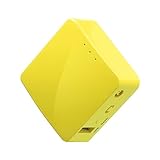
- 【WIRELESS MOBILE MINI TRAVEL ROUTER】 Convert a public network (wired or wireless) to a private Wi-Fi for secure surfing. Tethering. Powered by any laptop USB, power banks or 5V/2A DC adapters (sold separately). 39g (1.41 Oz) only, portable and pocket friendly. 2.4GHz ONLY
- 【OPEN SOURCE & PROGRAMMABLE】 OpenWrt pre-installed, USB disk extendable.
- 【LARGER STORAGE & EXTENDABILITY】 128MB RAM, 16MB Flash ROM, dual Ethernet ports, UART and GPIOs available for hardware DIY.
- 【OPENVPN CLIENT】 OpenVPN client pre-installed, compatible with 30+ VPN service providers.
- 【PACKAGE CONTENTS】 GL-MT300N-V2 (Mango) mini router (2-year Warranty), USB cable, Ethernet cable, User Manual. Please update to the latest firmware.
Can I install NordVPN directly on my smart TV?
That depends on the TV operating system, not simply on whether the television is labeled “smart.” NordVPN lists native apps for Android TV, Fire TV, and Apple TV. NordVPN Support states: “Most smart TVs don’t support built-in VPN functionality, with the exception of Android-based TVs, but you can get a VPN on TV with an additional step.”
Use the following decision process:
- Identify the TV’s operating system or attached streaming device.
- If it is Android TV, Nvidia Shield, Fire TV, or Apple TV, look for the native NordVPN app.
- If it is Samsung TV, Roku, Chromecast, or another unsupported system, plan for a VPN-compatible router or a shared connection from a Windows PC.
- If several devices need the VPN simultaneously, evaluate the router route first; NordVPN’s installation material specifically points readers with more than 10 devices toward router setup.
How to install NordVPN on Android TV or Nvidia Shield
NordVPN has a dedicated procedure for Android TV and Nvidia Shield in its Android TV guide.
Install the app
- On Android TV or Nvidia Shield, open the app installation area.
- Install NordVPN from Google Play, or use the official NordVPN site method described in the guide if that is the route available on your device.
- Open the app after installation.
Sign in when the TV has no convenient keyboard
The Android TV procedure supports two practical authentication methods:
- QR-code sign-in: scan the code shown by the TV with another device and complete Nord Account authentication there.
- Remote validation: use the TV remote to enter or validate the account details when the app offers that option.
Approve the VPN request and connect
- When Android TV asks to allow the VPN connection, approve the request.
- Choose Quick Connect for an automatic server.
- Alternatively, open the location list and select a country.
The permission request is a system-level step, so declining it leaves the app installed but unable to establish the VPN connection. If the TV app’s labels differ, open the dedicated Android TV guide linked above for the current flow.
How to use NordVPN on Fire TV or Apple TV
NordVPN lists Fire TV and Apple TV among its supported app platforms. The available material confirms native apps but does not specify one identical sequence of screen labels for both systems.
- Open the app store on the Fire TV or Apple TV device.
- Search for and install the official NordVPN app.
- Open it and complete the sign-in flow shown on the television. If a QR code or browser handoff appears, finish Nord Account authentication on the second device and return to the TV.
- Approve any operating-system VPN permission request.
- Use the app’s automatic connection control or choose a listed country or city.
Do not assume instructions written for Android TV apply word-for-word to Fire TV or Apple TV. Their native apps are separate platform builds, so use the platform-specific links in NordVPN’s installation hub when the on-screen flow differs.
Rank #4

- 【Five Gigabit Ports】1 Gigabit WAN Port plus 2 Gigabit WAN/LAN Ports plus 2 Gigabit LAN Port. Up to 3 WAN ports optimize bandwidth usage through one device.
- 【One USB WAN Port】Mobile broadband via 4G/3G modem is supported for WAN backup by connecting to the USB port. For complete list of compatible 4G/3G modems, please visit TP-Link website.
- 【Abundant Security Features】Advanced firewall policies, DoS defense, IP/MAC/URL filtering, speed test and more security functions protect your network and data.
- 【Highly Secure VPN】Supports up to 20× LAN-to-LAN IPsec, 16× OpenVPN, 16× L2TP, and 16× PPTP VPN connections.
- Security - SPI Firewall, VPN Pass through, FTP/H.323/PPTP/SIP/IPsec ALG, DoS Defence, Ping of Death and Local Management. Standards and Protocols IEEE 802.3, 802.3u, 802.3ab, IEEE 802.3x, IEEE 802.1q
What if my Samsung TV, Roku, or Chromecast has no VPN app?
NordVPN’s smart-TV compatibility guidance lists router setup and Windows-PC connection sharing for unsupported television platforms. In this arrangement, the TV does not run the VPN app itself. Instead, its network traffic passes through a device that is configured to make the VPN connection.
Option 1: Configure a VPN-compatible router
A router can cover multiple devices on the home network, including a TV that cannot install NordVPN. The exact procedure depends on the router’s firmware and configuration, and the reviewed compatibility material does not name a particular router model.
- Check the exact router model and firmware documentation for NordVPN or compatible VPN-client support before buying or changing hardware.
- Follow NordVPN’s router setup instructions linked from its installation material.
- Configure the router with the NordVPN account and server details required by that procedure.
- Connect the television to the configured Wi-Fi or Ethernet network.
- Verify that the TV is using that network rather than a separate connection.
Router setup is most useful when several devices need coverage or when the TV operating system has no native app. Compatibility is conditional: a router that can run a VPN server is not automatically capable of acting as a VPN client for this purpose, so verify the exact model and firmware.
Option 2: Share a Windows PC connection
If you have a Windows computer, NordVPN lists sharing that computer’s connection as an alternative for unsupported TV platforms. The PC runs the NordVPN app, and the television connects through the shared network.
- Install and connect NordVPN on the Windows PC using the procedure above.
- Enable Windows connection sharing or a mobile hotspot according to the Windows version’s network settings.
- Ensure the shared connection uses the PC’s active NordVPN-connected interface.
- On the Samsung TV, Roku, or Chromecast, join the Wi-Fi network created by the Windows computer.
- Test the TV’s internet access before opening streaming or other network apps.
This route requires the PC to remain available and connected while the TV uses the shared network. It avoids changing the home router but is less convenient if the computer is frequently shut down or moved.
Recommended Free Tools
Choosing between a native TV app, router, and Windows sharing
| Method | Best fit | Advantages | Limitations |
|---|---|---|---|
| Native app | Android TV, Nvidia Shield, Fire TV, or Apple TV | Runs directly on the supported TV or streaming device; no second device has to stay online. | Available only where NordVPN provides an app; sign-in screens vary by platform. |
| VPN-compatible router | An unsupported TV or several household devices | Can cover devices across the network; NordVPN points to router setup for users with more than 10 devices. | Requires compatible hardware and correct configuration; exact model support must be checked first. |
| Windows connection sharing | An unsupported TV when a Windows PC is available | Uses existing PC hardware instead of changing the router. | The Windows computer must stay online and share the NordVPN-connected connection. |
Choose the native app whenever your TV platform supports it. Choose a router when network-wide coverage matters and the exact router is confirmed compatible. Use Windows sharing when you need a workaround and can keep the PC running.
Common setup problems and the precise check to make
The app cannot connect
- Confirm the device has ordinary internet access before opening NordVPN.
- Check that the subscription is active and that you signed in to the intended Nord Account.
- Return to the app after browser authentication; leaving the browser flow unfinished does not complete sign-in.
- On Android, Android TV, iOS, or macOS, look for a system VPN-configuration request and approve it if you intend to connect.
The TV has no NordVPN icon
- Identify whether the TV is Android TV, Fire TV, Apple TV, Samsung TV, Roku, Chromecast, or another system.
- For Android TV, Nvidia Shield, Fire TV, and Apple TV, search the platform’s app store.
- For Samsung TV, Roku, Chromecast, or another unsupported platform, use a compatible router or Windows-PC sharing rather than repeatedly searching for a native app.
The router route does not work
- Recheck the exact router model and firmware against NordVPN’s compatibility instructions.
- Confirm that the router is configured as a VPN client, not merely advertised as supporting another VPN function.
- Reconnect the TV to the configured router network and verify that it is not still using a different Wi-Fi network.
The Linux command is rejected
- Confirm the Linux application is installed from NordVPN’s current package and that account authentication is complete.
- Use
nordvpn connectfirst to test automatic server selection. - For a specific destination, check the country-code and server-number format shown by NordVPN’s current Linux instructions before running
nordvpn connect <country_code server_number>.
Where to get the current platform instructions
Use these official pages when an app update changes a button, sign-in method, or supported platform:
- How to start using NordVPN — subscription prerequisite, general connection flow, and Linux commands.
- How to download NordVPN software? — current platform list.
- How to install the NordVPN app? — platform-specific installation links and router guidance.
- How to setup NordVPN on Android — Android stores, APK route, login, permission, and connection choices.
- How to install and use the NordVPN app on Windows — Windows 10 64-bit and Windows 11 requirements and workflow.
- Set up NordVPN on a Smart TV or Console — native-TV limitations, router setup, and Windows sharing.
- Installing and using NordVPN on Android TV or Nvidia Shield — TV installation, QR or remote sign-in, permission, and connection steps.
Bottom line
Install the official app wherever NordVPN supports your platform, sign in to Nord Account, approve the operating system’s VPN request, and connect automatically or select a location. Android TV, Nvidia Shield, Fire TV, and Apple TV have native routes listed by NordVPN. Samsung TVs, Roku, Chromecast, and other unsupported TVs need the extra step of a confirmed-compatible router or a Windows PC sharing its NordVPN connection.
Quick Recap
Product prices and availability are accurate as of the date/time indicated and are subject to change. Any price and availability information displayed on Amazon at the time of purchase will apply.

