Free tools Windows power users keep installed
One-click scans. No signup required.
For the best whole-home result, place the gateway in a central, elevated, open position; reserve 6 GHz or 5 GHz for nearby high-performance clients; use 2.4 GHz where walls and distance make stability more important; connect fixed latency-sensitive equipment by Ethernet; and add wired-backhaul access points when one gateway cannot cover the building. Wi‑Fi 8 hardware is still based on a changing IEEE 802.11bn draft, so careful placement, measured tuning and a clear firmware-return policy matter more than a headline PHY-rate number.
What Wi‑Fi 8 is—and why setup matters more than the label
“Wi‑Fi 8” is the consumer name associated with IEEE 802.11bn Ultra High Reliability (UHR). The amendment is not final. The IEEE working-group status on 15 October 2026 lists P802.11bn at draft D2.0 initial ballot; the September 2026 ballot closed with 76.5% approval. Draft behavior can still change, and two early products marketed as Wi‑Fi 8 may not implement the same feature set.
As an Amazon Associate I earn from qualifying purchases.
Qualcomm projects Wi‑Fi Alliance certification for January 2028 and expects final IEEE approval during 2028. MediaTek’s white paper targets final approval in September 2028. Those are projections, not guarantees. Qualcomm said on 2 March 2026 that its Wi‑Fi 8 portfolio was sampling to customers, with commercial products expected in late 2026. A consumer router preorder and a Wi‑Fi 8 Premium Gateway announcement for 20-Gig customers were reported on 14 October 2026, but availability, firmware and regional support vary.
The practical promise is reliability at the edge of coverage and under load, rather than simply a larger number on the box. Qualcomm describes the goal as “intelligent coordination, seamless mobility, and enhanced edge performance.” Your walls, client antennas, regulatory transmit-power limits and neighboring networks still determine what any gateway delivers in a particular room.
#1 Best Overall

- 𝐅𝐮𝐭𝐮𝐫𝐞-𝐑𝐞𝐚𝐝𝐲 𝐖𝐢-𝐅𝐢 𝟕 - Designed with the latest Wi-Fi 7 technology, featuring Multi-Link Operation (MLO), Multi-RUs, and 4K-QAM. Achieve optimized performance on latest WiFi 7 laptops and devices, like the iPhone 16 Pro, and Samsung Galaxy S24 Ultra.
- 𝟔-𝐒𝐭𝐫𝐞𝐚𝐦, 𝐃𝐮𝐚𝐥-𝐁𝐚𝐧𝐝 𝐖𝐢-𝐅𝐢 𝐰𝐢𝐭𝐡 𝟔.𝟓 𝐆𝐛𝐩𝐬 𝐓𝐨𝐭𝐚𝐥 𝐁𝐚𝐧𝐝𝐰𝐢𝐝𝐭𝐡 - Achieve full speeds of up to 5764 Mbps on the 5GHz band and 688 Mbps on the 2.4 GHz band with 6 streams. Enjoy seamless 4K/8K streaming, AR/VR gaming, and incredibly fast downloads/uploads.
- 𝐖𝐢𝐝𝐞 𝐂𝐨𝐯𝐞𝐫𝐚𝐠𝐞 𝐰𝐢𝐭𝐡 𝐒𝐭𝐫𝐨𝐧𝐠 𝐂𝐨𝐧𝐧𝐞𝐜𝐭𝐢𝐨𝐧 - Get up to 2,400 sq. ft. max coverage for up to 90 devices at a time. 6x high performance antennas and Beamforming technology, ensures reliable connections for remote workers, gamers, students, and more.
- 𝐔𝐥𝐭𝐫𝐚-𝐅𝐚𝐬𝐭 𝟐.𝟓 𝐆𝐛𝐩𝐬 𝐖𝐢𝐫𝐞𝐝 𝐏𝐞𝐫𝐟𝐨𝐫𝐦𝐚𝐧𝐜𝐞 - 1x 2.5 Gbps WAN/LAN port, 1x 2.5 Gbps LAN port and 3x 1 Gbps LAN ports offer high-speed data transmissions.³ Integrate with a multi-gig modem for gigplus internet.
- 𝐎𝐮𝐫 𝐂𝐲𝐛𝐞𝐫𝐬𝐞𝐜𝐮𝐫𝐢𝐭𝐲 𝐂𝐨𝐦𝐦𝐢𝐭𝐦𝐞𝐧𝐭 - TP-Link is a signatory of the U.S. Cybersecurity and Infrastructure Security Agency’s (CISA) Secure-by-Design pledge. This device is designed, built, and maintained, with advanced security as a core requirement.
Prepare before connecting the gateway
Confirm the internet handoff
- Identify whether your service arrives through an Ethernet handoff, a cable/DSL modem, an optical network terminal or an existing router.
- If an ISP gateway is already routing, choose one device to perform routing and NAT. Put the other into bridge or access-point mode when supported; stacking two routers in NAT mode can break inbound connections, discovery and some gaming or work applications.
- Check the WAN speed and the gateway’s Ethernet port speeds. A multi-gigabit internet plan cannot reach its advertised rate through a slower WAN or LAN port.
Collect account and recovery details
- Have the ISP username/password, VLAN or authentication requirements, and the gateway’s administrator credentials ready.
- Record the default settings before changing them. Save a backup of the configuration after the network is working.
- Plan where wired Ethernet can reach additional access points, desktops, consoles and workstations. A wired path is usually more predictable than a wireless mesh hop.
Map the clients that matter
List fixed devices that need consistent delay—game consoles, desktop PCs, workstations, video-production systems and streaming endpoints—along with mobile devices and sensors that may be far from the gateway. This list determines where to test, which devices should be wired, and whether one gateway is realistic.
Set up the gateway step by step
- Connect the hardware. Power off the modem or optical terminal, connect its handoff to the gateway’s labeled WAN/Internet port, then power the terminal and gateway. Wait for the WAN indicator or setup wizard to report an active connection.
- Open the administration interface. Use the vendor’s mobile app or the local address printed on the gateway. Immediately change the administrator password to a unique value and enable multi-factor authentication if the firmware offers it.
- Install the newest firmware. Record the version and release date, apply the update, and reboot. Because 802.11bn is still a draft, check the vendor’s release notes for supported draft features, interoperability fixes and rollback or recovery instructions.
- Set the regulatory region correctly. Select the country in which the gateway is operating. Region controls determine which channels and transmit-power limits are legal; choosing another region can create interference and may violate local rules.
- Create a secure primary network. Use WPA3-Personal where every important client supports it. If older equipment requires compatibility mode, use the strongest mixed WPA2/WPA3 option available and put legacy or untrusted devices on a separate guest or IoT network. Choose a long, unique passphrase rather than reusing the administrator password.
- Configure the bands. Keep 2.4 GHz, 5 GHz and 6 GHz enabled when the gateway supports all three. Band-steering controls may appear as “Smart Connect,” “unified SSID” or a similar vendor label. If steering repeatedly sends a device to the wrong band, temporarily give the bands distinct names so you can test each one directly.
- Choose initial channel settings. Start with automatic channel selection and the gateway’s standard channel width. Do not begin with the widest possible channel: wide channels consume more spectrum and are more likely to overlap neighboring networks. Inspect the local spectrum later if congestion or unstable performance appears.
- Enable traffic management only where it helps. Look for QoS, smart queue management, traffic prioritization or gaming/voice profiles. Prioritize the actual latency-sensitive device or application, set the available upload and download rates accurately when the interface asks for them, and test with the rule enabled and disabled. An incorrectly configured priority list can reduce total throughput.
- Disable avoidable routing conflicts. Turn off DHCP and routing on a downstream access point when the main gateway is the router. Use access-point or bridge mode rather than a second NAT layer unless you have a specific, documented reason to isolate the networks.
- Connect fixed clients by Ethernet. Plug consoles, desktops, workstations and stationary streaming devices into the gateway or a wired switch. This removes their wireless airtime demand and gives them a stable path for latency-sensitive traffic.
- Save and document the working configuration. Record SSIDs, VLAN settings, channel choices, QoS rules, firmware version and the date of your tests. A configuration backup makes recovery faster after an update or factory reset.
Place the gateway for maximum usable range
Use a central, elevated, open position
Place the gateway as close as practical to the geometric center of the area you want to cover and at shelf or wall height rather than on the floor. A central location reduces the number of walls and the path length to clients; elevation can improve line of sight. Keep antennas in the orientation specified by the manufacturer.
Remove predictable obstructions and noise
- Do not hide the gateway in a cabinet, behind a television, inside a rack or beside a large metal object.
- Keep distance from thick masonry, reinforced concrete, large appliances, cordless-phone bases and other transmitters.
- Avoid placing it at the extreme edge of the home beside the modem if the modem enters through an exterior wall. Run Ethernet to a better location when possible.
Treat placement as a measurement problem
There is no universal “Wi‑Fi 8 range.” Client radio design, wall material, neighboring networks and local power limits can outweigh the gateway’s specification. Move the gateway in small increments, then retest the rooms and devices that matter. A slightly less central location may work better if it creates a clear path to a busy office or media room.
Rank #2
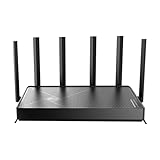
- 𝐅𝐚𝐬𝐭, 𝐫𝐞𝐥𝐢𝐚𝐛𝐥𝐞, 𝐟𝐮𝐭𝐮𝐫𝐞-𝐫𝐞𝐚𝐝𝐲 𝐖𝐢-𝐅𝐢 - Enjoy strong connections throughout your home with 6 high-gain antennas and a 10G WAN/LAN port that stays ahead as your network grows, delivering premium Wi-Fi 7 performance for everyday homes.△§
- 𝐁𝐄𝟏𝟐𝟎𝟎𝟎 𝐭𝐫𝐢-𝐛𝐚𝐧𝐝 𝟖-𝐬𝐭𝐫𝐞𝐚𝐦 𝐖𝐢-𝐅𝐢 𝟕 𝐫𝐨𝐮𝐭𝐞𝐫 - Delivers up to 5,765 Mbps (6 GHz), 5,765 Mbps (5 GHz), and 688 Mbps (2.4 GHz) speeds for 4K/8K streaming, AR/VR gaming and more. Performance varies by conditions, distance to devices, & obstacles such as walls.△◇
- 𝟏𝟎 𝐆𝐛𝐩𝐬 𝐬𝐭𝐚𝐲𝐬 𝐚𝐡𝐞𝐚𝐝 𝐚𝐬 𝐲𝐨𝐮𝐫 𝐢𝐧𝐭𝐞𝐫𝐧𝐞𝐭 𝐠𝐫𝐨𝐰𝐬 - Features a 10 Gbps WAN/LAN port to maximize multi-gig internet plans. A 2.5 Gbps WAN/LAN port, three 1 Gbps LAN ports, and a USB 3.0 port add even more connectivity options.
- 𝐂𝐨𝐯𝐞𝐫𝐚𝐠𝐞 𝐟𝐨𝐫 𝐞𝐯𝐞𝐫𝐲 𝐜𝐨𝐫𝐧𝐞𝐫 - Covers up to 2,600 sq. ft. for up to 128 devices. 6 optimally positioned antennas and beamforming technology focus Wi-Fi signals toward hard-to-reach areas. Seamlessly connect phones, TVs, gaming consoles, and IoT devices without slowdown.
- 𝐒𝐢𝐦𝐩𝐥𝐞 𝐬𝐞𝐭𝐮𝐩 & 𝐞𝐚𝐬𝐲 𝐜𝐨𝐧𝐭𝐫𝐨𝐥 - Quickly setup and manage your Archer BE670 with the free Tether App. Keep your WiFi performing at its best by keeping the firmware updated through the App. All Wi-Fi routers require a separate modem.
Choose the right band for each distance
| Band | Best use | Trade-off |
|---|---|---|
| 6 GHz | Nearby, compatible clients that need high throughput or low delay | Shorter practical reach and weaker penetration through walls than lower-frequency options |
| 5 GHz | Nearby to medium-distance high-throughput clients, including many current laptops and consoles | More attenuation through walls than 2.4 GHz; congestion depends on local networks and channel availability |
| 2.4 GHz | Farther or obstructed clients where connection stability matters more than peak speed | Lower capacity and typically more interference from neighboring networks and household devices |
Use 6 GHz or 5 GHz for a client in the same room or one room away when its signal is strong. Move an edge-of-home or heavily obstructed client to 2.4 GHz if the higher bands produce retries, drops or unstable latency. Band steering is a convenience, not a guarantee; test the actual client because phones, laptops and game consoles make their own roaming decisions.
Extend coverage with coordinated access points
Prefer wired backhaul
If one gateway cannot cover the home, add compatible mesh or access-point nodes and connect them to the gateway with Ethernet wherever possible. Wired backhaul reserves wireless airtime for clients and avoids the capacity and latency penalty of a wireless hop. Place each node where its wired connection is available and where it still has a strong signal to the area it serves—not in the dead zone you are trying to fix.
Use a coordinated system, not unrelated repeaters
Qualcomm identifies seamless roaming, edge-performance optimization and multi-AP coordination as Wi‑Fi 8 goals. MediaTek discusses multi-AP/mesh deployment and extended-range work. Those capabilities depend on compatible implementations and firmware, so check whether the gateway and nodes support the same draft features, controller software and update policy. A generic repeater can extend a signal while adding another wireless hop and may not provide coordinated roaming.
Rank #3

- FASTER, FARTHER, MORE RELIABLE WIFI: A dedicated dual-band WiFi 7 router built to deliver the full speed of your internet plan across a medium to large home of streaming, video calls, gaming, and smart devices.
- WORKS WITH YOUR EXISTING INTERNET SERVICE: Pairs with your existing modem or gateway via ethernet. Compatible with most cable, fiber, DSL, and satellite providers. Some gateways and modem router combos may require bridge mode. No coax needed.
- SET UP AND MANAGE YOUR NETWORK WITH THE NIGHTHAWK APP: Download the free Nighthawk app on iOS or Android for guided setup. Manage WiFi, run speed tests, pause devices, and set up guest networks from anywhere. Active internet required.
- WIFI 7 SPEED FOR TODAY'S FASTEST INTERNET PLANS: Up to 6.5 Gbps across 2.4 GHz and 5 GHz bands, 1.2x faster than WiFi 6. Keeps every device connected at the same time with MU-MIMO and OFDMA. Real-world speeds depend on your devices and plan.
- COVERAGE IN EVERY ROOM: Delivers up to 2,500 sq. ft. of coverage for up to 80 devices. Walls, floors, and interference can reduce range. Larger or multi-story homes may benefit from a NETGEAR Orbi mesh WiFi system.
Design the node layout
- Connect the primary gateway to the modem or optical terminal.
- Run Ethernet to each planned node, using a switch if the gateway lacks enough LAN ports.
- Adopt the nodes through the gateway’s mesh or access-point interface and update every unit.
- Use one coordinated network name when roaming is reliable. If a troublesome client will not roam correctly, give that band or node a temporary test name and verify whether the client is choosing poorly.
- Place nodes so adjacent coverage areas overlap enough for roaming but are not so close that they compete unnecessarily for airtime.
Tune channels and channel width without sacrificing stability
Start automatic, then investigate congestion
Automatic channel selection is the sensible baseline after installation. If performance changes by time of day, use the gateway’s spectrum view or a local Wi‑Fi analyzer to identify busy channels. Compare the affected room, not just the gateway’s location, because a neighboring network may be strong only at the far end of the home.
The Tool Desk
Outbyte Driver Updater FREEScan for outdated or missing drivers - takes under a minuteDriver Scan →Outbyte PC Repair FREEClear out junk files and repair common Windows errorsFree Scan →Use conservative widths in dense neighborhoods
Wider channels can raise peak throughput when clean spectrum is available, but they occupy more airtime and overlap more neighboring networks. If clients show retries, fluctuating latency or intermittent disconnects, reduce the channel width and retest. The best setting is the narrowest one that meets the needed throughput with stable latency; it is not automatically the widest setting shown by the interface.
Keep coordinated nodes from fighting each other
Allow a managed mesh system to assign channels when its coordination is reliable. With manually configured access points, avoid assigning the same congested channel to nearby radios and keep power levels proportionate to the physical layout. Excessive transmit power can make a client cling to a distant node instead of roaming to the closer one.
Rank #4

- Blazing-fast WiFi 7 boosts tri-band throughput up to 12000 Mbps with 320 MHz channels of 6 GHz band, Multi-Link Operation (MLO) and 4K-QAM
- Powerful wired network capacity of up to 20G with one 2.5G WAN port and seven 2.5G LAN ports.
- High-performance quad-core 2.0GHz CPU with robust cooling, 2GB RAM and eight internal antennas providing up to 3000 sq. ft. of range.
- Smart Home Master makes it easy to set up functional subnetwork (up to 3 SSIDs) for IoT devices and VPNs
- ROG-exclusive Gaming Network streamlines Triple-Level Game Acceleration setup and connections through convenient SSIDs
Lower latency under real traffic
Remove avoidable wireless contention
Wire fixed high-demand devices first. A wired console or desktop does not consume airtime, leaving more capacity for mobile clients and reducing the chance that a large upload delays a game or voice call.
Control bufferbloat with QoS
Latency that is low when the connection is idle but spikes during an upload or download is usually a queueing problem. Enable the gateway’s QoS or smart queue-management feature, enter the measured service rates if requested, and prioritize interactive traffic. Test during a sustained upload and download; compare idle latency with loaded latency rather than relying on a single speed-test result.
Do these 3 things before closing this tab:
1Scan for outdated or missing drivers - takes under a minute2Repair Windows errors before they cause bigger problems3Fix the driver behind crashes, sound loss and screen glitchesTest roaming and edge performance
Walk with a phone or laptop between access-point areas while running a continuous ping to the gateway and a separate ping to an internet host. A brief increase during a roam is different from repeated drops or a client that remains attached to a distant node. Update the client driver or operating system before changing the entire network, then retest.
Best Value

- 𝐍𝐞𝐱𝐭-𝐆𝐞𝐧 𝐖𝐢-𝐅𝐢 𝟕 - Optimize performance on latest WiFi 7 laptops and devices, like the iPhone 16 Pro, Samsung Galaxy S24 Ultra, and PS5 Pro with the latest WiFi 7 technology with Multi-Link Operation, Multi-RUs, 4K-QAM, and up to 320 MHz channels.◇△
- 𝟕-𝐒𝐭𝐫𝐞𝐚𝐦, 𝐁𝐄𝟗𝟕𝟎𝟎 𝐓𝐫𝐢-𝐁𝐚𝐧𝐝 𝐖𝐢-𝐅𝐢 𝟕 𝐒𝐩𝐞𝐞𝐝𝐬 - Delivers smooth 4K/8K streaming, immersive AR/VR gaming, and blazing-fast downloads with speeds up to 5,765 Mbps on the 6 GHz band, 2,882 Mbps on the 5 GHz band, and 1,032 Mbps on the 2.4 GHz band.⌂
- 𝐌𝐚𝐱𝐢𝐦𝐢𝐳𝐞𝐝 𝐂𝐨𝐯𝐞𝐫𝐚𝐠𝐞 - Up to 2,600 sq. ft. coverage for up to 120 devices at a time. 6 optimally positioned antennas and Beamforming technology focus Wi-Fi signals toward hard-to-cover areas for stronger coverage-—ideal for those seeking the best WiFi router for large homes.
- 𝟏𝟎 𝐆𝐛𝐩𝐬 𝐏𝐨𝐫𝐭 𝐟𝐨𝐫 𝐌𝐮𝐥𝐭𝐢-𝐆𝐢𝐠𝐚𝐛𝐢𝐭 𝐂𝐨𝐧𝐧𝐞𝐜𝐭𝐢𝐯𝐢𝐭𝐲 - Features 1x 10 Gbps WAN/LAN port, 1x 2.5 Gbps WAN/LAN port, and 3x 2.5 Gbps LAN ports. Integrate with a multi-gig modem for fast, wired gig+ internet.
- 𝐎𝐮𝐫 𝐂𝐲𝐛𝐞𝐫𝐬𝐞𝐜𝐮𝐫𝐢𝐭𝐲 𝐂𝐨𝐦𝐦𝐢𝐭𝐦𝐞𝐧𝐭 - TP-Link is a signatory of the U.S. Cybersecurity and Infrastructure Security Agency’s (CISA) Secure-by-Design pledge. This device is designed, built, and maintained, with advanced security as a core requirement.
Validate every room with a repeatable test
- Choose the rooms and devices that represent your actual use: office, bedroom, media room, garage or garden-facing area.
- At each location, record the connected band, signal level or link rate shown by the client, and whether the connection is wired or wireless.
- Run an idle latency test to the gateway, then repeat while another device performs a sustained upload and download.
- Measure throughput several times at different times of day. Neighboring networks and ISP utilization can change the result.
- Repeat after each meaningful change—gateway position, channel width, QoS rule or access-point placement—and keep the setting that improves the rooms you actually use.
Do not promise a universal ping, speed or coverage radius. A result measured in one building cannot be transferred reliably to another because construction, client radios, regulatory limits and nearby networks differ.
What performance claims mean
| Claim | Qualification |
|---|---|
| Up to 40% higher throughput at typical distances | Qualcomm Technologies, 2026; a vendor-reported comparison for its Dragonwing NPro A8 Elite platform, not an independent whole-home gateway test |
| 2.5× lower latency during peak usage | Qualcomm Technologies, 2026; a vendor-reported platform comparison under the company’s stated conditions |
| Up to 30% less energy per day | Qualcomm Technologies, 2026; a vendor-reported platform claim, not a universal household measurement |
| About 19 Gbit/s maximum PHY rate for a tri-band 4×4 access point | MediaTek, 2025; a theoretical physical-layer figure, not expected application throughput |
PHY rate excludes protocol overhead, contention, retransmissions and the capabilities of the client. Treat these figures as platform or theoretical indicators, not as a promise that a particular room will receive the same speed or latency.
Buying an early Wi‑Fi 8 gateway in 2026
There is not yet a neutral, standardized whole-home comparison of retail Wi‑Fi 8 gateways, so a defensible “best Wi‑Fi 8 router for range” ranking does not exist. Evaluate the implementation and support details instead of choosing by the largest advertised rate.
- Draft-feature disclosure: The vendor should identify which 802.11bn features are implemented and how they will be updated as the standard changes.
- Client compatibility: Confirm that your phones, laptops, consoles and access points can use the intended bands and security modes. A Wi‑Fi 8 gateway still serves older Wi‑Fi clients, but those clients cannot gain features their radios do not support.
- Multi-AP and wired-backhaul support: Look for coordinated mesh or access-point operation and enough Ethernet ports for the planned layout.
- Radio controls: Check 5 GHz and 6 GHz capacity, channel-width choices, automatic selection and the ability to inspect or change channels.
- Latency tools: Verify that QoS or queue-management controls expose usable priorities and rate settings rather than only a marketing “gaming” toggle.
- Ethernet speeds: Match WAN and LAN port speeds to your internet service, local server and wired-backhaul requirements.
- Firmware, warranty and returns: Because the amendment is pre-standard, favor a published update policy, a way to recover from failed firmware and a return period long enough to test every important room.
Commercial availability is still emerging. Qualcomm’s March 2026 announcement described customer sampling and late-2026 products, while October 2026 reporting described early consumer preorders and a 20-Gig-focused gateway announcement. Stock and regional certification can change quickly; verify the exact model, software version and local support before purchase.
Troubleshoot by symptom
Good speed near the gateway, poor performance at the edge
- Move the gateway away from cabinets, metal and exterior walls, and raise it to an open position.
- Test 2.4 GHz at the edge instead of forcing 6 GHz or 5 GHz through several walls.
- Add a wired-backhaul access point near, but not inside, the weak area.
Latency spikes only when someone uploads or downloads
- Connect the most important fixed client by Ethernet.
- Enable QoS or smart queue management and enter accurate service rates.
- Repeat an idle-versus-loaded latency test to confirm that the queueing delay improved.
Fast link rate but unstable throughput
- Reduce channel width in the congested band.
- Inspect local spectrum and select a cleaner channel if automatic selection is not helping.
- Check for client driver updates and compare the same client on 5 GHz, 6 GHz and 2.4 GHz.
Devices cannot roam cleanly between nodes
- Confirm that nodes run the same supported firmware and are adopted into the same controller or mesh.
- Use wired backhaul and avoid placing nodes so close that a client cannot distinguish their coverage areas.
- Temporarily separate network names to identify whether the client or the mesh steering decision is responsible.
Some services fail after installation
- Check for two routers performing NAT and move the ISP gateway or downstream unit into bridge/access-point mode as appropriate.
- Review VLAN, IPv6, DHCP and port-forwarding settings against the ISP’s requirements.
- Restore the saved configuration or factory-reset only after exporting logs and confirming the recovery procedure.
A practical room-by-room checklist
- Gateway is central, elevated and in the open.
- WAN and LAN links negotiate at the expected speed.
- Primary network uses a unique password and the strongest compatible security mode.
- 6 GHz/5 GHz serve nearby high-performance clients; 2.4 GHz serves distant or obstructed clients when it is more stable.
- Fixed latency-sensitive devices use Ethernet whenever practical.
- Additional nodes use wired backhaul and compatible coordinated firmware.
- Automatic channel selection was tested, and channel width was reduced if congestion caused retries or delay.
- QoS was tested under loaded conditions rather than enabled blindly.
- Idle and loaded latency, throughput, band and link state were recorded in every important room.
- Draft-feature support, update policy, warranty and return terms were checked before committing to early hardware.
Bottom line
A Wi‑Fi 8 gateway reaches its practical maximum when it is treated as part of a measured network design: central placement, appropriate band selection, wired clients, wired-backhaul access points, conservative channel planning and QoS verified under load. In October 2026, Wi‑Fi 8 remains an evolving 802.11bn draft, so buy and configure for the firmware and clients you can use today—not for a final-standard promise that has not yet arrived.
Quick Recap
Product prices and availability are accurate as of the date/time indicated and are subject to change. Any price and availability information displayed on Amazon at the time of purchase will apply.

