To protect devices across your home with one VPN connection, your router must support VPN client mode and the protocol your provider offers. Check the exact model and firmware first, obtain the provider’s credentials and configuration file, create a client profile in the router’s management interface, then verify which devices are routed through it.
What a router VPN actually does
A router configured as a VPN client connects your entire home network to a remote VPN provider. Phones, laptops, televisions, game consoles and other clients can then use that tunnel without each device needing its own VPN application. The router performs the connection and routing.
As an Amazon Associate I earn from qualifying purchases.
This is different from a VPN server. A server allows you to connect back into your home network while you are away. A client connection sends your home traffic out to the provider. The setup in this guide is for client mode.
“Every device” depends on the router’s routing controls. Some models send all clients through the active tunnel. Others let you select individual devices, leaving the rest on the ordinary internet connection. Confirm this behavior for your exact model before you begin.
#1 Best Overall

- Next-Gen Gigabit Wi-Fi 6 Speeds: 2402 Mbps on 5 GHz and 574 Mbps on 2.4 GHz bands ensure smoother streaming and faster downloads; support VPN server and VPN client¹
- A More Responsive Experience: Enjoy smooth gaming, video streaming, and live feeds simultaneously. OFDMA makes your Wi-Fi stronger by allowing multiple clients to share one band at the same time, cutting latency and jitter.²
- Expanded Wi-Fi Coverage: 4 high-gain external antennas and Beamforming technology combine to extend strong, reliable, Wi-Fi throughout your home.
- Improved Battery Life: Target Wake Time helps your devices to communicate efficiently while consuming less power.
- Improved Cooling Design: No heat ups, no throttles. A larger heat sink and redefined case design cools the WiFi 6 system and enables your network to stay at top speeds in more versatile environments.
Check compatibility before changing anything
VPN support is not universal, and a router that advertises VPN features may support only server mode. Use the manufacturer’s support page or manual for the exact model, hardware revision and installed firmware. Provider instructions also vary by router family and protocol.
Confirm client mode
- Look specifically for VPN client, not only VPN server, remote access or passthrough features.
- Check whether the current firmware exposes a client section in the management interface.
- Verify whether the router can route all devices or offers policy-based, per-device selection.
- Record the router’s hardware revision; two revisions with similar names can have different features.
Match the protocol
The router and provider must support the same protocol. TP-Link documents OpenVPN, PPTP, L2TP/IPSec and WireGuard on supported models, with WireGuard limited to selected models. The ASUS web-interface procedure dated March 24, 2026 shows PPTP, L2TP and OpenVPN options. Labels and availability can change with firmware, so treat these as model-specific examples rather than a universal list.
| Protocol | What the cited router guidance establishes | What you must verify |
|---|---|---|
| OpenVPN | ASUS and TP-Link document importing a provider-supplied configuration file. | Client support on your firmware, required credentials and the provider’s compatible configuration. |
| PPTP | Shown as an option in the cited ASUS web GUI; supported on selected TP-Link models. | Whether both router and provider still offer it and which account details are required. |
| L2TP/IPSec | Shown in the cited ASUS procedure and listed by TP-Link for supported models. | Exact server address, authentication details and firmware support. |
| WireGuard | Available on selected TP-Link models according to its April 17, 2026 guide. | Whether your particular hardware revision and provider profile are supported. |
If the router came from your ISP
ISP-issued equipment may not provide VPN-client configuration. The provider guidance cited for this setup says such routers probably lack the necessary controls, but that is not proof that every ISP router is incompatible. Check the manual or ask the ISP whether bridge or passthrough mode is available. You can then place a separate VPN-capable router behind it, or run VPN applications on individual devices if replacing hardware is impractical.
Recommended Free Tools
Collect the information your provider supplies
Do not try to configure the router with ordinary website login details unless the provider explicitly says they are valid for router connections. Follow the provider’s current router instructions for the chosen protocol.
Typical items you may need
- A router-specific service username and password.
- A VPN server address or hostname.
- The protocol and, where applicable, a port or encryption setting.
- An OpenVPN configuration file, commonly ending in
.ovpn. - Any certificate, key or separate authentication value requested by the router.
ASUS and TP-Link both describe importing a provider-supplied .ovpn file for OpenVPN. TP-Link’s documented client accepts one configuration file under 20 KB. If your provider gives several files, follow the manufacturer’s instructions for combining or selecting the correct one; do not upload an arbitrary file.
Prepare the router and open its management interface
- Keep the router powered and connected to the internet through its normal WAN connection.
- Have the model number, hardware revision and current firmware version available.
- Connect a computer to the router. ASUS recommends a wired connection for its web-GUI procedure, although the exact requirement depends on the model.
- Open the local management address listed in the router manual. ASUS documents its LAN IP or
asusrouter.com; TP-Link uses different local addresses for different router families. - Sign in with the router administrator account. Do not assume a generic IP address or default password if the manual specifies something else.
Make a note of existing settings before changing them. A VPN client can alter the path used by every selected device, so knowing how to disable the profile and restore the previous WAN route is important.
Set up the VPN client profile
Menu names differ by manufacturer and firmware. The following paths are documented examples, not universal instructions.
The Tool Desk
Outbyte PC Repair FREERepair Windows errors before they cause bigger problemsFix Now →Outbyte Driver Updater FREEFix the driver behind crashes, sound loss and screen glitchesFind Drivers →Rank #2

- 【AC1200 Dual-band Wireless Router】Simultaneous dual-band with wireless speed up to 300 Mbps (2.4GHz) + 867 Mbps (5GHz). 2.4GHz band can handles some simple tasks like emails or web browsing while bandwidth intensive tasks such as gaming or 4K video streaming can be handled by the 5GHz band.*Speed tests are conducted on a local network. Real-world speeds may differ depending on your network configuration.*
- 【Easy Setup】Please refer to the User Manual and the Unboxing & Setup video guide on Amazon for detailed setup instructions and methods for connecting to the Internet.
- 【Pocket-friendly】Lightweight design(145g) which designed for your next trip or adventure. Alongside its portable, compact design makes it easy to take with you on the go.
- 【Full Gigabit Ports】Gigabit Wireless Internet Router with 2 Gigabit LAN ports and 1 Gigabit WAN ports, ideal for lots of internet plan and allow you to connect your wired devices directly.
- 【Keep your Internet Safe】IPv6 supported. OpenVPN & WireGuard pre-installed, compatible with 30+ VPN service providers. Cloudflare encryption supported to protect the privacy.
ASUS web interface
- Open Advanced Settings > VPN > VPN Client.
- Select Add profile.
- Choose the protocol that matches the provider’s instructions.
- Enter the requested username, password, server information and other fields.
- For OpenVPN, import the provider’s
.ovpnfile when the interface requests it. - Save the profile and activate it using the interface’s connection control.
- Check the status indicator. In the cited ASUS interface, a tick icon indicates a successful connection.
ASUS says device-specific assignment depends on VPN Fusion support. On models without that feature, connecting the client directs all devices through the VPN rather than offering a per-device list.
TP-Link interface
- Sign in to the router and open Advanced > VPN Client.
- Enable the VPN client feature if an enable switch is shown.
- Add a profile and select the protocol supported by both the router and provider.
- Enter the service credentials and server information, or import the provider’s configuration file.
- Save the profile and connect it.
- Use the device list to choose which clients should use the tunnel, if your model exposes that control.
TP-Link’s April 17, 2026 guide says the documented interface can store up to six VPN-server profiles, with one active at a time. That is a TP-Link-specific limit, not a general limit for all routers.
Decide whether all or only selected devices use the tunnel
Routing policy is the most important difference between router models. TP-Link’s documented workflow adds devices to a list; those selected clients use the third-party VPN, while devices not on the list continue using the regular internet connection. This lets you leave devices such as a work computer or a service that requires the home connection outside the tunnel.
Some ASUS models use VPN Fusion for this assignment. Without VPN Fusion, ASUS says the connected client directs all devices through the VPN. Do not promise selective routing until the exact model manual confirms it.
Quick wins for a faster PC:
Clear out junk files and repair common Windows errorsFree Scan →Fix the driver behind crashes, sound loss and screen glitchesFind Drivers →Repair Windows errors before they cause bigger problemsFix Now →Before selecting devices
- Identify each client by its router name, IP address or MAC address so you do not select the wrong device.
- Decide whether guests and smart-home equipment should follow the VPN or remain on the ordinary connection.
- Check whether the router applies the rule immediately or requires a save, reboot or reconnect.
- Document the intended list so you can detect a device that unexpectedly bypasses or uses the tunnel.
Verify that the connection works
- Confirm that the router itself reports an active VPN connection.
- From a selected device, open several ordinary websites or services to verify basic internet access.
- Repeat the test from a device that was intentionally left off the VPN list, if your router supports selective routing.
- Disconnect the client profile and confirm that traffic returns to the normal WAN path; this gives you a recovery procedure.
- Check the router’s status page after saving or rebooting to learn whether the profile reconnects automatically.
Use the provider’s own connection test or account diagnostics where available. A website showing a changed public address can suggest that routing changed, but the router’s status and the device-selection policy are the authoritative checks for this setup.
Troubleshoot a failed or partial connection
The VPN profile will not connect
- Recheck the selected protocol against the provider’s router instructions.
- Verify the server address character by character.
- Confirm that the service username and password are the router credentials, not necessarily the credentials used on the provider’s website.
- Re-import the correct configuration file and check that it meets the router’s file-size and format requirements.
- Test the same provider credentials on another device, as ASUS recommends. If they fail there too, resolve the account or provider issue first.
The router connects but a device has no internet
- Confirm that the device is on the selected-device list, or remove it from the list to test the ordinary WAN path.
- Check whether the router requires a separate save or activation after adding the device.
- Restart the client device only after confirming that the router profile itself remains connected.
- Review the router’s LAN addressing and the VPN server’s addressing. ASUS identifies overlapping LAN and VPN-server subnets as a possible cause of a failed connection.
The connection works briefly and then stops
Check firmware and the router-specific setup instructions. The ASUS guidance notes that, in its described case, the router does not automatically reconnect after the VPN server is turned off and back on. Other routers may behave differently, so do not assume that every model includes automatic reconnection or a kill switch. Look for documented reconnect, failover or traffic-blocking controls in your model’s manual.
Only some devices are protected
Inspect the routing policy rather than assuming the VPN failed. On a TP-Link setup, only clients added to the documented list use the tunnel. On ASUS, per-device routing requires VPN Fusion on supported models; otherwise the active client may apply to all devices. Recheck the model’s feature list and the device identifiers shown in the router interface.
Rank #3
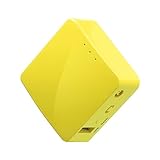
- 【WIRELESS MOBILE MINI TRAVEL ROUTER】 Convert a public network (wired or wireless) to a private Wi-Fi for secure surfing. Tethering. Powered by any laptop USB, power banks or 5V/2A DC adapters (sold separately). 39g (1.41 Oz) only, portable and pocket friendly. 2.4GHz ONLY
- 【OPEN SOURCE & PROGRAMMABLE】 OpenWrt pre-installed, USB disk extendable.
- 【LARGER STORAGE & EXTENDABILITY】 128MB RAM, 16MB Flash ROM, dual Ethernet ports, UART and GPIOs available for hardware DIY.
- 【OPENVPN CLIENT】 OpenVPN client pre-installed, compatible with 30+ VPN service providers.
- 【PACKAGE CONTENTS】 GL-MT300N-V2 (Mango) mini router (2-year Warranty), USB cable, Ethernet cable, User Manual. Please update to the latest firmware.
When replacing the router is the better option
Buy or deploy different hardware only after confirming that the current unit cannot run a compatible VPN client. A suitable replacement must match four requirements:
Do these 3 things before closing this tab:
1Clear out junk files and repair common Windows errors2Fix the driver behind crashes, sound loss and screen glitches3Repair Windows errors before they cause bigger problems- The exact model and hardware revision support VPN client mode.
- Its firmware supports the protocol offered by your provider.
- It can import the required configuration and credentials.
- Its routing controls match your goal: all clients, selected clients or a combination.
Verify these points in the current compatibility list or manual before purchase. A product described only as “VPN-ready” may support a server, passthrough or an unrelated feature rather than the client function needed here. If you keep the ISP gateway, confirm bridge or passthrough behavior and understand which device will perform routing.
Costs and equipment choices
The setup can involve more than one purchase, but none is automatically required. If the existing router has a compatible client, the hardware change may be limited to an Ethernet cable for a convenient wired setup; ASUS recommends wired configuration, but the cable is optional where the model permits wireless administration. You will also need a VPN subscription that supplies router-compatible protocols and configuration data. The sources do not establish a standard subscription price, so compare the provider’s current plans directly.
If the ISP gateway lacks client mode, compare the cost and complexity of three approaches:
- Separate VPN-capable router: gives one place to configure the tunnel and can protect devices that cannot run an app, but adds hardware and may require bridge or passthrough configuration.
- VPN applications on individual devices: avoids buying another router and allows different servers per device, but every supported device needs its own installation, login and maintenance.
- Keep the existing router without a VPN: costs nothing extra, but does not provide router-level routing for devices that cannot run a VPN application.
When comparing replacement routers, prioritize exact firmware support, protocol compatibility and routing controls over brand names or a generic “VPN” label. Confirm those details on the manufacturer’s current compatibility list before ordering. A router that supports only VPN-server mode will not create the outgoing provider tunnel described here.
What’s actually slowing this PC down?
Pick the symptom - the matching free tool is one click away.
Common setup pitfalls
- Confusing client and server mode: remote-access server settings do not connect the home network to a provider.
- Using ordinary account credentials: some providers issue separate service credentials for router connections.
- Uploading the wrong file: choose the configuration for the selected server and protocol, and observe the router’s file-format and size limits.
- Assuming all clients are covered: a selected-device list can leave televisions, consoles or guests on the normal connection.
- Ignoring hardware revisions: a feature available on one revision may be absent on another with a similar product name.
- Overlapping subnets: the LAN range and VPN server range can conflict and prevent a connection.
- Expecting automatic recovery: reconnect and kill-switch behavior is model-specific; verify it rather than relying on assumptions.
- Forgetting how to undo the change: record the original WAN and routing settings and learn where the profile can be disabled.
Operational checks after setup
- Keep the router firmware current when the manufacturer publishes a release that preserves VPN-client support.
- Store configuration files and service credentials securely; anyone with router administrator access may be able to alter the tunnel.
- Recheck the selected-device list after adding new phones, televisions or smart-home products.
- Test the connection after changing the provider, protocol, server or router firmware.
- Know how to disable the profile quickly if a work service, banking site or local device requires the ordinary connection.
Router-level VPN protection is a routing arrangement, not a guarantee that every application will behave identically. The model’s firmware, protocol implementation and policy controls determine which traffic enters the tunnel and what happens when the connection drops.
Independent reader supportYour contribution helps us test, update, and keep practical guides available for everyone.Key limits documented by the manufacturers
| Item | Documented detail | Scope |
|---|---|---|
| TP-Link profile capacity | Up to six VPN-server profiles; one active at a time. | TP-Link’s cited client guide, updated April 17, 2026. |
| TP-Link OpenVPN file | One configuration file under 20 KB in the described client. | TP-Link’s cited client guide; other models may differ. |
| ASUS connection indicator | A tick icon indicates a successful connection in the described interface. | ASUS web-GUI guide, updated March 24, 2026. |
| ASUS per-device routing | Depends on VPN Fusion support; without it, the client may cover all devices. | ASUS model-dependent behavior. |
These limits are not universal specifications for every router. Always use the manual for your exact hardware and firmware.
Rank #4

- 【Five Gigabit Ports】1 Gigabit WAN Port plus 2 Gigabit WAN/LAN Ports plus 2 Gigabit LAN Port. Up to 3 WAN ports optimize bandwidth usage through one device.
- 【One USB WAN Port】Mobile broadband via 4G/3G modem is supported for WAN backup by connecting to the USB port. For complete list of compatible 4G/3G modems, please visit TP-Link website.
- 【Abundant Security Features】Advanced firewall policies, DoS defense, IP/MAC/URL filtering, speed test and more security functions protect your network and data.
- 【Highly Secure VPN】Supports up to 20× LAN-to-LAN IPsec, 16× OpenVPN, 16× L2TP, and 16× PPTP VPN connections.
- Security - SPI Firewall, VPN Pass through, FTP/H.323/PPTP/SIP/IPsec ALG, DoS Defence, Ping of Death and Local Management. Standards and Protocols IEEE 802.3, 802.3u, 802.3ab, IEEE 802.3x, IEEE 802.1q
Frequently Asked Questions
How do I set up a VPN on my router?
Confirm that the exact router and firmware support VPN client mode and the provider’s protocol. Obtain the provider’s router credentials, server details and configuration file, open the router’s local management interface, add a client profile, import the file if required, activate it and test a device. Menu names differ by manufacturer; ASUS uses Advanced Settings > VPN > VPN Client, while TP-Link documents Advanced > VPN Client.
How do I protect every device at home with one VPN?
Connect a VPN client profile at the router and use the model’s default all-device routing, if available. Some routers instead require you to add clients to a device list. Confirm the policy after activation because unlisted devices may continue using the ordinary internet connection.
Free tools Windows power users keep installed
One-click scans. No signup required.
Does my router support a VPN client?
Check the manufacturer’s manual or support page for the exact model, hardware revision and firmware. Look for VPN client—not only VPN server—support, then verify that the protocol offered by your provider is listed. ISP-issued routers may lack these controls, although compatibility must be checked rather than assumed.
Can I use an OpenVPN file on a home router?
Many supported ASUS and TP-Link models document importing a provider-supplied .ovpn file. The file must match the provider’s instructions and the router’s format and size requirements. TP-Link’s described client accepts one file under 20 KB, but other models can differ.
Can I choose which devices use the VPN?
Only when the router supports policy-based or per-device routing. TP-Link’s documented workflow uses a device list; selected clients use the tunnel and others keep the normal connection. ASUS says this requires VPN Fusion on supported models. Without that feature, connecting the client can route all devices.
What if my ISP router does not support VPN client mode?
Ask the ISP whether bridge or passthrough mode is available and place a separate VPN-capable router behind the gateway. Otherwise, use VPN applications on individual devices. Verify which device performs routing and confirm that the replacement supports your provider’s protocol before buying it.
Windows Errors? Fix Them Before They Spread
Repair common Windows errors and clear accumulated junk for a smoother, more stable PC - no reinstall needed.Free scan · no reinstallOutdated Drivers Are Slowing You Down
One free scan finds every outdated or missing driver and matches the right update for your exact hardware.Free scan · exact hardware matchWhy does the router connect but a device still have no internet?
Check whether the device is selected for VPN routing, whether a separate save or activation is required, and whether the LAN and VPN server subnets overlap. Remove the device from the VPN policy temporarily to test the ordinary WAN route. If credentials fail on another device too, resolve the provider or account issue first.
Will the router reconnect automatically if the VPN drops?
Do not assume so. ASUS notes that its described setup does not automatically reconnect after the VPN server is turned off and back on. Reconnect, failover and kill-switch behavior varies by model and firmware, so look for those controls in the exact router manual.
The Bottom Line
A router VPN is practical when the router supports client mode, the provider supplies a matching protocol and configuration, and the routing policy fits your home. Verify the exact model and firmware first, configure the profile in the local management interface, check every device’s routing status, and keep a quick way to disable the tunnel if a connection or service needs the normal WAN path.
Quick Recap
Product prices and availability are accurate as of the date/time indicated and are subject to change. Any price and availability information displayed on Amazon at the time of purchase will apply.

