Recommended Free Tools
Yes. A video doorbell can record without a mandatory cloud subscription when it supports local storage on a microSD card, built-in memory, or a compatible hub. The important choices are not the subscription itself, but where video is stored, whether the doorbell records events or continuously, how it is powered, and whether your existing chime and transformer meet the model’s requirements.
This guide explains how to choose a suitable setup, install it safely, keep a mechanical chime when possible, and verify that clips are actually being saved locally.
As an Amazon Associate I earn from qualifying purchases.
What “without a subscription” actually means
A subscription-free setup stores recordings at your home instead of requiring a vendor’s cloud plan. Depending on the doorbell, that storage may be a microSD card in the device, built-in memory, or a separate hub. Some manufacturers still offer optional paid cloud backup, but local recording can remain available without subscribing. Confirm the exact storage architecture before buying because the app, recording modes, and required accessories vary by model.
Quick wins for a faster PC:
Clear out junk files and repair common Windows errorsFree Scan →Scan for outdated or missing drivers - takes under a minuteDriver Scan →Repair Windows errors before they cause bigger problemsFix Now →Local recording and cloud backup are separate functions. A doorbell may save event clips locally while offering cloud access as an optional service. Likewise, “recording” may mean a short clip created when motion or a doorbell press is detected, not a 24/7 video stream. Read the specifications for the exact model and power mode rather than assuming that every feature is included at no cost.
#1 Best Overall

- 【2K Resolution】Details matter. Equipped with 2K resolution, see beyond traditional 1080p resolution with finer details and incredible clarity. Easily identify faces capturing every detail even when zooming in, showing you everything you need to see at your entrance. Connects via 2.4GHz Wi-Fi Band
- 【160° Diagonal FOV, Head-to-toe view】See the full picture with a 160° ultra-wide head-to-toe field of view. See items that traditional video doorbells may miss ensuring comprehensive coverage of your entryway.
- 【Ring Call – Never Miss a Visitor】Receive a phone call to answer your door without opening up the Tapo app. Quickly answer visitors with once-click convenience. Stay connected, stay informed, and never miss a visitor again. (Calls are generated via app and will not use cellular minutes)
- 【Prioritize What Matters】Eliminate unnecessary notifications by defining activity zones specifically monitoring for motion or people. Receive real-time alerts for true security concerns with 𝗙𝗿𝗲𝗲 𝗣𝗲𝗿𝘀𝗼𝗻 𝗗𝗲𝘁𝗲𝗰𝘁𝗶𝗼𝗻, eliminating false detection from other objects.
- 【Secure Storage No Subscription Required】Save recorded footage on a microSD card (up to 512GB, not included) or subscribe to Tapo Care for cloud storage which saves 30-days of video history. Your privacy is our priority when it comes to storing and transmitting sensitive information such as your camera videos and identity information. To ensure robust data security, Tapo implements AES 128-bit encryption and TLS 1.2 encryption protocols. (𝗥𝗲𝗰𝗼𝗺𝗺𝗲𝗻𝗱𝗲𝗱: 𝗖𝗹𝗮𝘀𝘀 𝟭𝟬, 𝗨𝗛𝟭, 𝗲𝗻𝗱𝘂𝗿𝗮𝗻𝗰𝗲 𝗺𝗶𝗰𝗿𝗼𝗦𝗗 𝗰𝗮𝗿𝗱𝘀 𝗼𝗿 𝗵𝗶𝗴𝗵𝗲𝗿)
Choose the power, recording, and storage combination first
Decide what you need the camera to do before you remove the old doorbell. A battery installation is useful where no low-voltage wiring exists, while wired power can enable more demanding recording modes on some products. Storage and power decisions are linked: a camera that records continuously will consume more storage and usually needs a constant power source.
| Decision | Option | What to verify |
|---|---|---|
| Power | Battery | Whether the selected battery mode supports only event clips or also supports continuous and pre-recording. |
| Power | Existing low-voltage wiring | Required voltage, transformer VA rating, polarity or terminal markings, and whether a chime bypass is needed. |
| Recording | Event-triggered clips | Motion or button events that create short recordings; check clip length and recording controls in the model’s app. |
| Recording | Continuous or pre-recording | Whether the feature is restricted to wired power and requires a storage card or hub. |
| Storage | microSD card | Supported capacity and card type for the exact doorbell. |
| Storage | Built-in memory | How clips are accessed, retained, and deleted when the memory fills. |
| Storage | Hub | The compatible hub model and whether the doorbell can operate without that hub. |
Do not treat hardwiring as a guarantee of 24/7 recording. The manufacturer must explicitly support continuous recording for that model and mode.
Check the model’s limits before purchase
Storage capacity is model-specific
Published capacities differ significantly. The eufy Video Doorbell C31 lists microSD support up to 128 GB and states that local microSD recording does not incur subscription fees. Reolink’s Battery Video Doorbell (2nd Gen) documentation lists support for a microSD card up to 512 GB. Reolink’s US comparison information lists up to 256 GB for the cited wired Wi-Fi and PoE doorbell models. These figures apply to those products and regions; they are not universal recommendations for every doorbell.
Windows Errors? Fix Them Before They Spread
Repair common Windows errors and clear accumulated junk for a smoother, more stable PC - no reinstall needed.Free scan · no reinstallCrashes, No Sound, or Screen Glitches?
Random freezes, missing sound and display glitches usually trace back to one bad driver. Find and replace yours safely.Free scan · under a minuteBuy a card only after checking the exact product page or manual. A card with a larger nominal capacity than the doorbell accepts may not work as intended, and some models require in-app formatting before recording begins.
Battery and wired modes can expose different features
Reolink states that its Battery Video Doorbell (2nd Gen) supports 24/7 continuous recording and pre-recording only in Wired Power Mode. Those functions are unavailable in Battery Mode. A battery installation can therefore be perfectly suitable for event clips while being unsuitable for an always-on recording plan.
Rank #2

- See More with 1:1 Head-to-Toe View: Sees everything with 150°×150°ultra-wide field of view. Captures visitors head-to-toe and packages tucked right against your door.
- Wire-Free or Wired: Up to 6 months battery life or continuous power via hardwiring. Built-in USB-C rechargeable battery allows easy charging by detaching and connecting to the included USB-C Charging Cable. Note:You can enable 24/7 local recording when you add a Micro SD card (sold separately) and set up the doorbell with hardwired power.
- See The Whole Story - Clearer: 1536x1536 HD Video Doorbell with Color Night Vision, capture all porch arrivals and departures in greater detail. Our award-winning starlight sensor amplifies low light for vivid color images.
- Two-Way-Audio & Auto-Response: Easily respond to visitors by pressing the "talk" button in the Wyze app. Or just tap to use auto-responses.
- Smart Notifications & Voice Deterrence: You'll receive instant notifications on your phone for any visitor or package delivery, ensuring you're always informed. Additionally, the doorbell can alert visitors that they are being recorded with a voice prompt when enabled.
Confirm regional and edition details
Voltage, storage limits, included accessories, and feature availability can change by model, hardware revision, or region. Record the full model name and region when checking documentation, and use that information when selecting a card, transformer, or hub.
Inspect existing wiring and the chime
Before touching wires, locate the indoor chime and transformer and confirm that the existing doorbell operates. For the Tapo D235, D225, and TD25 configurations covered by TP-Link, hardwiring requires an existing wired doorbell and an 8–24 V AC transformer rated at least 10 VA. That requirement is specific to those models, not a universal doorbell standard.
Do these 3 things before closing this tab:
1Fix the driver behind crashes, sound loss and screen glitches2Clear out junk files and repair common Windows errors3Scan for outdated or missing drivers - takes under a minuteIdentify the chime type and terminal labels from the manufacturer’s guide. A mismatch between the labels in your home and the guide is a reason to stop and consult a licensed electrician. Turn off the relevant circuit breaker before handling the wiring, even though doorbell circuits are low voltage.
Understand the chime trade-off
In TP-Link’s covered Tapo setup, Always-On Mode requires bypassing the existing chime. The charging-only wiring mode allows the existing chime to remain. In practice, you may have to choose between keeping the mechanical chime active and enabling the power mode that supports the most demanding recording behavior. Other products can use different wiring schemes, so follow the selected model’s instructions rather than copying this arrangement to another brand.
Install a subscription-free doorbell step by step
1. Define the recording outcome
- Decide whether event clips are sufficient or whether you need continuous and pre-event recording.
- Choose battery or wired power based on the home’s wiring and the feature requirements.
- Write down the exact model, region, supported storage method, and maximum card capacity before ordering accessories.
2. Prepare local storage
- For a microSD model, obtain a card within the stated capacity limit.
- Insert the card in the location shown in the model guide, normally before final mounting if access will be difficult afterward.
- Use the manufacturer’s app to format or initialize the card when prompted.
- If the system uses built-in memory or a hub, complete that device’s setup instead of inserting an incompatible card.
Do not assume that a doorbell has local storage merely because its app displays a recording screen. Verify that the model accepts a card, includes memory, or is paired with a supported hub.
Rank #3

- 【Complete Flexibility - Wired and Wireless】The Tapo D225 offers users complete flexibility to mount the doorbell as they need. If hardwired (8-24V), users can take advantage of existing doorbell wiring to install. Hardwiring provides a unique option for 24/7 continuous recording for comprehensive monitoring. The doorbell camera also has a built in 10,000mAh battery allowing for flexible installation wherever needed for up to 8 months of battery life between charges.
- 【Incredible 2K QHD Live View】View with incredible clarity monitoring in fine detail. Easily identify faces even when zoomed in, showing you everything you need to see outside your door. 2.4 GHz Wi-Fi required; does not support 5 GHz.
- 【180° Head-to-Toe Field of View】Say goodbye to blind spots. See the full picture with a 180° ultra-wide head-to-toe field of view. The ideal front door camera ensures you capture every detail from top to bottom, providing complete coverage.
- 【Ring Call – Never Miss a Visitor】Receive a phone call to answer your door without opening up the Tapo app. Quickly answer visitors with once-click convenience. Stay connected, stay informed, and never miss a visitor again. (Calls are generated via app and will not use cellular minutes)
- 【Free Person/Package/Vehicle Detection】This smart doorbell is equipped with advanced AI technology that detects any person, package or vehicle approaching your property. It sends real-time notifications directly to your device indicating person/vehicle/package detection, with the ability to select one, all, or no detection notifications.
3. Install the app and pair the device
- Install the manufacturer’s current app from the official app store.
- Create or sign in to the required account, then add the doorbell using the pairing process in the model guide.
- Connect it to the supported Wi-Fi network or, for a PoE model, complete the specified network connection.
- Apply firmware updates offered during setup before configuring recording options.
An account may be required for device management even when a paid cloud plan is not required for local recording. Do not enable a cloud trial unless you understand when it ends and what remains available afterward.
Free tools Windows power users keep installed
One-click scans. No signup required.
4. Install a battery doorbell
- Charge the battery according to the manufacturer’s instructions.
- Use the supplied adhesive bracket or screws, depending on the surface and the mounting guidance.
- Position the camera so the approach path and the package-drop area are visible without pointing unnecessarily into neighboring property.
- Secure the doorbell, insert the battery, and complete the app’s alignment and motion-area settings.
The Tapo guide cited for this setup permits battery installation without existing wiring and describes both adhesive-bracket and screw mounting. A battery installation can simplify placement, but check whether the chosen model limits continuous or pre-recording when operating this way.
5. Install a wired doorbell safely
- Switch off the doorbell circuit at the breaker and verify that the old doorbell is no longer energized.
- Confirm that the transformer meets the selected model’s voltage and VA requirements.
- Label or photograph the existing connections before disconnecting the old unit.
- Connect the new doorbell and any supplied chime connector or bypass component exactly as shown in the model guide.
- Mount the doorbell, restore power, and wait for the app to report normal operation.
Use the guide’s chime-bypass procedure only when the selected recording or power mode calls for it. If the wiring markings do not match the instructions, stop and contact a licensed electrician instead of guessing.
6. Select local recording settings
- Open the device’s recording or storage settings in the app.
- Choose event recording, continuous recording, pre-recording, or the combination supported by the current power mode.
- Set motion zones and sensitivity so that the camera records the area you need rather than every passing vehicle.
- Confirm that the destination is local storage, not only a cloud plan.
Continuous recording and pre-recording may disappear from the menu when the doorbell is running on battery power. If you need those functions, check whether the model requires wired power and a card or hub.
7. Verify that a clip is stored locally
- Close the door, walk through the selected motion zone, or press the doorbell button.
- Wait for the event to appear in the app.
- Open playback and confirm that the clip can be viewed from local storage.
- Check the timestamp, image quality, and whether the beginning of the event is present.
- Review the storage indicator and recording schedule after the test.
This verification catches an unformatted card, an incorrect storage destination, or a power mode that does not support the recording type you selected.
Rank #4

- Wide 166° Field Of View For Video Doorbell & f/2.5 Aperture: Covers your front porch with no blind spots; CMOS sensor and f/2.5 aperture deliver moderate depth of field with soft background blur and crisp facial details for fast visitor recognition
- Reliable 2.4 GHz Wi‑Fi & 1.2T AI Chip With Fast, Stable Response: This wireless video doorbell supports only 2.4 GHz Wi‑Fi for improved signal penetration and range; high‑speed AI chip processes thousands of operations per second for instant alerts and enhanced security
- No Subscription Required & Full Access to Essential Features With Zero Hidden Costs: Get real-time alerts, two-way audio, human detection, and video playback with this doorbell camera, with no subscription required; all essential features stay free, optional subscription plans are available for advanced services such as cloud storage and enhanced AI event classification
- HDR Night Vision With Invisible 940 nm Infrared: HDR tech and high-sensitivity sensor in this doorbell camera adjust to all lighting conditions; invisible 940 nm IR fill light offers clear night vision up to 10 meters without red glow for discreet, around-the-clock security
- Battery Life & Usage Tips for Your Doorbell Camera: In laboratory conditions, the battery lasts up to 60 days with 30 daily motion activations and 10-second video recordings; actual performance may vary based on usage and environment; extend battery life by adjusting motion sensitivity, narrowing detection zones, or avoiding high-traffic areas. (Powered by a built-in, non-removable rechargeable battery for wire-free operation.)
Battery versus wired operation
| Consideration | Battery installation | Wired installation |
|---|---|---|
| Mounting | Can be installed where no existing doorbell wires are available. | Uses existing low-voltage wiring when the transformer meets the model’s specification. |
| Recording capability | May be limited to event clips; Reolink’s Battery Video Doorbell (2nd Gen) does not provide continuous or pre-recording in Battery Mode. | Can enable continuous or pre-recording on models that explicitly support those features in Wired Power Mode. |
| Chime | Depends on the product’s wireless-chime or app behavior. | May retain a mechanical chime in charging mode or require a bypass in an Always-On configuration, as described for the cited Tapo models. |
| Maintenance | Requires monitoring and charging the battery. | Requires correct transformer capacity and safe wiring work. |
Choose the arrangement that matches the recording result you actually need. A battery doorbell is not automatically inferior, and a wired model is not automatically capable of continuous recording; the specifications decide.
Independent reader supportYour contribution helps us test, update, and keep practical guides available for everyone.Storage and recording choices without cloud fees
Event clips
Event recording saves footage when the camera detects motion or someone presses the button. It uses less storage than a continuous stream and is usually the practical choice for battery operation. Set the detection zones and sensitivity carefully so the card is not filled with irrelevant activity.
Continuous recording
Continuous recording creates an always-on timeline and consumes storage more quickly. It also needs a power mode that can keep the camera running continuously. Reolink’s cited battery doorbell requires Wired Power Mode for this function, along with a supported microSD card.
Pre-recording
Pre-recording captures video immediately before a detected event, helping show what happened before motion reached the detection zone. It is not the same as ordinary event recording and may be restricted to wired operation, as in the Reolink example.
The Tool Desk
Outbyte Driver Updater FREEFix the driver behind crashes, sound loss and screen glitchesFind Drivers →Outbyte PC Repair FREERepair Windows errors before they cause bigger problemsFix Now →Local storage versus optional cloud backup
Local clips remain on the card, built-in memory, or hub and do not require a cloud subscription on products that explicitly support that arrangement. A paid cloud plan may still add remote backup or other app features. Check the current service description for the exact model; do not assume that every app feature is free simply because local recording is available.
Best Value
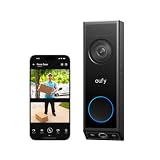
- 𝐃𝐮𝐚𝐥 𝐂𝐚𝐦𝐞𝐫𝐚𝐬, 𝐃𝐨𝐮𝐛𝐥𝐞 𝐒𝐞𝐜𝐮𝐫𝐢𝐭𝐲 | Dual cameras work seamlessly together. The front camera captures visitors head-to-toe, while the downward camera clearly shows packages left on your doorstep. Never miss a delivery or porch activity again.
- 𝐋𝐨𝐜𝐚𝐥 𝐒𝐭𝐨𝐫𝐚𝐠𝐞,𝐍𝐨 𝐒𝐮𝐛𝐬𝐜𝐫𝐢𝐩𝐭𝐢𝐨𝐧 | 8GB emmc local storage built in. No subscription. No monthly fee. Ever! Saves you over $120 per year!
- 𝐒𝐞𝐞 𝐖𝐡𝐚𝐭 𝐌𝐚𝐭𝐭𝐞𝐫𝐬 𝐢𝐧 𝟐𝐊 𝐅𝐮𝐥𝐥 𝐇𝐃 𝐂𝐥𝐚𝐫𝐢𝐭𝐲 | When a stranger rings your bell, details matter. 2K clarity reveals more details. Get clear and detailed visuals of your doorstep and anyone who drops by.
- 𝐖𝐢𝐫𝐞𝐥𝐞𝐬𝐬 𝐨𝐫 𝐖𝐢𝐫𝐞𝐝, 𝐘𝐨𝐮𝐫 𝐂𝐡𝐨𝐢𝐜𝐞 | Mount and go with the quick-release rechargeable battery — swappable in seconds, zero downtime. For permanent installs, wire it to a 16–24V power source and let the battery top up continuously. Let the video doorbell that fits your home, not the other way around.
- 𝐂𝐨𝐥𝐨𝐫 𝐍𝐢𝐠𝐡𝐭 𝐕𝐢𝐬𝐢𝐨𝐧 𝐟𝐨𝐫 𝐚 𝐂𝐥𝐞𝐚𝐫 𝐕𝐢𝐞𝐰 | Introducing the industry's first dual-light system paired with an advanced light capturing and processing algorithm. Less blur than previous iterations of night vision and a clear nighttime viewing distance of up to 16ft (5m).
Common problems and the safest fix
The doorbell powers on but continuous recording is missing
Check the current power mode first. On models that restrict continuous recording to wired operation, switching from battery to wired power is required. Then verify that a supported card or hub is installed and initialized. If the option remains absent, consult the model’s feature list rather than forcing a wiring change.
The existing chime no longer rings
Review whether the selected mode requires a chime bypass. For the covered Tapo configuration, Always-On Mode bypasses the mechanical chime, while charging-only wiring keeps it. Restore the manufacturer-approved wiring arrangement and turn off the breaker before making changes.
No clips appear in local playback
Confirm that the card is within the model’s capacity limit, inserted correctly, and formatted by the app. Check that recording is enabled and that the event actually crossed the motion zone. If the product uses built-in memory or a hub, verify that the doorbell is paired with that storage system instead of looking for a card slot it does not use.
The transformer does not match the specification
Do not connect the doorbell until the transformer has been checked. The cited Tapo D235, D225, and TD25 requirements are 8–24 V AC and at least 10 VA. A different model may require different values. Replace or assess the transformer with a qualified electrician rather than guessing from the doorbell’s connector shape.
Wiring labels differ from the guide
Stop installation and seek a licensed electrician. TP-Link specifically advises professional help when chime wiring markings do not match its instructions. Incorrect connections can damage the doorbell or leave the chime and transformer operating outside their intended configuration.
Privacy, reliability, and maintenance practices
- Point the camera at your entrance and walkway, and use privacy or activity zones where the app provides them.
- Protect the doorbell account with a unique password and enable available account-security controls.
- Keep the app and device firmware current so storage and recording controls remain compatible with the supported software.
- Check local playback periodically instead of waiting until an incident occurs.
- For battery models, monitor charge level and plan charging before the battery reaches a critical level.
- For wired models, document the breaker and transformer location so future maintenance can be performed safely.
- Export important clips promptly if the app provides an export function; local storage is not the same as an archival backup.
A purchase-and-installation checklist
- Exact model name and region confirmed.
- Local storage method identified: microSD, built-in memory, or hub.
- Maximum supported card capacity checked.
- Event, continuous, and pre-recording availability checked for the intended power mode.
- Battery or wired power selected based on the desired recording behavior.
- Existing chime behavior confirmed for the selected wiring mode.
- Transformer voltage and VA rating compared with the model’s requirements.
- Circuit breaker location identified before wiring work.
- Manufacturer app installed and device paired.
- Storage initialized and a local playback test completed.
What a sensible subscription-free setup looks like
For a home that needs occasional evidence of deliveries and visitors, a battery doorbell with supported local event storage may be enough. For a property that needs a continuous timeline or pre-event context, choose a model and power arrangement that explicitly support those functions, usually with wired power and a compatible card or hub. If keeping the existing mechanical chime is essential, verify whether the required recording mode bypasses it before installation.
The reliable path is to match three specifications—power, recording mode, and storage—then follow the exact wiring and mounting guide. Once an event clip plays back from local storage, you have confirmed that the doorbell can perform its core job without a mandatory subscription.
Quick Recap
Product prices and availability are accurate as of the date/time indicated and are subject to change. Any price and availability information displayed on Amazon at the time of purchase will apply.

