The Tool Desk
Outbyte Driver Updater FREEFix the driver behind crashes, sound loss and screen glitchesFind Drivers →Outbyte PC Repair FREEClear out junk files and repair common Windows errorsFree Scan →The simplest reliable homelab design is a UniFi Cloud Gateway running UniFi Network, a managed VLAN-capable switch, and one or more UniFi access points. Put the gateway and controller in charge first, adopt the switch and access points, create only the networks your lab needs, map SSIDs to those networks, and then write firewall and isolation rules deliberately. This order prevents the most common failures: devices that cannot adopt, wireless clients landing on the wrong subnet, and VLANs that exist in the controller but are not carried across the switch path.
Ubiquiti says a UniFi Console includes UniFi OS and UniFi applications and can be configured from the mobile app or a browser. Its current guidance also recommends a Cloud Gateway for most new deployments because it combines the gateway, networking and security functions, and UniFi management software in one device. The exact gateway, switch, and access-point models depend on your WAN speed, port count, PoE budget, floor plan, client density, and application needs.

As an Amazon Associate I earn from qualifying purchases.
Choose the UniFi control plane before buying anything
The control plane is where UniFi Network runs and where you configure gateways, switches, access points, VLANs, SSIDs, and policies. Choosing it first determines how much hardware and administration your homelab requires.
Recommended Free Tools
| Option | What it provides | Best fit | Important trade-off |
|---|---|---|---|
| UniFi Cloud Gateway | Gateway, routing and security features, UniFi OS, and UniFi Network in one appliance. | Most new homelabs that want the shortest setup path and one supported management location. | You select an appliance whose WAN throughput, ports, form factor, and application capacity fit the lab; no single model is right for every installation. |
| Self-hosted UniFi Network Server | UniFi Network application on Windows, macOS, or Linux, with routing supplied by a separate gateway. | Administrators who already operate servers and need control over where the controller runs. | You must maintain the host and ensure controller-to-device communication through firewalls, VLANs, and routed networks. |
| CloudKey or another separate console | A dedicated management appliance while routing is handled elsewhere. | Deployments that want an appliance-based controller without replacing an existing gateway. | Its management network, internet access, and adoption reachability still have to be designed correctly. |
| Standalone access-point mode | Individual AP configuration without the full UniFi Network management experience. | A very small number of APs where advanced coordination is not required. | Ubiquiti notes that this mode lacks seamless roaming, requires wired AP connections, and does not provide remote management in the same way. |
Ubiquiti’s official recommendation is explicit: “For the best UniFi experience, we strongly recommend starting with a Cloud Gateway, which integrates networking, security, and UniFi management software into a single device.” Treat that as vendor guidance rather than an independent performance test. See Choosing the Right UniFi Control Plane and How to Set Up UniFi.
#1 Best Overall

- Create a reliable wireless business network with this wireless access point that features a high-speed data transfer rate
- 3 Gbit/s wireless transmission speed provides high and efficient communication with maximum efficiency
- IEEE 802.11 a/b/g/n/ac/ax wireless LAN standard ensures trouble-free and convenient connectivity
- Gigabit Ethernet port for ultra-fast wired network speeds
- PoE+ port to receive data and power of up to 25.5W through a single cable in places where a power outlet is not available
When a self-hosted controller makes sense
A self-hosted server is reasonable if you are comfortable with Linux, Windows, or macOS administration, backups, host patching, DNS, and firewall rules. The controller does not replace a router: your separate gateway must provide routing, DHCP, and the VLAN interfaces, while UniFi Network manages compatible UniFi devices. Discovery is easiest when the devices and application share a network; a controller on another subnet may need additional connectivity configuration.
Do not choose a model from the title alone
Compare gateways by integrated-versus-separate control plane, required UniFi applications, expected WAN throughput, physical format, and server-maintenance tolerance. Compare switches by managed VLAN support, port count and speed, PoE budget, uplink capacity, and compatibility with the selected gateway and APs. Compare APs by coverage area, client density, supported bands, wired-backhaul availability, and PoE requirement. Stock, price, and model availability change, so verify those details when you buy.
Plan the lab before connecting equipment
Write down the traffic boundaries you actually need. A lab may contain trusted administration devices, servers and virtual machines, IoT equipment, and guests, but these are examples, not mandatory UniFi networks. Start with the fewest segments that solve a real problem; every additional VLAN adds routing, DHCP, firewall, and troubleshooting work.
- Inventory: gateway or existing router, switch ports, AP locations, PoE sources, hypervisors, NAS devices, management interfaces, and expected WAN speed.
- Addressing: select non-overlapping private subnets that do not conflict with an existing LAN, site-to-site link, or VPN.
- Communication matrix: list which segments may reach the internet, the gateway, management interfaces, shared storage, DNS, or one another.
- Backhaul: decide which APs are wired. UniFi SSIDs mapped to multiple VLANs normally require a wired trunk path from the gateway or switch to each AP.
- Recovery: keep an Ethernet-connected administration device available so a wireless or VLAN mistake does not lock you out.
Connect and configure the UniFi console
- Attach the console. Connect its WAN or internet-facing port to the upstream modem or router as the hardware documentation specifies, and connect a LAN port to your initial switch or directly to a computer for setup. Power it on and wait for the status indicator to settle.
- Open the setup wizard. Use the UniFi mobile app or browse to the console’s local address. Follow the prompts to create the initial administrator, set the device name, and configure the basic internet connection. Menu names can vary between UniFi Network releases.
- Choose account linking deliberately. A UI account is optional for local operation. Linking one enables remote management, account-linked automatic backups, and email notifications; it is not required to administer the console locally.
- Update before building policy. Apply offered UniFi OS and Network updates only when you can tolerate a brief interruption, then confirm the console returns with the expected configuration.
- Record the management path. Note the console’s management address, administrator credentials location, and which physical port is your recovery connection.
If the wizard cannot find the console, check power, link lights, cabling, and whether the console has a usable internet path. A separate console that is placed on a VLAN blocking its required outbound access may appear defective when the real problem is routing or firewall policy. The vendor’s setup sequence is documented in How to Set Up UniFi.
Rank #2
Adopt switches and access points
- Connect one device at a time. Plug the managed switch and each AP into the console’s LAN or an already-adopted switch. Supply PoE from a compatible switch or injector where required.
- Wait for discovery. In UniFi Network, open the device list and select the pending switch or AP. On a Cloud Gateway, same-network discovery is the normal path.
- Adopt and name it. Click Adopt, wait for provisioning, and give the device a location-based name such as “Office switch” or “Rack AP.”
- Confirm the device returns online. A reboot or firmware update during adoption is normal. Do not unplug it while the controller shows provisioning.
- Repeat for the remaining devices. Keep at least one already-working management path while adding the next device.
Discovery and adoption are simplest when the UniFi devices and UniFi Network application share a network. A self-hosted controller or separate console on another VLAN or subnet may require permitted routing and additional adoption configuration. Consult UniFi – Device Adoption for the routed and remote-controller cases. Port forwarding is not a standard requirement for same-network adoption on a Cloud Gateway.
Create the wired networks and VLANs
In UniFi Network, open the network settings area (the exact label may change by release) and create a virtual network for each segment that has a clear purpose. For a Cloud Gateway, the gateway can normally provide the VLAN interface, routing, DHCP, and DNS settings. Set a VLAN ID, subnet, DHCP behavior, and any available isolation options.
An illustrative homelab plan
The following is an example design, not a required UniFi template. Replace the IDs and subnets with values that do not overlap your existing networks or VPNs.
Do these 3 things before closing this tab:
1Repair Windows errors before they cause bigger problems2Fix the driver behind crashes, sound loss and screen glitches3Clear out junk files and repair common Windows errors| Purpose | Example VLAN ID | Example subnet | Typical clients | Policy question |
|---|---|---|---|---|
| Trusted administration | 10 | 192.168.10.0/24 | Admin workstation, management laptop | Which gateways, switches, APs, and servers may it manage? |
| Lab servers | 20 | 192.168.20.0/24 | Hypervisors, containers, test services | Which trusted clients may reach service ports, and should servers initiate connections back? |
| IoT | 30 | 192.168.30.0/24 | Sensors, appliances, media devices | Does it need DNS, internet, or one specific controller, but not broad LAN access? |
| Guests | 40 | 192.168.40.0/24 | Visitor phones and laptops | Should guests have internet only, with no access to private networks? |
Use DHCP scopes where the UniFi gateway is serving addresses. Reserve static addresses or DHCP leases for infrastructure that must be found reliably, such as a hypervisor, DNS server, or monitoring host. Configure DNS settings only after deciding whether clients should use the gateway, an internal resolver, or an external service.
Rank #3

- Four stream 802.11AC Wave2 technology
- Supports 200+ concurrent users
- 802.3af PoE compatibility
- Optional covers (sold separately) allow the Unifi nanohd AP TO discreetyly blend into its setting
Using a third-party gateway
If routing is handled by a non-UniFi gateway, create the corresponding VLAN, subnet, DHCP scope, and firewall behavior on that gateway first. Then enter the matching VLAN ID and network details in UniFi so switches and APs tag traffic consistently. UniFi cannot create a complete routed network on a gateway it does not control. The VLAN ID, subnet, DHCP server, and firewall rules must agree across both systems. See Creating Virtual Networks (VLANs).
Creating a VLAN does not automatically define the security policy you want. Some third-party gateways block inter-VLAN traffic by default, while others permit it; behavior varies. Verify actual routing and firewall rules instead of assuming that a network is isolated because it has a different VLAN number.
Map Wi‑Fi SSIDs to the right VLANs
- Open the Wi‑Fi settings. Go to Settings > WiFi in UniFi Network; labels can differ slightly by version.
- Create an SSID. Choose a clear name, set the security mode and passphrase, and select the UniFi network or VLAN created for that SSID.
- Limit broadcast locations. Select only the APs that should advertise the SSID. A guest network may belong on every AP, while a lab-only SSID may be useful only in the office or rack area.
- Check the AP uplink. Every switch port between the gateway and AP must carry the VLANs used by that AP’s SSIDs. An AP uplink normally operates as a trunk; on a third-party switch, explicitly allow the required tagged VLANs.
- Join a test client. Confirm it receives an address from the expected subnet, resolves DNS, reaches only the services allowed by policy, and has the intended internet access.
UniFi switches permit all traffic by default according to the SSID guidance, but a manually restricted trunk or a third-party switch can silently drop the tagged frames. If a client cannot join an SSID, inspect VLAN tagging and the switch path before changing wireless security settings. Ubiquiti’s procedure is in Creating UniFi WiFi SSIDs.
Security-mode compatibility
UniFi defaults are intended to balance compatibility and roaming, but older or IoT clients may not support the default WPA2/3 Personal combination. A dedicated IoT SSID or a compatibility-oriented security setting can help. Selecting WPA2 Personal can remove 6 GHz support, so apply that change only to the SSID that needs it and check the current options for your Network release and AP model.
Rank #4

- Model: UAP-NanoHD-US UniFi nanoHD Wave-2 Access Point Discretely install the UniFi nanoHD 4x4 MU-MIMO 802.11ac Wave-2 Access Point from Ubiquiti Networks into nearly any building environment, thanks to the optional skins which come in a variety of designs including camouflage, concrete, marble, wood, black and fabric. This Ubiquiti Networks AP also comes equipped with a single Gigabit Ethernet 802.3af PoE-compliant network port and includes mounting kits for easy installation to either the wal
- Deploy the UniFi nanoHD AP in high-density environments requiring maximum wireless performance and minimal footprint.
- Our Smallest UniFi Access Point Available On the Market. UAP nanoHD is 30% smaller than UAP AC Pro version.
- Supports 200+ Concurrent Users
Apply isolation at the layer that matches the problem
“Isolation” can mean several different controls. Select the layer based on the traffic you are trying to stop.
| Control | Stops or limits | Use it for | It does not replace |
|---|---|---|---|
| Gateway firewall or Network Isolation | Traffic routed between VLANs or other networks. | Preventing IoT or guest networks from reaching lab servers and management interfaces. | AP-level client controls or switch ACLs where those are specifically required. |
| Switch ACLs | Traffic decisions enforced at the switch according to supported ACL features. | More granular switch-level network or device restrictions. | A complete gateway policy when traffic leaves the local switching domain. |
| AP Client Isolation | Client-to-client communication among devices associated with the same AP. | Guest Wi‑Fi or untrusted clients that should not talk directly to one another. | Inter-VLAN firewall rules; clients on different routed networks are controlled at the gateway. |
Before enabling a blanket block, write the allowed communication matrix. A server VLAN may need inbound access from an administration VLAN, DNS from every client network, NTP, backup traffic, or a single IoT controller. Blocking all inter-network traffic can break those services even when internet access still works. Ubiquiti’s distinctions are described in Implementing Network and Client Isolation in UniFi.
Independent reader supportYour contribution helps us test, update, and keep practical guides available for everyone.Verify the build from a client’s perspective
Test each SSID and at least one wired port. A successful controller status alone does not prove that DHCP, tagging, routing, or policy is correct.
Quick wins for a faster PC:
Clear out junk files and repair common Windows errorsFree Scan →Fix the driver behind crashes, sound loss and screen glitchesFind Drivers →- Address check: confirm the client receives an address, mask, gateway, and DNS server from the intended network.
- VLAN check: connect a laptop to a representative switch port and verify that its address matches the port profile or native network you intended.
- Internet check: resolve a known hostname and reach an external site from networks that should have internet access.
- Inter-VLAN check: test an explicitly allowed service, such as HTTPS to a lab dashboard, then test a deliberately forbidden service. Record both results.
- Management check: from the trusted administration network, open the gateway, switch, AP, and controller interfaces. Confirm untrusted networks cannot reach those interfaces unless required.
- Roaming check: walk between AP coverage areas with a client and observe whether it remains connected. Standalone AP mode should not be expected to provide seamless roaming.
- Failure test: disconnect an AP uplink or disable a test VLAN temporarily, then restore it and confirm the expected alarms and recovery behavior.
Troubleshoot the failures that occur most often
| Symptom | Likely cause | What to check |
|---|---|---|
| Console is not found during initial setup | No power, bad cable, wrong port, or blocked internet path. | Power and link indicators, cabling, DHCP lease, and upstream firewall rules. A non-gateway console needs the outbound access required by its setup process. |
| Device appears but adoption fails | Controller and device are on different subnets without permitted discovery or management traffic. | Place both on the same network for the first adoption when possible, or configure routed adoption according to the adoption guide. |
| AP is online but an SSID will not accept clients | The SSID’s VLAN is not allowed across an uplink, or the upstream switch tags it incorrectly. | Check the AP port profile, every intermediate trunk, native or untagged VLAN behavior, and the gateway interface for that VLAN. |
| Client joins but receives an address from the wrong subnet | SSID-to-network mapping, DHCP scope, or native VLAN is wrong. | Inspect the SSID assignment, DHCP leases, switch port profile, and whether another DHCP server is answering. |
| VLAN clients have internet but cannot reach a lab service | Gateway firewall or service-level access is blocking the path. | Check the inter-VLAN rule order, destination port, server firewall, listening address, and DNS record. |
| IoT device cannot connect after tightening security | Client requires older wireless security, local discovery, or access to a controller on another VLAN. | Use a dedicated compatibility SSID when necessary, permit only the required controller and DNS paths, and avoid opening the entire trusted LAN. |
| One guest device can see another guest device | AP Client Isolation is disabled, or traffic is being bridged through another path. | Enable client isolation on the relevant SSID/AP and test both clients on the same AP and on different APs; retain gateway rules for routed traffic. |
Keep the homelab maintainable
Back up the controller configuration
Keep automatic or downloaded backups in a location that is independent of the console. A linked UI account can provide account-linked automatic backups and email notifications, but local administration does not require that account. Test that a backup contains the network, Wi‑Fi, device, and policy settings you would need after a console failure.
Best Value
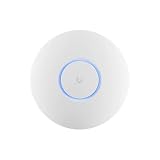
- Ubiquiti U6+ AP WiFi6 access point for network expansion
- Features 1xGbE PoE connection with dual-display support
- 2x2 dual-band technology for optimal wireless coverage
Document every dependency
Record VLAN IDs, subnet ranges, DHCP reservations, trunk ports, AP locations, SSID-to-VLAN mappings, firewall exceptions, and service dependencies. Include which gateway supplies DHCP and DNS. This prevents a future change to a switch port or SSID from becoming a mystery outage.
Change one variable at a time
When diagnosing a problem, alter one item—such as an uplink VLAN allowance or one firewall rule—then retest. Changing the SSID security, trunk profile, DHCP scope, and gateway policy simultaneously removes the evidence needed to identify the fault.
Expect interface changes
Ubiquiti’s help pages describe current workflows, but UniFi Network menu labels and options can change between releases. Use the current labels shown in your console and confirm the selected AP model supports the bands and security modes you choose. The official setup, VLAN, Wi‑Fi, adoption, control-plane, and isolation guides remain the authoritative references for those version-specific details.
What’s actually slowing this PC down?
Pick the symptom - the matching free tool is one click away.
What a sensible first build looks like
For most first-time homelab deployments, use a UniFi Cloud Gateway, adopt a managed switch and wired-backhaul AP, create a trusted network plus only the lab, IoT, or guest segments you truly need, and map each SSID to one of those networks. Carry the required VLANs on every AP uplink, then enforce communication with gateway rules and use AP Client Isolation only for same-AP client separation. Validate addressing and permitted services from real clients before adding more segments or automation.
Quick Recap
Product prices and availability are accurate as of the date/time indicated and are subject to change. Any price and availability information displayed on Amazon at the time of purchase will apply.

