Turn on the Playdate, connect it to Wi-Fi, sign in to your Playdate account, and set the clock. When setup finishes, the first two Season One games start downloading automatically. You can then get more games through the on-device Catalog or play.date/catalog, or install a game supplied outside Catalog by copying its .pdx file to the Playdate in Data Disk mode.
This guide covers a new or second-hand unit, the included 24-game Season One delivery, Catalog purchases, OS 3.0’s Game Library and Folders, USB sideloading, and the fixes for the most common setup and download problems.
As an Amazon Associate I earn from qualifying purchases.
What you need before starting
- A Playdate handheld and its included USB-C-to-USB-A cable. The cable supports both charging and data transfer.
- A USB power source for charging. The store listing says a USB power source is required; the handheld does not include a wall adapter.
- A working Wi-Fi network. Wi-Fi is required for initial setup and for downloading games.
- A Playdate account. If the device was reserved with an email address, use that same address when linking it during setup.
- For sideloading, a computer and a game file in
.pdxformat.
You do not need to buy a separate cable for ordinary setup or Catalog downloads. The included cable is intended for power and data. A spare data-capable cable or an adapter is useful only if the original is missing, damaged, or inconvenient to connect to your computer. Likewise, buy a USB-A power adapter only if you do not already have a suitable USB power source.
PC Slower Than It Used to Be?
A free scan shows the junk files, broken settings and background clutter dragging Windows down - then fixes them in one click.Free scan · Windows 10 & 11Crashes, No Sound, or Screen Glitches?
Random freezes, missing sound and display glitches usually trace back to one bad driver. Find and replace yours safely.Free scan · under a minuteA second-hand Playdate follows the same setup path as a new one: connect it to Wi-Fi, link it to your own Playdate account, set the time, and let its game downloads complete. Charge it first if the battery is empty or the screen does not respond. The important account step is linking the device to the account you intend to use, rather than leaving it attached to a previous owner’s credentials.
#1 Best Overall

- 🕹️Officially Licensed: Officially licensed Atari titles, ensuring an authentic gaming experience, includes bonus games.
- Portable Gameplay: Powered by 4 AA batteries (not included) or by a USB-C cable (not included). IMPORTANT NOTE: Please use standard non-rechargeable batteries.
- Collector's Item: A must-own for collectors and fans of video games, celebrating Atari's pioneering legacy spanning over 50 years.
- Headphone Jack: 3.5mm headphone jack lets you enjoy Atari on the go on your own privately. Built-in speaker with volume control and brightness adjustment
- 🎯 Iconic Titles: Relive iconic Atari classics like Pong, Yars Revenge, Breakout, Asteroids Centipede, Missile Command, and many more with 100 games in one compact unit.
Initial Playdate setup, step by step
- Power on the handheld. Press the Lock button on the top edge. If nothing happens, connect the included USB cable to a USB power source and charge the device before trying again. A completely discharged unit may need time on power before it responds.
- Join Wi-Fi. Follow the on-screen setup prompts to choose your wireless network and enter its password. The device needs an internet connection for account linking and game downloads, so complete this step even if you plan to use only sideloaded games later. A sideloaded title can be copied by USB, but initial configuration still expects Wi-Fi.
- Link your Playdate account. When prompted, sign in through play.date. Use the email address associated with the reservation when that applies; using a different address can leave the unit linked to the wrong account. On a used device, sign in with the new owner’s account rather than relying on the previous owner’s browser session.
- Set the time. Confirm the time zone and clock shown by the setup wizard. The time setting is part of the initial configuration, not an optional afterthought, and the weekly Season One delivery is described in Pacific Time.
- Wait for the first downloads. After setup completes, the first two Season One games begin downloading. Leave the Playdate connected to Wi-Fi while they install. If you turn it off or move out of range, the download can wait until the next connection.
Setup is complete when the handheld reaches its normal launcher and the account is linked. You can start playing the first installed title while other items finish, but keeping the device on a stable Wi-Fi connection makes the initial batch less likely to remain pending.
The official store listing showed the Playdate out of stock when it was checked. Stock status can change, so an out-of-stock message is a purchasing-status issue rather than a setup requirement. A unit you already own can still be configured and used regardless of the store’s current inventory.
What happens to the included Season One games
The included Season One program delivers two new games every Monday on Pacific Time for twelve weeks, for a total of 24 games. The first pair starts downloading as soon as initial setup is complete; later pairs arrive on the weekly schedule. This is a delivery program, not a single large download that appears all at once.
The schedule explains why a newly configured handheld may show only two games at first. It also means a second-hand unit can have a different-looking library depending on when it was first linked and which deliveries have already been received. Let the device connect periodically so scheduled games can arrive.
If a scheduled game does not appear, open the device’s game-management area and start the download manually. On current software, use System → Game Library → Downloads. On earlier system versions, the equivalent control is under Settings → Games. A manual download does not change the weekly delivery schedule; it simply starts an item that has not arrived on the handheld yet.
When checking a missing title, first confirm that Wi-Fi is connected, then check the Downloads view for a pending item. If the control names differ from the instructions here, install the available system update and look again; menu locations changed as the Game Library was introduced.
Check for updates before troubleshooting downloads
For the general update check described in the getting-started instructions, open Settings → Check For Update. Playdate OS 3.0 uses the more specific path Settings → System → System Update to install that release and later system updates.
Recommended Free Tools
OS 3.0 became available free to Playdate owners on October 2, 2025. It added the Game Library app for downloading, organizing, and managing games, plus Folders for grouping them. The OS documentation says the system can store hundreds of games; the practical number depends on the size of the games you install and the handheld’s available space.
Updating is especially useful on a newly purchased or second-hand unit that has not been used recently. An older interface may place manual game downloads under Settings → Games, while OS 3.0 puts the controls in Game Library. Do not assume a missing menu means the account or purchase is defective; check the software version first.
Buy and download games from Catalog
Choose where to browse
Catalog is Playdate’s curated game store. You can open the Catalog app on the handheld or browse the web version at play.date/catalog. The same Playdate account is used for purchases made in either place, so a game bought on the web is associated with the handheld linked to that account.
Browsing and downloading are separate actions. You can look through Catalog before adding a payment method, but the purchase itself requires the account and payment setup described below. On-device browsing is convenient when the Playdate is already online; the web catalog is useful when you prefer a larger screen for comparing titles.
Rank #2
![INNOSURE [2-PACK] Tempered Glass Screen Protector Designed for Panic Playdate Handhold Video Game Console 2.7 Inch Display Screen Anti Scratch/Fingerprint (HD Clear)](https://m.media-amazon.com/images/I/41vmCwO2RiL._SL160_.jpg)
- Designed for Panic Playdate Handhold Video Game Console 2.7 Inch display screen. Perfect size fitness.
- Made by aluminum silicate dual tempered glass, the excellent quality and most durable material gives you the maximum protecting from scratches, crapes, collisions.
- High definition with up to 99.99% transparency to allow optimal, natural viewing experience as the original. Touch-responsiveness guarantee hassle-free access and no delay.
- High-end oleophobic coating keeps the screen daily out of fingerprints, smudges, oil, water etc. Super easy to install along with the steps and without glue residue after peel-off.
- for Panic Playdate tempered glass screen protector, Panic Playdate protecting accessories.
Add a payment card
A payment card must be added to your Playdate account before you can buy a Catalog game. Complete that account step first; otherwise a purchase cannot be completed even though you can browse the store. Make sure you are signed in to the same account that is linked to the handheld, particularly if you own more than one Playdate account.
Purchase and allow the automatic install
After you buy a game, it installs automatically on the Playdate. Official support says automatic installation can take 12 hours or less, so a game that is not immediate is not necessarily stuck. Keep the handheld connected to Wi-Fi and give the normal installation process time to finish. A purchase made in a browser does not require you to connect the Playdate to the computer used for checkout; delivery occurs through the linked account and Wi-Fi.
If the handheld is asleep or locked, it may not complete the transfer as quickly as it would while you are watching the download screen. Wake it, confirm Wi-Fi, and use the manual Download All command when you want to start a waiting batch immediately.
Start pending purchases immediately
To begin pending downloads instead of waiting for the automatic process:
Do these 3 things before closing this tab:
1Fix the driver behind crashes, sound loss and screen glitches2Clear out junk files and repair common Windows errors3Scan for outdated or missing drivers - takes under a minute- Open System.
- Select Game Library.
- Open Downloads, the third icon on the left.
- Select Download All.
Remain on the Downloads screen while the transfer is active. The device may be locked and continue downloading, but the official instructions say downloads proceed more slowly while the Playdate is locked. Keeping the Downloads screen open is therefore the quickest way to start and monitor a batch. If several purchases are pending, Download All is more efficient than opening each title separately.
Once a title finishes, find it in the launcher or Game Library. Use folders after installation rather than moving files manually; folders are the OS 3.0 organization feature, while the Downloads screen is for transfers that have not finished.
Install a game obtained outside Catalog
Sideloading is the route for a game you received or created outside Catalog. The file must be in .pdx format, and the Playdate must be connected to a computer over USB. This method is separate from purchasing: there is no Catalog checkout step, but you are responsible for obtaining a usable game file.
Prepare the file and cable
Locate the complete .pdx game file on your computer. Use the included cable or another USB cable that carries data as well as power. A charge-only cable cannot provide the file transfer needed for this process; the included cable is specified for both power and data. If your computer has only USB-C ports, use a compatible data adapter or cable rather than a power-only converter.
Quick wins for a faster PC:
Repair Windows errors before they cause bigger problemsFix Now →Scan for outdated or missing drivers - takes under a minuteDriver Scan →Keep the original file intact until you confirm that the game appears on the handheld. Copying a file does not require installing software on the computer, and you can repeat the process for additional .pdx files.
Enter Data Disk mode
You can enter the mode from the Playdate menus:
- Open Settings.
- Choose System.
- Select Reboot to Data Disk.
There is also a button shortcut: hold Lock, Menu, and d-pad Left together for a few seconds. The handheld then presents itself to the computer as a mounted Playdate disk. Use the menu route if you prefer an on-screen confirmation, or the shortcut when the device is already at the launcher.
Copy the game to the correct folder
- Open the mounted Playdate disk on your computer.
- Open its
Games/folder. Do not place the file in the disk’s top level or in an unrelated folder. - Copy the
.pdxfile into that folder. - Wait for the copy to finish before disconnecting the device. Large files can take longer than the folder opening itself.
Eject the disk and launch the game
Eject the Playdate disk from the computer, or press A or B on the handheld to leave Data Disk mode. The game should then appear in the Launcher and may be grouped under Sideloaded. If it is not visible immediately, leave Data Disk mode fully and return to the Launcher before checking again.
Rank #3
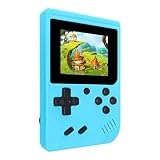
- 400 Pre - installed Classic Games:This mini handheld console comes with 400 video games, designed to bring endless fun to young players. The games are categorized into four major types: casual, puzzle, shooting, and sports. You can easily pick your favorites without much hassle.
- 3.0 - inch LCD Display:Featuring a 3.0 - inch display, this handheld video game offers vivid colors and a user - friendly interface for seamless gaming. Whether it's for travel or home use, the bright colors and clear images will immerse players in a crystal - clear gaming experience.
- Innovative Design:With an innovative ergonomic design, this console is small, lightweight, and easy for small hands to hold, ensuring a comfortable gaming experience. The arcade - style joystick provides precise control.
- Rechargeable and Uninterrupted Gaming:Our mini handheld console is equipped with a rechargeable battery that can be easily charged via a convenient USB cable, making it the best choice for gaming on the go.
- Easy to Operate:This mini handheld console is extremely easy to operate, suitable for all ages. It's an ideal gi-ft for birthdays, Christmas, Easter, and other holidays, sure to bring great surprise and joy to your loved ones.
Never unplug the cable while the computer is still writing the file. Ejecting first closes the disk connection cleanly; pressing A or B provides the handheld-side way to exit after the copy is complete.
Catalog versus sideloading
| Acquisition path | Best for | Requirements and behavior |
|---|---|---|
| Catalog | Buying curated Playdate games | Browse on the device or at play.date/catalog; add a payment card to the Playdate account; purchased games install automatically, and Game Library → Downloads → Download All can start pending installs. |
| Sideloading | Installing a game received or created outside Catalog | Obtain a .pdx file, connect by USB, enter Data Disk mode, copy the file to Games/, then eject the disk or press A or B to return to the handheld. |
These paths are independent. Catalog purchases do not require a computer, while sideloading does not require a Catalog purchase. Both types of games can be managed from the Playdate’s launcher and, on OS 3.0, organized through Game Library and Folders. Choose Catalog when you want the curated store and account-linked automatic delivery; choose sideloading when the title is supplied as a file outside that store.
Organize and manage a large library with OS 3.0
Once OS 3.0 is installed, open the Game Library to see downloading, installed, and managed games in one place. Use Folders to group games by genre, source, or any system you prefer. This is especially useful when the handheld contains many of the hundreds of games the OS documentation says it can store.
The Playdate has 4 GB of flash storage. That capacity is shared by the operating system and installed games, so the number of games that fit varies with file size. The “hundreds” figure is a general OS capability, not a promise that every combination of games will fit. If a large collection approaches the available space, review installed titles in Game Library and remove items you no longer need before starting another batch.
Keep the Downloads view available when installing several purchases, and use folders after installation to avoid searching through a long launcher list. Folders do not replace the Downloads screen: a title must finish downloading before organization is useful.
The Tool Desk
Outbyte Driver Updater FREEFix the driver behind crashes, sound loss and screen glitchesFind Drivers →Outbyte PC Repair FREEClear out junk files and repair common Windows errorsFree Scan →Troubleshoot setup and downloads
The Playdate will not turn on
Press the Lock button once, then connect the included USB cable to a USB power source and allow the handheld to charge. Try the Lock button again after charging. If the unit was transported or stored uncharged, a delayed response is possible while the battery recovers. Confirm that the cable is seated at both ends and that the USB source is powered.
Wi-Fi setup cannot finish
Verify that the selected network and password are correct and that the Playdate is close enough to the router to maintain a connection. Initial setup and game downloads both require Wi-Fi, so a completed account sign-in without a working network will not deliver the games. Reconnect to the network before retrying a download rather than repeatedly starting the same purchase.
The first two Season One games are missing
Open Game Library → Downloads and start the pending items manually. On an earlier system version, check Settings → Games instead. If the library interface is missing, check for an update through the available system-update path and reconnect to Wi-Fi. Remember that the first pair appears after setup; the remaining pairs follow the Monday Pacific Time schedule.
A Catalog purchase is not installing
Automatic installation can take 12 hours or less. For an item that should start now, open System → Game Library → Downloads and choose Download All. Stay on that screen while the transfer begins; locking the device can slow it down. Also verify that the Playdate is linked to the account used for the purchase and that Wi-Fi is still connected.
What’s actually slowing this PC down?
Pick the symptom - the matching free tool is one click away.
The computer does not show the Playdate disk
Confirm that the handheld is in Data Disk mode, using either Settings → System → Reboot to Data Disk or the Lock, Menu, and d-pad Left shortcut. Reconnect with a data-capable USB cable, then check the computer’s mounted drives again. The included cable is specified for data transfer as well as charging; a charge-only replacement will not work.
The sideloaded game is not in the Launcher
Make sure the file ends in .pdx and was copied directly into the mounted disk’s Games/ folder. Eject the disk or press A or B to leave Data Disk mode, then reopen the Launcher and look under Sideloaded. If the file copy was interrupted, return to Data Disk mode and copy the complete file again.
Rank #4
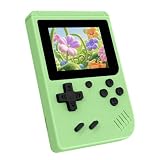
- 3.0 Inch Vivid IPS Disilay: This handheld gaming console comes with a 3.0 inches IPS screen, ensures your enjoys a crystal-clear gaming experience, making every detail come alive.While the vivid colors and sharp images create an immersive world for to explore.Whether on a road trip or just having fun at home, this screen will immerse in the game's world like never before.
- Pre-loaded Classics: This new style of handheld game console is designed to bring fun to young gamers, built-in different classic games. No matter what kind of games you want, you can find them in this retro game console. Let you play games without repetition every day and bring back your memory to the fun,enjoy family entertainment time.
- Friendly Design: This retro game console features an innovative ergonomic design, with a look and feel perfectly suited, making it even more comfortable for to use. Available in beautiful bright and natural colors, handheld video console combines nostalgia with modernity.
- Rechargeable and Uninterrupted Gaming: This video game console comes with a rechargeable battery, one charge is enough to support 5 hours of seamless gaming experience, Your little ones can free to enjoy their favorite games on the go, without worrying battery life.
- Portable & Easy to Use:Lightweight and compact, It fits easily in your pocket or backpack,perfect for travel or sharing with friends.c Plug in and play anywhere, making it the ideal companion for road trips, playdates, or just a rainy day indoors.With a user-friendly interface and intuitive controls, even can navigate through the game library with ease. No complicated setup required – just switch it on and play!It's the ultimate gift for any who who loves gaming!
The device is full or downloads remain queued
Use Game Library to review installed and pending items. The 4 GB flash storage is shared with the system, and individual game sizes differ, so the number of titles that fit is not fixed. Finish or cancel a stuck transfer, free space if needed, reconnect to Wi-Fi, and then use Download All again.
A repeatable setup checklist
- Charge the Playdate if the Lock button produces no response.
- Connect to Wi-Fi during the setup wizard.
- Sign in at play.date with the correct Playdate account email.
- Set the time and wait for the first two Season One games to begin downloading.
- Check for system updates, using Settings → Check For Update or, on OS 3.0, Settings → System → System Update.
- Use Catalog on the handheld or the web for purchases, then allow automatic installation or choose Download All.
- For outside games, enter Data Disk mode, copy each
.pdxfile toGames/, and eject the disk before launching. - Use Game Library and Folders to keep a growing collection organized.
Frequently Asked Questions
Do I need Wi-Fi if I only plan to sideload games?
Yes for initial setup and account linking. After setup, a sideloaded .pdx game is transferred over USB, but Catalog downloads and the included Season One deliveries still require Wi-Fi.
Free tools Windows power users keep installed
One-click scans. No signup required.
How many included Season One games does a Playdate receive?
The program delivers two games every Monday on Pacific Time for twelve weeks, for 24 games total.
Can I buy Catalog games from a phone or computer?
Yes. Use play.date/catalog, sign in to the Playdate account linked to the handheld, and add a payment card. Purchased games install automatically, although delivery can take 12 hours or less.
How do I force a Playdate download to start?
Open System → Game Library → Downloads and select Download All. Stay on the Downloads screen while the transfer starts; locking the device can make downloads slower.
Is a separate USB cable required for sideloading?
No. The included USB-C-to-USB-A cable supports power and data. A replacement must also be data-capable; a charge-only cable will not mount the Playdate disk.
Where does a sideloaded game go?
Enter Data Disk mode, copy its .pdx file into the mounted Playdate disk’s Games/ folder, eject the disk or press A or B, then look in the Launcher, often under Sideloaded.
What changed with Playdate OS 3.0?
OS 3.0, available free from October 2, 2025, added Game Library for downloading and management and Folders for organizing games. It also uses Settings → System → System Update for updates.
Does the Playdate include a wall charger?
The included cable handles charging and data, but the store listing says a USB power source is required. Use an existing suitable source or buy an adapter only when you do not already have one.
The Bottom Line
For a first setup, charge the Playdate, connect it to Wi-Fi, link the correct Playdate account, and set the time. The first two of 24 Season One games then begin downloading, with two more scheduled each Monday for twelve weeks. Buy additional titles in Catalog on the device or web and use Game Library → Downloads → Download All when you want to start pending installs immediately. For games from outside Catalog, enter Data Disk mode, copy the .pdx file into Games/, eject the disk, and launch it from the Sideloaded area.
Free tools Windows power users keep installed
One-click scans. No signup required.
Quick Recap
Product prices and availability are accurate as of the date/time indicated and are subject to change. Any price and availability information displayed on Amazon at the time of purchase will apply.

