Free tools Windows power users keep installed
One-click scans. No signup required.
A comfortable small-room gaming setup starts with measurements, not a shopping list. Measure the desk footprint, chair approach, monitor depth, legroom, and routes to the bed, door, closet, or other furniture. Then place the display straight ahead at a distance that lets you read without leaning, control glare, reserve supported leg space, and route cables only after every device has a home.
The sequence below works for a bedroom, studio apartment, or shared room. It uses workstation guidance from the U.S. Occupational Safety and Health Administration (OSHA), small-space recommendations from HP, and practical layout advice from Lenovo and Intel, while treating your room measurements and personal fit as the deciding factors.
As an Amazon Associate I earn from qualifying purchases.
1. Measure the usable footprint before buying anything
Small rooms become uncomfortable when furniture is sized by its advertised dimensions instead of the space left for movement. Measure the area that can actually hold a desk and chair, excluding door swings, closet access, radiator or vent clearances, and the route you use to reach the bed or other furniture.
Create a measurement worksheet
- Desk width: measure the wall or floor span available from left to right.
- Desk depth: measure from the wall to the nearest obstruction. Depth must accommodate the display, keyboard, mouse, and the viewing distance you need.
- Chair approach: measure the space behind the chair and the path used to pull it out and sit down.
- Leg area: note where table legs, drawers, power strips, and storage units will occupy the open space beneath the work surface.
- Circulation: mark the routes to doors, beds, closets, windows, and shared furniture. The available guidance does not establish one universal minimum walkway, so preserve the routes your household actually needs.
- Obstructions and services: record outlets, cable-entry points, heating or cooling vents, window sills, and the direction of door swings.
Use painter’s tape on the floor to outline the proposed desk and chair. Sit inside the outline, pull the chair back, stand up, and walk past it while carrying whatever normally passes through the room. If the tape blocks a necessary route, the desk will too.
#1 Best Overall

- [ All-in-One Compact Gaming Desk ]: 33.5 inch space-saving gaming desk integrates 6 essential features: ✅ Remote RGB LED lights (256 colors) ✅ 3-in-1 power hub (2 AC + USB/Type-C) ✅ Ergonomic monitor stand (used as monitor stand or storage shelf) ✅ Fabric storage drawer (hidden compartment) ✅ Reversible CPU stand (fits PC case, books) ✅ Headphone hooks. Perfect as a small desk for home office or gaming desk for bedroom corners.
- [ Pro-Level LED Lighting System ]: The Gaming Table Dominate the game atmosphere with: ✨ 22 dynamic modes (pulse/starlight/wave) ✨ 20 static colors + 256 PWM fine-tuning ✨ 5 brightness levels & 10 speed controls. Create immersive RGB gaming desks ambiance while reducing eye strain during marathon sessions.
- [ Smart Power Outlets for Multi-Device Charging ]: The Gamer Desk come up with Power Outlets: 🔌 2 AC outlets (laptop/monitor) 🔌 1 USB port (phone/controller) 🔌 1 Type-C port (fast-charge devices) 🔌 1.5M extended cord for flexible placement. Ideal computer desk with power outlet for gaming setups or home office desks
- [ Health-Focused Monitor Stand ]: The Gaming desk with monitor stand meets ergonomics 📏 Lifts screens to eye level to prevent neck pain 📏 Frees 30% desktop space for keyboard/mouse. A must-have computer desk with monitor stand for long work/gaming sessions in small spaces.
- [ Maximized Storage Solutions ]: Organize the clutter in tight spaces: 🗄️ Fabric drawer – anti-scratch & private (documents/accessories) 🖥️ Reversible metal shelf – use as CPU stand or book organizer 🎧 Side hooks – hang headsets or small bags. The ultimate desk with shelves and drawers for compact computer desk users.
Account for temporary and shared uses
A bedroom desk may also hold homework, meals, a sewing project, or a laptop. A shared room may need to be reset every evening. Mark the storage location for a keyboard, controller, microphone, and headset when they are not in use. A setup that fits only while every accessory remains on the desk is not genuinely space-efficient.
2. Choose a layout that protects movement
Once the footprint is known, choose the arrangement that leaves the most reliable path through the room. Do not force a centered desk if a corner or a fold-away arrangement gives the chair a better approach.
Wall-facing desk
A straight desk against a wall is easy to cable and keeps the center of the room open. Leave enough depth for the monitor and the viewing distance rather than pushing the display against the wall. Keep the chair centered on the display, not on an offset window or shelving unit.
Do these 3 things before closing this tab:
1Scan for outdated or missing drivers - takes under a minute2Repair Windows errors before they cause bigger problems3Fix the driver behind crashes, sound loss and screen glitchesCorner desk
OSHA notes that a corner layout can provide additional depth. The extra surface can hold a monitor stand, speakers, or a notebook without moving the keyboard into an awkward reach. Check that the corner does not trap the chair or prevent access to a window, closet, or outlet.
Fold-away or multipurpose desk
A folding surface, narrow console, or desk with casters can work when the room must change functions. Before choosing one, verify that it remains stable during mouse movement and that its folded position does not block a route. Plan a storage spot for the chair and peripherals so the room can be reset without dismantling cables.
Shared-room placement
In a room shared with another person, place the screen so its light and sound do not point directly at a sleeping or working area. HP’s small-room guidance also calls out speaker and keyboard noise as issues for roommates or neighbors. A headset can reduce sound spill, but it does not remove the need for controlled listening levels.
| Layout | Best when | Check before committing |
|---|---|---|
| Wall-facing | You want a simple route and an open room center. | Depth for the display and chair pull-out; glare from a nearby window. |
| Corner | You need extra depth or two usable surfaces. | Chair access, corner legroom, and reach to outlets. |
| Fold-away or mobile | The room must serve several purposes. | Stability, storage for peripherals, and cable slack when moved. |
| Shared-room station | Another person sleeps, studies, or works nearby. | Screen direction, speaker spill, keyboard noise, and reset time. |
3. Select the desk by usable dimensions
Advertised width is only one part of a desk’s fit. The surface must keep the monitor, keyboard, and mouse in the primary work area while leaving enough depth for a readable, upright viewing position. OSHA’s desk guidance emphasizes adequate work-surface area, a primary reach zone, and clear leg space; it also identifies a corner arrangement as a way to gain depth.
Recommended Free Tools
Prioritize depth before extras
A shallow desk may technically hold a monitor but force it too close to your eyes or push the keyboard onto the edge. Measure from the rear cable route to the front edge, then subtract the space occupied by the monitor stand or arm. The remaining area must support the keyboard, mouse, and a relaxed forearm position.
Rank #2

- 【3 TIER SHELF DESIGN】Top Shelf + Desktop + Bottom Shelf, you can neatly manage your monitors, printers and other office supplies, which will make your work and study organized.
- 【MULTI-FUNCTIONS】27.5" x 23.6" x 31.1" (L*W*H), this small computer desk can be placed anywhere, such as corners, bedrooms, study rooms, dormitories, children's rooms, suitable for learning and games, work, play.
- 【STABLE STRUCTURE】This small computer desk is made of high-quality solid wood + solid steel frame, which has good load-bearing ability and can keep your desk strong and stable for many years.
- 【MORE SPACE】The partition makes the desktop appear larger and more spacious, and can provide more space to use, you can maximize the use of this compact computer desk.
- 【EASY TO ASSEMBLE】The computer desk includes the installation manual, parts and installation tools, which can be assembled quickly and easily. If you need any help, please feel free to contact us.
A flat-panel display generally occupies less front-to-back space than a deeper display, but its stand can still consume valuable surface area. If you use a monitor arm or stand, confirm that the desk can accept its clamp or base and that the arm will not strike a wall or shelf.
Keep legroom open
Drawers, crossbars, and a central pedestal can interfere with knees and prevent you from sitting close enough to the desk. Check the entire width of the area beneath the surface, not just the center. Place a power strip where it cannot contact your feet or become a trip hazard.
Compare desk types against the measured room
| Desk choice | Space advantage | Potential problem |
|---|---|---|
| Compact straight desk | Predictable footprint and straightforward cable route. | May lack depth for a display plus keyboard. |
| Corner desk | Uses two walls and can provide additional depth, as OSHA describes. | Can reduce chair approach and make corner outlets difficult to reach. |
| Desk with drawers or shelves | Stores controllers and accessories without another cabinet. | Storage may consume legroom or force an off-center sitting position. |
| Folding or mobile desk | Can be cleared or moved for another room use. | Requires stable locking hardware and a deliberate cable-disconnect plan. |
4. Position the monitor for clear, upright viewing
Put the display directly in front of you rather than turning your neck toward a side monitor. OSHA’s monitor quick tip says, “Put monitor directly in front of you and at least 20 inches away.” Its preferred viewing range is 20 to 40 inches (50 to 100 cm), with the qualification that you should be able to read text while sitting upright with your back supported. These are general workstation recommendations, not a gaming-specific clinical guarantee.
What’s actually slowing this PC down?
Pick the symptom - the matching free tool is one click away.
The OSHA monitor guidance also places the top line of the display at or slightly below eye level. Adjust the stand, raise the display on a compatible riser, or use a compatible arm only after checking the mount pattern, desk thickness, and stability.
Match screen size to the desk, not the other way around
Physical width, stand footprint, and your measured viewing distance matter more than a diagonal-size label. HP’s small-bedroom guide gives a 24-inch display as a practical choice for desks under 48 inches wide; that is a vendor recommendation, not a universal ergonomic standard. If a larger display leaves no room for the keyboard or forces the chair away from the desk, it is the wrong size for that workstation.
| Check | Target or qualification |
|---|---|
| Position | Directly in front of the user, according to OSHA. |
| Minimum distance | At least 20 inches (50 cm), OSHA’s quick-tip threshold. |
| Preferred distance | 20–40 inches (50–100 cm), while keeping text clear and posture upright, according to OSHA. |
| Height | Top line at or slightly below eye level, according to OSHA. |
| Small-desk example | 24 inches for desks under 48 inches wide, an HP recommendation rather than a universal rule. |
Test text, not just a game menu
Open a document or web page with ordinary text. If you lean forward, raise your shoulders, or crane your neck to read it, change the distance or height before judging the setup during a game. Recheck with your usual chair back support and any glasses you normally wear.
5. Control glare, lighting, and heat
Glare causes squinting and awkward head angles even when the desk dimensions are correct. OSHA advises arranging the workstation to reduce reflections from windows, overhead lights, and desk lamps. Its exact wording is: “Arrange your office to minimize glare from overhead lights, desk lamps, and windows.”
Place the screen relative to windows
Position the display at a right angle to windows and other bright sources when possible, rather than directly facing or backing a window. Use blinds or curtains for daylight, and choose indirect or shielded lighting so a bare bulb is not reflected in the panel. The OSHA workstation-environment guidance discusses lighting and ventilation; its reference to light levels up to 73 foot-candles appears in a particular LCD-workstation discussion, not as a universal target for every gaming room.
Rank #3

- Carbon fibre texture: Our PC gaming desk is made from MDF with a carbon fibre textured finish, giving a smooth, scratch-resistant surface that feels great to the touch and is easy to clean
- Reversible design: The L-shaped gaming desk can be flipped left or right to suit different room corners, and 2 can be combined into a U-shaped table for double play, making it a great gift option for gaming enthusiasts, children or friends
- Gaming desk with LED lights: Coming with an RGB LED light strip with APP control, this black gaming desk looks great when illuminated by the light strip and will enhance your gaming atmosphere
- Gaming desk with power outlets: This gaming table comes with 3 AC sockets and 2 USB charging ports so you can charge devices such as mobile phones and laptops at the same time without interruption while you play
- Multi-functional desk: This functional gaming table comes with a cup holder, headphone holder and a long monitor stand that easily holds two 24" monitors or a large monitor to save space on your desk. It also helps you maintain proper view angles
Keep air moving without blowing on you
Maintain normal air circulation and avoid placing the workstation directly in a vent’s airflow. A vent aimed at your face or hands can make long sessions uncomfortable; a blocked vent can also make a small room warmer. Leave the computer’s intake and exhaust unobstructed and avoid enclosing a desktop tower in a tight cabinet.
6. Build a cable route after the layout is final
Cable management is a routing problem, not a decorative purchase. First place the desk, display, computer, console, charger, speakers, and network equipment where you intend to use them. Then measure the shortest safe paths to the outlet and between devices.
Use the simplest hardware that solves the problem
Lenovo’s ergonomic gaming guidance names cable clips, ties, and under-desk trays as possible tools. Intel also treats cable management as part of desk layout in its gaming desk setup guide. Use a tray when several cables need a protected horizontal path, clips when one or two leads need to stay at the edge, and reusable ties when a bundle must move with a device.
- Keep power and signal cables from crossing the chair’s wheels or your feet.
- Leave a small service loop so you can pull out the computer or monitor without unplugging everything.
- Label both ends of cables that are frequently disconnected.
- Do not bundle cables so tightly that connectors are under tension.
- Keep ventilation openings, power adapters, and surge-protection switches accessible.
In a shared or frequently rearranged room, favor routes that can be opened without cutting disposable ties. A neat bundle that takes an hour to undo is not practical if the desk moves weekly.
7. Choose seating that fits the desk and your body
The chair must slide under the desk, allow your feet to rest securely, and support your back while you read the display. Check the chair at the same height you will use for gaming; a chair that fits when empty may collide with a drawer or crossbar once adjusted.
Use adjustability where the room allows it
- Set the seat so your feet are supported and your knees are not pressed against the underside of the desk.
- Use the backrest for support instead of leaning toward the screen.
- Keep the keyboard and mouse close enough that your shoulders can remain relaxed.
- Confirm that armrests, if present, can clear the desktop and do not prevent you from getting close enough.
If the room cannot accommodate a large chair, measure the chair’s full footprint, including the casters and the space needed to turn. Do not sacrifice a necessary route merely to fit a wider seat.
Independent reader supportYour contribution helps us test, update, and keep practical guides available for everyone.8. Plan audio for a shared room and protect hearing
Speakers can send game audio into the rest of an apartment or bedroom, and mechanical keys can be audible through a wall. HP’s small-room guidance suggests a headset as one possible shared-space choice. Select one that remains comfortable at your actual session length and that does not force the cable across the chair path.
Quick wins for a faster PC:
Scan for outdated or missing drivers - takes under a minuteDriver Scan →Repair Windows errors before they cause bigger problemsFix Now →Fix the driver behind crashes, sound loss and screen glitchesFind Drivers →A headset does not make loud listening safe. The 2024 ITU-T H.872 recommendation addresses hearing risks associated with loud sound and extended gameplay or esports exposure. Keep the listening level controlled, take breaks, and pay attention to ringing, muffled hearing, or discomfort. If those symptoms occur, stop listening and seek appropriate medical advice rather than increasing the volume to overcome background noise.
Rank #4
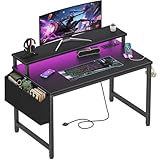
- Safety Multi-functional Power Strip: The computer desk includes a built-in power strip with 2 power outlets & 2 USB charging ports for your computer, monitor, gaming gear, pad, phone and other electronic devices
- Gaming Desk With LED Lights: Equipped with a built-in RGB LED lights strips, the led gaming desk provides 7 adjustable colors, 4 dynamic modes, 16 static types, create different lights ambiance which provide different work or game scenarios
- Modern Simple Style Design: Desk is made of thick particle board with scratch-resistant, anti-collision and waterproof, protect home office desk surface from daily wear and tear, with storage bag and 2 headphone hook(Both removable)
- Sturdy Structure With Monitor Stand: The monitor stand can meet your requirements for placing monitor or laplops. It can keep your computer at eye-level, which helps you maintain the right posture for your neck and spinal health
- Easy Assemble And After-sale Service: A detailed instruction manual and tool are provided, no other tools required, quick and easy to assemble. Provides professional customer service, easy and fast replacement is guaranteed if have quality problem of the desk
9. Assemble the setup in a controlled sequence
Build in this order so that a late change does not force you to redo every cable.
- Mark the footprint. Tape the desk, chair pull-out, and the routes to doors, beds, closets, and windows.
- Place the desk. Confirm that outlets, vents, and window coverings remain reachable and that the surface is stable.
- Set the chair. Sit with your back supported and verify that the chair can approach and retreat without striking furniture.
- Position the display. Center it on your body, set the top line at or slightly below eye level, and establish at least the 20-inch OSHA minimum distance.
- Test readable text. Use normal-size text while sitting upright. Adjust distance or height before adding accessories.
- Add keyboard and mouse. Keep them in the primary work area with enough room for relaxed forearms and mouse movement.
- Place the computer or console. Leave intake and exhaust openings clear and keep the power switch and ports reachable.
- Arrange lighting. Turn the display at a right angle to bright windows where possible, close blinds that create reflections, and add diffuse or shielded light.
- Route cables. Run the shortest safe paths, secure only where needed, and leave service loops at devices that may move.
- Test a normal session. Play, type, stand up, and walk through the room. Fix any pressure point, glare, heat, noise, or blocked route you notice before adding decorations.
10. Use these small-room layout examples
Bedroom with a single desk wall
Put the desk on the wall that least interferes with the bed and door swing. Keep the monitor centered and the chair path clear. Use a compact display only after checking that its stand leaves room for the keyboard; the 24-inch-under-48-inch example from HP can be a starting point, not a rule. Store controllers and headphones in a drawer, wall hook, or container that does not reduce legroom.
Studio apartment with a multipurpose table
Choose a surface that can be cleared for meals or work. A mobile or folding desk can help, but plan where the chair, display, and cables go when the gaming station is folded. Use reusable ties and accessible connectors so the setup can be moved without cutting the cable bundle.
Windows Errors? Fix Them Before They Spread
Repair common Windows errors and clear accumulated junk for a smoother, more stable PC - no reinstall needed.Free scan · no reinstallCrashes, No Sound, or Screen Glitches?
Random freezes, missing sound and display glitches usually trace back to one bad driver. Find and replace yours safely.Free scan · under a minuteShared bedroom or room near neighbors
Face the screen away from the other person’s pillow or work area, keep speakers low or off, and use controlled headset levels when appropriate. Reduce keyboard noise with a quieter input device only if it solves a real disturbance; do not add equipment that consumes the walking route. Agree on session times if light or sound remains disruptive.
11. Troubleshoot discomfort and clutter by symptom
| Symptom | Likely setup issue | First correction |
|---|---|---|
| You lean toward the screen | Display is too far away, text is too small, or the chair cannot approach. | Move the display within the OSHA viewing range while keeping at least 20 inches, enlarge text, or clear the chair path. |
| Neck turns toward the monitor | Display is off-center or a second screen is dominant. | Center the primary display directly in front of you and adjust the top edge to eye level or slightly below. |
| Reflections appear in dark scenes | Window or lamp is aligned with the panel. | Turn the display perpendicular to the bright source, close blinds, or use indirect lighting. |
| Knees hit the desk | Drawer, pedestal, or crossbar occupies the leg area. | Reposition the chair or choose a surface with clearer leg space. |
| Chair catches on cables | Power or signal leads cross the approach. | Reroute along the rear or underside, add clips or a tray, and leave a service loop at the device. |
| Room feels hot | Ventilation is blocked or the computer exhausts into a confined gap. | Restore airflow, move the tower out of an enclosure, and avoid placing the desk directly in a vent stream. |
| Other people hear the session | Speakers, keyboard, or high headset volume carry through the room. | Use lower speaker output or a comfortable headset, control listening level, and adjust the session schedule. |
12. A shopping checklist that follows the measurements
Use this list only after the taped layout passes the movement test.
- Compact gaming desk or small computer desk: match measured width and depth; verify clear leg space and a stable surface.
- Display stand or compatible arm: check the monitor’s mounting pattern, stand footprint, desk thickness, and the arm’s range before purchase.
- Compact monitor: compare its physical width and stand depth with the remaining desk area and your readable viewing distance.
- Adjustable task chair: verify seat height, back support, armrest clearance, caster footprint, and the space needed to pull out.
- Cable clips, reusable ties, or an under-desk tray: buy only the type that matches the route you measured.
- Lighting controls: blinds, a diffuse lamp, or a shield that reduces reflections without shining into the display.
- Audio equipment: consider speaker spill, headset comfort, cable routing, and controlled listening level.
Keep receipts and packaging until the equipment has passed a full session in the actual room. Compatibility and personal fit cannot be confirmed from a product name alone.
13. Recheck the space as your routine changes
After a week, inspect the chair path, cable tension, display reflections at different times of day, and the temperature around the computer. Re-tighten mounts according to their instructions, remove unused cables, and preserve access to power switches and ports. If the room changes function, repeat the tape test instead of accepting a blocked route as permanent.
The Tool Desk
Outbyte PC Repair FREEClear out junk files and repair common Windows errorsFree Scan →Outbyte Driver Updater FREEFix the driver behind crashes, sound loss and screen glitchesFind Drivers →Quick Recap
Product prices and availability are accurate as of the date/time indicated and are subject to change. Any price and availability information displayed on Amazon at the time of purchase will apply.

