What’s actually slowing this PC down?
Pick the symptom - the matching free tool is one click away.
For a typical used Windows 10 or Windows 11 PC, use Reset this PC with Remove everything and, when handing the machine to another person, enable Clean data. That gives you a clean starting installation and makes ordinary file recovery harder, but Microsoft explicitly says its consumer erasure feature does not meet government or industry data-erasure standards. If the computer held sensitive or regulated information, use a sanitization method appropriate to the drive and your organization’s policy instead of treating a reset as certified destruction.
The instructions below assume Windows 10 or Windows 11. For Linux, ChromeOS, macOS, or unusual storage hardware, follow the operating-system and device manufacturer’s erasure guidance.
As an Amazon Associate I earn from qualifying purchases.
What “securely wipe” means on a used PC
There are three different outcomes that are often confused:
- Fresh setup: Windows starts without the previous owner’s account, applications, settings, or personal files.
- Harder recovery: the built-in Windows reset writes the Clean data option intended for consumer transfers, donations, recycling, or sales.
- Media sanitization: a process selected for the storage technology and data sensitivity that is intended to make access to target data infeasible for a defined level of effort.
Windows reset and a clean installation solve the first problem and can help with the second. They should not automatically be described as the third. Microsoft’s own qualification is that its consumer data-erasure functionality “does not meet government and industry data erasure standards.”
#1 Best Overall

- PERMANENT DATA DESTRUCTION: Factory resetting is a flawed process that isn’t enough to keep deleted data from being recovered. When you reformat your computer's hard drive, the drive is formatted to make the old data rewritable. For the average user this may be enough, but in order to destroy all secure data a deep reformatting of the local and external drive needs to be completed. Destruct is the true master reset you need to completely and permanently erase documents and files.
- FRESH START: Whether you are selling your computer, disposing of it, or want to return it to its factory settings, Destruct will give your computer the clean start it needs. Destruct is a military-grade data eraser that allows you to completely get rid of confidential files and data stored on your computer. They will never be able to be recovered by other users. Enjoy peace of mind when you release your computer, knowing your private information is out of reach forever!
- REVOLUTIONARY USB DEVICE: This compact USB device packs a big punch when it comes to its destructive abilities! Conventional computer reformatting simply isn’t enough when you want to completely erase your computer’s data. Destruct is the revolutionary master key that gets the job done without leaving a trace of old data to be recovered. Wipe it, clear it, erase it, delete it, how you say it doesn’t make a difference; Destruct will DESTROY it!
- EASY-TO-USE: Erasing your hard disk is simple with Destruct. Simply plug it into a USB port, boot up your computer, select the hard disc you want to wipe clean, then let Destruct work it’s magic! Only one use of this device is needed to thoroughly overwrite your disk. Note: once the data on your hard disk has been erased, it is completely non-recoverable.
- DESTRUCTION GUARANTEED: Factory resets and similar hard drive erasing products leave your important files, documents, and data vulnerable to recovery. Devices such as SISCO can be used to retrieve the information you thought was gone forever, allowing it to be accessed by other users. Destruct guarantees that no device, program, or software can recover what you have instructed Destruct to erase!
For formal assurance, use the decision framework in NIST SP 800-88 Rev. 2, published in September 2025. It supersedes Rev. 1 and bases sanitization decisions on the information’s sensitivity and applicable controls. The exact capability of an SSD, hard drive, self-encrypting drive, or removable device must be confirmed with its manufacturer.
Choose the right path before touching the PC
| Situation | Best starting path | Why |
|---|---|---|
| Windows boots and you want a normal clean setup | Reset this PC → Remove everything | It removes the previous user’s files, apps, and settings through the supported Windows interface. |
| Windows boots, but local system files may be damaged or untrusted | Reset this PC → Remove everything → Cloud download | Windows obtains a fresh copy instead of relying on the files already stored locally. |
| Windows cannot reset, or you want a completely fresh installation | Microsoft installation media and a clean install | The installation process removes the existing Windows installation, applications, manufacturer customizations, and settings. |
| The computer held highly sensitive, regulated, or organizational data | A policy-approved sanitization process for the specific storage device | Consumer reset and reinstall do not establish standards-based sanitization. |
Also verify the operating-system lifecycle. Microsoft ended Windows 10 support on October 14, 2025; after that date it no longer provides free Windows Update software updates, technical assistance, or security fixes for Windows 10. A reset does not make an unsupported Windows 10 installation current. Check whether the hardware can run a currently supported Windows release before you invest time in setup.
Before you reset: a destructive-operation checklist
Confirm what you are allowed to keep
Ask the current owner or organization which files may be retained. Back up only material you are authorized to keep, and verify that the backup opens. Microsoft advises backing up important files before resetting or reinstalling because the operation is destructive. Do not assume that a second internal disk, an attached USB drive, browser profile, or synchronized cloud folder is disposable.
Find the BitLocker recovery key
If device encryption or BitLocker is enabled, locate the recovery key before starting. A reset initiated from the Windows Recovery Environment may require it. Depending on how the PC was managed, the key could be in the owner’s Microsoft account, a work or school account, a printed record, or an administrator’s recovery system. Do not begin a reset while the only copy of the key is inaccessible.
Record the edition and activation situation
Note whether the machine runs Windows Home, Pro, or another edition and whether it belongs to an organization. A later clean installation must use an edition licensed for that device. If the PC has been substantially modified or its license is not clear, resolve that before deleting partitions.
Rank #2

- STANDALONE HARD DRIVE ERASER: This single bay hard drive sanitizer/wiper features 9 erase modes, it works as a USB to SATA adapter, and it is capable of standalone disk erase; Hardware erasing tool
- DRIVE COMPATIBILITY: Works with 2.5"/3.5" SATA HDD/SSD drives of any capacity or file format; OS Independent; SATA II (3 Gbps); Compatible Drive Adapters: mSATA (SAT32MSAT257), SATA M.2 (SAT32M225) adapters sold separately
- ERASE MODES: 9 erase modes including Quick Erase, Single/3/7 Pass Overwrite, Custom Erase, Secure & Enhanced Secure Erase (meets NIST SP 800-88 Rev 1 clear/purge); DB-9 (RS232) Printer Port; USB 3.2 Gen 1 (5 Gbps); Toolless Design; DoD / TAA Compliant
- LCD MENU DISPLAY: Digital LCD Display with push button navigation for easy configuration and drive setup; Muti-function LEDs; Upgradeable firmware for future standards; Includes 3ft (0.9m) USB 3.2 (5 Gbps) Type-A cable and Universal Power Adapter
- THE IT PRO'S CHOICE: Designed and built for IT Professionals, this standalone hard drive eraser is backed for 2 years, including free lifetime 24/5 multilingual technical assistance
Disconnect devices that must not be erased
Unplug external disks, card readers, and backup drives that contain data you intend to preserve. During a clean installation, a mistaken disk or partition selection can erase their contents.
Decide whether consumer reset is sufficient
If the PC contained medical, financial, legal, government, customer, or employer-controlled information, pause here. Ask the responsible administrator which sanitization method and documentation are required for that storage medium. NIST guidance is a decision aid, not a promise that one button works for every drive.
The Tool Desk
Outbyte Driver Updater FREEScan for outdated or missing drivers - takes under a minuteDriver Scan →Outbyte PC Repair FREEClear out junk files and repair common Windows errorsFree Scan →How to reset Windows 10 or Windows 11 safely
1. Open the recovery controls
- Sign in to Windows if possible.
- Open Settings > System > Recovery.
- Select Reset PC (Windows may label the button Reset this PC).
Microsoft also documents launching the reset from the Windows Recovery Environment when Windows will not open. If you cannot reach the desktop, use the recovery options shown by the PC’s startup process rather than repeatedly forcing power-offs.
2. Select Remove everything
Choose Remove everything. This removes personal files, installed applications, and settings. Keep my files is intended to preserve the current user’s data and therefore is the wrong choice when the goal is to remove the previous owner’s information.
3. Turn on Clean data for a transfer
When the PC is being sold, donated, recycled, or handed to another user, select the option labeled Clean data (wording can vary slightly by Windows version). Microsoft describes this as making removed files harder for another person to recover. It is not “military grade,” a guarantee that every residual bit is unrecoverable, or compliance certification; Microsoft specifically limits it to a consumer-oriented feature that does not meet government and industry erasure standards.
Rank #3

- Permanently Erase Files So They Can Never Be Recovered - Deleting files or emptying the recycle bin doesn’t truly remove data—but Data Shredder Stick does. It uses secure overwrite methods to permanently destroy files, folders, and entire drives, making them unrecoverable by hacking tools or standard recovery software. Perfect for protecting personal, financial, and business data.
- Simple Plug-and-Play USB – No Installation Required - Just plug the USB into any Windows computer and start shredding instantly—no downloads, setup, or technical skills needed. The easy-to-use interface lets you drag and drop files for secure deletion in seconds. Designed for anyone who wants powerful data protection without complexity.
- Wipe Entire Hard Drives or Individual Files and Folders - Going beyond file deletion, Data Shredder Stick can completely erase internal and external drives. Manually delete all data from the drive then shred all deleted data. Our hard drive shredder ensures your information is truly gone before it leaves your hands.
- Fast, Portable & Reusable - Compatible with Windows systems, this portable USB tool works across multiple computers without needing internet access. Use it again and again to securely erase data whenever needed. Great for households, offices, and IT professionals managing multiple devices using precision tools.
- Protect Your Privacy with Military-Grade Data Destruction - Designed for maximum security, the advanced overwrite process of this hard drive eraser ensures your data is destroyed beyond recovery. Helps safeguard passwords, financial records, photos, and confidential files from identity theft or unauthorized access. A reliable solution for complete peace of mind.
4. Choose the reinstall source
Windows presents Cloud download and Local reinstall:
- Cloud download obtains a fresh Windows copy. Use it when local system files may be corrupted or you do not trust the existing installation, provided you have a reliable internet connection and enough time for the download.
- Local reinstall uses files already on the PC. It can be faster when the connection is slow, but the local image may not contain the latest updates.
The reset interface may show additional settings, such as whether to clean data or remove files from all drives. Read each screen carefully and make sure the selected drives match your intention.
5. Let the reset finish without interruption
Start the reset and leave the computer connected to power. Microsoft warns that the screen can remain black for a long period. Do not manually restart the PC just because the display appears inactive; interrupting the process can cause reset failure or leave Windows unbootable.
6. Complete setup and update the result
When Windows starts its first-run setup, create the intended user account rather than signing in as the former owner. After setup, connect to the network, install available updates and hardware drivers, and verify the Windows edition and support status. If the machine can run a supported Windows release, use that release instead of assuming a reset Windows 10 installation is secure merely because it is freshly installed.
When a clean installation is the better option
Use Microsoft’s official installation media if Reset this PC is unavailable, repeatedly fails, or you prefer to rebuild Windows from bootable media. Microsoft supports creating installation media on a USB flash drive or DVD. A suitable drive you already own is enough; buying a USB installer is optional, and the USB is an installation tool rather than a secure-erase device.
Quick wins for a faster PC:
Fix the driver behind crashes, sound loss and screen glitchesFind Drivers →Clear out junk files and repair common Windows errorsFree Scan →Rank #4

- ✔ Permanently Wipe Data – Securely erase your hard drive, ensuring no recovery is possible.
- ✔ Plug & Play – No Installation Needed – Bootable USB drive with preloaded professional erasure software.
- ✔ For IT Professionals & Personal Use – Perfect for selling, recycling, or disposing of old computers.
- ✔ Compatible with Most Devices – Works with Windows, Linux, BIOS & UEFI-based PCs & Laptops.
- ✔ Industry-Standard Data Sanitization – Uses trusted DBAN, ShredOS (Nwipe), and Secure Erase tools.
Create and boot the installation media
- On a working computer, follow Microsoft’s Reinstall Windows with the installation media instructions to create bootable media.
- Insert the USB drive or DVD into the used PC.
- Restart and open the machine’s boot-device menu using the manufacturer’s documented key. Select the installation media.
- At Windows Setup, choose the language, time, keyboard layout, and the Windows edition licensed for the device.
Delete only the intended installation partitions
When Setup asks where to install Windows, identify the target disk by its size and the PC’s documented layout. Delete the partitions on that disk only when you intend to remove their contents, then select the resulting unallocated space for installation. Do not delete partitions on a separate disk that contains files you mean to retain. If disk identity is ambiguous, stop and obtain the model and capacity information before proceeding.
Microsoft says this clean-install route removes personal files, applications, manufacturer customizations, and settings. It does not turn a consumer installation into a standards-certified sanitization result.
Activation after reinstalling
Install the same Windows edition that the device is licensed for. Activation normally occurs online after installation, but significant hardware changes can affect activation. If Setup asks for a product key and you do not know the license status, do not guess; resolve the licensing record with the seller, organization, or manufacturer.
Independent reader supportYour contribution helps us test, update, and keep practical guides available for everyone.Reset versus clean install versus formal sanitization
| Attribute | Reset this PC | Clean install from media | Policy-approved sanitization |
|---|---|---|---|
| Windows must boot? | Usually, although Windows Recovery Environment can start it when the desktop cannot. | No; it is specifically useful when the existing installation will not reset. | Depends on the chosen method and storage device. |
| Removes apps and settings? | Yes with Remove everything. | Yes, including manufacturer customizations. | Not necessarily; the goal is data sanitization, not a usable Windows setup. |
| Fresh Windows files? | Cloud download uses a fresh copy; Local reinstall uses existing files. | Yes, from the installation media. | Not inherently. |
| Standards-based assurance? | Not established; Microsoft excludes its consumer erasure feature from government and industry standards. | Not established by reinstalling alone. | Selected and documented according to data sensitivity, storage technology, and applicable controls. |
| Primary risk | Interrupting the reset or choosing the wrong drive option. | Deleting the wrong disk or installing an edition without a matching license. | Using a method unsupported by the drive or required policy. |
Storage-specific limits you should not ignore
A hard-disk drive, SATA SSD, NVMe SSD, self-encrypting drive, and removable flash device do not expose identical erase behavior. Wear-leveling and overprovisioning can mean that ordinary file deletion or a reinstall does not address every physical location where data may have existed. Conversely, a manufacturer-supported sanitize or cryptographic-erase capability may be appropriate for one device and unavailable on another.
Do these 3 things before closing this tab:
1Clear out junk files and repair common Windows errors2Fix the driver behind crashes, sound loss and screen glitches3Repair Windows errors before they cause bigger problemsFor that reason, do not run an exact command copied from a generic guide without identifying the storage model and checking its documentation. For sensitive data, use the method your security policy accepts and retain whatever verification or disposal record that policy requires. NIST’s current reference is SP 800-88 Rev. 2; its definition describes media sanitization as rendering access to target data infeasible for a given level of effort.
Best Value
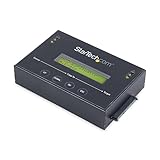
- DUPLICATE AND ERASE SATA DRIVES: This standalone 1:1 SATA drive duplicator / cloner and eraser / sanitizer supports 2.5/3.5" hard drives; Ideal for disk backup, recovery & restore or system setup and deployments
- DUPLICATION AND ERASE MODES: 3 Duplication Modes: Up to 14 GB/min Sector-by-Sector (Whole Disk), System & File, and All Partitions Copy; 4 Erase Modes: Quick Erase, Secure Erase, Single and 3-Pass Overwrite (DoD / NIST SP 800-88 Rev 1 Clear)
- DRIVE COMPATIBILITY: Supports 2.5/3.5" SATA HDDs/SSDs of any capacity; Includes HDD rubber pads SATA cables; Supported Interfaces with Adapter: eSATA, mSATA, IDE (SAT2IDEADP), M.2 SATA (SAT32M225) sold separately
- LCD MENU DISPLAY: Use push button navigation to select duplication/cloning & erase modes and display drive info/errors; Use Copy & Compare to verify your cloned drive with the source drive when complete
- THE IT PRO'S CHOICE: Designed and built for IT Professionals, this harddrive wiper and copier is backed for 2 years including free lifetime 24/5 multilingual technical assistance
Troubleshooting common failures
Reset asks for a recovery key
Stop and retrieve the BitLocker recovery key before continuing. If the PC was managed by an employer or school, contact that administrator; if it was personal, check the account or record where the key was originally saved.
The reset fails or rolls back
Retry from Windows Recovery Environment if the desktop path failed. If the local image is damaged, use Cloud download when a stable connection is available. If reset still fails, switch to Microsoft installation media and verify the target disk before deleting partitions.
The display stays black
Keep the PC connected to power and wait. Microsoft warns that a long black screen can be normal during reset; manually restarting can make the reset fail.
Windows will not activate after the clean install
Check that the installed edition matches the device’s license and that the PC is online. Hardware changes can affect activation. If the license is organizational or unclear, obtain the correct activation information rather than using an unlicensed workaround.
The PC is too old for a supported Windows version
Do not treat a reset Windows 10 installation as a fully supported endpoint after October 14, 2025. Check the hardware’s compatibility with a currently supported Windows release or follow the owner’s approved plan for replacing or isolating the device.
Final setup checks after wiping
- Confirm the former user’s account is absent and that the new account has the intended administrator status.
- Install Windows updates and restart until no further updates are offered.
- Check Device Manager for missing drivers and verify networking, storage, audio, and display functions.
- Turn on the security protections appropriate to the supported Windows edition, then install applications only from trusted sources.
- Review Storage settings and File Explorer to ensure no separate internal or external data disk was unintentionally removed.
- If the device was sanitized under an organizational policy, store the required record separately from the PC.
When is Reset this PC enough?
For a personally owned computer moving from one household user to another, Remove everything with Clean data, followed by a supported Windows setup and updates, is the practical consumer route. It is not enough evidence of standards-grade sanitization for regulated, highly sensitive, or organization-controlled data. In those cases, choose a device- and policy-appropriate sanitization process first, then install Windows only after the data-handling requirement has been met.
Quick Recap
Product prices and availability are accurate as of the date/time indicated and are subject to change. Any price and availability information displayed on Amazon at the time of purchase will apply.
Recommended Free Tools

