Quick wins for a faster PC:
Clear out junk files and repair common Windows errorsFree Scan →Fix the driver behind crashes, sound loss and screen glitchesFind Drivers →Repair Windows errors before they cause bigger problemsFix Now →To get a JPG from a WebP image, save the image, open it in an editor that supports WebP, then export or save a copy as JPEG/JPG. A browser’s Save command may download the format the website supplied; it does not necessarily convert the image. Renaming a .webp file to .jpg does not change its encoding.
Save first, then convert
If the website offers a JPEG download or an original-file option, use that. Otherwise, download the image in its available format and convert a copy locally:
- Save the image. Use the website’s download control if it has one. If you use the browser’s image context menu, the file may still be WebP.
- Open the downloaded file in an image editor that supports WebP. Confirm that the image displays correctly.
- Choose the editor’s export or Save As command and select JPEG or JPG as the output format. Menu wording varies by app and version.
- Give the new file a different name or save it in a separate folder so the original remains available.
- Open the exported file and, if a website requires JPEG, check that the resulting file is actually encoded as JPEG before uploading it.
Changing the filename extension alone is not conversion. The image has to be encoded in JPEG format by an editor or conversion tool. A file named picture.jpg that still contains WebP data may be rejected by an upload form or fail to open in software that expects JPEG.
Choose the right output format before converting
JPG and JPEG refer to the same image format. But JPEG is not a universal upgrade from WebP: the best choice depends on what the image contains and what will use the file.
Windows Errors? Fix Them Before They Spread
Repair common Windows errors and clear accumulated junk for a smoother, more stable PC - no reinstall needed.Free scan · no reinstallOutdated Drivers Are Slowing You Down
One free scan finds every outdated or missing driver and matches the right update for your exact hardware.Free scan · exact hardware match#1 Best Overall

- Convert pictures in to batch mode and export jpeg, png, jpg or other image format
- Photo size converter helps to compress and resize pictures in high quality
- Jpeg converter easily converters multiple pictures in to other image format
- Share images by reducing and compressing the image sizes by maintain quality
- Choose compress level and reduce the image size to easily share pictures
| What matters | What to choose | Why |
|---|---|---|
| A site or app specifically requires JPG/JPEG | JPEG | Export a JPEG copy and verify it opens as JPEG before submitting it. |
| Transparent areas must stay transparent | PNG or a compatible transparent format | WebP and PNG can support transparency; JPEG cannot. |
| The image is animated and all frames matter | Keep the original or choose a format that supports animation | JPEG is a still-image format, so it cannot preserve the animation. |
| You want the smallest possible file | Compare the exported result with the original | Google for Developers reports that lossy WebP images are 25–34% smaller than comparable JPEGs at equivalent quality in its published format comparison. That figure does not predict the size or quality of a particular image. |
Google describes WebP as supporting both lossy and lossless compression, as well as transparency and animation. Its overview also reports that lossless WebP images are 26% smaller than PNGs. These are Google-published format comparisons, not a promise about the result for an individual file. See Google’s WebP format overview.
JPEG export can discard image information because JPEG uses lossy compression. If the WebP was already saved with lossy compression, converting it to JPEG cannot restore detail that was lost earlier; another lossy encode can reduce quality further. Keep the original and avoid repeatedly opening and re-saving the JPEG. If your editor offers a quality setting, higher quality generally means less compression and may produce a larger file; check the exported image at its intended size instead of relying on a setting number alone.
Windows: use an editor with WebP support
Microsoft Q&A community guidance suggests opening a downloaded WebP in Paint and choosing Save As > JPEG. This is community-level guidance, not a guarantee for every Windows or Paint version; the available menus can depend on the version installed. If Paint cannot open the file or does not offer JPEG output, use another editor that supports WebP and JPEG export.
- Download the image and locate it in File Explorer.
- Open it in Paint or another WebP-capable image editor.
- Select Save As or the app’s export command, then choose JPEG/JPG if that format is offered.
- Save under a new filename and open the new file to confirm the conversion worked.
The community answer is at Microsoft Q&A. If your installed app’s options differ, use its current help or choose a compatible editor rather than assuming the same menu is present.
Recommended Free Tools
Photoshop: open WebP, then export JPEG
Adobe says Photoshop has native WebP support starting with Photoshop 23.2. That means a compatible installation can open and edit a WebP without a plug-in. After opening the image, use Photoshop’s export or Save As workflow to select JPEG/JPG as the output. The precise menu labels can vary by version; Adobe’s cited article documents WebP support and WebP saving, not a specific JPEG menu sequence.
Rank #2

- The app is 100% free to download, install and use. No extra fee.
- Only need a couple of taps to finish your file conversion.
- Choose multiple PDF files or choose a folder to add all PDF files in it.
- Create high quality JPG images with minimal compression.
- Create high resolution JPG images with 300, 600 or 900 DPI.
Save the JPEG as a separate file, then inspect it before discarding or replacing anything. Adobe’s support article, last updated August 13, 2024, is You can now easily work with the WebP file format in Photoshop.
macOS, iPhone, Android, and browser-based options
The exact built-in steps for macOS and mobile devices depend on the current operating system and app, and there is no verified universal menu path for those platforms here. The reliable approach is the same: use an app that can open WebP and explicitly export JPEG. Before converting a batch, try one file and verify the result.
- On a Mac or phone: check whether an image app already installed on your device can open WebP and offers JPEG/JPG as an export format. If not, choose a compatible editor and check its current format support.
- With an online converter: it can be convenient when you do not have an editor available, but it requires uploading the image to a third party. For private or sensitive images, prefer local conversion unless you have checked the service’s privacy practices. No particular converter is recommended here.
- With a browser extension: treat it as third-party software. Verify the publisher, permissions, and current security and functionality before installing one; no specific extension is recommended here.
Modern browsers generally support WebP, so a file downloading as WebP does not by itself mean the image is broken. Google’s FAQ lists historical minimum support milestones—Chrome desktop 17+, Edge 18+, Firefox 65+, and Safari 14+ (iOS 14+ and macOS Big Sur+)—rather than a complete guarantee for every current browser and operating system. See Google’s WebP FAQ.
Or skip the browser setup
If what you need is a screenshot of a webpage—not a conversion of an existing WebP file—ScreenshotNeo can return a webpage screenshot as PNG, JPEG, or WebP, or a PDF. For example, this cURL request captures a page as WebP:
curl -G "https://api.screenshotneo.com/v1/shot" -d access_key=YOUR_API_KEY --data-urlencode url=https://stripe.com -o shot.webp
Rank #3
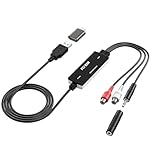
- Versatile Users: This analog to mp3 converter fits every audio preservation need: Music lovers use it as a vinyl to mp3 converter to save vintage records; families digitize old cassettes with this cassette audio converter; content creators capture live mixes; educators save lectures. It turns analog memories into digital files playable on phones, computers, or cars—for everyone, not just experts
- Core Conversion: As a top usb audio grabber, it converts analog signals (from cassettes, vinyl, radios) to MP3/WAV with clarity. The added USB A to C adapter lets you connect to both USB-A and USB-C devices—no extra cords needed. Plug-and-play design means instant use: connect your gear, open software like Audacity, and start recording. Reliable for everyday archiving, not pro studios
- Practical Design: Dual inputs: R/L RCA (for rca to usb conversion, great for mixers/turntables with line output) and 3.5mm (for mics/cassette players). Note: Inputs can’t be used at once. Includes USB-C adapter for modern devices. Traditional turntables (phono-level) need an external preamp; modern ones (line-level) work directly. Always connect the device first, then open software (e.g., Audacity) for detection
- Wide Compatibility: This audio capture card works with PC (Windows), Mac, and Linux—no drivers required. Supports software like Audacity (recommended), OBS, and QuickTime for easy recording. The USB-C adapter ensures compatibility with newer laptops/tablets. Not compatible with professional studio setups needing high sampling rates
- Trusted Assurance: Backed by a 12-month warranty and 24/7 customer support. Whether you need help with setup, compatibility, or using this vinyl to usb converter, we respond fast. This usb capture card combines durability with reliable after-sales care—buy with confidence, knowing your investment is protected
See the ScreenshotNeo documentation for API details. Before capture, it can accept cookie and consent banners and remove more than 60 known consent platforms, newsletter popups, and chat widgets; each step can be turned off. Bot checks, blank pages, timeouts, failed loads, and cache hits cost nothing, and response headers say which page verdict applied and whether the request was billed. Its MCP server offers the tools take_screenshot, get_page_info, and capture_pdf for AI agents and MCP clients. The free plan includes 1,000 screenshots per month with no card; paid plans start at $5 for 3,000. ScreenshotNeo captures webpages; it does not convert a WebP file you already have into JPEG. Sign up for 1,000 free screenshots a month, with no card required.
Troubleshoot a conversion that did not work
- The editor will not open the file: it may not support WebP in your installed version. Try a WebP-capable editor; Photoshop support is native from version 23.2 onward.
- The saved file still ends in
.webp: the export may have kept the source format. Reopen the export dialog, explicitly choose JPEG/JPG, save a new copy, and check that it opens as JPEG. - The upload form rejects the file: confirm that the file was exported as JPEG rather than merely renamed, and check whether the form has a file-size or dimension limit. Those limits are set by the receiving site; consult its requirements.
- The converted image has a solid background: JPEG cannot preserve transparency. If transparent areas are essential, use PNG or keep a format that supports transparency.
- The animation disappeared: JPEG is a still-image format. Keep the animated original or export to a format that supports animation if you need all frames.
- The result looks worse or is larger: JPEG export involves a new encoding step, and its quality setting affects the trade-off between appearance and file size. Keep the original, adjust the export quality if available, and inspect the copy before using it.
For a clean result, preserve the source file until you have opened the JPEG and confirmed that it meets the receiving app’s format, appearance, and size requirements.
Frequently Asked Questions
Why do websites serve WebP images?
WebP offers lossy and lossless compression and can support transparency and animation. Google’s overview explains these format characteristics at developers.google.com/speed/webp.
Can converting WebP to JPEG make the image sharper?
No. Conversion cannot recover detail already lost in a lossy source. It can only encode the available image data into a different format.
Will a JPEG keep an animated image moving?
No. JPEG is a still-image format. Keep the original or use a format that supports animation if you need the frames.
Quick Recap
Product prices and availability are accurate as of the date/time indicated and are subject to change. Any price and availability information displayed on Amazon at the time of purchase will apply.
What’s actually slowing this PC down?
Pick the symptom - the matching free tool is one click away.




