Quick wins for a faster PC:
Fix the driver behind crashes, sound loss and screen glitchesFind Drivers →Clear out junk files and repair common Windows errorsFree Scan →Scan for outdated or missing drivers - takes under a minuteDriver Scan →Run a Nemotron checkpoint locally by matching the exact model to a compatible NVIDIA CUDA host, authenticating to Hugging Face when required, caching the weights, installing a compatible vLLM release or using the documented container, and starting vllm serve. There is no single Nemotron VRAM requirement: model size, active parameters, precision, modality, context length, quantization, GPU count, and interconnect determine whether one GPU is enough or a multi-GPU or multi-node system is required.
What running Nemotron with vLLM actually involves
Nemotron is a family of model checkpoints rather than one model with one hardware profile. NVIDIA publishes several Nemotron families, including text and multimodal variants and models using different precisions or quantization formats. vLLM is one of NVIDIA’s documented deployment frameworks for supported platforms, alongside other routes such as Hugging Face Transformers, NIM, and SGLang.
As an Amazon Associate I earn from qualifying purchases.
The repeatable deployment pattern is:
- Choose the exact checkpoint and record its repository name, revision, precision, context limit, modality, and license.
- Prepare a supported NVIDIA CUDA environment and verify GPU memory, driver and CUDA compatibility, host RAM, storage, and interconnect.
- Authenticate to Hugging Face if access is gated, then cache the model files on the host.
- Install a compatible vLLM build or run a compatible vLLM container.
- Start
vllm servewith the correct tensor-parallel and memory settings. - Send a small request to the OpenAI-compatible API before increasing context length or concurrency.
Large checkpoints can require tensor parallelism across several GPUs and, for the largest deployments, multiple NVIDIA systems. Treat every hardware figure as checkpoint-specific rather than as a generic Nemotron minimum.
1. Select the exact Nemotron checkpoint first
Begin with NVIDIA’s Nemotron deployment index and the model card for the checkpoint you intend to run. Write down the complete repository identifier, not just a family name. Also record the revision or commit, because changing a revision can change configuration, tokenizer files, weights, or vLLM compatibility.
#1 Best Overall
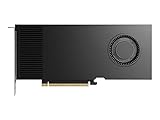
- Professional GPU with Blackwell Architecture
- Blackwell Architecture
- 24GB GDDR7 with PCIe 5.0 & Ray Tracing
- AI Workstation
Details that determine the deployment
- Parameter shape: note total parameters and, for a mixture-of-experts model, the active parameters used for each token. They affect storage, memory, and compute differently.
- Precision or quantization: distinguish BF16, FP16, FP8, NVFP4, or another format. A quantized checkpoint can have a very different memory profile from a full-precision checkpoint, but it must be supported by the selected GPU and vLLM build.
- Modality: text-only and multimodal checkpoints may have different processors, input formats, and runtime requirements.
- Context limit: the maximum context advertised by the model card is not the same as the context you should enable on a constrained machine. Longer context reserves more KV-cache memory.
- License and use terms: check the exact checkpoint’s license and any production restrictions before deploying it for a business or public service.
- Runtime notes: follow the model card’s stated vLLM version, launch arguments, and supported hardware when they differ from generic vLLM guidance.
NVIDIA’s 2026 Nemotron 3 Ultra hybrid Mamba-Transformer MoE cookbook describes a model with 550B total parameters and 55B active parameters. Those figures describe that specific Ultra checkpoint; they do not establish the memory requirement for every Nemotron model.
2. Check the host before downloading hundreds of gigabytes
Do not download weights until the target machine has been checked. A deployment can fail after a long download if the GPU, driver, shared memory, or disk is inadequate.
Hardware and software checks
- GPU count and VRAM: record each GPU’s model and available memory, not only the nominal card name. Leave headroom for CUDA allocations, vLLM bookkeeping, activations, and the KV cache.
- Driver and CUDA: verify that the installed NVIDIA driver supports the CUDA runtime required by the selected vLLM image or package.
- Host RAM: weight loading, tokenization, and CPU offload can consume substantial system memory. A host that has enough GPU memory but insufficient RAM can still fail during startup.
- Storage: reserve space for the model files, tokenizer and processor assets, container layers, temporary downloads, and logs. Keep the Hugging Face cache on a persistent volume.
- Interconnect: tensor-parallel inference moves data between GPUs. NVLink, PCIe topology, and network fabric affect whether a multi-GPU or multi-node plan is practical.
- Shared memory: containerized tensor parallelism needs adequate shared memory. Use
--ipc=hostor an equivalent--shm-sizesetting.
Why the Ultra examples cannot be generalized
NVIDIA’s Nemotron 3 Ultra Station Deployment Guide targets a GB300-based DGX Station. A separate DGX Spark path in NVIDIA’s material lists five GB200 nodes or three B200 nodes for that deployment. These are documented routes for that Ultra guide, not universal minimums for Nemotron. A smaller checkpoint may fit on one GPU, while another checkpoint with a longer context or higher precision may require several GPUs.
Outdated Drivers Are Slowing You Down
One free scan finds every outdated or missing driver and matches the right update for your exact hardware.Free scan · exact hardware matchWindows Errors? Fix Them Before They Spread
Repair common Windows errors and clear accumulated junk for a smoother, more stable PC - no reinstall needed.Free scan · no reinstall3. Authenticate and cache the model
Some checkpoints require gated Hugging Face access. Authenticate on the host before starting vLLM:
hf auth loginWhen prompted, provide a token that has permission to read the selected repository. Do not bake the token into an image or commit it to a shell script. In a container deployment, pass it as an environment variable or use another secret-management method.
Mount the Hugging Face cache into the container so the weights are downloaded once and reused after a restart. The cache path used by the official examples is /root/.cache/huggingface inside the container. On the host, the example below uses $HF_HOME when set and otherwise the default user cache:
export HF_CACHE_DIR="${HF_HOME:-$HOME/.cache/huggingface}"
mkdir -p "$HF_CACHE_DIR"
Check the model card for whether the repository is gated, whether a particular revision is required, and whether additional processor files are needed for a multimodal model. A successful login does not guarantee that the chosen revision is compatible with your vLLM version.
4. Install vLLM or use the official container
Choose one deployment method and keep its version recorded. Containers make CUDA and Python dependencies easier to reproduce; a direct installation can integrate more naturally with an existing host but requires you to manage the environment yourself.
Rank #2

- AI Performance: 767 AI TOPS
- OC mode: 2632 MHz (OC mode)/ 2602 MHz (Default mode)
- Powered by the NVIDIA Blackwell architecture and DLSS 4
- Axial-tech fan design features a smaller fan hub that facilitates longer blades and a barrier ring that increases downward air pressure
- A 2.5-slot design maximizes compatibility and cooling efficiency for superior performance in small chassis
Container deployment
NVIDIA’s Ultra guide names vllm/vllm-openai:v0.22.0. Use that tag only when it matches the model card and target platform. For other checkpoints, select the vLLM image version documented as compatible. The latest tag is useful as a template but should not be left unpinned in a production deployment.
export MODEL="nvidia/<exact-nemotron-repository>"
export HF_CACHE_DIR="${HF_HOME:-$HOME/.cache/huggingface}"
mkdir -p "$HF_CACHE_DIR"

docker run --rm --name nemotron-vllm
  --gpus all
  --ipc=host
  -p 8000:8000
  -v "$HF_CACHE_DIR:/root/.cache/huggingface"
  -e HF_TOKEN="$HF_TOKEN"
  vllm/vllm-openai:latest
  --model "$MODEL"
Replace the repository value with the complete checkpoint identifier. Pin the image tag after checking the checkpoint’s compatibility notes. If the host uses a different cache location or a non-root container user, adjust the mount path and permissions accordingly.
Direct host installation
In a compatible CUDA environment, install vLLM using the release’s documented installation method, then invoke the same serving entry point shown below. Keep the Python environment dedicated to the deployment when possible. Record the vLLM version, Python version, CUDA runtime, and NVIDIA driver so a later failure can be reproduced.
Do these 3 things before closing this tab:
1Fix the driver behind crashes, sound loss and screen glitches2Repair Windows errors before they cause bigger problems3Scan for outdated or missing drivers - takes under a minuteDo not mix a container’s CUDA libraries with an unrelated host installation without checking compatibility. If a model card names a particular vLLM release, use that release rather than assuming the newest package will load the checkpoint.
5. Start the vLLM server
The core command is vllm serve. This example exposes the service on all host interfaces, listens on port 8000, uses one GPU for a single-GPU deployment, and reserves 90 percent of each GPU for vLLM:
vllm serve nvidia/<exact-nemotron-repository>
  --tensor-parallel-size 1
  --gpu-memory-utilization 0.90
  --host 0.0.0.0
  --port 8000
Use the full repository identifier or the local path expected by the selected checkpoint. The --tensor-parallel-size value is the number of GPUs assigned to one replica when the model and topology support tensor parallelism. Set it to the number of GPUs in that replica; do not increase it merely because more GPUs are present if the model card does not support that arrangement.
vLLM currently documents 0.92 as the default for --gpu-memory-utilization. The example uses 0.90 to leave a little additional headroom. This option is a per-instance fraction, not a promise that the process will use exactly that percentage at all times.
Choosing tensor parallelism
| Situation | Starting choice | What to verify |
|---|---|---|
| Checkpoint fits on one GPU | --tensor-parallel-size 1 |
Available VRAM after loading, context reservation, and a smoke test |
| Checkpoint does not fit on one GPU but supports multi-GPU inference | Set the value to the GPU count in one replica | GPU topology, peer-to-peer access, shared memory, and model-card support |
| Large checkpoint documented for a multi-node system | Use the documented node and GPU layout | Network fabric, synchronized software versions, launcher requirements, and licensing |
Start with one replica and a low-concurrency test. Horizontal replicas can improve service capacity, but each replica needs its own model memory and does not make a model that fails to load on one replica fit automatically.
Rank #3

- Powered by the NVIDIA Blackwell architecture and DLSS 4
- Powered by GeForce RTX 5080
- Integrated with 16GB GDDR7 256bit memory interface
- PCIe 5.0
- WINDFORCE cooling system
6. Wait for readiness, then test the OpenAI-compatible API
Watch the server logs until model loading and the HTTP server report readiness. The served model name is shown in the startup output. Use that exact name in the request; it may be the repository identifier or a name configured by the runtime.
export MODEL="nvidia/<exact-nemotron-repository>"
curl http://localhost:8000/v1/chat/completions
  -H "Content-Type: application/json"
  -d "{"model":"$MODEL","messages":[{"role":"user","content":"Reply with one short sentence confirming that you are ready."}],"max_tokens":32}"
A valid JSON response confirms that the process loaded the checkpoint, accepted the model identifier, and completed one request. It is only an operational smoke check. It does not establish throughput, latency, maximum context, or production reliability on your hardware.
For a client library, set the base URL to http://localhost:8000/v1 and use the model name printed by the server. If another machine will call the service, replace localhost with the server’s reachable address and protect the endpoint with the network controls and authentication required by your environment.
7. Tune memory before adding workload
Memory failures usually result from a mismatch between the checkpoint and available memory, an oversized context reservation, concurrency, or an unsupported precision. Change one variable at a time so you can identify the cause.
When the model does not load
- Confirm that the repository, revision, and precision are the intended ones.
- Check free VRAM on every GPU and verify that all GPUs assigned to tensor parallelism are visible to the process.
- Reduce the configured context length to a value appropriate for the workload. A larger context increases KV-cache demand even when the prompt is short.
- Lower initial concurrency and batching expectations; several simultaneous requests reserve more KV-cache memory.
- Use a smaller or quantized checkpoint if the model card and GPU support it.
- Increase tensor parallelism across compatible GPUs, then verify topology and shared-memory settings.
- Adjust vLLM’s KV-cache dtype or size controls when the selected model and hardware support those settings.
- Consider CPU offload only as a fallback. It can make a model fit by using host memory, but transfers add overhead and do not guarantee acceptable latency.
When requests are slow or throughput is poor
- Measure with the actual prompt lengths, output lengths, concurrency, and sampling settings your application will use.
- Check whether the workload is decode-heavy or prompt-heavy; the bottleneck can differ even on the same checkpoint.
- Increase concurrency gradually while watching GPU memory and queueing rather than assuming that more parallel requests always improve response time.
- Compare a supported quantized or lower-precision checkpoint only when its quality and license meet the application’s requirements.
- Review tensor-parallel placement and interconnect. A configuration that fits in memory can still lose performance if GPU-to-GPU communication is slow.
- Keep context limits realistic. Reserving the model’s maximum advertised context can reduce the memory available for concurrent requests.
One GPU or several?
There is no family-wide answer. A single GPU is sufficient only when the exact checkpoint, chosen precision, context setting, KV cache, and workload fit within that GPU’s usable memory and the model supports the selected runtime. The active-parameter count of an MoE model should not be mistaken for the full weight-storage requirement: inactive experts still affect how weights are stored and distributed.
Use multiple GPUs when the checkpoint cannot fit on one card, when the model card requires tensor parallelism, or when the intended throughput needs more compute. Multi-GPU serving introduces topology and shared-memory requirements, so adding cards without checking peer access can produce a deployment that loads poorly or performs badly.
Use multiple nodes only when the selected checkpoint and NVIDIA’s deployment path call for it. The Ultra documentation’s five-GB200 or three-B200-node DGX Spark route illustrates the scale required by one specific large deployment; it should not be presented as a minimum for smaller Nemotron checkpoints.
How to compare two Nemotron checkpoints
When more than one checkpoint is viable, compare the dimensions below before choosing the one with the largest headline parameter count.
Rank #4

- Powered by the NVIDIA Blackwell architecture and DLSS 4. System Requirements: Minimum 850W PSU with 16-pin 12V-2x6 (12VHPWR) connector required. Verify before purchasing.
- Military-grade components deliver rock-solid power and longer lifespan for ultimate durability. Compatibility: 348mm (13.7") length, 3.6 slots, 4.3 lbs. Confirm case clearance and slot spacing. GPU bracket included.
- Protective PCB coating helps protect against short circuits caused by moisture, dust, or debris
- 3.6-slot design with massive fin array optimized for airflow from three Axial-tech fans
- Phase-change GPU thermal pad helps ensure optimal thermal performance and longevity, outlasting traditional thermal paste for graphics cards under heavy loads
| Decision axis | Questions to answer | Why it matters locally |
|---|---|---|
| Parameter and active-expert size | How many total parameters are stored, and how many experts are active per token? | Determines weight storage, compute, and tensor-parallel pressure. |
| Precision or quantization | Is the checkpoint BF16, another floating-point format, or a quantized format such as NVFP4? | Changes memory use and requires compatible GPU and runtime support. |
| Modality | Is it text-only or multimodal, and which processor files are required? | Changes request construction and may add memory or preprocessing work. |
| Context length | What limit is advertised, and what limit is practical for your workload? | Controls KV-cache reservation and concurrency. |
| GPU requirement | What GPU count, VRAM, topology, and node layout does the model card specify? | Determines whether one host, several GPUs, or several nodes are realistic. |
| Throughput and latency | What do measurements show at your prompt lengths and concurrency? | Headline specifications cannot substitute for a target-hardware test. |
| vLLM compatibility | Which vLLM version, flags, and features are documented? | A checkpoint can be valid but unsupported by the installed runtime. |
| License and production terms | Are commercial, redistribution, or service restrictions present? | Technical fit does not grant permission for every deployment. |
Do not claim a winner without measuring the intended workload. NVIDIA’s materials expose deployment options, but they do not provide a universal minimum VRAM figure or a benchmark for every Nemotron checkpoint.
Troubleshooting common failures
Access denied or missing files
Run hf auth login on the host, confirm that the account has accepted any required model terms, and pass the token into the container through HF_TOKEN. Verify the repository name and revision. If the cache is mounted read-only or owned by another user, vLLM may be unable to complete the download.
Out-of-memory during startup
Check whether the error occurs while loading weights or while allocating the KV cache. For weight-loading failures, use a smaller or quantized checkpoint, add tensor-parallel GPUs, or select a supported lower-memory precision. For KV-cache failures, reduce context length and concurrency, then adjust the relevant vLLM cache controls.
Free tools Windows power users keep installed
One-click scans. No signup required.
Container exits immediately
Read the container’s final log lines for the first error, not only the exit code. Check GPU exposure with the container runtime, validate the image tag, confirm the cache mount, and ensure that --ipc=host or sufficient shared memory is available.
Server starts but the request fails
Use the exact model name printed in startup logs, send a minimal text request, and verify that the endpoint includes /v1. A multimodal checkpoint may require a different message content structure or processor input than a text-only model.
Multi-GPU hangs or is unexpectedly slow
Confirm that the tensor-parallel size equals the intended GPU count, all GPUs are visible, and the host’s interconnect matches the model’s deployment guidance. Shared-memory shortages and poor GPU-to-GPU topology can appear as stalls rather than a clean startup error.
Operational records to keep
For every deployment, save the exact model repository and revision, license, container image or vLLM package version, Python and CUDA versions, NVIDIA driver version, GPU models and count, node topology, launch command, memory settings, context limit, and cache location. This record turns an intermittent loading or performance problem into a reproducible configuration.
What’s actually slowing this PC down?
Pick the symptom - the matching free tool is one click away.
Before exposing the endpoint beyond a trusted host, add the access control, TLS termination, logging, rate limits, and secret handling required by your environment. The basic vLLM server command is an inference endpoint, not a complete production security boundary.
Bottom line
Run the exact Nemotron checkpoint your workload requires, not a family name, and size the machine from that checkpoint’s precision, context, modality, and deployment notes. Authenticate and cache the weights, use a version-pinned vLLM environment, start with conservative GPU-memory and tensor-parallel settings, and validate one small request through http://localhost:8000/v1. Only after that smoke test should you tune KV-cache capacity, context, batching, and concurrency on the target hardware.
Quick Recap
Product prices and availability are accurate as of the date/time indicated and are subject to change. Any price and availability information displayed on Amazon at the time of purchase will apply.

