Check Deleted Items first. If the message is no longer there, use Outlook’s Recoverable Items command—Recover items deleted from this folder in new Outlook or Outlook on the web, and Recover Deleted Items From Server in classic Outlook—then select the message and choose Restore. Recovery depends on your Outlook client, account type and retention policy.
What “permanently deleted” means in Outlook
Outlook normally moves a deleted message to Deleted Items. Emptying that folder, or deleting a message from it, moves the message into a hidden recovery area called Recoverable Items when the account and client support that feature. Microsoft’s guidance is direct: “If you can’t find an item in the Deleted Items folder, the next place to look is the Recoverable Items folder.” Microsoft Support explains the recovery workflow here.
As an Amazon Associate I earn from qualifying purchases.
“Permanently deleted” therefore does not always mean immediately unrecoverable. It usually means the message is no longer in the visible Deleted Items folder. You still have a chance while it remains in Recoverable Items and the account’s retention period has not ended. Once the item is absent from Recoverable Items after the applicable retention period, Microsoft says it is probably permanently deleted; do not assume a normal Outlook command can bring it back.
What’s actually slowing this PC down?
Pick the symptom - the matching free tool is one click away.
Identify your Outlook version and account first
The command name and the location of the recovery control vary. Before clicking through menus, identify which experience you are using. A work or school mailbox can also have administrator-controlled retention rules that differ from a personal mailbox.
#1 Best Overall

- Data recovery software for retrieving lost files
- Easily recover documents, audios, videos, photos, images and e-mails
- Rescue the data deleted from your recycling bin
- Prepare yourself in case of a virus attack
- Program compatible with Windows 11, 10, 8.1, 7
| Outlook experience | Where to start | Recovery command | Important qualification |
|---|---|---|---|
| New Outlook for Windows | Folder list, then Deleted Items | Recover items deleted from this folder, then Restore | The command may be unavailable for accounts that do not support recovery outside Deleted Items. |
| Classic Outlook for Windows | Folder list, then Deleted Items | Recover Deleted Items From Server, then Restore Selected Items | The mailbox must expose server-side recovery. |
| Outlook on the web | Open the mailbox in a browser and choose Deleted Items | Recover items deleted from this folder or Recover, then Restore | Web recovery is not available through a mobile browser. |
| Outlook.com personal account | Open Outlook.com, then Deleted Items | Recover items deleted from this folder or Recover, then Restore | Messages removed from Deleted Items are documented as recoverable for 30 days. |
Step 1: Check Deleted Items and Junk Email
- Open the same mailbox in the Outlook client or browser where the message was received.
- Select Deleted Items in the folder list.
- Use the folder’s search or sort controls to locate the sender, subject or approximate date. Verify the mailbox and folder before concluding that the message is gone.
- If you suspect Outlook filtered the message instead of deleting it, open Junk Email and check there as well.
- If you find the message, select it and choose Move or Restore as offered by your Outlook experience, then select the original folder or another folder you can identify easily.
Do not empty Deleted Items again while you are searching. If the message is not present in either visible folder, continue to Recoverable Items rather than repeatedly searching the inbox.
Step 2: Recover in new Outlook for Windows
Open the recovery view
- Open the folder list and select Deleted Items.
- Look for Recover items deleted from this folder. Depending on the current new Outlook build and mailbox type, the control may appear as Recover.
- Select the command to open the list of messages still available outside the visible Deleted Items folder.
Restore the message
- Review the recovered list by sender, subject and date.
- Select the message or messages you want back.
- Choose Restore.
- Return to Deleted Items and the likely original folder. In some Outlook experiences, a recovered message first returns to Deleted Items; move it to the inbox or another folder if needed.
If the recovery list is empty, check the retention limits and account type in the sections below before trying another client. Switching from new Outlook to classic Outlook does not extend a retention period.
Step 3: Recover with classic Outlook for Windows
Use “Recover Deleted Items From Server”
- Open classic Outlook and select Deleted Items in the folder pane.
- Open the folder’s command area and select Recover Deleted Items From Server.
- Wait for the server recovery list to load. Select the required message using its sender, subject and date.
- Choose Restore Selected Items.
- Check Deleted Items and the original folder. If the message is placed in Deleted Items first, move it to the destination folder you want.
The exact ribbon placement can differ with the classic Outlook layout, but the command name is the useful identifier. If Recover Deleted Items From Server does not appear, the mailbox may not support recovery from outside Deleted Items, or your organization may restrict the feature.
Do these 3 things before closing this tab:
1Clear out junk files and repair common Windows errors2Fix the driver behind crashes, sound loss and screen glitches3Repair Windows errors before they cause bigger problemsRank #2

- The Data Recovery Stick requires no technical skills — simply plug it into your Windows computer, click Start, and the software automatically begins scanning and recovering lost files within minutes. Compatible with Windows Vista, 7, 8, 10, & 11, it's designed to be a reliable first step when accidental deletion occurs.
- Recover photos (JPG, BMP, PNG, TIFF), Microsoft Office documents (Word, Excel, PowerPoint, Publisher, Access), Open Office files, MP3 music files, PDFs, RTF documents, AutoCAD files, and HTML web pages. Whether it's personal memories or critical business files, the Data Recovery Stick covers the file types that matter most.
- Works with hard drives, USB drives, SD cards, memory sticks, and other common storage formats that use FAT or NTFS file systems — making it a single solution for hard drive recovery, USB drive recovery, SD card recovery, and more. Note: a media reader is required for micro SD cards and some mass storage devices.
- No Installation Required - The Data Recovery Stick runs entirely from the USB drive with no software installation on your computer — helping prevent new data from overwriting the files you're trying to recover. This also makes it ideal for use across multiple computers or in emergency situations where installation isn't practical.
- Use the Data Recovery Stick on as many computers as often as needed — simply clear the recovered data between uses to free up storage space. Software updates keep the tool compatible with newer systems and devices, backed by 25+ years of data software expertise from Paraben Consumer Software.
Step 4: Recover in Outlook on the web or Outlook.com
Outlook on the web for work or school
- Sign in to the web mailbox supplied by your organization and open Deleted Items.
- Select Recover items deleted from this folder. Some versions label the action Recover.
- Select the message in the recovery list and choose Restore.
- Check Deleted Items and the message’s former folder after the operation completes.
If the control is missing or the list contains no message, your organization’s mailbox configuration or retention policy may be responsible. Ask the administrator to check the mailbox rather than creating a second copy of the message or repeatedly deleting and restoring items.
Outlook.com personal accounts
- Open Outlook.com in a desktop browser and select Deleted Items.
- Choose Recover items deleted from this folder or Recover.
- Select the message and choose Restore.
- Look in Deleted Items and the original folder, because the restored location can vary by Outlook experience.
Microsoft documents a 30-day recovery period for messages removed from Deleted Items in Outlook.com and Outlook on the web. The period starts when the message leaves Deleted Items, not when you first notice it is missing. See Microsoft’s Outlook.com missing-email guidance for that account-specific limit.
Understand the retention window before you conclude recovery failed
Recovery is time-limited. The relevant clock begins when the item is removed from Deleted Items. A message can disappear from the visible folder yet remain recoverable for a while; it can also vanish from Recoverable Items when the retention period expires.
Rank #3

- Stellar Data Recovery Professional is a powerful data recovery software for restoring almost every file type from Windows PC and any external storage media like HDD, SSD, USB, CD/DVD, HD DVD and Blu-Ray discs. It recovers the data lost in numerous data loss scenario like corruption, missing partition, formatting, etc.
- Recovers Unlimited File Formats Retrieves lost data including Word, Excel, PowerPoint, PDF, and more from Windows computers and external drives. The software supports numerous file formats and allows user to add any new format to support recovery.
- Recovers from All Storage Devices The software can retrieve data from all types of Windows supported storage media, including hard disk drives, solid-state drives, memory cards, USB flash storage, and more. It supports recovery from any storage drive formatted with NTFS, FAT (FAT16/FAT32), or exFAT file systems.
- Recovers Data from Encrypted Drives This software enables users to recover lost or deleted data from any BitLocker-encrypted hard drive, disk image file, SSD, or external storage media such as USB flash drive and hard disks. Users will simply have to put the password when prompted by the software for recovering data from a BitLocker encrypted drive.
- Recovers Data from Lost Partitions In case one or more drive partitions are not visible under ‘Connected Drives,’ the ‘Can’t Find Drive’ option can help users locate inaccessible, missing, and deleted drive partition(s). Once located, users can select and run a deep scan on the found partition(s) to recover the lost data.
| Account situation | Documented period or rule | What it means for you |
|---|---|---|
| Outlook.com and Outlook on the web | 30 days for items removed from Deleted Items, according to Microsoft Support (2026) | Use the recovery command before 30 days have elapsed. After that, normal recovery may no longer be available. |
| Work or school mailbox | Administrator-controlled retention; Microsoft gives 30 days as a default example for temporary recovery, but a tenant’s actual policy can differ | The administrator can confirm the mailbox’s retention setting and whether a longer policy, hold or other organizational process applies. |
| Item absent after the applicable period | Microsoft says it is probably permanently deleted | Do not promise recovery after expiry. Escalate promptly if the message is business-critical, but understand that an administrator may also be unable to restore it. |
Microsoft describes retention and archive behavior for Outlook on the web in its administrator documentation: Retention and archive policies in Outlook Web App. That page is especially relevant when a work or school account behaves differently from a personal Outlook.com account.
Crashes, No Sound, or Screen Glitches?
Random freezes, missing sound and display glitches usually trace back to one bad driver. Find and replace yours safely.Free scan · under a minuteWindows Errors? Fix Them Before They Spread
Repair common Windows errors and clear accumulated junk for a smoother, more stable PC - no reinstall needed.Free scan · no reinstallWhen the recovery command is missing
A missing command is a useful diagnostic clue, not proof that the message was never recoverable. Work through these checks in order:
- Confirm the folder. The recovery control is normally exposed from Deleted Items. It may not appear when another folder is selected.
- Confirm the client. New Outlook, classic Outlook and the web interface expose different labels. Use the command name for your client in the earlier sections.
- Confirm the account. Recovery outside Deleted Items depends on account support. A personal mailbox and a managed work or school mailbox can have different capabilities.
- Try the supported desktop or web experience. Mobile browsers cannot access Recoverable Items. Use a desktop browser or desktop Outlook instead.
- Ask the administrator for a work or school account. The administrator can determine whether retention, mailbox configuration or policy restrictions hide the recovery feature.
Do not install an unrelated mail utility or change retention settings while investigating. Such changes can make the timeline harder to establish and may be restricted on an organizational account.
Rank #4
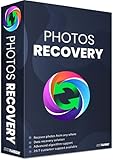
- Best photo recovery software to recover deleted, lost, formatted and corrupt photos in 1-click
- Restore different image files formats stored on internal or external storage devices
- Comprehensive Scanning - Quick Scan and Deep Scan to get back lost and deleted from corrupted or formatted hard drive.
- Undelete RAW, raster, or vector photos and preview scan results before recovery
- Important: BACKUP CD IS NOT INCLUDED
Administrator-assisted recovery for work or school mailboxes
If the mailbox belongs to an employer, school or other organization, contact the administrator as soon as possible, especially when the message is inside the documented retention window. Provide facts that let the administrator identify the item:
- Your mailbox address and the Outlook client you used.
- The sender, recipient, subject and approximate date and time.
- When you deleted the message or emptied Deleted Items, if known.
- Whether you already checked Deleted Items, Junk Email and the Recoverable Items view.
- Whether other messages from the same period are also missing.
Ask the administrator to verify the tenant’s retention policy and whether the item is still present in the mailbox’s recoverable area. Microsoft’s 30-day example is not a promise for every organization; the configured policy controls the actual outcome.
What happens after you select Restore
A successful restore does not always place the message directly in the inbox. Depending on the Outlook experience, it may first return to Deleted Items or to the folder from which it was deleted. Check both locations, then move the message to a clearly named folder if you need to preserve it.
Best Value

- Stellar Data Recovery is an easy-to-use, DIY Windows data recovery software for recovering lost and deleted documents, emails, archived folders, photos, videos, audio, etc., from all kinds of storage media, including the modern 4K hard drives.
- Supports Physical Disk Recovery The software brings an all-new option to scan physical disks to retrieve maximum recoverable data. This feature combined with its advanced scanning engine efficiently scans physical disk in RAW mode and retrieve the lost data in numerous data loss scenarios like accidental deletion, formatting, data/drive corruption, etc.
- Supports 4K Hard Drives The software recovers data from 4K hard drives that store data on large-sized sectors. With an advanced scanning engine at its disposal, the software scans the large storage sectors of 4096 bytes on 4K drives and retrieves the data in vast data loss scenarios like accidental deletion, formatting, data corruption, etc.
- Recovers from Encrypted Volumes Easily retrieves data from BitLocker-encrypted drives or drive volumes. The software allows users to select the encrypted storage drive/volume and run either a ‘Quick’ or ‘Deep’ scan to recover the lost data. Once scanning commences, the software prompts users to enter the BitLocker password to proceed further.
- Recovers from Corrupt Drives The ‘Deep Scan’ capability enables this software to thoroughly scan each sector of the problematic drive and recover files from it. Though this process takes time, it extracts every bit of recoverable data and displays it on the preview screen.
Open the restored message and verify the sender, subject, attachments and conversation context. If the item is present but appears in the wrong folder, the recovery worked; the remaining task is simply to move it. If it is not visible, refresh the folder, sign out and back in, and check the web or desktop experience appropriate to the account before escalating.
Why a message may not be recoverable
The retention period expired
Recoverable Items is not permanent storage. Outlook.com and Outlook on the web document 30 days, while organizational mailboxes can use a different administrator-defined period. Once the item ages out, the standard Restore command cannot be expected to work.
The message was never in this mailbox
Check whether the message was delivered to another address, shared mailbox or alias. Also check Junk Email. If only one Outlook client is missing the message while another shows it, the issue is more likely a view or synchronization difference than permanent deletion.
Free tools Windows power users keep installed
One-click scans. No signup required.
The account does not expose Recoverable Items
Some accounts support only the visible Deleted Items workflow. When the command is absent in every supported desktop or web experience, the account may not provide recovery outside that folder. For a managed mailbox, the administrator is the correct escalation point.
You are using a mobile browser
Mobile browsers cannot access Recoverable Items. Move to desktop Outlook or a desktop browser before deciding that recovery is unavailable.
Quick Recap
A compact recovery checklist
- Identify whether you use new Outlook, classic Outlook, Outlook.com or Outlook on the web.
- Open the correct mailbox and check Deleted Items.
- Check Junk Email if filtering may explain the missing message.
- From Deleted Items, open the client-appropriate recovery command.
- Select the message and choose Restore or Restore Selected Items.
- Check Deleted Items and the original folder after restoration.
- Compare the deletion date with the applicable retention period.
- For a work or school mailbox, give the administrator the sender, subject, date and mailbox address.
- If the item is absent after the retention period, treat it as probably permanently deleted rather than repeating the same recovery attempt.
If Outlook or Windows is also crashing or showing broader system errors, Outbyte PC Repair is an optional shortcut that can address more than 100 common Windows issues where possible, including broken system elements and app-crash logging; it complements antivirus software, results vary, and no tool repairs every crash. It runs on Windows 11, 10, 8 and 7, with a free trial by category of at least two days before a subscription.
Product prices and availability are accurate as of the date/time indicated and are subject to change. Any price and availability information displayed on Amazon at the time of purchase will apply.
The Tool Desk
Outbyte PC Repair FREERepair Windows errors before they cause bigger problemsFix Now →Outbyte Driver Updater FREEScan for outdated or missing drivers - takes under a minuteDriver Scan →
