Starlink is not an anonymity system. Its satellite link encrypts user traffic and uses hardware-backed identity controls, but a powered terminal is still a physical radio, a managed account, and a network endpoint. For a sensitive site, keep the terminal under physical control, disable the built-in Wi-Fi with bypass mode when your kit supports it, place a hardened firewall/router behind the terminal, administer that gateway through an encrypted VPN with MFA, and maintain a non-Starlink fallback.
What Starlink protects—and what it does not
Starlink’s 2024 security documentation says satellites see encrypted user traffic and that terminals use hardware-backed cryptographic identity controls. Those are meaningful protections against casual interception of payload traffic over the satellite link. They do not make the user, terminal, account, or connected devices anonymous.
As an Amazon Associate I earn from qualifying purchases.
The same document explains the distinction precisely: “A Starlink user terminal knows its own location precisely, but the satellite only needs to know what cell the user is in – the user terminal doesn’t share its precise location information with the satellite.” The statement describes the information needed by the satellite to provide service. It is not a guarantee that Starlink retains no location information, that an account cannot be associated with a place, or that an outside observer cannot detect a terminal.
Think of the system as four separate security problems:
#1 Best Overall
![LUCMO Multi Ports Starlink Ethernet Adapter for Starlink Actuated Gen 2 | Starlink Wired External Network, 2-Port Starlink Ethernet Adapter 1 to 2 [2 Devices Networked Simultaneously] Up to 1 Gbps](https://m.media-amazon.com/images/I/41lWcIMDS1L._SL160_.jpg)
- Compatibility: Our 2 Ports Starlink Ethernet Adapter is specially designed for the Starlink Standard Actuated Generation 2, with optimal connection guaranteed.
- Gigabit Ethernet Support: The adapter features two Gigabit Ethernet (RJ45) ports, allowing you to connect two wired devices directly to your Starlink system, taking full advantage of Starlink’s high-speed internet capabilities.
- Convenience: Just plug in to use, easy to install and no complicated setting up necessary.
- Seamless Performance: Ensures minimal lag and uninterrupted connectivity for demanding tasks, whether for work, entertainment, or smart home management.
- Secure Cable Connections: Features well-designed ports that provide a snug fit, reducing the risk of disconnection and maintaining a stable connection at all times.
- Satellite-link confidentiality: traffic is encrypted between the terminal and the Starlink network.
- Terminal and account identity: the operator can associate a service account, hardware, billing details, support interactions, and usage with the subscription.
- Radio and physical exposure: a powered, transmitting antenna can be observed by people with suitable equipment; the dish and cabling can also be seen, reached, damaged, or seized.
- Local network and endpoint security: a compromised laptop, phone, router, camera, or cloud account remains compromised regardless of satellite encryption.
Protection therefore requires controls around Starlink, not just confidence in the space link.
Can someone track or find a Starlink terminal?
What is established
Starlink’s terminal knows its location for service operation, while the satellite only needs the terminal’s cell. Starlink terminals also switch satellites in real time; the company says many satellites are visible in a typical US deployment. Neither fact means the terminal is invisible. The service necessarily involves a registered account, network operations, and a physical device at a particular site.
Starlink has not published a universal RF-detection range or a guarantee that a terminal cannot be geolocated. Detection depends on terrain, antenna orientation, whether the terminal is powered and transmitting, local interference, nearby observers, and the capabilities of the equipment used to look for it. A claim that a dish is “undetectable” is therefore not supportable.
The Tool Desk
Outbyte Driver Updater FREEScan for outdated or missing drivers - takes under a minuteDriver Scan →Outbyte PC Repair FREERepair Windows errors before they cause bigger problemsFix Now →Other ways a location can leak
Even if the payload is encrypted, an investigator may learn about a site from account records, IP geolocation, service or support activity, connected-device telemetry, visible masts or cables, generator noise, power-use patterns, photographs, or human behavior. A public IP can move when the terminal moves, and a public-facing application can reveal more than the satellite link does. Treat operational security as a combined physical, administrative, network, and human problem.
What not to infer from satellite counts
Starlink reported that its Stargaze system processed “over 30 million transits per day” in 2026. That is a space-situational-awareness observation figure, not a measurement of customer-terminal tracking accuracy, RF detectability, or anonymity. Likewise, the statement that tens of satellites may be in view for a typical US terminal (Starlink, 2025) describes service geometry, not concealment.
Rank #2

- ⚠️ COMPATIBILITY WARNING: Designed EXCLUSIVELY for Starlink Standard Actuated Gen 2. ❌NOT COMPATIBLE with Starlink Gen 3, Flat High-Performance, or any other models. Please verify your dish model before purchase!
- PLUG & PLAY INSTALLATION: Simply connect the adapter between your Gen 2 Starlink router and the cable. No drivers or complex setup needed. Ensure a firm click on both ends for a stable connection.
- ENABLE HARDWIRED SPEEDS & STABILITY: Unlock the full potential of your Starlink by connecting gaming consoles, PCs, and smart TVs directly via Ethernet for lower latency and smoother streaming.
- RELIABLE DATA TRANSFER: Experience lag-free online gaming, 4K video conferencing, and ultra-fast file transfers with a stable, wired internet backbone.
- TROUBLESHOOTING TIP: If not working, first check both connections are secure and restart your Starlink router.
Use a controlled network architecture
The safest general design is:
Terminal → Starlink router in bypass mode (where supported) → third-party firewall/router → separated trusted, guest, and IoT networks → devices.
In bypass mode, the Starlink router’s Wi-Fi is disabled and the third-party gateway supplies DHCP, firewalling, VPN access, and network segmentation. This gives one device responsibility for policy and logging instead of leaving important controls split between two consumer routers.
What’s actually slowing this PC down?
Pick the symptom - the matching free tool is one click away.
Most kits support a third-party router, but the physical path varies by generation. Standard Actuated kits require the Starlink Ethernet Adapter for this arrangement. Confirm the exact kit before buying hardware; an adapter that fits one generation may not be present or required on another.
Step-by-step hardening procedure
1. Inventory the site before connecting sensitive devices
- Record the terminal model or kit generation, router model, Ethernet adapter (if any), power supplies, cables, firmware versions, and the service-plan type.
- List every device that will use the connection, including phones, laptops, cameras, printers, storage, radios, and management computers.
- Decide which devices may communicate with one another. A camera does not normally need access to an administrator’s laptop, and a guest phone should not reach a file server.
- Identify a safe management location for the gateway and a separate, trusted device from which it will be administered.
Keep this inventory offline as well as in your normal documentation. It speeds recovery if equipment is replaced or confiscated.
2. Place and physically control the terminal
Follow local law and Starlink’s installation guidance. Keep the terminal where it has a clear view of the sky; obstructions can degrade the link and cause interruptions. At the same time, avoid unnecessary visibility from roads, neighboring buildings, or public areas. Secure the mount, route and protect the cable, and prevent unauthorized access to the router, power supply, and reset controls.
Rank #3
![Multi Ports Ethernet Adapter for Starlink Standard 4X/ Gen 3/ Starlink Mini | For Starlink Wired External Network 4 Ports Ethernet Adapter 1 to 4 [4 Devices Networked Simultaneously] - Up to 1 Gbps](https://m.media-amazon.com/images/I/410vGlCO+8L._SL160_.jpg)
- Compatibility -- Works seamlessly with Starlink Gen3/ Standard 4X and Starlink Mini antenna, suitable for various environments.
- Multi-Device Connectivity -- 4 Gigabit Ethernet ports support multiple devices simultaneously, maximizing Starlink's high-speed internet.
- Reliable Performance -- Tested for 72 hours under full load, ensuring stable performance with no speed drops or interruptions.
- Easy to Use -- Plug-and-play design makes installation quick and hassle-free.
- High-Speed Stability -- Whether for work, entertainment, or smart home management, this adapter delivers fast, stable, and convenient networking performance. Upgrade your network setup today
Do not assume that hiding the dish solves the RF problem. Enclosures, roofs, foliage, and improvised covers can obstruct the antenna, increase outages, or create heat and weather hazards. If concealment is necessary, test it under the actual operating conditions and understand that it may reduce reliability without eliminating detection.
Free tools Windows power users keep installed
One-click scans. No signup required.
3. Change every default credential
- Set a long, unique Starlink account password and enable every available account-protection feature.
- Change the router administrator password; do not reuse the account password or a password used anywhere else.
- Use a long, random Wi-Fi password generated by a password manager.
- Choose a non-identifying SSID. Do not put a unit name, location, organization, call sign, or personal name in the network name.
- Store recovery codes and the password-manager emergency procedure offline in a controlled location.
Do not publish the Wi-Fi password on paper near the terminal or leave the administration app signed in on a shared phone.
4. Enable bypass mode when the kit supports your design
- Connect the third-party firewall/router to the Starlink Ethernet path required by your kit generation.
- From the Starlink application or web interface, enable Bypass Mode on supported hardware.
- Confirm that the Starlink router’s Wi-Fi network disappears and that the third-party gateway receives the upstream connection.
- Configure DHCP, DNS policy, firewall rules, VPN services, and wireless networks on the third-party gateway.
- Keep a documented recovery path. A reset or incompatible configuration can require temporarily reconnecting a computer directly to the Starlink router.
Bypass mode is not a magical security switch. Its value is control: one gateway can enforce the rules, provide consistent logs, and separate networks. If your kit does not support bypass mode, disable unused Starlink features and apply the strongest available settings, but recognize that control is more limited.
5. Build a default-deny firewall policy
- Block unsolicited inbound connections from the Starlink side and from every untrusted local network.
- Allow established and related return traffic so normal sessions continue to work.
- Permit outbound traffic only as broadly as operations require; restrict administrative services and risky device classes where practical.
- Disable Universal Plug and Play, automatic port mapping, remote administration from the WAN, and discovery services that are not required.
- Use the gateway’s logging and alerting for repeated login failures, configuration changes, unexpected outbound connections, and firewall-rule edits.
Do not expose the router, firewall, Starlink terminal, cameras, NAS, or other management interface directly to the internet. Management should be reachable only from a dedicated administrative network or through a protected VPN.
6. Segment trusted, guest, and IoT equipment
Create separate VLANs or SSIDs for at least:
- Administration: the smallest possible set of patched devices used to manage the gateway and infrastructure.
- Trusted operations: workstations and phones that handle sensitive documents or communications.
- IoT and infrastructure: cameras, sensors, printers, and other devices that are difficult to patch or do not need peer access.
- Guest: visitors’ devices, with internet access but no route to trusted, administrative, or IoT networks.
Use inter-network rules that deny access by default, then add only the required exceptions. For example, a trusted workstation may need to print to a printer VLAN, while an IoT camera should not be able to initiate a connection to the administration VLAN. Segmentation limits damage when one device is stolen, infected, or misconfigured; it does not replace patching or endpoint protection.
Rank #4
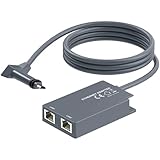
- 【Dual-Port Connection】For Starlink Gen2 Ethernet Adapter simplifies wiring with two ports.Connect devices like a PC+game console or NAS + smart TV simultaneously.Overcome your Starlink Gen2 router's limit for a reliable wired network — ideal for streaming,gaming,and remote work.
- 【Optimized for Starlink Gen2 Routers】Optimized for Starlink Gen2 satellite router, this adapter delivers broad compatibility — seamlessly works with Starlink Gen2 routers paired to Enterprise, mobile HP-Flat High Performance Kit (Gen2), High Performance (Gen1), and Standard Actuated (Gen2) systems.
- 【Multi-Device Compatibility】This Ethernet Adapter supports diverse third-party devices — including PCs, Macs, PS5, Xbox, Smart TVs, NAS, mesh routers, and security systems. It automatically optimizes network performance for reliable connectivity.
- 【High-performance network speed】Support Gigabit wired transmission, provide low-latency, high-bandwidth network, perfect for 4K/8K streaming media, online games, large file downloads, network speed up to 1Gbps say goodbye to wireless lag
- 【Enhanced Reliability:】Features gold-plated ports, energy-efficient chips, and ABS housing with IP65 rating in a compact design. Validated by 72-hour industrial stress testing — rated for 24/7 operation in multiple environments.
7. Administer remotely through an encrypted VPN with MFA
Use a site-to-site VPN, an administrator VPN, or an outbound tunnel to reach the gateway without opening inbound management ports. Protect the VPN account with multi-factor authentication, unique credentials, short session lifetimes where feasible, and a restricted administrator group. Limit which source networks may reach the management interface, and log successful and failed logins.
Starlink commonly uses carrier-grade NAT (CGNAT), which blocks unsolicited inbound IPv4 connections by default. That reduces one class of exposure but does not secure an account, an application, or a device that makes outbound connections. If CGNAT prevents a direct VPN connection, use an outbound tunnel, site-to-site VPN, or managed rendezvous service rather than weakening the firewall or forwarding random ports.
8. Keep firmware and software current
Enable automatic updates where they can be applied safely, or create a prompt maintenance schedule. Starlink’s 2025 update notice said selected materially outdated terminals had to update by November 17, 2025; terminals that could not update could become inoperable. Record the installed terminal and gateway versions, keep compatible power and cabling spares, and periodically verify in the Starlink application that the terminal is reachable and current.
Update the third-party gateway, access points, VPN software, laptops, phones, cameras, and storage systems as well. A current satellite terminal cannot compensate for an unpatched endpoint or a vulnerable management appliance.
9. Harden the endpoints using the connection
- Use full-disk encryption and a strong screen-lock credential on every laptop and phone carrying sensitive data.
- Patch operating systems, browsers, messaging clients, and security software promptly.
- Keep sensitive files off the terminal and shared devices when they are not needed; use controlled, encrypted storage instead.
- Separate operational identities from personal accounts, social media, and unrelated cloud services.
- Verify recipient identities and use end-to-end encrypted communications where appropriate; Starlink transport encryption does not automatically provide end-to-end encryption.
- Disable unnecessary local sharing, Bluetooth, discovery, and automatic connection to unknown networks.
Should you disable Starlink Wi-Fi?
For a low-risk site, Starlink’s router can be acceptable if its credentials are unique, firmware is current, remote administration is off, and unused features are disabled. For a sensitive site, disabling the built-in Wi-Fi through bypass mode is usually preferable because it removes an extra wireless network and makes the third-party gateway the single policy-enforcement point.
Best Value

- Extend a Network Port for Your Devices: This for Starlink Ethernet Adapter seamlessly integrates your new for Starlink system into your existing business or home network, maximizing throughput from your outdoor dish. It’s an affordable solution for adding or replacing an RJ45 port on your devices, perfect for connecting to a wired network when your device lacks a network port or has a faulty one.
- Improved Speeds: This for starlink adapter ethernet enabled to connect for Starlink dish to existing home mesh Wi-Fi system, significantly boosting the speed. And can extend network to previously unreachable areas of your house due to numerous walls. The direct connection to PC significantly improve internet speeds, providing a more reliable and faster network experience throughout your home.
- 1000Mbps Hyper Speed: The for starlink v2 ethernet adapter is designed to connect a device directly to the for Starlink Router for a reliable wired connection. It supports speeds of up to 1 Gbps, ensuring fast and stable internet performance. Perfect for enhancing your online working, meeting, classing, gaming, HD video streaming, upload, download, and more.
- Easy Installation: for Starlink to RJ45 Gigabit Ethernet Adapter is driver-free. (Installation Way: 1. Turn off the for Starlink router by unplugging its AC power cord from the wall outlet. 2. Unplug the for Starlink antenna cable from the bottom of the router. 3. Insert the for Starlink Ethernet Adapter into the port on the router where the for Starlink antenna cable was previously connected. 4. Connect the for Starlink antenna cable to the connector on the for starlink adapter ethernet. 5. Power everything back on by plugging the router's AC power cord back into the wall outlet )
- Compatible with the for Starlink Standard Actuated Kit V2, this adaptador ethernet for starlink v2 is highly recommended for rural areas. It dramatically enhances internet performance, nearly doubling speeds and reducing latency, making it perfect for browsing, streaming, and gaming.
The trade-off is operational complexity. A third-party firewall/router adds another device, another firmware stream, and kit-specific Ethernet requirements. Test the full chain before deployment, label cables, save a known-good configuration, and keep a way to restore service if the gateway fails.
Starlink router only versus bypass plus a firewall/router
| Decision axis | Starlink router only | Starlink bypass plus third-party firewall/router |
|---|---|---|
| Setup complexity | Lower | Higher; requires an additional gateway and, for standard Actuated kits, the Starlink Ethernet Adapter |
| Firewall, VPN, and VLAN control | Limited to Starlink features | Highest; the chosen gateway controls policy |
| Wi-Fi exposure | Starlink Wi-Fi remains enabled unless supported controls disable it | Starlink Wi-Fi is disabled in bypass mode; the security gateway supplies Wi-Fi |
| Troubleshooting | Simpler vendor path | More components and more kit-specific failure points |
| Sensitive-site suitability | Adequate for lower-risk use with strong credentials and updates | Preferred when segmentation, monitored VPN access, and controlled administration are required |
IP addresses, CGNAT, and public-IP options
Starlink documents default IPv4 CGNAT with inbound ports blocked. Some Priority, Mobile Priority, and Maritime customers may have an optional public IPv4 configuration. A public address is an exposure decision, not a security upgrade: it can make direct inbound access possible and increases the consequences of a mistake.
If a public IPv4 address is enabled, retain a default-deny inbound policy and allow administration only through the VPN or an outbound tunnel. Do not equate a changing address with anonymity. Moving the terminal can change the public IP, but IP geolocation, account records, device behavior, and other metadata may still associate sessions with a place or subscriber.
Operational practices for a sensitive deployment
Before powering on
- Confirm the terminal’s legal use and the site’s permissions.
- Inspect the mount, cable, power source, and weather protection.
- Check that the terminal, router, and gateway versions are recorded and current.
- Verify that bypass mode, VPN access, MFA, segmentation, and logging still match the approved configuration.
- Remove unnecessary devices and clear old credentials from equipment leaving the site.
During operation
- Keep the terminal and gateway attended or physically secured.
- Watch for unexpected configuration changes, new clients, repeated authentication failures, or unexplained outbound traffic.
- Use the administrative network for management; do not configure infrastructure from an untrusted guest or IoT device.
- Minimize sensitive metadata in hostnames, SSIDs, device names, and cloud dashboards.
If compromise or discovery is suspected
- Disconnect affected endpoints from the local network while preserving evidence and safety-critical communications.
- From a known-clean device, revoke VPN sessions, rotate Starlink, gateway, Wi-Fi, and cloud credentials, and invalidate recovery tokens.
- Review gateway, VPN, and endpoint logs for new accounts, rule changes, port forwards, and unusual outbound connections.
- Restore the gateway from a trusted configuration or reimage it; do not simply delete an unknown rule.
- Assess the physical site: inspect the terminal, cable, power equipment, and mounting hardware for tampering.
- Notify the responsible security and operations contacts using a separate channel.
Plan for outages and loss of service
Starlink’s terms state: “SERVICES ARE NOT SUITED OR INTENDED AS A MISSION-CRITICAL OR SAFETY-OF-LIFE SERVICE.” Service may be suspended for legal, governmental, technical, or security reasons. Obstructions, power loss, damaged cables, local interference, account action, weather, or a failed gateway can also interrupt connectivity.
Maintain a fallback communications plan that does not depend on the same terminal, power source, or local network. Depending on the site and applicable law, that may include a separate terrestrial link, a different satellite system, radio, prearranged check-in procedures, offline maps and contact lists, spare power equipment, and a tested process for switching users to the backup. Keep critical information available offline so an outage does not become an operational emergency.
Practical decision rule
Use the Starlink router alone only when the site is lower risk and the operational team can maintain strong credentials, current firmware, and basic firewall hygiene. Choose bypass mode with a controlled third-party firewall/router when you need VLAN segmentation, monitored VPN administration, centralized logging, or a strict separation between trusted and untrusted devices. In either design, treat the dish as a visible, managed radio endpoint; encrypt sensitive applications end to end; keep management off the public internet; and assume that continuity requires a backup.
Quick Recap
Product prices and availability are accurate as of the date/time indicated and are subject to change. Any price and availability information displayed on Amazon at the time of purchase will apply.
Recommended Free Tools

