Recommended Free Tools
You can use a Blender scene to guide an AI-generated video’s composition, perspective, depth, and intended surface appearance, but the documented workflow does not transfer a Blender camera animation or shader graph as native data. NVIDIA’s March 17, 2026 local ComfyUI workflow uses depth-guided first and last images to steer video generation; the resulting motion and materials still need to be checked for drift.
What “preserving” a Blender scene means in an AI-video workflow
There are two different handoffs to keep separate. Blender can supply scene-derived images and depth information that guide the generated video’s framing and subject placement. That is visual conditioning—not proof that a video model imports a Blender camera object, follows every pose in its animation, or reads its material nodes.
As an Amazon Associate I earn from qualifying purchases.
For materials, treat the Blender scene as the source of visual intent. The cited image-conditioned workflow does not document native transfer of Blender shader graphs or physically based material parameters. Using reference images and plain-language descriptions of surface appearance is a practical inference from that workflow, not a documented shader-transfer feature.
Quick wins for a faster PC:
Scan for outdated or missing drivers - takes under a minuteDriver Scan →Repair Windows errors before they cause bigger problemsFix Now →How NVIDIA’s documented Blender-to-video workflow works
NVIDIA’s guide, dated March 17, 2026, describes a local workflow using Blender 4.5 LTS, ComfyUI, FLUX.1 for depth-guided image generation, LTX-2.3 for video, and an NVIDIA RTX video upscaler. Its steps are:
#1 Best Overall

- 【Blender 3D Cheat Sheet】The Large mouse pad with Blender 3D Cheat Sheet shortcuts specifically designed for Beginners, making it easy for you to working.
- 【HD Printing】The extra large keyboard shortcut mousepad adopts high-tech printing process to ensure that the pattern of the mouse pad is clear and the color is bright. Ensuring users have quick and easy access to frequently used commands and functions. This is a great office accessories.
- 【Universal Fit】Mouse Pad for Desk is designed for comfort and productivity. Measuring at 31.5x11.8 inches, it provides ample space to accommodate your mouse, keyboard, and other desk essentials.
- 【Invisible Seams & Waterproof】Our large gaming mouse pad has a waterproof coating, the surface can be easily cleaned with water or a damp cloth. It also has invisible stitched process to avoid edge damage caused by long-term use. This design effectively extends the service life of the keyboard shortcut mouse pad and is suitable for computers and laptops.
- 【Easy to Clean and Maintain】 The spill-repellent surface ensures easy cleanup of daily spills or accidents, extending the lifespan of your mouse pad. Say goodbye to the hassle of dealing with spills and enjoy a pristine workspace at all times.
- Set up the scene in Blender. Establish the camera angle, scene depth, subject position, and intended movement.
- Create the opening reference. Use the ComfyUI Blender integration to derive a depth map and generate a photorealistic first image guided by the scene and a prompt.
- Create the ending reference. Scrub the Blender animation to the desired endpoint and make a second depth-guided image. For a scene without animation, the guide also describes adding a second camera and repositioning scene elements.
- Generate the video between the references. Load the images into the ComfyUI LTX-2.3 FirstFrame/LastFrame template and prompt the motion between them.
- Review the result. Check the generated clip and upscale if needed.
The guide says the scene layout, camera angle, depth, and subject position carry through this route. Its described video stage uses first and last frames; it does not promise exact reproduction of the full Blender camera path or every intermediate pose.
How to prepare a shot to reduce camera and material drift
- Keep the editable master. Preserve the native
.blendfile and its camera animation. Treat that file as the source of truth for scene changes. - Set the deliverable first. Decide the output aspect ratio and frame range before creating references so the guide images match the shot you intend to generate.
- Choose reference times deliberately. Select the exact start and end points from the camera animation. For an intricate move, consider rendering intermediate guide images as checkpoints. Whether a particular workflow accepts more than two guiding frames is not established by NVIDIA’s guide.
- Make material intent visible. Use reference images and describe surfaces in plain terms—such as matte, glossy, rough, metallic, translucent, or patterned. Do not assume a text prompt or image carries the original shader graph.
- Run a short test. Generate a brief sample before committing to the full shot. This is a practical check, not a guarantee of fidelity.
- Compare against the references. Inspect framing, subject position, movement, surface color, gloss, texture, and lighting. If they drift, revise the guide images, prompts, or Blender scene layout and test again.
These preparation and review steps are practical recommendations for an image-guided workflow. NVIDIA’s guide does not claim that they guarantee fidelity.
Rank #2

- Extended Dimensions: 31.5" x 11.8" x 0.1" It will fit your desktop perfectly and provide the perfect space to move around, you can also use this extended mouse pad as office, gaming, keyboard pad, platform protector or desk pad, and for all types of mice and more
- Exquisite Design: We choose beautiful and trendy patterns and use superior printing technology to ensure vibrant colors. This is a great desk and home table mat decoration to add some character to your workplace and home
- Stitched Edges: The latest stitching technology ensures that the mouse pad will not fray or deform during use. The stitched frame ensures that it won't fray or come off like other mouse pads, making it easy to use
- Non-Slip Base: The base of this extra-large mouse pad is made of high-quality natural rubber, the mouse pad is designed with densely textured rubber that grips the desktop firmly and provides stable operation for the mouse/keyboard
- Colorfast:Thermal transfer printing process, can be washed again and again and does not fade, so that this mouse pad always maintains the beautiful
What can move through scene interchange—and what cannot be assumed
File interchange is a separate route from image-conditioned video generation. Blender supports multiple 3D formats, but a format helps only when the destination application supports the data you need. Blender’s USD documentation for Blender 4.2 LTS says that only supported visible objects are exported, supports perspective cameras, and describes material-conversion choices and limitations. Those facts do not establish that an AI-video service accepts USD or will preserve a particular camera or material setup.
Outdated Drivers Are Slowing You Down
One free scan finds every outdated or missing driver and matches the right update for your exact hardware.Free scan · exact hardware matchWindows Errors? Fix Them Before They Spread
Repair common Windows errors and clear accumulated junk for a smoother, more stable PC - no reinstall needed.Free scan · no reinstallBlender’s pipeline overview covers common interchange formats, including Alembic camera support. Check the documentation for the Blender release and receiving application you actually use, then verify which scene features survive that specific handoff. Do not treat a format’s general camera or material capabilities as proof of support by a video-generation service.
Rank #3
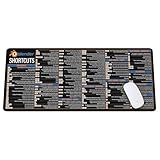
- Extra Large & Comfortable: Measuring 31.5 x 11.8 inches with a 3mm thickness, this XL mouse pad offers ample space for your mouse, keyboard, and more - ensuring comfort and reducing noise.
- Smooth & Precise Control: Enjoy effortless mouse movement with the ultra-smooth surface, perfect for both gaming and office work.
- Non-Slip Rubber Base: The anti-slip rubber base keeps the pad securely in place during intense gaming or work sessions.
- Durable & Stylish Design: Invisible stitching prevents edge wear while maintaining a sleek look, extending the pad’s lifespan.
- Waterproof & Easy to Clean: The water-resistant coating allows for quick cleaning—spills and stains wipe away easily.
Local workflow requirements and scope
NVIDIA’s March 17, 2026 guide states requirements of Windows 11, 64 GB of system RAM, and 16 GB of VRAM, recommending an NVIDIA GeForce RTX 5070 Ti or higher for its local workflow. These are requirements for the guide’s setup, not universal requirements for cloud video services. The guide’s workflow and template names may change as software and models are updated.
NVIDIA’s separate 3D Guided Generative AI blueprint page is marked deprecated. It can illustrate the historical depth-map approach, but it should not be treated as a current deployment recommendation. The 2023 GPT4Motion paper provides research context for using Blender motion in visual synthesis; it does not establish support in a current commercial video product.
Rank #4
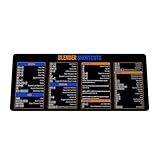
- Extra Large & Comfortable: Measuring 31.5 x 11.8 inches with a 3mm thickness, this XL mouse pad offers ample space for your mouse, keyboard, and more - ensuring comfort and reducing noise.
- Smooth & Precise Control: Enjoy effortless mouse movement with the ultra-smooth surface, perfect for both gaming and office work.
- Non-Slip Rubber Base: The anti-slip rubber base keeps the pad securely in place during intense gaming or work sessions.
- Durable & Stylish Design: Invisible stitching prevents edge wear while maintaining a sleek look, extending the pad’s lifespan.
- Waterproof & Easy to Clean: The water-resistant coating allows for quick cleaning—spills and stains wipe away easily.
How to judge a different AI-video workflow
Before committing to a service or model, check what it accepts on each side of the handoff:
- Camera and layout guidance: Does it accept scene data, depth or control maps, multiple keyframes, or only first and last images?
- Material guidance: Does it accept native shader or material data, texture images, or only visual references and prompts?
The documented NVIDIA example establishes one local first/last-frame workflow, not a cross-platform comparison or a guarantee that another service will behave the same way. Name and verify the exact software, model, and template used; do not generalize one workflow’s capabilities to all AI-video tools.
Quick Recap
Product prices and availability are accurate as of the date/time indicated and are subject to change. Any price and availability information displayed on Amazon at the time of purchase will apply.

