To pair Sony wireless earbuds, charge the earbuds and case, put the earbuds into Bluetooth pairing mode, then select their model name in your phone’s Bluetooth settings. Android phones usually use Settings followed by Bluetooth or Device connection; an iPhone uses Settings > Bluetooth. If the earbuds were connected to another phone, disconnect that phone first so it cannot capture the connection.
The exact gesture for entering pairing mode depends on the Sony model. Many truly wireless WF and LinkBuds models enter pairing mode automatically when removed from the case during first setup, while pairing a second device usually requires a model-specific button or touch control. Pairing mode expires after five minutes if setup is not completed.
As an Amazon Associate I earn from qualifying purchases.
What you need before pairing
Keep the earbuds within a short distance of the phone and make sure both earbuds are seated correctly in the charging case before you begin. Charge the case as well as the earbuds. Sony’s WF-1000XM5 troubleshooting instructions specifically tell you to charge before retrying when either an earbud or the case is at 1% battery or less.
Free tools Windows power users keep installed
One-click scans. No signup required.
Turn Bluetooth off on any phone, tablet or computer that has recently used the earbuds. A previously connected device can reconnect automatically, making the Sony earbuds appear to be missing from the phone you are trying to configure. If necessary, move that device away or remove its Bluetooth connection temporarily.
#1 Best Overall

- This Certified Refurbished product is manufacturer refurbished, shows limited or no wear, and includes all original accessories plus a 90-day limited hardware warranty.
- The WF-1000XM5 features the Integrated Processor V2 for audio clarity and active noise cancellation.
- Three microphones in each earbud actively cancel out distracting ambient sounds.
- Foam ear tips with an adjusted ear tip angle provide ultimate comfort.
- The latest upgrades to Sony's flagship earbuds include a redesigned ear bud and charging case that's smaller and lighter.
For a first connection, many Sony truly wireless earbuds start pairing automatically when you take them out of the case. If they have already been paired, or if you are adding a second device, use the pairing button or touch-control sequence specified for your model in its Sony Help Guide. Do not assume that a button-hold time for one WF or LinkBuds model applies to another.
Pairing mode remains active for only five minutes. If you do not finish within that period, place the earbuds back in the case, remove them again or repeat the model’s pairing gesture, and start the phone search again.
Pair Sony earbuds with an Android phone
- Charge and position the earbuds. Put both earbuds in the case, confirm that they have charge, and keep the open case and phone close together.
- Enter pairing mode. Remove the earbuds from the case for first-time pairing if your model starts pairing automatically. For a second device or a previously paired set, perform the model-specific button or touch-control action from the Sony Help Guide. Look for a flashing indicator or an audio prompt that confirms pairing mode.
- Open Android Bluetooth settings. Open Settings, then choose Bluetooth or Device connection. Android menu names and locations vary by manufacturer and Android version. Turn Bluetooth on if it is off.
- Start the device search. Remain on the Bluetooth screen while the phone scans for nearby devices. The earbuds may appear under available devices, nearby devices or a similar heading.
- Select the Sony model. Tap the name that matches your earbuds, such as the model name printed on the case or packaging. If Android displays a pairing request, confirm it. Some phones show a passkey prompt; accept the request shown by the phone rather than entering an unrelated code.
- Wait for the connection status. The model should move to a saved, paired or connected-devices list. Play a short piece of audio and confirm that sound comes through both earbuds.
If the model does not appear, leave the Bluetooth page open while repeating the pairing gesture. A set that is already connected to another phone may not advertise itself to Android until that earlier connection is disabled.
Outdated Drivers Are Slowing You Down
One free scan finds every outdated or missing driver and matches the right update for your exact hardware.Free scan · exact hardware matchPC Slower Than It Used to Be?
A free scan shows the junk files, broken settings and background clutter dragging Windows down - then fixes them in one click.Free scan · Windows 10 & 11Android menu paths that vary
On one Android phone, the route may be Settings > Connected devices > Pair new device; another may use Settings > Device connection > Bluetooth. The labels are not universal, but the required controls are the same: Bluetooth must be enabled, the phone must scan for nearby devices, and you must select the Sony model from the results.
Pair Sony earbuds with an iPhone
- Prepare the earbuds. Charge the case and earbuds, keep them near the iPhone, and disconnect any phone that is already using them.
- Put the earbuds into pairing mode. Remove them from the case if your model automatically enters pairing mode for first setup. Otherwise, use the model’s documented pairing button or touch-control sequence. Pairing mode will cancel after five minutes if the iPhone does not complete the connection.
- Open Bluetooth. On the iPhone, go to Settings > Bluetooth and turn Bluetooth on.
- Choose the earbuds. Wait under Other Devices or the available-devices area, then tap the Sony model name. Approve any pairing prompt that appears.
- Verify audio. When the name appears under My Devices with a connected status, start playback and check that the left and right channels work.
If the Sony name does not appear, keep the iPhone’s Bluetooth screen open, place the earbuds in the case once, remove them again and repeat the model-specific pairing procedure. Also check that another nearby Apple or Android device has not taken the connection.
First pairing, second-device pairing and automatic reconnection
First pairing
Many Sony truly wireless models begin first-time pairing as soon as you remove both earbuds from a charged case. This behavior is common across many WF and LinkBuds products, but it is not a guarantee for every model or situation. If the phone cannot find the earbuds, use the documented manual pairing control rather than repeatedly opening and closing the case.
Adding a second phone
A second-device connection generally requires a deliberate pairing gesture, even when first pairing was automatic. The control may be a physical case button, an earbud touch surface or another model-specific action. Consult the Sony Help Guide for the exact sequence. Holding a button for an arbitrary number of seconds can trigger a different function, such as power control or initialization, on another model.
Quick wins for a faster PC:
Repair Windows errors before they cause bigger problemsFix Now →Scan for outdated or missing drivers - takes under a minuteDriver Scan →Clear out junk files and repair common Windows errorsFree Scan →Reconnecting to a saved phone
Once pairing information is saved, the earbuds normally reconnect when they are removed from the case and Bluetooth is enabled on the phone. If several saved devices are nearby, the earbuds may reconnect to the most recently used or currently available device. Turn Bluetooth off on competing devices while setting up the phone you want to use.
Rank #2

- Industry-leading Noise Cancellation: The WF-1000XM5 boasts advanced noise-cancellation capabilities, making it perfect for immersive music listening or focusing in noisy environments. High-Fidelity Sound: Equipped with high-quality drivers and digital signal processing, these earbuds deliver rich and detailed sound across various genres.
- Extended Battery Life: With an extended battery life of up to 8 hours on a single charge and an additional 24 hours from the charging case, you can enjoy your music all day long. Quick Charging: Just a few minutes of charging can provide hours of playtime, thanks to the quick-charging feature of the WF-1000XM5.
- Comfortable Design: The ergonomic design of the earbuds ensures a secure and comfortable fit, even during extended wear. Adaptive Sound Control: The earbuds automatically adjust their settings based on your surroundings, ensuring you get the best sound experience in any environment.
- Intuitive Touch Controls: With touch controls on the earbuds, you can effortlessly manage music playback, calls, and activate voice assistants. Voice Assistant Integration: The WF-1000XM5 supports voice assistants like Google Assistant and Siri, allowing you to control your music and get information hands-free.
- Bluetooth 5.0: Enjoy a stable wireless connection and seamless pairing with Bluetooth 5.0 technology. Water-Resistant Design: The earbuds have an IPX4 rating, making them resistant to splashes and sweat, ideal for workouts and outdoor activities.
Multipoint considerations
Some Sony models support connections to more than one device, while others do not. Multipoint behavior and switching rules differ by model. If audio stays attached to a laptop or another phone, disconnect that device first, then select the earbuds from the intended phone’s Bluetooth list. Do not treat multipoint support as universal across the WF or LinkBuds range.
How Sony model differences affect pairing
The pairing process is broadly the same, but four model-specific factors determine what you see and which remedy works.
| Factor | What can differ | What to check |
|---|---|---|
| Entering pairing mode | Automatic pairing on removal from the case, a case button, an earbud button or a touch-control gesture | Use the Sony Help Guide for the exact model; do not reuse a hold duration from another model |
| Existing connections | A previous phone may reconnect first; some models also support multipoint | Disable Bluetooth on other nearby devices before searching |
| Power state | The case and each earbud can have separate charge levels | Charge both the case and earbuds; a WF-1000XM5 case or earbud at 1% or less should be charged before retrying |
| Support tools | Available instructions and troubleshooting flows can vary by model | Use the model’s Sony Help Guide and the Sound Connect troubleshooting flow where applicable |
What to do when Sony earbuds do not appear in Bluetooth
1. Confirm power and distance
Return both earbuds to the case and verify that the case indicates charging. Charge the case and earbuds before trying again, especially if either component is at 1% or less. Keep the phone close to the earbuds and remove sources of confusion, such as several Bluetooth devices being opened at the same time.
2. Stop another device from taking the connection
Turn Bluetooth off on the phone, tablet or computer that last used the earbuds. If that device is yours, remove the earbuds from its active Bluetooth connection. Then put the Sony earbuds back in pairing mode and search again on the intended phone.
3. Restart the phone
Restart the Android phone or iPhone, then open Bluetooth and repeat pairing. Sony’s troubleshooting flow includes restarting the playback device because a temporary Bluetooth service or stale connection can prevent discovery.
4. Reseat truly wireless earbuds
For truly wireless models, place both earbuds in the charging case once, close or leave it as the model requires, then remove them again. Sony documents this case-and-remove cycle in its Sound Connect troubleshooting flow as a way to restart the earbuds before another pairing attempt.
5. Delete the old Bluetooth record
If the phone shows the Sony earbuds as saved but will not connect, remove that old record and pair from the beginning.
- Android: Open Settings > Device connection, select the saved Sony device, tap its Settings icon, choose Forget, and confirm Forget Device. On phones with different labels, open the saved-device details from the Bluetooth screen and choose the equivalent forget or unpair command.
- iPhone: Open Settings > Bluetooth, tap the information icon next to the Sony earbuds, choose Forget This Device, and confirm. Return to the Bluetooth list and pair again as a new device.
Forgetting a record removes the phone’s stored pairing information; it does not by itself erase the earbuds’ settings. Put the earbuds into pairing mode again after deleting the record.
Rank #3
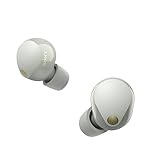
- This Certified Refurbished product is manufacturer refurbished, shows limited or no wear, and includes all original accessories plus a 90-day limited hardware warranty.
- SOUND QUALITY: Uncover the richness of sound with the noise cancelling earbuds of Sony WF-1000XM5, specially designed for wide frequency reproduction. These earphones wireless bluetooth enhance your listening experience by delivering detailed vocals and fine nuances that make every song unique.
- CALL CLARITY: Maintain clear conversations with the bluetooth earbuds of Sony WF-1000XM5, featuring Sony's best ever call quality. These earbuds wireless bluetooth noise cancelling ensure that your voice is heard clearly on the other end, even in noisy situations.
- CALL CLARITY: Maintain clear conversations with the bluetooth earbuds of Sony WF-1000XM5, featuring Sony's best ever call quality. These earbuds wireless bluetooth noise cancelling ensure that your voice is heard clearly on the other end, even in noisy situations.
- LONG-LASTING BATTERY: Relish the long-lasting battery life of Sony WF-1000XM5, offering up to 8 hours of listening time (24-hours with case). The quick charging feature of these earbuds gives you up to 1 hour of listening time with just 3 minutes of charging.
6. Reset only when simpler steps fail
If charging, restarting, reseating and deleting the old record do not solve the problem, follow the reset procedure for the exact model. The sequence differs among Sony earbuds, so use the model’s instructions rather than guessing at a button or touch combination.
Independent reader supportYour contribution helps us test, update, and keep practical guides available for everyone.Reset versus initialization
A reset is intended to restart the earbuds without necessarily removing all stored Bluetooth information. Initialization is the more disruptive factory procedure. Sony warns that after initialization the earbuds return to factory settings and all Bluetooth pairing information is deleted.
Use initialization only after ordinary pairing steps and the model’s reset procedure have failed. Before starting, make sure you know how to place the earbuds back into pairing mode, because every previously paired phone will need to be connected again. After initialization, delete any old Sony entry from the phone as well, then perform a fresh pairing.
The Tool Desk
Outbyte Driver Updater FREEFix the driver behind crashes, sound loss and screen glitchesFind Drivers →Outbyte PC Repair FREEClear out junk files and repair common Windows errorsFree Scan →Use another phone to isolate the cause
Try pairing the earbuds with a different Bluetooth phone or other compatible device. This test separates an earbud problem from a phone-specific problem:
- If the earbuds pair successfully with the alternate device, the original phone, its Bluetooth state or its saved pairing record is the likely cause. Restart the original phone, forget the old Sony entry and try again.
- If the earbuds fail to pair with every device even after initialization, the earbuds or case may require service or repair.
This test is most useful after confirming that the earbuds have charge and are actually in pairing mode. A device that is still connected to a previous phone can fail the test for reasons unrelated to hardware.
After the connection succeeds
Check both earbuds and the microphone
Play audio and confirm that sound comes from both sides. Make a short test call if you need the earbuds for voice conversations. If only one side works, return both earbuds to the case, remove them together and verify that the phone lists one Sony device rather than separate left and right entries.
Confirm the intended output
Phones can remain connected to another speaker, car system or headset. If the Sony earbuds show as connected but you hear no audio, open the phone’s audio-output selector and choose the Sony earbuds. This is an output-selection issue, not necessarily a failed Bluetooth pairing.
Recommended Free Tools
Keep the pairing record manageable
When you no longer use an old phone, forget the Sony earbuds on that phone or turn its Bluetooth off. This reduces automatic reconnections that can make the earbuds appear unavailable on the phone you are currently using.
Quick Recap
A quick decision path
- Earbuds absent from the list: charge the case and earbuds, disable Bluetooth on other nearby devices, and re-enter model-specific pairing mode.
- Earbuds listed but connection fails: restart the phone, forget the saved Sony record, reseat the earbuds in the case and pair again.
- Pairing still fails: perform the model’s reset procedure, then initialize only if necessary.
- Failure continues everywhere: test another phone; if initialization does not help on any device, seek repair.
Product prices and availability are accurate as of the date/time indicated and are subject to change. Any price and availability information displayed on Amazon at the time of purchase will apply.

