To make text sound good when AI reads it aloud, write for a listener: put the main point first, choose familiar words, and keep sentences clear and conversational. Then listen to the synthesized version. Revise anything that is hard to follow, mispronounced, rushed, or oddly emphasized; use speech controls only when the chosen tool and voice support them.
Write for someone listening, not scanning
A reader can glance back at a heading, reread a clause, or inspect a list. A listener usually hears each phrase once and must hold it in memory. Make the point easy to catch on the first pass.

As an Amazon Associate I earn from qualifying purchases.
Microsoft’s editorial guidance says, “Write like you speak.” It recommends conversational language, leading with the important point, reading text aloud, and avoiding jargon or overly complex wording. Treat this as useful writing guidance, not a guarantee that a particular sentence length will sound natural in every synthetic voice. Microsoft Style Guide
Put the action or conclusion first
Instead of a long lead-in such as “In order to make the file easier for everyone on the team to access, you should change the sharing setting,” say: “Change the sharing setting so everyone on the team can open the file.” The listener reaches the instruction sooner.
#1 Best Overall

- Features:
- ✅ AI-Powered Voices: Choose from a variety of realistic voices with emotions and accents.
- ✅ Multi-Language Support: Generate speech in 50+ languages (English, Spanish, French, Hindi, etc.).
- ✅ Custom Voice Styles: Adjust pitch, speed, and tone for personalized audio.
- ✅ Export Options: Save audio files in MP3/WAV format for podcasts, videos, or e-learning.
Prefer familiar words and natural rhythm
Use contractions when they suit the intended voice, replace specialist terms when a plain equivalent will do, and remove words that do not change the meaning. Do not make every sentence a clipped command: a mix of concise sentences and natural transitions is easier to follow than a string of fragments.
Make relationships explicit
Dense parentheticals, nested clauses, and long lists ask listeners to remember details before they hear how those details fit together. Split a complicated thought into a few sentences, and explain the connection in words. For example, introduce a list with what it is for, then group related items rather than reading out an unexplained sequence.
Check the words most likely to be misread
Names, acronyms, dates, abbreviations, formulas, URLs, product identifiers, and strings of symbols can be clear on screen but confusing aloud. Microsoft’s speech-interaction guidance warns that unusual word sequences, part numbers, and punctuation can make speech harder to understand, and recommends considering whether long strings of information are difficult to remember. Microsoft speech-interaction guidance
The Tool Desk
Outbyte Driver Updater FREEFix the driver behind crashes, sound loss and screen glitchesFind Drivers →Outbyte PC Repair FREERepair Windows errors before they cause bigger problemsFix Now →Rank #2

- Ai Tools
- Text to Voice
- Text to Image
- Text to Video
- Text to App
- Acronyms: Decide whether the audience knows the spoken letters or whether the expanded name is clearer on first mention.
- Names and unfamiliar terms: Listen for the voice’s pronunciation. If it is wrong, consider a familiar alternative or a supported pronunciation mechanism.
- Numbers and identifiers: Read them in context. A serial number or date may need to be written in a form that makes its intended reading clear.
- Symbols and web addresses: Do not assume the listener can see punctuation or formatting. Explain the meaning, or omit details that are not needed in audio.
When a visual format does not translate well, rewrite for speech rather than expecting the voice to explain it. A table, for instance, may need a spoken introduction and clear labels so listeners know what each value refers to.
Use punctuation before adding speech controls
Periods and question marks already give many text-to-speech systems useful cues. Microsoft’s Speech service documentation says the service handles punctuation such as pauses after periods and intonation at question marks. Start with ordinary punctuation and clear sentence structure; add markup only if the result still needs a specific adjustment. Microsoft SSML documentation
Speech Synthesis Markup Language (SSML) can provide more explicit direction, including breaks, pronunciation substitutions, and prosody. Microsoft defines prosody in terms of pitch, duration, volume, and pauses. Available tags and behavior depend on the synthesis service and selected voice, so markup that works in one setup may not work in another. Microsoft SSML documentation Microsoft Speech transparency documentation
Rank #3
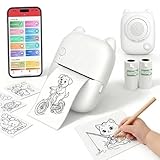
- EASY SPEAK & PRINT: Turn your child's imagination into real stickers instantly! Simply press the button, say something fun like "Print a puppy riding a bike" and our smart AI printer bring it to life in seconds. No screens, no design skills needed—just endless, instant creativity.
- PRINT, COLOR & PEEL - ULTIMATE DIY CRAFT TOOL: Go beyond a standard mini thermal printer. Instantly print custom reward stickers, lunchbox notes, chore charts, journal decals, and scrapbook elements. This pocket printer turns daily ideas into personalized, physical artwork. Kids can print out their AI creations, color them in with markers or crayons, and proudly stick them anywhere.
- ZERO INK & MESS-FREE PRINTING: Say goodbye to messy, expensive ink cartridges! Our advanced inkless thermal printer technology ensures clean, crisp black-and-white prints every time. The YPANX kit includes 2 rolls of premium, BPA-free thermal sticker paper (1 pre-installed, 1 refill) so the fun can start right out of the box. Safe, eco-friendly, and perfect for hands-on activities.
- SEAMLESS BLUETOOTH & WIFI CONNECTIVITY: Compatible with both iOS and Android, this portable sticker printer easily connects via our dedicated App using Bluetooth and 2.4G Wi-Fi. Print photos directly from your smartphone fast and hassle-free. Plus, access thousands of free templates in the App for study notes, custom labels, and photo stickers! (Note: your phone and printer must be on the same 2.4GHz Wi-Fi network or mobile hotspot; 5GHz Wi-Fi is not supported.).
- 100% KID-SAFE & THE PERFECT GIFT: Privacy is our priority. The microphone only activates when the voice button is held, and built-in smart AI filters ensure all generated images are strictly kid-friendly. Lightweight and adorably designed, this mini pocket printer is the ultimate birthday, holiday, or back-to-school gift for kids. Families and teachers will love it!
Keep controls targeted: use them to fix a real pronunciation or delivery issue, not to decorate a draft. If the plain-text version already sounds right, extra markup adds complexity without helping the listener.
What’s actually slowing this PC down?
Pick the symptom - the matching free tool is one click away.
Listen, revise, and listen again
Text that looks smooth on a page can still sound awkward aloud. Microsoft’s speech guidance recommends listening to synthesized strings to check intelligibility and naturalness. Use the actual service and voice intended for the finished text, because pronunciation and delivery can vary between them. Microsoft speech-interaction guidance
- Synthesize a representative excerpt. Choose a passage that includes typical sentences and any tricky names, numbers, or abbreviations.
- Listen without reading along. Notice where you lose the thread, hear an unexpected pause, or cannot tell what a reference means.
- Identify the cause. Check for an overlong sentence, unfamiliar wording, unclear punctuation, a mispronunciation, or an emphasis that changes the intended meaning.
- Make one change at a time. Rewrite the sentence first when the wording is the problem. If the words are clear but delivery is not, try a supported speech control.
- Generate and listen again. Confirm that the fix improved the audio and did not create a new awkward pause or pronunciation.
OpenAI’s speech prompting guidance similarly suggests concrete delivery directions, pronunciation hints for acronyms or names, and punctuation or line breaks to cue pauses. It recommends changing one instruction at a time while iterating. These are suggestions for the OpenAI tools covered by that guide, not universal rules for every speech engine. OpenAI text-to-speech guide
Choose controls by the voice you will use
Before relying on a speech feature, check its documentation for the selected model and voice. Useful questions include whether it accepts SSML or plain text only, whether pronunciation or language coverage meets your needs, which delivery controls are available, and whether you can easily audition revisions. Support is tool- and voice-specific; do not assume that a control is portable between services.
For example, OpenAI’s API guide lists 13 built-in voices, with the set depending on the model. Microsoft’s transparency documentation states that Azure AI Speech offers more than 400 prebuilt neural voice options across more than 140 languages and locales. These are provider-stated inventories, not counts of all available AI voices or a measure of which service sounds best; check current documentation for the options available to your account and chosen voice. OpenAI text-to-speech guide Microsoft Speech transparency documentation
Quick Recap
Product prices and availability are accurate as of the date/time indicated and are subject to change. Any price and availability information displayed on Amazon at the time of purchase will apply.

