You can make professional-looking YouTube videos with the phone and equipment you already own. Start by deciding what viewers should get from the video, then plan the shoot, make speech clear, light the scene, edit for a deliberate pace, and check the upload details before publishing. Better production comes from a repeatable process—not a particular camera or a promise that buying gear will grow your channel.
What makes a YouTube video look and sound professional?
Professional production is the result of clear choices: a useful idea, an uncluttered frame, understandable speech, suitable light, purposeful editing, and careful publishing. YouTube advises creators to begin with the equipment they have and choose upgrades according to their production goals. There is no single camera that suits every creator. YouTube’s equipment guide is a useful starting point.
As an Amazon Associate I earn from qualifying purchases.
Before buying anything, ask two practical questions: “What type of camera will I use?” and “How will I handle sound and lighting?” Your answers depend on where you film, how far you are from the camera, whether you move around, and the look you want.
Do these 3 things before closing this tab:
1Scan for outdated or missing drivers - takes under a minute2Clear out junk files and repair common Windows errors3Fix the driver behind crashes, sound loss and screen glitchesChoose a camera that fits the video
| Option | Best fit | Trade-offs to consider |
|---|---|---|
| Existing phone | Getting started, filming on the move, and simple talking-head videos. | Check framing, focus, audio, and available storage. YouTube explicitly supports starting with a mobile device rather than waiting to buy a standalone camera. |
| Point-and-shoot camera | A simple all-in-one option when you want a dedicated camera. | Consider cost, portability, focus needs, and whether its image suits your goals. |
| Interchangeable-lens camera | More control over lenses and a more artistic or professional look. | It can bring more weight, cost, and a steeper learning curve. Consider whether you will use that control in your actual workflow. |
Good light and clear sound usually matter more to the viewer than a resolution upgrade. YouTube notes that good lighting can reduce graininess; selecting 4K cannot repair footage recorded in poor light. Its 4K guidance describes 4K as approximately 4,000 horizontal pixels, commonly 3840 × 2160, or four times the detail of 1080p. Choose it when the device, editing workflow, and project benefit from it—not just because the setting exists.
#1 Best Overall
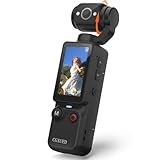
- 【Mini Camcorder, Pocket Size Design】: Measuring only 5.35 × 1.56 inches, this handheld video camera easily fits in your pocket or bag. Designed for travel, daily recording, and spontaneous moments, it delivers a simple way to capture life anywhere.
- 【One-Button Recording, Ready Out of the Box】: Start recording instantly with no app download, no QR code, and no complicated setup. Includes a 32GB memory card, making this mini video camera perfect for beginners, travelers, and everyday creators.
- 【7-Hour Long Battery Life】: Built-in 2000mAh rechargeable battery supports up to 7 hours of continuous recording. Ideal as a travel camcorder, handheld video camera, outdoor recorder, or long-form vlogging camera without frequent charging.
- 【180° Rotating Lens for Vlog & Self Recording】: 180° Rotating Lens for POV & Self-Recording((manual rotation required),Capture POV shots, selfies, and hands-free style videos with the flexible rotating lens. A compact alternative to bulky cameras for content creators, travelers, and anyone who enjoys simple everyday recording.
- 【Designed for Everyday Moments】:While it is not designed to deliver DSLR-level image quality, its charm lies in capturing effortless and fun moments.This compact camera is made for simple and fun everyday recording, travel memories, and creative moments. For users looking for an easy-to-carry camera rather than bulky professional equipment. CGXUED products include an 18-month warranty and lifetime technical support. Have any questions? Just contact customer service!
Make speech easy to hear
Clear speech is essential. A camera’s built-in microphone may work if you stay close: YouTube’s guidance suggests remaining three to four feet from an onboard mic for the best audio. If you need to stand farther away, move around, or record in a noisy space, consider an external mic suited to the situation.
| Microphone | Useful when | Check before recording |
|---|---|---|
| Built-in or on-camera microphone | You can stay close to the camera and the room is reasonably quiet. | Listen to a test recording. If speech sounds distant or the room dominates, change the distance or microphone. |
| Directional shotgun microphone | You want natural-sounding speech from farther away and can point the mic toward the speaker. | Confirm the camera or recording device accepts the mic, and test it from the intended position. |
| Wireless lavalier microphone | The speaker is at a distance from the camera or needs to move while speaking. | Check device compatibility, battery, connection, and clothing noise before filming. |
Before buying an external microphone, verify that your camera or phone supports its connection; adapters may be needed depending on the device. Record a short test and listen with headphones if available. A visible audio meter does not guarantee that the recording is intelligible.
Light the subject before upgrading resolution
Start with light you can control. A window or outdoor daylight may be enough; turn the subject toward the light and check that the face is not lost in shadow. For a more controlled setup, YouTube describes two-point lighting: a key light illuminates the subject, while a fill light softens shadows. Softer light can be more flattering for close shots. A camera-mounted light can help when filming on a phone or moving between locations.
Rank #2

- 4K DIGITAL CAMERA WITH AUTOFOCUS: The newest 4K digital camera for photography captures videos in 4K resolution and snaps ultra HD 48MP images. With Autofocus and 16X digital zoom, every detail is crisp, clear, and vibrant even captured from a distance.
- 180° FLIP SCREEN AND PORTABLE: Our 4k camera for photography offers a 3.0-inch IPS 180° flip screen, ideal for selfie enthusiasts and vlogging creation. Designed for travel and everyday use, this compact travel camera for pictures is built to last. Its small size and durable construction make it a reliable companion for capturing memories on the go.
- MULTIFUNCTIONAL PHOTOGRAPHY CAMERA: The 4K digital video camera features a date stamp, exposure compensation (-3.0 to +3.0), video pause and playback, time-lapse, slow-motion, giving your videos a creative edge. Additional features like a fill light, Anti-shake, 3 continuous shooting, smile & face detection, beauty face, self-timer, and various filters encourage you to stretch your creative boundaries.
- WEBCAM AND EASY TRANSFER: This 4K vlogging camera for YouTube doubles as a webcam, perfect for live streaming, video chats, and vlogging. You can connect the photo camera to your computer via an USB cable for easy file download, sharing your experiences with friends instantly. With 2 spare rechareable batteries, never worry about power shortage.
- A PERFECT GIFT WITH A HASSLE-FREE WARRANTY: User-friendly and versatile, this portable digital camera for teens is an ideal gift for beginners, amateurs, teens, and seniors, fulfilling daily shooting needs easily. Enjoy our worry-free 18-month replacement and refund warranty. Our prompt customer support team is ready to assist you in under 12 hours!
- Use daylight or a window when it gives an even, usable look.
- For a two-point setup, place a key light as the main source and a fill light to reduce harsh shadows.
- For close-ups, test softer light and watch for glare or distracting reflections.
- For mobile filming, consider a camera-mounted light if the location is dim and portability matters.
- Review a test clip on the screen you will use for editing; do not assume 4K will fix a noisy, underlit image.
Plan the shoot so editing is easier
Planning prevents avoidable reshoots. Decide what the viewer should understand or do by the end, then sketch the opening, essential points, closing, and any supporting shots. YouTube’s filming tips recommend preparing the location, equipment, and an outline or script; for larger shoots, make a shot list.
- Write the viewer outcome. State the main takeaway in one sentence, then list the points needed to deliver it.
- Plan the opening and ending. Decide how the video starts, what the viewer needs to see, and how you will close.
- List essential shots. For each, note framing, angle, movement, and any b-roll needed to clarify a transition or demonstrate a point.
- Prepare the location. Check the background, light, noise, power, and whether you have permission to film there.
- Make a checklist. Include the camera, microphone, lights, charged batteries, memory cards, and storage for important production items.
- Batch filming when useful. Grouping similar scenes can reduce repeated setup, but leave enough time to check each take.
For outdoor filming, account for weather, travel, setup time, power, and breaks. Get permission where required. Do not record another person’s image, voice, or personal information without consent. At home, check the frame for identifying details such as an address or phone number.
Record with a clean, usable frame
Place the camera so the subject is clearly framed and the background supports the video’s tone without competing for attention. Test focus and exposure, then record a short clip and review it before shooting the full video. Check that speech is clear, the subject is lit, the background is appropriate, and the framing leaves room for natural movement.
Rank #3

- 4K Ultra HD action camera: Professional 4K30Fps & 2.7K30Fps video with 20MP photos at up to 30 frames per second for incredible photos, which is 4 times the resolution of traditional HD cameras.
- Smooth Stabilization: Built-in Electronic Image Stabilization (EIS) delivers steady and smooth videos. It can enable excellent footage even you or the object is in fast-moving.
- 131ft waterproof camera: AKASO EK7000 is designed to withstand extreme environments, together with durable waterproof case. With the accessories, transform it for indoor and outdoor activities.
- Wireless wrist remote control sports camera: With a wrist 2.4G remote, you can capture the world in an all-new way. Controlling the camera, framing shots or recording video is convenient. (THE REMOTE IS NOT WATERPROOF)
- Built-in Wi-Fi, edit & share your action in minutes: Just download App(AKASO GO) on your phone or tablet and connect with this action camera. Wi-Fi signal ranges up to 10 meters. MicroSD card is not included.
Use the best available light and match the microphone to the distance and movement in the shot. If the setup changes—for example, you move away from the camera or film outside—make another test. Small checks at the start can prevent an entire recording session from being unusable.
PC Slower Than It Used to Be?
A free scan shows the junk files, broken settings and background clutter dragging Windows down - then fixes them in one click.Free scan · Windows 10 & 11Outdated Drivers Are Slowing You Down
One free scan finds every outdated or missing driver and matches the right update for your exact hardware.Free scan · exact hardware matchEdit for pace and clarity
Editing decisions begin during planning: the shot list and outline determine what the finished video needs. Remove pauses or lines that do not serve the viewer, choose a pace suited to the material, and use planned b-roll when it helps explain a point or makes a transition clearer. Do not cut so aggressively that instructions become hard to follow.
If your channel already has uploads, YouTube Studio’s audience-retention information can help you inspect where viewers skip or leave. A dip is a clue to examine, not proof of why viewers left. YouTube’s editing tips discuss pacing and reviewing retention as channel data becomes available.
Rank #4

- 【Video Camera as Webcam】: The video camera is useful to take the beautiful photos and share it in your Youtube. It can be used as webcam when the camera connect the computer. Please operate the camera button to choose the “PC CAM” mode.When the “AMCAP ” window is opened,from which shooting object through the camera will be showed on this window. You can have a video call with your families or friends. Please download the software “AMCAP ” before use the webcam function.
- 【Multifunction Camcorder】: 1080P(15fps) Video Resolution, 24M(6000x4500) Image Resolution, image format (JPEG), video format(AVI), 16X digital zoom, camcorder with fill light, 3.0 inch LCD and supports 270°rotation, Anti-shake, Face Capture, Beauty Function, Self-timer and Webcam function, Pause function, USB 2.0, TV Output, Setting Date and Time.
- 【Pause Function】: This video camera supports Pause function,so you can pause the recording when you need,then continue recording again without starting a new one, which makes it easier for you to edit and upload the videos. This video camera included a USB cable,you can connect it directly to the computer to upload videos. This video camera included a AV cable,you can connect it directly to the TV to playback the videos.
- 【Recording While Charging】: The camcorder come with two NP-FV5 batteries. It allows you to keep recording around 60 to 90 minutes when it's fully charged. For the first time use need to charge more than 8 hours. The camcorder support the recording while charging,good to record long videos anytime.
- 【Small and Compact Camcorder】: The camcorder supports SD/SDHC card up to 128GB (not included), just remember to format the SD card before use the camcorder first time. The camcorder support the tripod(not included) connection and the hole is standard size.
Decide whether 4K is worth the workflow
4K is approximately 3840 × 2160 pixels and offers four times the detail of 1080p, according to YouTube’s 4K guidance. Use it when the subject, viewing experience, and production workflow justify the larger files and editing demands. If your computer struggles, YouTube recommends proxy copies: lower-resolution editing files synchronized with the originals for export. Its page names Adobe Premiere Pro, DaVinci Resolve, and Final Cut Pro as examples of editing software, not as a ranked endorsement. Check current software requirements and capabilities before choosing one.
Independent reader supportYour contribution helps us test, update, and keep practical guides available for everyone.Upload, review, and publish deliberately
In YouTube Studio, uploading imports the file; publishing makes it available to viewers. You can upload first and publish later, for example by keeping a video private or unlisted while you review it. The upload date and the later publish date can differ. YouTube processes playback versions up to the highest resolution available, so higher resolutions may take time to appear. See YouTube’s computer upload instructions and video settings guidance for the current Studio workflow.
Free tools Windows power users keep installed
One-click scans. No signup required.
- Upload the finished file in YouTube Studio.
- Review the title, description, and other video details for accuracy and clarity.
- Choose the intended privacy state—public, private, or unlisted—before making the video available.
- Use an appropriate thumbnail. For a standard video, YouTube recommends a 16:9 image; its current help page recommends 3840 × 2160 pixels and says account verification is required for custom video thumbnails. The same page lists a 640-pixel minimum width. Follow its current technical requirements and Community Guidelines: custom thumbnail guidance.
- Check the video after processing, especially if you expect viewers to watch at a higher resolution.
Common production problems and fixes
| Problem | Likely cause | What to try |
|---|---|---|
| Speech sounds distant or unclear | The built-in microphone is too far away, or the room is noisy. | Move closer, reduce background noise, or test a compatible shotgun or wireless lavalier mic from the actual speaking position. |
| Footage looks grainy despite being set to 4K | Insufficient or poor-quality light. | Improve the light first: use daylight, soften the close-shot lighting, or add a key and fill light. |
| The subject is difficult to see | The framing, focus, or light does not suit the scene. | Record a short test, reframe the subject, check focus, and adjust the available light before recording the full take. |
| Editing 4K is slow | The computer or workflow is struggling with the source files. | Consider editing with proxy copies and exporting from the synchronized originals, as YouTube recommends. |
| The custom thumbnail option is unavailable | The account may not be verified, or the image may not meet YouTube’s current requirements. | Check account verification and the current thumbnail guidance before trying again. |
| The video is uploaded but not at the expected playback resolution | YouTube may still be processing higher-resolution versions. | Allow processing time and check again; an uploaded file may not immediately have every resolution ready for playback. |
Or let it run in the cloud
If you later want to keep a YouTube channel live around the clock using uploaded videos, that is a separate workflow from making a regular edited upload. StreamNeo keeps a YouTube stream running from the cloud: upload a recording or build a playlist, add your YouTube stream key once, and go live. It plays uploaded videos, not a camera feed.
Nothing has to stay on at home. Every quality up to 4K 60fps streams as uploaded at one price per slot; there are no quality tiers. StreamNeo automatically recovers if YouTube drops the stream. The first day is free with no card, one free day per account. Monthly pricing is $9.99 per month. See StreamNeo for details, then start the free day.
Sources and changing details
YouTube’s help pages cited here do not show publication dates in the retrieved material; interface labels and technical guidance can change. Check the linked YouTube Help pages for the current requirements before publishing or purchasing equipment.
Quick Recap
Product prices and availability are accurate as of the date/time indicated and are subject to change. Any price and availability information displayed on Amazon at the time of purchase will apply.

