Identify the processor generation before choosing an installer. Framework documents Fedora 44 Workstation for both Framework Laptop 12 generations, while the Ubuntu 26.04 guide covered here is specifically for the 13th Gen Intel Core model. Check the matching Framework compatibility chart for the kernel floor, Wi-Fi and Bluetooth status, stability, setup notes, and any fingerprint-reader requirements before writing a USB.
Which Linux distro works best on the Framework Laptop 12?
There is no single answer for every Laptop 12 configuration. The processor generation, required features, kernel version and preferred support path matter more than the product name alone.
As an Amazon Associate I earn from qualifying purchases.
Official support versus community support
Framework places Ubuntu and Fedora in its officially supported tier, where it describes deep engineering collaboration and customer support. That designation applies to the supported releases and configurations shown in Framework’s documentation; it is not a promise that every release or hardware combination behaves identically.
Framework’s community-supported tier includes projects such as Arch Linux, Bazzite, NixOS and CachyOS. Those distributions can work well, but users are expected to validate their own hardware against Framework’s checklists and document known issues publicly. A community listing in the guide index is therefore not equivalent to an official support commitment.
#1 Best Overall
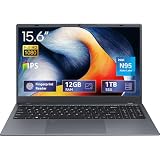
- 2-Year Warranty & Office 2024 - UOWAMOU Laptops meet high standards for performance and durability, backed by a 2-year manufacturer's warranty, and come pre-installed with lifetime free Office 2024 Professional Plus
- Experience Immersive Visuals with Comfort – UOWAMOU's 15.6" FHD Display (1920×1080 ) offers stunning clarity with an impressive 85% screen-to-body ratio and ultra-slim bezels. Precision-engineered for vibrant colors and reduced eye fatigue, this display is ideal for professional work, creative design, or immersive entertainment
- Upgradable Design & Much Faster RAM/SSD - Future-proof your UOWAMOU Laptop with upgradable/expandable RAM and SSD slots—easily boost storage or memory yourself. Pre-installed with 12GB LPDDR5 RAM and 1TB NVMe SSD, much faster then LPDDR4/LPDDR3 RAM or SATA SSD.
- Versatile Connectivity Hub & WiFi5, BT5.0 – Seamlessly connect all your peripherals and devices with our laptop’s comprehensive port selection, including: 2× USB 3.0 ports, 1x Full Functional Type C port, 1× USB 2.0 port, Standard HD, 3.5mm headphone jack, MicroSD card reader
- Optimized for Programming & Development - Pre-installed with Win11 Pro, fully compatible with VS Code, Python, Java, C/C++, Arduino IDE and all mainstream programming tools. Please refer to the user manual to disable Secure Boot for optimal performance with embedded development software.
Fedora 44 Workstation: the cross-generation choice
Framework’s Fedora 44 Workstation guide covers both the 13th Gen Intel Core and Core Series 3 Laptop 12 models. Framework describes Fedora 44 as providing full hardware support with little setup. Its faster kernel update cadence is also a trade-off: newer kernels can improve support for recent hardware, but the guide warns that the cadence can create greater regression risk on very new devices.
Framework’s guide explains the reason for the focus on Fedora by saying: “The Framework Laptop 12 is running some very recent hardware, and we’ve worked with the team at Fedora to improve support.” The guide index also lists separate Fedora KDE Plasma guides for the two processor generations.
Ubuntu: a conservative path with a generation-specific guide
Ubuntu is the conservative LTS-style option in Framework’s guidance, but the Ubuntu 26.04 installation guide covered here is scoped to Framework Laptop 12 with 13th Gen Intel Core. Do not apply that guide to a Core Series 3 machine simply because the chassis name is the same. A Series 3 owner should use the compatibility chart and a current guide that explicitly matches that generation.
| Choice | Framework documentation covered here | Support and setup characteristics | Main trade-off |
|---|---|---|---|
| Fedora 44 Workstation | 13th Gen Intel Core and Core Series 3 | Officially supported; full hardware support with little setup | Faster kernel updates can increase regression risk on very recent hardware |
| Ubuntu 26.04 Desktop | 13th Gen Intel Core guide | Officially supported; conservative LTS-oriented choice | The reviewed guide does not establish the same installation path for Core Series 3 |
| Community distributions | Varies by release and model | Self-validation and public issue documentation are expected | Setup effort and hardware behavior can differ substantially |
Will Ubuntu work on my Framework Laptop 12?
Ubuntu 26.04 is documented by Framework for the 13th Gen Intel Core version of the Laptop 12. That is the exact scope of the guide reviewed here. If your machine has Core Series 3, treat Ubuntu compatibility as a chart-and-guide question rather than assuming that the 13th Gen instructions transfer unchanged.
For either generation, select the Ubuntu release shown for your exact model in Framework’s current compatibility chart, then open the matching installation guide. Framework’s guide index includes Ubuntu, Fedora, Arch, Bazzite, CachyOS, Linux Mint and NixOS material, but the index alone does not assign every guide the same support tier.
How to check Framework Laptop 12 hardware compatibility before installing
1. Confirm the processor generation
Use the purchase or configuration record, or the operating system’s system-information panel, to determine whether the laptop contains an Intel Core Series 3 processor or a 13th Gen Intel Core processor. Do not rely on “Laptop 12” alone: Framework separates its compatibility thresholds and guides by generation.
2. Open the current Laptop 12 compatibility chart
Read the row for the exact distribution release, not merely the distribution family. Framework’s chart includes fields for minimum or recommended kernel versions, Wi-Fi and Bluetooth behavior, stability, setup effort and model-specific notes.
What’s actually slowing this PC down?
Pick the symptom - the matching free tool is one click away.
3. Check the feature you cannot compromise on
If you need fingerprint login, verify the Libfprint requirement for your generation and distribution. If wireless networking is essential during installation, inspect the chart’s Wi-Fi and Bluetooth status for the selected release rather than assuming that another release’s result applies.
4. Match the guide to both release and generation
Use the guide whose title identifies your Laptop 12 generation and the Linux release you plan to install. A guide for Ubuntu 26.04 on 13th Gen Intel is not evidence for Ubuntu 26.04 on Core Series 3, and a Fedora guide for one generation should not be treated as a guarantee for every Fedora edition.
5. Record the chart’s date and version context
Kernel support, release status and fingerprint support change. Framework’s chart and guides are living documents, so check them again immediately before installation if your download or installation is months after the documentation date.
Rank #2

- [This is a Copilot+ PC] — A new AI era begins. Experience enhanced performance and AI capabilities with Copilot+ PC, boosting productivity with security and privacy in mind.
- [13" OLED Touch Screen Display] — Cinematic display on-the-go. 1M:1 contrast ratio delivers a wider range of colors.
- [All day battery life] — 14 hours of battery life[5], fast charging with 65W PSU via Surface Connect or USB-C.
- [Flexibility at Any Angle] — Use with the detachable Surface Pro Flex Keyboard (sold separately). Shift from tablet to laptop to sketchbook with its unique kickstand.
- [Outstanding Performance] — Snapdragon X Plus (10 core) or Elite (12 core) with powerful NPU, faster than MacBook Air M3[1].
6. Decide what support you need after installation
Officially supported Ubuntu and Fedora releases give you a clearer Framework support path than a community distribution. With a community-supported release, plan to troubleshoot through that project’s documentation and community channels, and retain the exact chart row and guide you used. This is especially important when reporting a problem: the Laptop 12 generation, distribution release and running kernel can change the answer.
What kernel version does the Framework Laptop 12 need?
Framework’s current Laptop 12 compatibility chart lists different thresholds for the two processor generations:
| Laptop 12 generation | Minimum kernel in Framework’s chart | Recommended guidance | Applicable Framework install path |
|---|---|---|---|
| Core Series 3 | 7.1 | Use the chart’s release-specific recommendation | Fedora 44 Workstation guide covers this generation |
| 13th Gen Intel Core | 6.1 | 6.13 or newer is recommended | Ubuntu 26.04 and Fedora 44 guides are available in the documentation covered here |
These are compatibility-chart thresholds, not a claim that every distribution ships the same kernel or that a newer kernel eliminates all regressions. Fedora’s rapid kernel updates can bring fixes earlier while also increasing the chance of a regression on very recent hardware. If stability is more important than the newest kernel, Framework points readers toward a more conservative distribution such as an Ubuntu LTS release, subject to the generation-specific guide limitation above.
Do not confuse the minimum with the recommendation. A release may boot on the minimum version yet lack a fix or feature called out in the chart’s recommended version. Conversely, installing a newer kernel does not turn an unsupported distribution release into an officially supported configuration. Always evaluate the complete row for your model and release.
How do I install Linux on a Framework Laptop 12?
Prepare the installer USB safely
The Ubuntu installation path in Framework’s guide assumes a fresh install on a blank drive. Before starting, back up files from both the laptop and the USB drive you will use. Have the laptop’s power connected, and keep the existing operating-system recovery information available if you may need to return to it.
The Tool Desk
Outbyte PC Repair FREEClear out junk files and repair common Windows errorsFree Scan →Outbyte Driver Updater FREEFix the driver behind crashes, sound loss and screen glitchesFind Drivers →- Download the Ubuntu 26.04 Desktop image from Ubuntu’s official distribution site.
- Use a USB key with at least 8 GB of capacity.
- On Linux, Framework describes Fedora Media Writer for creating the installer; on Windows it describes Rufus; on macOS it describes balenaEtcher.
- Writing the image erases the entire USB drive. Copy off anything you need first.
- In the imaging utility, verify the USB’s name and capacity before confirming. Selecting the wrong disk can destroy data on another drive.
- Do not remove the USB while the imaging program is writing or verifying the image.
An internet connection is not mandatory for every installer screen, but Framework says it improves the Ubuntu process by enabling compatibility checks and the download of additional software packages. If you plan to install third-party graphics or Wi-Fi software or media codecs during setup, an available connection makes those choices more useful.
Install Ubuntu 26.04 on the 13th Gen Intel model
The following sequence follows Framework’s Ubuntu 26.04 guide for Framework Laptop 12 with 13th Gen Intel Core. The guide’s stated duration is 15–25 minutes; that is Framework’s estimate for following its procedure, not a guaranteed completion time. Downloading updates, copying existing data, or manual partitioning can make the process longer.
- Boot from the USB. Insert the prepared installer, start or restart the laptop, and select the USB installer from the boot choices.
- Start the installer. Choose the interactive installation option when presented.
- Select the application set. Choose the default or extended set of applications according to how much software you want installed initially.
- Configure “Optimize your computer.” Review the options for third-party graphics or Wi-Fi software and additional media-format support. Select only what you need and understand that these choices add software outside the base installation.
- Choose the disk arrangement. “Erase disk and install Ubuntu” removes existing data and partitions from the selected target drive. Alternatives include installing alongside an existing operating system or using manual partitioning.
- Verify the target drive. Before confirming a destructive choice, check the displayed drive name and size against the disk you intend to use. Stop if the identity is not unmistakable.
- Set encryption and the user account. The guide presents unencrypted installation, passphrase-based encryption and hardware-backed encryption choices. Select the security option appropriate to your threat model, then create the user account and complete setup.
- Restart and remove the USB. When the installer requests a reboot, remove the installation media so the laptop starts from the new system.
Encryption protects data if the storage device is removed or the laptop is lost, but it also makes the passphrase or recovery method important. Store recovery information somewhere safe before relying on the encrypted installation. If you choose no encryption, understand that anyone who gains access to the storage may be able to read the files.
Install Fedora 44 Workstation
Fedora 44 is the Framework-documented option that spans both Laptop 12 generations. Use Framework’s Fedora 44 Workstation guide for the generation shown in your configuration, and use the compatibility chart to confirm the release, kernel and feature notes before writing media. Do not copy Ubuntu-specific choices such as its “Optimize your computer” screen into Fedora; the installers have different interfaces and package selections.
After Fedora is installed, keep its update behavior in mind. A kernel update may improve support or expose a regression. If a problem appears immediately after an update, compare the running kernel and affected feature with Framework’s current chart and the Fedora guide before changing hardware or reinstalling. Retain an earlier working kernel when Fedora offers that option, so you can distinguish an update regression from a broader configuration problem.
Rank #3

- ASUS Vivobook 14 Laptop i7-1355U Beat AMD Ryzen 7 4700U: ASUS Vivobook 14inch laptop powered by 10-core Intel Intel Core i7-1355U processor and fast wireless Wi-Fi 6 for high performance, instant responsiveness loads content-rich web pages fast.【Bundled with Mouse】
- ASUS Vivobook 14inch Laptop: ASUS 14inch laptop FHD IPS display with narrow bezels shows come to life in true-to-life color and crisp, clear details.【Bundled with Mouse】
- Windows 11 Pro Laptop with Office 365 One Year: Business laptop for college students comes with Windows 11 Pro with microsoft office included: Bring your ideas to life. Your creativity now gets a boost with Microsoft 365. Office - Word, Excel, and PowerPoint. One year subscription included.
- ASUS Vivobook laptop Core i7 12GB RAM 512GB SSD: Computadora portátil laptop 12GB RAM, 512GB PCIe SSD. Original Seal is opened for upgrade Professionally ONLY. We do provide a 1-year standard warranty on upgraded SSD.
- Features: 3.09lbs Lightweight, USB Type-C, Long Battery Life, Webcam, Fast Charge.
Does the fingerprint reader work on Linux?
Fingerprint support is generation- and distribution-dependent. For Core Series 3, Framework’s compatibility chart lists Libfprint 1.94.100 as the minimum version and recommends the latest version. The chart says support is available on some distributions, with more to come; that wording does not establish support for every Linux release.
For 13th Gen Intel, use the exact distribution row in the compatibility chart rather than carrying over the Series 3 Libfprint number. After installation, confirm that your chosen release lists fingerprint support before relying on it for login or disk-unlock workflows. Keep a password or other recovery method available until enrollment and authentication have worked repeatedly.
Compatibility and installation troubleshooting
| Symptom | What to check | Practical response |
|---|---|---|
| The Ubuntu 26.04 instructions do not match the laptop | The machine may be Core Series 3 rather than 13th Gen Intel | Stop and use the compatibility chart plus a guide that explicitly covers the installed generation; Fedora 44 has a documented path for both. |
| The installer USB will not boot or appears incomplete | USB capacity, image-writing target and whether the media was recreated correctly | Use an 8 GB or larger key, recreate the media with the platform-appropriate writer, and verify the selected drive before writing. |
| The installer shows several disks | Drive name and size may not have been checked | Do not confirm a destructive install until the target identity and capacity match your plan. Backups cannot recover data erased from the wrong disk unless they are current and usable. |
| Wi-Fi or Bluetooth behavior differs from expectations | The exact distro release, kernel and model row in Framework’s chart | Compare the installed release with the chart’s Wi-Fi/Bluetooth and kernel notes instead of relying on another Laptop 12 configuration’s result. |
| Fingerprint enrollment is unavailable | Libfprint version and whether the selected distribution is among those with charted support | Meet the Core Series 3 1.94.100 minimum where applicable, update to the latest supported version, and verify that your distribution is listed. |
| A Fedora update is followed by a hardware regression | Fedora’s kernel cadence and the version now running | Check the current compatibility notes and consider a more conservative distribution if that better fits your stability requirements. For Ubuntu, use the guide matching the 13th Gen scope. |
| The laptop boots back into the old operating system | Whether the USB was removed and whether the intended disk was selected | Recheck the boot choice and installation target. Do not erase another disk merely to correct a boot-order problem. |
Post-install validation checklist
Before deleting the installer or relying on the new system for work, walk through the features that influenced your distro choice.
Recommended Free Tools
- Confirm the running kernel meets the chart’s minimum for your generation: 7.1 for Core Series 3, or 6.1 minimum with 6.13 or newer recommended for 13th Gen Intel.
- Connect to Wi-Fi and test Bluetooth using the release-specific chart entry as your reference.
- Check that the selected release’s stability and setup notes still match the configuration you installed.
- If you have a fingerprint reader, verify the relevant Libfprint floor and enroll a finger only after the reader is detected.
- Test suspend, resume, audio, display output and the ports or expansion cards you expect to use, then record any issue with the distribution release and kernel version.
- Keep your backup and account-recovery information available until you have completed a normal reboot and confirmed that the laptop starts from the internal drive.
What should I verify before changing distributions?
Changing distributions can alter the kernel, firmware integration, desktop environment and fingerprint packages even when the hardware is unchanged. Save the exact configuration that worked, including the generation, release and kernel. Then compare the proposed release with Framework’s chart rather than assuming that a different edition of the same distribution has identical support. A Fedora Workstation entry does not automatically cover Fedora KDE Plasma, and a community release may require its own setup and troubleshooting.
If a feature is business-critical, test it before wiping the existing installation. Booting compatible live media can reveal whether basic display and wireless hardware is detected, but it is not a substitute for the release-specific compatibility row or a complete installed-system test. Keep a current backup before any repartitioning or clean installation.
Independent reader supportYour contribution helps us test, update, and keep practical guides available for everyone.Frequently asked questions
How do I install Linux on a Framework Laptop 12?
First identify whether the machine is Core Series 3 or 13th Gen Intel. Use the matching Framework guide, create installation media on an 8 GB or larger USB, verify the target drive, choose the disk and encryption options carefully, and reboot after setup. The Ubuntu 26.04 sequence described here is specifically for 13th Gen Intel; Fedora 44 Workstation has a documented route for both generations.
Which Linux distro works best on the Framework Laptop 12?
Fedora 44 Workstation is the cross-generation choice in Framework’s current guides and is described as having full hardware support with little setup. Ubuntu is a more conservative option, but the Ubuntu 26.04 guide covered here is for 13th Gen Intel only. Community distributions may work, but require self-validation.
Do these 3 things before closing this tab:
1Fix the driver behind crashes, sound loss and screen glitches2Repair Windows errors before they cause bigger problems3Scan for outdated or missing drivers - takes under a minuteWhat kernel version does the Framework Laptop 12 need?
Framework’s chart lists 7.1 as the minimum for Core Series 3. For 13th Gen Intel, it lists 6.1 as the minimum and recommends 6.13 or newer. Check the current row for the exact release because a kernel floor does not guarantee every feature or identical stability.
Does the fingerprint reader work on Linux?
It depends on the generation and distribution. For Core Series 3, Framework lists Libfprint 1.94.100 as the minimum and prefers the latest version, while noting that support is available on some distributions. Verify the exact release before depending on fingerprint login, and retain a password fallback.
How large must the Linux installation USB be?
Framework specifies an 8 GB or larger USB key for the Ubuntu installation path. Writing the image erases the key, so back up its contents and confirm its name and size in the imaging tool before proceeding.
Rank #4

- 🌞 [ANTI-GLARE] BoxWave Screen Protector Compatible With Framework Laptop 12. Disperses light so the glare does not reflect back into your eyes. Whether you're using your device outdoors with natural lighting, or viewing indoors with overhead lights, the ClearTouch Anti-Glare REDUCES 90% UV rays, protecting your eyes. ⭐ *** PLEASE NOTE, LAPTOP 12 DEVICE NOT INCLUDED ***
- 😎 [SMOOTH SURFACE] Ultra smooth matte surface gives you a FUTURISTIC high-end look and feel to your device screen. Has a paper-like surface that is comfortable to the touch, and pleasing to the eye!
- 💦 [CLEAN APPLICATION] The special GLUELESS adhesive will never leave any sticky residue that may damage your screen.
- 👔 [PERFECT DESIGN] Specifically designed for your device. These ClearTouches will fit your device screen perfectly, GUARANTEED! All ClearTouches are PRECISION-CUT to fit your device screen's exact dimensions along with any contours and cut-outs. All functionality will be fully accessible.
- ✌ [TWO-PACK] Comes with TWO (2) ClearTouch Anti-Glare screen protectors and installation accessories. Save the extra one for later, or share it with a friend! Disclaimer: ClearTouch Packaging may not be the exact one pictured on this listing.
Will installing Ubuntu erase my files?
Only if you select a destructive arrangement such as “Erase disk and install Ubuntu,” but that option removes data and partitions from the selected target drive. Installing alongside an existing OS or using manual partitioning has different consequences. Verify the drive identity and keep a usable backup before confirming.
Free tools Windows power users keep installed
One-click scans. No signup required.
Is an internet connection required?
Framework says an internet connection improves the Ubuntu installation by enabling compatibility checks and downloading additional software packages. It is not described as mandatory for every installer screen, but connecting during setup can make the process more complete.
How long does the Ubuntu installation take?
Framework’s Ubuntu 26.04 guide, version 1.04, estimates 15–25 minutes for its procedure. That is a documentation estimate, not a guarantee; downloads, updates, disk speed and partitioning can change the elapsed time.
Bottom line
Start with the processor generation, not just the Framework Laptop 12 name. Fedora 44 Workstation is the Framework-documented cross-generation path. Ubuntu 26.04 is a reasonable conservative choice when its 13th Gen Intel guide and compatibility-chart entry match your machine. Before installing, check the current kernel threshold, Wi-Fi and Bluetooth notes, stability and setup fields, and any fingerprint requirement. Use an 8 GB or larger USB, back up its contents and your laptop, verify the target disk, and treat encryption and third-party software choices as deliberate security and maintenance decisions.
Frequently Asked Questions
How do I install Linux on a Framework Laptop 12?
Identify the processor generation, open the matching Framework guide, create media on an 8 GB or larger USB, verify the target disk, choose the partition and encryption options carefully, and reboot into the installed system. The Ubuntu 26.04 procedure here applies to 13th Gen Intel; Fedora 44 Workstation covers both generations.
Windows Errors? Fix Them Before They Spread
Repair common Windows errors and clear accumulated junk for a smoother, more stable PC - no reinstall needed.Free scan · no reinstallOutdated Drivers Are Slowing You Down
One free scan finds every outdated or missing driver and matches the right update for your exact hardware.Free scan · exact hardware matchWhich Linux distro works best on the Framework Laptop 12?
Framework documents Fedora 44 Workstation for both Laptop 12 generations and describes full hardware support with little setup. Ubuntu is the more conservative path in the guidance, but the Ubuntu 26.04 guide covered here is specifically for 13th Gen Intel.
What kernel version does the Framework Laptop 12 need?
The current Framework chart lists kernel 7.1 as the minimum for Core Series 3. For 13th Gen Intel, it lists 6.1 minimum and recommends 6.13 or newer. Check the exact release row for changes.
Does the fingerprint reader work on Linux?
Support depends on generation and distribution. For Core Series 3, Framework lists Libfprint 1.94.100 minimum and recommends the latest version, while noting support on some distributions. Verify your exact release and keep a password fallback.
How large must the installation USB be?
Framework specifies an 8 GB or larger USB for the Ubuntu installation path. Writing the image erases the USB, so back up its contents and verify the selected drive before writing.
Quick wins for a faster PC:
Clear out junk files and repair common Windows errorsFree Scan →Scan for outdated or missing drivers - takes under a minuteDriver Scan →Will installing Ubuntu erase my files?
The “Erase disk and install Ubuntu” option removes data and partitions from the selected target drive. Installing alongside another OS or using manual partitioning has different consequences. Confirm the drive identity and maintain a current backup.
The Bottom Line
Identify the Laptop 12 processor generation first. Use Fedora 44 Workstation for Framework’s documented cross-generation route, or use Ubuntu 26.04 only with the matching 13th Gen Intel guide. Check the current compatibility chart for kernel, wireless, stability and fingerprint requirements, then prepare an 8 GB-or-larger USB, back up your data, verify the target disk and choose encryption deliberately.
Quick Recap
Product prices and availability are accurate as of the date/time indicated and are subject to change. Any price and availability information displayed on Amazon at the time of purchase will apply.

