Quick wins for a faster PC:
Clear out junk files and repair common Windows errorsFree Scan →Fix the driver behind crashes, sound loss and screen glitchesFind Drivers →Repair Windows errors before they cause bigger problemsFix Now →Yes, you can play Halo: Combat Evolved on Linux, but the route matters. The official Steam option is Halo: The Master Chief Collection (MCC), which contains Halo: Combat Evolved Anniversary and runs on a Linux desktop through Steam’s Windows-game compatibility layer. A separate community project provides a native Linux executable based on a decompilation of the Xbox release. It requires you to supply your own game data and install 32-bit Linux graphics and audio libraries.
Neither option is a universal one-click install for every distribution. MCC compatibility changes with Steam, the compatibility tool and game updates; the native port has distribution-specific dependencies and unfinished features. Use the Steam route if you want the official MCC edition and storefront, or the native route if you are comfortable with Linux packages, source builds and legally obtained Xbox game data.

As an Amazon Associate I earn from qualifying purchases.
What “Halo CE on Linux” actually means
There are two materially different games and installation models that people call Halo CE on Linux:
The Tool Desk
Outbyte Driver Updater FREEFix the driver behind crashes, sound loss and screen glitchesFind Drivers →Outbyte PC Repair FREERepair Windows errors before they cause bigger problemsFix Now →- MCC on Steam: the collection includes Halo: Combat Evolved Anniversary. The Steam release targets Windows, and Linux users run it through Steam’s compatibility system rather than a native Linux build.
- halo-ce-universal: a community port of a decompilation of Xbox build 2342. It publishes a native Linux executable, but it does not include copyrighted game data. You must provide an Xbox disc image and meet the project’s Linux requirements.
The two routes do not share saves, networking services or installation files. The native project’s system-link networking is its own implementation; it is not the official MCC matchmaking service. Choose the edition first, then follow only the installation instructions for that route.
#1 Best Overall

- A CLASSIC REIMAGINED — Experience the original Halo: Combat Evolved campaign rebuilt with high‑definition visuals, updated cinematics, refined controls, and a brand‑new three‑mission adventure.
- ENHANCED AUDIO & VISUALS — Relive every mission with modernized animations, a remastered soundtrack, and fully rebuilt sound design for deeper immersion across the Halo universe.
- NEW STORY CONTENT — Play as the Master Chief alongside Sgt. Johnson in Operation: Meteorite, a standalone campaign featuring new environments, enemies, and gameplay challenges.
- CO‑OP YOUR WAY — Play solo, in 2‑player split‑screen co‑op (console only), or up to 4‑player online co‑op with full crossplay and cross‑progression support.
- XBOX PLAY ANYWHERE — Play across XBOX Series X|S and Windows PCs at no additional cost, with shared progress and achievements across supported devices.
Which route fits your Linux setup?
| Decision point | Steam MCC | Community native port |
|---|---|---|
| Game edition | Halo: Combat Evolved Anniversary inside Halo: The Master Chief Collection | Port based on the Xbox build decompilation |
| How it runs | Windows game through Steam’s Linux compatibility layer | Native 32-bit x86 Linux executable |
| Installation source | Steam storefront and your Steam library | Project release or a source build |
| Game data | Downloaded with the purchased MCC installation | You supply a legally obtained Xbox .xiso or .iso image |
| Linux prerequisites | Steam, disk space for MCC and a working compatibility tool; exact behavior varies by desktop and tool version | 32-bit OpenGL, audio and C-library components at runtime; additional 32-bit development packages to build from source |
| Multiplayer | MCC modes and anti-cheat behavior depend on the compatibility environment; Steam Deck caveats are documented below | Project-provided system-link networking over a local network or the internet, with project-stated support for up to 128 players on up to 128 machines |
| Best for | Readers wanting the official Steam MCC edition | Technically confident users who specifically want a native executable |
Route A: install Halo CE Anniversary through Steam MCC
What you need
- A Steam account and a purchased, downloaded copy of MCC.
- A Linux desktop or Steam Deck with enough storage for the collection and its updates.
- A current Steam installation. MCC’s published minimum requirements are Windows-oriented, so Linux users also need a compatible graphics driver, 32-bit support where required and a working Steam compatibility tool.
- Patience for compatibility changes. No single Proton or other compatibility-tool release is established as universally best for every Linux system.
Install and launch on a Linux desktop
- Install Steam for your distribution and sign in. On distributions that separate 64-bit and 32-bit graphics libraries, enable the distribution’s multilib or i386 repositories before troubleshooting game launches.
- Install MCC from your Steam library. The Steam package is the Windows edition; there is no separate native Linux MCC build described by the cited support material.
- Enable Steam’s compatibility feature. In Steam, open Settings and then Compatibility, enable Steam Play for the titles you want to run, and allow Steam to select a compatibility tool. You can also open the game’s Properties, choose Compatibility, and test a tool already installed on your system.
- Start MCC and select the Halo CE content. The collection’s launcher presents the installed campaigns and multiplayer components. Confirm that Halo: Combat Evolved Anniversary is installed if the launcher offers per-game choices.
- Test the mode you care about before changing settings. Launch the campaign first, then try matchmaking or the Custom Game Browser if those are your goals. Compatibility can differ between campaign, anti-cheat-enabled multiplayer and video settings.
Because no comparative test establishes one compatibility-tool release as best, avoid copying a Proton version recommendation from an old guide as if it were a permanent fix. If an update breaks a previously working setup, record the game and tool versions, check current Steam and Halo support notes, and try another installed tool only as a controlled troubleshooting step.
Steam Deck status and dated caveats
A Halo Support update dated April 6, 2023 changed MCC on Steam Deck from Unsupported to Playable. The update said the change enabled modes that require Easy Anti-Cheat, including matchmaking and the Custom Game Browser. “Playable” is a device-status label, not a guarantee that every build, mode or accessory will work without problems in 2026.
The same support article recorded several specific problems:
- Selecting one anti-cheat launch option could result in the opposite option being used.
- Moving between parties could freeze or crash the game.
- Campaign Co-op or Spartan Ops sessions between Steam Deck players and PC or Xbox players could disconnect. The article reported those modes working as expected when all participants were on Steam Deck.
- Some input-restricted matchmaking required changing Preferred Input Device to Gamepad.
The article’s developer note explains the underlying risk: “Since the game was coded with only Windows in mind, the code does not explicitly account for any of the Linux behavior.” Treat those notes as dated guidance. Before relying on a particular multiplayer feature, check the current Halo known-issues information and the current Steam Deck compatibility listing.
Desktop Linux versus Steam Deck
Steam Deck has a published, device-specific compatibility status; a desktop running Fedora, Debian, Arch or another distribution does not automatically inherit that status. Desktop results depend on the kernel, graphics driver, 32-bit libraries, desktop compositor, Steam version and selected compatibility tool. A successful Deck launch therefore does not prove that the same MCC installation will behave identically on your desktop, and a desktop problem does not mean the Deck status has changed.
Rank #2
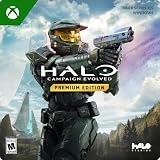
- PREMIUM EDITION CONTENT — Receive the Alpha Halo Armory Pack with 5 armor skins and 6 weapon skins, plus the Digital Artbook, Digital Short Story, and in‑game bonus content.
- A CLASSIC REIMAGINED — Experience the original Halo: Combat Evolved campaign rebuilt with high‑definition visuals, updated cinematics, refined controls, and a brand‑new three‑mission adventure.
- ENHANCED AUDIO & VISUALS — Relive every mission with modernized animations, a remastered soundtrack, and fully rebuilt sound design for deeper immersion across the Halo universe.
- NEW STORY CONTENT — Play as the Master Chief alongside Sgt. Johnson in Operation: Meteorite, a standalone campaign featuring new environments, enemies, and gameplay challenges.
- CO‑OP YOUR WAY — Play solo, in 2‑player split‑screen co‑op (console only), or up to 4‑player online co‑op with full crossplay and cross‑progression support.
Route B: use the community native Linux port
What the project is—and is not
halo-ce-universal describes itself as a port of the Halo: Combat Evolved decompilation to Linux, Windows and Android. The decompilation is identified as Xbox build 2342. The project does not distribute the game’s maps or other copyrighted data, and it is not an official Microsoft or Bungie release.
At first launch, the program can ask for an Xbox disc image in .xiso or .iso format and extract the maps/ directory beside the executable. Use a disc image you are legally entitled to use; do not download an unauthorized image or assume that an MCC installation supplies files for this Xbox-based port.
What’s actually slowing this PC down?
Pick the symptom - the matching free tool is one click away.
Linux executable and runtime requirements
The Linux build is a 32-bit x86 executable. Graphics use OpenGL 4.5, while SDL3 supplies sound and input. Your distribution must therefore provide 32-bit versions of the relevant libraries even if the rest of your desktop is 64-bit.
| Purpose | Documented components |
|---|---|
| Build tools | Python, Ninja and Clang |
| Build-time 32-bit support | 32-bit glibc development files and 32-bit SDL3 development files |
| Runtime graphics | 32-bit OpenGL libraries |
| Runtime audio | 32-bit PipeWire or PulseAudio client libraries |
Package names vary by distribution and can change as SDL3 packaging matures. The project’s Linux README should be treated as the current authority. The examples below illustrate the documented names; they are not an exhaustive dependency list.
- Arch Linux examples:
lib32-glibc,lib32-sdl3,lib32-mesaand the appropriate 32-bit audio client package. - Debian or Ubuntu examples:
gcc-multilib,libc6-dev-i386,libsdl3-dev:i386and the required 32-bit runtime libraries.
Build the port from source
- Install the project’s current prerequisites for your distribution, including Python, Ninja, Clang and the 32-bit development and runtime libraries.
- Obtain the project source and change to its repository root.
- Configure the build with
python configure.py. - Compile the Linux target with
ninja linux. - Launch the resulting executable at
build/linux/halo.
The project also links release builds. A prebuilt archive and a source build are different installation paths: do not assume that a release archive contains development files, and do not describe a locally compiled binary as an official distribution.
Rank #3

- Genre: First Person Shooter
Provide game data on first launch
- Keep your legally obtained Xbox disc image available in
.xisoor.isoformat. - Start
build/linux/halofrom the project’s expected directory. - If the game data is not found, use the prompt to select the image.
- Allow the program to extract the
maps/folder next to the executable. - Restart the program and confirm that the campaign map list loads.
If the executable starts but reports missing maps, the usual distinction is important: this is a data-location problem, not proof that OpenGL or SDL3 failed. Verify that the extracted folder is named maps, is beside the executable as the README specifies, and came from the image you selected.
Do these 3 things before closing this tab:
1Clear out junk files and repair common Windows errors2Scan for outdated or missing drivers - takes under a minute3Repair Windows errors before they cause bigger problemsControls and display expectations
The native port supports keyboard and mouse as well as gamepads. Its documented keyboard layout follows the familiar WASD movement and mouse aiming scheme, while controller users can use the project’s controller mapping. A gamepad is optional; you do not need to buy a controller to play.
OpenGL 4.5 support is a requirement of the port, not a promise of a particular frame rate. Check that your 32-bit OpenGL driver is installed and that the game is using the intended GPU. On hybrid-graphics laptops, selecting the discrete GPU may be a distribution-specific step outside the project itself.
Multiplayer and custom maps
The project documents campaign play and system-link games over a local network or the internet. It describes its own new netcode and a capacity of up to 128 players on up to 128 machines. That is a project-stated capability, not an official Halo service guarantee, and it should not be confused with MCC matchmaking or Xbox cross-play.
Many PC menu functions are not wired up yet. Custom Edition and OpenSauce maps require an experimental setting, and the project warns that custom-map behavior may not support every map function. Treat these features as development-stage functionality: keep a backup of your working data, expect menu omissions and do not assume that every legacy map will load.
Rank #4
Why old Wine guides are a poor starting point
Community instructions for the original Halo PC/CE and modifications have used PlayOnLinux and Wine versions such as 3.5 and 1.9.19-staging. Those guides show that a Wine-based route has been attempted, but their version-specific steps are stale. Reproducing them today can introduce obsolete prefixes, unsupported installers and dependencies that no longer match your distribution.
For a current installation, prefer MCC through Steam’s compatibility workflow or the native project’s current Linux README. Use a legacy Wine guide only as historical context, not as a guaranteed recipe.
Troubleshoot by symptom
MCC does not launch at all
- Confirm that Steam itself runs natively on your distribution and that MCC is fully downloaded.
- Check 32-bit graphics support and your GPU driver. MCC’s published requirements target Windows, so a Linux installation needs the corresponding compatibility libraries as well.
- Open the game’s Properties and verify that a compatibility tool is selected. If a recent game update caused the failure, test another installed tool rather than assuming one version is permanently correct.
- Capture the exact error and tool version before changing multiple settings; otherwise you cannot tell which change helped.
Campaign works but multiplayer fails
Campaign success does not validate anti-cheat or matchmaking. On Steam Deck, review the dated caveats about anti-cheat launch-option confusion, party transitions and cross-device co-op. For input-restricted matchmaking, set Preferred Input Device to Gamepad as the support article advises. On desktop Linux, verify current support notes because Deck-specific status does not apply automatically.
The native executable reports missing libraries
Recheck the 32-bit runtime, not just the 64-bit packages. The port needs 32-bit OpenGL and a 32-bit PipeWire or PulseAudio client at run time. A successful source build can still fail to start if those runtime libraries are absent.
The native build fails during configuration or linking
Install the documented build tools and development packages: Python, Ninja, Clang, 32-bit glibc development files and 32-bit SDL3 development files. Distribution package names differ, so compare your installed packages with the current Linux README instead of substituting similarly named 64-bit packages.
Best Value
- Features seven of the most popular multiplayer maps in Halo history
- Co-op play over Xbox LIVE
- New achievements, new challenges, and a new story to uncover
The native port starts but cannot find the campaign
Supply the Xbox .xiso or .iso image when prompted and let the program extract maps/. Confirm the folder is beside the executable. The project cannot supply this data for you, and an MCC download is not a documented substitute for the Xbox image required by this port.
Custom maps or menus are incomplete
This is a documented project limitation rather than necessarily a bad installation. Many PC menu functions are not yet wired up, and Custom Edition/OpenSauce support is experimental. Test with the original campaign first, then enable experimental custom-map features only when you accept that some map functions may not work.
Do you need a controller?
No. The native port supports keyboard and mouse, and MCC can be played with those devices where the compatibility environment exposes them correctly. A PC game controller is an optional convenience, especially for the Steam Deck-style input model. Do not treat a controller as a Linux requirement or as a fix for missing 32-bit libraries, anti-cheat errors or absent game data.
Windows Errors? Fix Them Before They Spread
Repair common Windows errors and clear accumulated junk for a smoother, more stable PC - no reinstall needed.Free scan · no reinstallOutdated Drivers Are Slowing You Down
One free scan finds every outdated or missing driver and matches the right update for your exact hardware.Free scan · exact hardware matchWhich installation should you choose?
- Choose Steam MCC when you want Halo: Combat Evolved Anniversary from the official Steam collection, are comfortable with a compatibility layer and want MCC’s established launcher and services. Expect Linux-specific variability and check current support notes for multiplayer.
- Choose the native port when you specifically want a native Linux executable, can install 32-bit OpenGL/SDL3/audio dependencies and possess legitimate Xbox game data. Expect experimental menus and custom-map support, and use the project’s own networking rather than assuming MCC compatibility.
- Avoid treating old Wine recipes as a third equal option. Their historical version pins are not current installation guidance.
In short, Linux can run Halo CE, but “playable” describes different things here: MCC is a Windows-targeted Steam game operating through compatibility software, while the community project is a native executable that you assemble around your own Xbox data. Select the route that matches the edition, multiplayer service and technical work you actually want.
Quick Recap
Product prices and availability are accurate as of the date/time indicated and are subject to change. Any price and availability information displayed on Amazon at the time of purchase will apply.

